
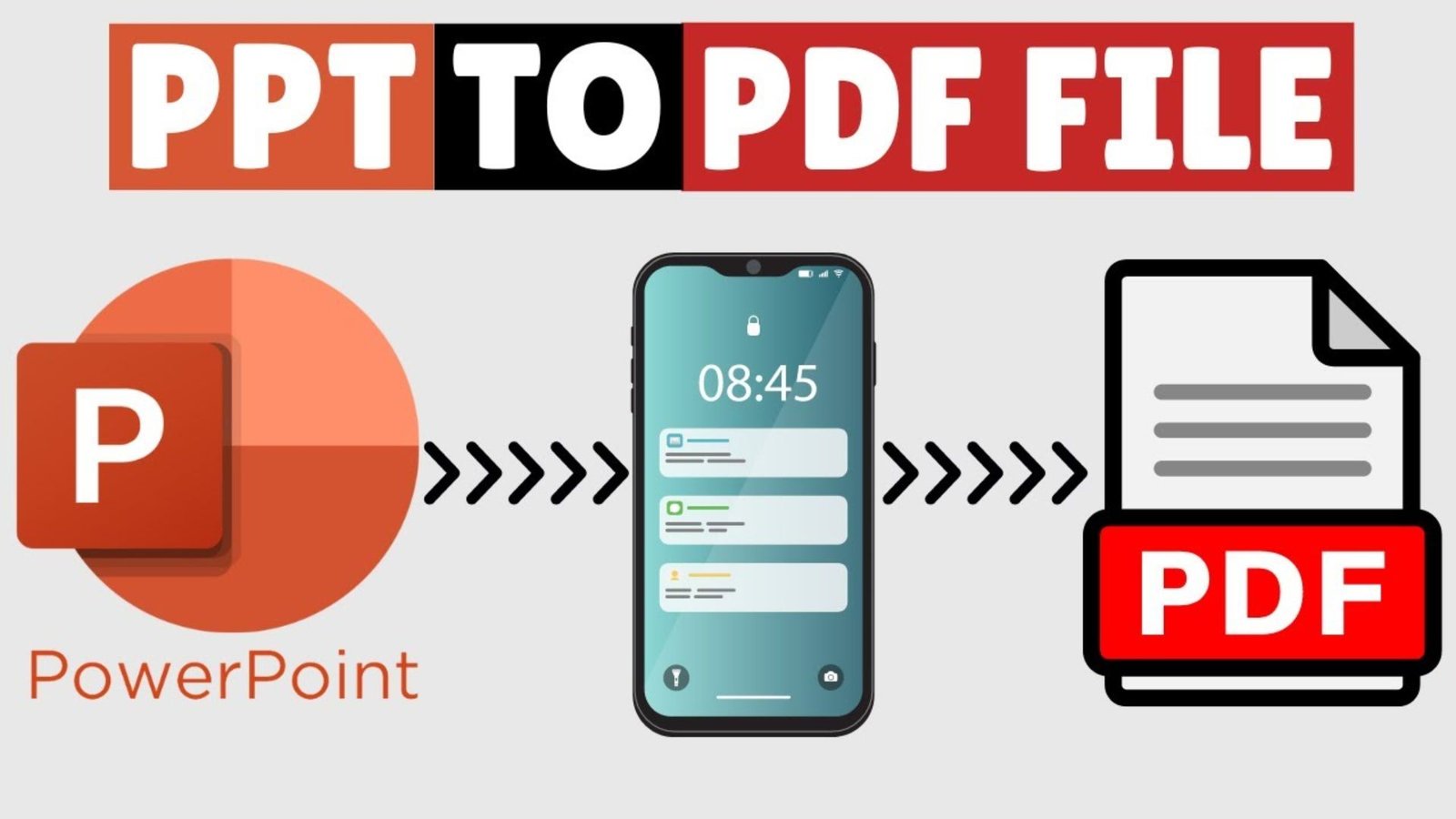
PPT to PDF: How to Convert PowerPoint to PDF for Free
PowerPoint presentations are useful for creating business reports, school projects, and professional slideshows. However, sharing them can cause formatting problems when fonts, layouts, or images appear differently on another device. Converting your PPT to PDF helps preserve the appearance of your slides and makes the document easier to share, print, and view. You can complete this process for free using desktop software, browser-based tools, or presentation applications.
What Is PPT to PDF Conversion?
PPT to PDF conversion is the process of changing a PowerPoint presentation into a Portable Document Format (PDF) file. PowerPoint presentations commonly use the .ppt or .pptx file extension.
A PDF displays slides as fixed pages, helping maintain their layout across different devices and operating systems. This format is useful for sharing presentations with people who do not have PowerPoint installed.
The main benefits include:
- Consistent formatting: Helps preserve the original arrangement of text, images, and charts.
- Easy sharing: Recipients can open the file with a compatible PDF reader.
- Convenient printing: Makes it easier to print slides or presentation handouts.
- Simple storage: Provides a practical format for archiving completed presentations.
- Broad compatibility: Works across many computers, tablets, and smartphones.
However, a standard PDF does not preserve every PowerPoint feature. Animations, slide transitions, embedded videos, and interactive elements may become static or behave differently after conversion.
How to Convert PPT to PDF for Free
You can convert a PowerPoint presentation using desktop software or an online converter. The best method depends on your file size, privacy requirements, available software, and formatting needs.
Method 1: Convert PPT to PDF Using Microsoft PowerPoint
Microsoft PowerPoint provides a convenient way to export a presentation as a PDF.
Follow these steps:
- Open your
.pptor.pptxfile in PowerPoint. - Select File from the top menu.
- Choose Save As or Export, depending on your version.
- Select PDF as the output format.
- Choose a filename and destination folder.
- Adjust the available publishing options if necessary.
- Click Save or Publish.
Open the resulting PDF and check that every slide appears correctly.
Best for: Users who already have PowerPoint installed and want to convert presentations without uploading files to an external website.
Method 2: Use a Free Online PPT to PDF Converter
An online PPT to PDF converter lets you convert presentations through your browser without installing a desktop application.
Follow these steps:
- Open a reputable online conversion service.
- Upload your PowerPoint presentation.
- Wait for the service to process the file.
- Select the conversion option.
- Download the completed PDF.
- Open the file and review the slides.
Some services also offer PDF merging, compression, and batch conversion. However, file-size limits, daily usage restrictions, and available features depend on the provider.
Privacy tip: Avoid uploading confidential presentations, financial records, personal information, or unpublished research to unfamiliar websites. Review the provider’s privacy policy before uploading sensitive files.
Method 3: Convert PPT to PDF Using Google Slides
Google Slides is a practical alternative for users who prefer working in a browser.
- Open Google Slides.
- Import your PowerPoint presentation.
- Review the slides for formatting differences.
- Open the File menu.
- Select Download and choose PDF Document (.pdf).
- Save the file and inspect the finished document.
This method is useful when desktop PowerPoint is unavailable. However, complex layouts, custom fonts, and embedded objects may not transfer exactly when the original presentation is imported.
Method 4: Convert PPT to PDF with Adobe Acrobat
Adobe Acrobat offers PDF creation and document-management tools. The available PowerPoint conversion options depend on your version and subscription.
To convert a presentation:
- Open Adobe Acrobat if your version supports the required conversion.
- Find the option to create a PDF from a file.
- Select your PowerPoint presentation.
- Follow the instructions to create the PDF.
- Save the document and review the output.
If your version does not support direct PowerPoint conversion, use PowerPoint’s built-in export feature instead.
Best for: Users who already work with Adobe Acrobat and need additional PDF editing or document-management features.
Method 5: Convert a Canva Presentation to PDF
Canva allows users to create presentations and export them in supported formats. It is particularly useful for slides containing custom layouts, illustrations, branding, and visual elements.
Follow these steps:
- Open your presentation in Canva.
- Select Share or the download option.
- Choose Download.
- Select PDF Standard or PDF Print, depending on your needs.
- Choose the pages you want to export, if applicable.
- Download and review the file.
PDF Standard is generally suitable for digital sharing, while PDF Print is designed for print-oriented output. Available options may vary by account and design.
Best for: Designers, students, marketers, and businesses that create presentations in Canva.
Best PPT to PDF Converter: Comparison Table
Choosing the right converter depends on convenience, privacy, formatting requirements, and additional features.
| Tool or method | Free option | Installation | Main advantage | Best use |
|---|---|---|---|---|
| Microsoft PowerPoint | Export availability depends on the product | Usually required for desktop use | Direct export from the original presentation | Professional documents |
| Google Slides | Yes | No desktop installation required | Browser-based workflow | Students and everyday users |
| Adobe Acrobat | Depends on the product and plan | Depends on the version | PDF management features | Editing and managing PDFs |
| Canva | Yes, subject to available features | No desktop installation required | Presentation design and export | Visual presentations |
| Online converter | Often available | No | Quick browser-based conversion | Occasional conversions |
| LibreOffice Impress | Yes | Yes | Free desktop presentation software | Offline conversion |
| Mobile presentation app | Depends on the app | Usually required | Conversion from a phone or tablet | Mobile users |
Feature availability, pricing, file limits, and supported formats may change. Check the current terms of each service before relying on a specific feature.
How to Convert PPT to PDF Online
An online PPT to PDF converter is useful when you need a quick result without installing software.
Steps for Online Conversion
- Choose a converter with a clear privacy policy.
- Confirm that it supports
.pptor.pptxfiles. - Upload your presentation.
- Wait for the conversion to finish.
- Download the PDF.
- Open the document and verify the layout.
Before uploading, confirm that you selected the correct file. If your presentation contains confidential information, consider using an offline conversion method.
What to Check Before Using a Converter
Look for these practical features:
- Support for older PPT and newer PPTX formats.
- Clear upload and download instructions.
- Reasonable file-size limits.
- No unexpected software installation requirements.
- Transparent privacy and file-retention policies.
- Options for selecting slides or processing multiple files, if needed.
A free converter is not automatically the safest or best choice. Select a service based on its actual features and privacy practices rather than promotional claims.
How to Convert PPT to PDF on Windows
Windows users can usually export presentations directly from PowerPoint.
- Open the presentation in PowerPoint.
- Select File.
- Choose Export or Save As.
- Select PDF as the output format.
- Choose the destination folder.
- Adjust the publishing settings if required.
- Save the PDF.
If you do not have PowerPoint, LibreOffice Impress is a free desktop alternative that can open many PowerPoint files and export them as PDFs.
For better results, check your fonts, images, slide dimensions, and page orientation before exporting.
How to Convert PPT to PDF on Mac
Mac users can export presentations through Microsoft PowerPoint for macOS or compatible presentation software.
Open the presentation, choose the appropriate export or save option, and select PDF. Review the available settings before saving the file.
If your presentation contains custom fonts, check that the PDF displays them properly. Some fonts may be substituted if they are unavailable or cannot be embedded.
LibreOffice Impress is another option for users who need free desktop presentation software.
How to Convert PPT to PDF on Android and iPhone
You can convert a presentation on a smartphone or tablet without transferring it to a computer.
On Android
- Open the presentation in a compatible PowerPoint or presentation app.
- Find the Share, Export, or Save As menu.
- Select PDF if the option is available.
- Save the document to your device or cloud storage.
- Open the PDF and check the pages.
On iPhone or iPad
- Open the presentation in Microsoft PowerPoint or another compatible application.
- Find the export or sharing options.
- Choose PDF if supported.
- Save the file to the Files app or another supported location.
- Review the exported document.
Menu names vary by application and version. If direct export is unavailable, you can use a compatible online converter for non-sensitive files.
How to Combine PPT to PDF Files
Sometimes you need to turn several presentations into one PDF document. For example, a teacher may want to combine lecture slides, or a business may need one document containing several presentations.
Option 1: Combine the Slides Before Exporting
Import or copy the slides into a single PowerPoint presentation if you want them to appear in one continuous sequence.
Then export the combined presentation as a PDF.
This method lets you rearrange slides, remove duplicates, and apply consistent formatting before conversion.
Option 2: Convert the Presentations and Merge the PDFs
If you want to keep each presentation separate during conversion, export every file to PDF and merge the resulting documents using a compatible PDF tool.
Check the order of the files before merging. Also confirm whether the tool supports bookmarks, page rotation, and page selection if these features matter to your document.
How to Maintain Formatting During PPT to PDF Conversion
A presentation can look different after conversion if its fonts, images, or layouts are not handled correctly. A few checks can help you avoid common problems.
Use Compatible Fonts
Unusual or unavailable fonts can change the appearance of text. Use fonts supported by your software and check whether font embedding is available.
Check Image Quality
Inspect photographs, charts, logos, and diagrams after conversion. If the PDF looks blurry, review the export quality settings or use a print-oriented PDF option when appropriate.
Review Slide Dimensions
Confirm that your presentation uses the intended slide size. Unusual dimensions can create unexpected margins or scaling when the PDF is exported.
Inspect Charts and Tables
Small labels, dense tables, and complicated charts may become difficult to read. Increase text size or simplify the layout before converting if necessary.
Check Hyperlinks and Special Elements
Some hyperlinks may remain clickable, but animations, transitions, embedded media, and interactive features may not work as they did in PowerPoint.
Always inspect the exported PDF before sending it to clients, teachers, colleagues, or customers.
Is There a Free PPT to PDF Converter Without Downloading Software?
Yes. Several browser-based services offer free PowerPoint-to-PDF conversion without requiring a desktop installation. Google Slides can also export supported presentations as PDFs after you import them.
A free online converter is a good choice when you need to convert a file occasionally. However, free plans may restrict file size, daily conversions, batch processing, or advanced editing.
For presentations containing private or business-sensitive information, an offline converter is often preferable because you can avoid uploading the original file to an external website.
How to Convert PPT to PDF Without Losing Animations
A standard PDF generally displays slides as static pages rather than reproducing a complete PowerPoint slideshow. Animations, slide transitions, and embedded videos may not work as expected.
If you need to preserve animated content, consider these alternatives:
- Keep the original PowerPoint file: Best when recipients need the full slideshow experience.
- Export a video: Useful when you want to preserve supported animations, recorded timings, and narration.
- Export selected slides as images: Helpful when you need static visuals for a report or another document.
- Create a PDF handout: Useful when you want multiple slides on each printed page.
Choose the output format according to how your audience will use the presentation. PDF works well for fixed layouts, while PowerPoint or video is usually more suitable for animated content.
Common PPT to PDF Conversion Problems and Solutions
| Problem | Possible cause | Recommended solution |
|---|---|---|
| Fonts look different | Missing or substituted fonts | Use compatible fonts and check embedding options |
| Images look blurry | Low export resolution or compression | Adjust quality settings and inspect the original images |
| Slides appear cropped | Incorrect dimensions or scaling | Review page size and export settings |
| File size is too large | High-resolution images or embedded media | Compress images or optimize the PDF |
| Hyperlinks do not work | Export limitations or missing link support | Test links and try another export method |
| Blank pages appear | Incorrect publishing settings or source-file issues | Review slide selection and export options |
| Formatting changes | Unsupported objects or conversion differences | Export directly from PowerPoint and compare the output |
| Conversion fails | Damaged file, unsupported format, or upload limit | Reopen the original file and try another compatible tool |
If a conversion fails repeatedly, save a fresh copy of the presentation and try again. If the problem affects only a few slides, inspect those slides for unusual fonts, oversized images, or unsupported objects.
Is PPT to PDF Safe for Confidential Files?
The safest conversion method depends on the sensitivity of your presentation and the software available to you.
A desktop application that processes files locally can reduce the need to share your presentation with a third-party service. An online converter, by comparison, may require you to upload the file to its servers.
Before choosing an online service:
- Read its privacy and file-retention policies.
- Check whether uploaded files are deleted automatically.
- Avoid uploading confidential or restricted documents.
- Use trusted software and keep it updated.
- Store the resulting PDF in a secure location.
- Apply PDF permissions or encryption when appropriate and supported.
Converting a presentation to PDF does not automatically remove confidential information. Review the finished document before distributing it, particularly if the slides contain sensitive figures or private details.
How to Choose the Right PPT to PDF Converter
The best converter is the one that meets your requirements without adding unnecessary steps.
Use these guidelines when making your decision:
- For occasional conversions: Choose a reputable free online tool if the file is not sensitive.
- For business presentations: Export directly from PowerPoint when possible.
- For graphic-heavy slides: Check the PDF output carefully and use suitable quality settings.
- For offline work: Use PowerPoint or LibreOffice Impress.
- For Canva designs: Export directly from Canva.
- For multiple documents: Choose software that supports batch conversion or PDF merging.
- For confidential information: Prefer a trusted local application.
You do not need a paid converter for every task. Many everyday presentations can be converted using existing software or free tools, provided that the output meets your quality and privacy requirements.
Best Practices Before Sharing Your PDF
A final review can prevent errors and help your document look professional.
Before sharing your converted presentation, confirm that:
- Every required slide appears in the PDF.
- The slides follow the correct order.
- Text is readable at normal viewing size.
- Images and charts display clearly.
- No important content is cut off.
- Page orientation is correct.
- Hyperlinks work where expected.
- The filename is clear and professional.
- The PDF contains only information you intend to share.
For important documents, open the PDF on a second device or in a different PDF reader. This quick check can reveal display problems that may not be obvious in the original software.
Frequently Asked Questions About PPT to PDF
1. How do I convert PPT to PDF for free?
You can convert a PowerPoint presentation for free by exporting it through Microsoft PowerPoint, Google Slides, LibreOffice Impress, or a free online converter. Select PDF as the output format, save the file, and check the result.
2. Which is the best free PPT to PDF converter?
The best option depends on your needs. Microsoft PowerPoint is convenient for direct export, Google Slides offers a browser-based workflow, and LibreOffice Impress is a free desktop alternative. Online converters are useful for quick conversions when privacy is not a concern.
3. Can I convert PPT to PDF online without installing software?
Yes. An online PPT to PDF converter lets you upload a compatible presentation, convert it, and download the PDF through your browser. Check the service’s privacy policy and file limits before uploading your document.
4. How do I convert PPT to PDF without losing formatting?
Use the original presentation software to export the PDF whenever possible. Check fonts, slide dimensions, images, charts, and page layouts before sharing the file. Complex animations and embedded videos may not transfer to a standard PDF.
5. Can I convert PPT to PDF on my mobile phone?
Yes. Compatible PowerPoint apps and other presentation applications may offer PDF export on Android and iPhone. If direct export is unavailable, you can use a browser-based converter for files that are appropriate to upload.
6. Can I combine multiple PowerPoint presentations into one PDF?
Yes. You can combine the slides into one presentation and export them together, or convert each presentation separately and merge the resulting PDFs. Check the page order and formatting before sharing the final document.
Conclusion
Converting PowerPoint presentations into PDFs makes documents easier to share, print, and view across different devices. Whether you choose Microsoft PowerPoint, Google Slides, Adobe Acrobat, Canva, LibreOffice Impress, or an online converter, the right method depends on your software, privacy needs, and formatting requirements.
For most users, exporting directly from PowerPoint is a convenient starting point. If you need a quick conversion without installing software, a reputable online tool may be suitable for non-sensitive files. Always review the finished PDF to ensure that the slides, fonts, images, and page order are correct.
Ready to convert your presentation?
Choose the method that fits your needs, save your PDF, and check the final document before sharing it.
Editorial trust note:
This guide explains common conversion workflows and practical limitations. Software features and export options can vary by version and subscription. For technical verification, consult official documentation from Microsoft, Adobe, Google Workspace, Canva, and The Document Foundation (LibreOffice).



One Comment