
Stirling PDF: Is It Safe, What Can It Do, and How Does It Compare?
Editing, merging, and converting PDF files should not require expensive software or uploading confidential documents to unfamiliar websites. Yet many PDF tools limit essential features, charge subscription fees, or create privacy concerns. Stirling PDF offers an alternative through a broad collection of PDF utilities, with self-hosting options for users who want greater control over their files. Understanding its security model, editing limitations, and deployment choices will help you decide whether it fits your needs.
What Is Stirling PDF?
Stirling PDF is an open-source application that brings numerous PDF tools into one interface. Users can perform common document tasks, including merging files, splitting pages, compressing documents, rotating pages, adding watermarks, and converting supported file formats.
Unlike a traditional desktop PDF editor, Stirling PDF can run as a web application. You can access it through a browser, while the application processes documents on the server or environment where it is deployed.
Its main appeal is flexibility. Individuals can use a hosted version where available, while technically confident users and organizations can deploy their own instance on a computer, server, or Docker environment.
Key benefits include:
- A wide range of PDF utilities in one application.
- An open-source codebase that can be inspected.
- Self-hosting options for greater control over document processing.
- Browser-based access to supported tools.
- Docker deployment for easier installation and management.
- A practical alternative for many routine PDF operations.
The exact features available depend on the installed version, configuration, and deployment method.
Stirling PDF Features List: What Can You Do With It?
The Stirling PDF features list covers document editing, page organization, conversion, security, and automation. The application is useful for people who need several PDF utilities without maintaining separate programs for every task. GitHub+2
Complete feature comparison table
| Feature | What it does | Best use case |
|---|---|---|
| Merge PDF | Combines multiple files | Reports and assignments |
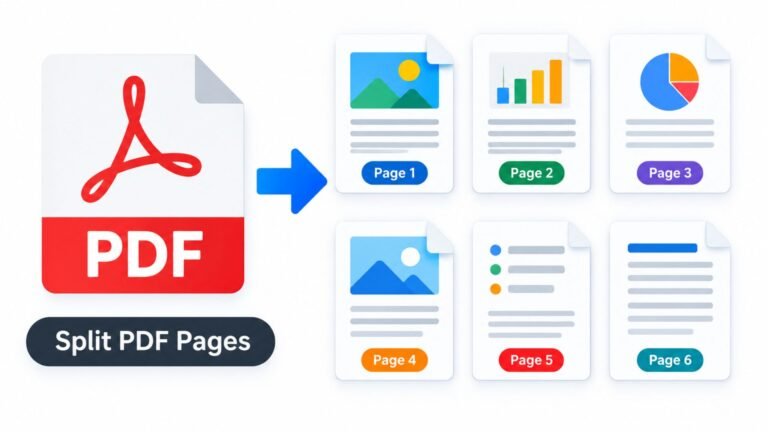
| Split PDF | Separates a document into smaller files | Extracting selected chapters |
| Compress PDF | Reduces file size | Email attachments |
| Rotate pages | Corrects page orientation | Scanned documents |
| Reorder pages | Moves pages into the desired sequence | Organizing reports |
| Delete pages | Removes unwanted pages | Cleaning up documents |
| Edit PDF text | Changes supported existing text and images | Correcting document content |
| Add text | Places new text on a page | Adding labels or notes |
| Annotate PDF | Adds highlights, comments, and drawings | Reviewing contracts |
| Convert PDF | Converts supported formats | Document sharing |
| OCR | Extracts searchable text from scanned pages | Digitizing paper records |
| Add page numbers | Numbers document pages | Manuals and reports |
| Add watermark | Places text or images across pages | Draft identification |
| Add password | Protects access to a document | Confidential file sharing |
| Sign PDF | Adds a signature | Routine document approval |
| Digital certificate signing | Applies certificate-based signatures | Document authenticity workflows |
| Redact PDF | Permanently removes selected visible content when properly applied | Protecting sensitive information |
| Edit metadata | Changes document properties | Removing unnecessary document details |
| Repair PDF | Attempts to recover damaged files | Opening problematic documents |
| Compare PDFs | Highlights differences between documents | Reviewing revisions |
| Automate tasks | Chains supported operations into workflows | Repetitive document processing |
Availability varies by version, deployment, and configuration. Review the official tool documentation before relying on a feature for an important workflow.
Which Stirling PDF features matter most?
For everyday users, merging, splitting, compression, and page organization provide the greatest immediate value. They solve common problems without requiring advanced technical knowledge.
For businesses, OCR, document security, metadata management, and automation can be more valuable. Developers can also use its API to integrate supported PDF operations into existing applications and workflows.
Is Stirling PDF Safe to Use?
The question “is Stirling PDF safe?” deserves a practical answer: it can be a good privacy-conscious choice, especially when you control the installation, but safety depends on how you use and configure it.
Stirling PDF supports self-hosting, which allows users to process documents on infrastructure they manage. Its open-source code is available for inspection, and the project provides tools for document security and sanitization. However, open-source availability alone does not guarantee that every installation is secure. GitHub+1
Important security considerations
- Choose your deployment carefully. A self-hosted installation gives you more control than an unfamiliar third-party instance.
- Keep the software updated. Security fixes and improvements may arrive in newer releases.
- Restrict access. Use appropriate authentication and permissions when other people can reach your server.
- Protect network traffic. Configure HTTPS when accessing an instance over a network.
- Review file handling. Check storage settings, logs, backups, and retention practices.
- Verify redaction. Make sure sensitive text cannot be recovered through text extraction, search, or copied content.
- Use trusted downloads. Obtain the application from the official project or its documented distribution channels.
Is Stirling PDF safe for confidential documents?
A properly configured local or self-hosted installation can be suitable for many confidential-document workflows. However, businesses handling legal, financial, medical, or regulated information should also evaluate access controls, retention requirements, backups, audit capabilities, and organizational policies.
For particularly sensitive files, test the entire process before using real records. A tool that runs on your own server still needs secure administration.
Is Stirling PDF Open Source?
Yes. Stirling PDF has an open-source codebase, and its official GitHub repository provides access to source code, releases, project information, and contribution resources. The project describes its current offering as an open-core PDF platform, so users should review the applicable license and terms for their intended use. GitHub+1
What does open source mean for users?
Open-source software offers several practical advantages:
- Transparency: Technical users can inspect available source code.
- Customization: Developers can adapt supported parts of the application within the applicable license terms.
- Self-hosting: Users can run the software on infrastructure they manage.
- Community contributions: Developers can report issues and contribute improvements.
- Integration: Supported APIs can connect PDF operations to other applications.
Open source does not automatically mean every feature is free under every deployment or business arrangement. Review current licensing information, particularly before incorporating the software into a commercial product.
Stirling PDF Review: Main Advantages and Disadvantages
A useful Stirling PDF review should consider both its extensive functionality and the effort required to manage it.
Advantages
- Multiple PDF tools in one application.
- Self-hosted deployment options.
- Open-source code availability.
- Browser-based interface.
- Support for common document workflows.
- Automation and API capabilities.
- Greater control over document storage when self-hosted correctly.
Disadvantages
- Self-hosting requires technical knowledge and maintenance.
- Resource-intensive conversions may need additional memory.
- Some operations can change formatting or produce unexpected results.
- Feature availability can differ between deployments.
- A publicly exposed server needs careful security configuration.
- Editing complex PDF layouts may be less convenient than using a dedicated professional editor.
Who should use Stirling PDF?
Students and teachers
Combine assignments, compress submissions, reorder pages, and make scanned notes searchable.
Small businesses
Organize invoices, add page numbers, process reports, and manage routine document workflows.
IT teams and developers
Deploy a controlled PDF service and integrate supported operations into internal systems.
Document-heavy professionals
Review, annotate, convert, compare, and organize PDFs using one toolkit.
It may be less suitable for someone who wants a fully managed service without technical maintenance or who depends on specialized desktop publishing and advanced document-layout features.
Stirling PDF Text Editing Capabilities: Can You Edit Existing Text?
One common question is whether Stirling PDF can edit text that already exists in a document. Yes, its documented PDF Text Editor supports editing existing text and images, but the result can depend on the PDF’s structure, fonts, and layout. The official guide warns that fonts and page layout may shift slightly after editing. Stirling PDF+1
How to edit text in Stirling PDF
- Open Stirling PDF and select the PDF Text Editor.
- Upload or open the document you want to change.
- Select the supported text or image element.
- Make your changes using the available editing controls.
- Save or download the edited PDF.
- Reopen the output and check its formatting.
The exact controls may vary by release.
Why Stirling PDF cannot edit existing text in some files
If Stirling PDF cannot edit existing text, the document may contain scanned pages, unusual fonts, complex layouts, or content that the editor cannot handle as expected.
Try these troubleshooting steps:
- Check for scanned pages: Run OCR to create a searchable text layer where supported.
- Try a simpler PDF: Test whether the problem affects one document or every file.
- Check font availability: Missing or embedded fonts can affect how edited text appears.
- Review document permissions: Restrictions or digital signatures may affect editing.
- Update the application: Confirm that you use a current, supported version.
- Inspect the saved file: Check alignment, spacing, line breaks, and page dimensions.
OCR does not automatically recreate a document’s original editable layout. If you need to rewrite an entire page or substantially redesign a complex file, a dedicated PDF editor or the original Word document may be a better starting point.
Stirling PDF vs Adobe Acrobat: Which Is Better?
The comparison between Stirling PDF and Adobe Acrobat comes down to cost, control, editing needs, and workflow requirements.
This comparison describes general product strengths rather than a feature-by-feature test of specific subscription tiers.
| Factor | Stirling PDF | Adobe Acrobat |
|---|---|---|
| Main appeal | Broad PDF toolkit with self-hosting options | Commercial PDF editing and document workflows |
| Open-source code | Yes, with applicable license terms | No |
| Self-hosting | Supported | Not its primary desktop workflow |
| Merge and split | Supported | Supported |
| PDF text editing | Supported, with document-dependent limitations | Advanced editing tools available |
| OCR | Available in supported configurations | Available in supported products |
| Digital signatures | Certificate-based signing tools available | Digital signature and e-signature workflows available |
| Business integrations | APIs and automation options | Commercial integrations and document services |
| Setup | Browser, desktop, or server depending on edition | Desktop and cloud-based options |
| Best fit | Users who value flexibility and deployment control | Users who need a commercial document-management ecosystem |
When should you choose Stirling PDF?
Choose Stirling PDF if you mainly merge files, organize pages, convert documents, annotate PDFs, or want control over your own processing environment.
When should you choose Adobe Acrobat?
Adobe Acrobat may be a better fit if your work depends on extensive document editing, established business workflows, collaboration features, or other tools available in your selected Acrobat plan.
Before deciding, compare the exact features, licensing conditions, and total cost for your intended workflow.
BentoPDF vs Stirling PDF: Key Differences
BentoPDF is another option for users who want a broad collection of PDF tools. Its documented approach emphasizes processing files locally in the browser using WebAssembly, while Stirling PDF offers desktop, browser, and self-hosted server options. BentoPDF+2
| Comparison factor | Stirling PDF | BentoPDF |
|---|---|---|
| Main approach | Browser, desktop, or server deployment | Browser-based local processing, with self-hosting available |
| File processing | Depends on the selected deployment | Browser tools process files locally |
| Self-hosting | Yes | Yes |
| PDF editing | Existing text and images, plus annotations | Editing and annotation tools, with support depending on the operation |
| OCR | Available in supported configurations | Available with appropriate browser or deployment setup |
| Automation | API and workflow features | Depends on available tools and deployment |
| Technical administration | Needed for a managed self-hosted server | Needed when self-hosting |
| Strongest appeal | Deployment flexibility and server-side workflows | Local browser processing and straightforward access |
Is BentoPDF better than Stirling PDF?
BentoPDF may suit you better if you want to process everyday PDFs directly in your browser without setting up a server. Stirling PDF may be more appropriate if you want a dedicated document-processing service, server-side workflows, or API integrations.
Neither tool wins every category. Test the operations you actually use, especially OCR, conversion, text editing, and processing of large files.
Stirling PDF Docker Compose: How to Deploy It
Docker Compose is a practical way to run Stirling PDF on a personal server or development machine. The official documentation recommends Docker for server deployment and provides a Compose configuration with persistent storage and configuration directories. Stirling PDF+1
Basic Docker Compose configuration
Create a file named docker-compose.yml and add the following example:
services:
  stirling-pdf:
    image: docker.stirlingpdf.com/stirlingtools/stirling-pdf:latest
    container_name: stirling-pdf
    ports:
      - "8080:8080"
    volumes:
      - ./stirling-data/configs:/configs
      - ./stirling-data/logs:/logs
      - ./stirling-data/customFiles:/customFiles
      - ./stirling-data/pipeline:/pipeline
      - ./stirling-data/storage:/storage
      - ./stirling-data/tessdata:/usr/share/tessdata
    restart: unless-stopped
This is a starting point, not a complete production security configuration. Resource limits, authentication, HTTPS, and network restrictions should match your environment.
Start the Stirling PDF container
Run these commands in the directory containing your Compose file:
docker compose up -dCheck the container status:
docker compose psThen open http://localhost:8080 on the same computer. For remote access, configure the server and network securely before exposing the application.
Important Docker deployment tips
- Keep configuration and storage directories persistent.
- Back up your files and configuration before upgrades.
- Review the current official first-login instructions and change any default credentials immediately.
- Avoid exposing the service publicly without appropriate access controls.
- Choose an image appropriate for your needs; reduced-size images may omit features such as OCR or office-document conversion.
- Pin a specific release rather than using
latestif you need predictable production upgrades.
Stirling PDF GitHub: Where Can You Find the Source Code?
The official Stirling PDF GitHub repository is the main place to review the source code, examine releases, report bugs, and explore development activity. The repository also links to project documentation and license information. GitHub+1
What can developers do with the repository?
Developers can use the repository to:
- Review implementation details and supported functionality.
- Check release notes before upgrading.
- Investigate reported bugs and known issues.
- Explore contribution guidelines.
- Learn about supported API and automation options.
- Review licensing before modifying or distributing the software.
Always verify that a download or container image comes from a trusted project source. Before deploying a new release, read its relevant notes and test it against representative documents.
How to Install Stirling PDF Without Docker
Docker is not the only way to use Stirling PDF. The project also offers desktop applications for Windows, macOS, and Linux, as well as server installation options. The best method depends on your technical experience and whether you want to process documents locally or provide access to multiple users. Stirling PDF+1
Follow these steps to choose an installation method:
- For beginners: Consider the desktop application or an available hosted option.
- For personal use: Choose a local installation if you want to keep document processing on your own computer.
- For technical users: Use Docker when you need a managed server or repeatable deployment.
- For businesses: Review authentication, network security, backups, and storage before allowing team access.
- For developers: Explore the API and automation documentation to determine whether Stirling PDF fits your workflow.
After installation, test merging, conversion, and text editing with sample documents before processing important files.
Stirling PDF vs Bento PDF: Which Should You Choose?
The decision depends on your preferred working environment rather than the number of tools alone.
Choose BentoPDF if you want a browser-first toolkit and value local processing without uploading documents to a processing server. Choose Stirling PDF if you want broader deployment choices, a dedicated server, or integration with server-side PDF workflows.
Before making a final choice, test these five tasks:
- Merge multiple PDF files.
- Edit existing text in a typical document.
- Convert an office document into a PDF.
- Run OCR on a scanned page.
- Process a large file without errors.
Compare the output quality, processing time, privacy requirements, and ease of use. This simple test gives you more useful information than choosing software based on feature counts alone.
Common Problems and Troubleshooting Tips
Even a capable PDF application can encounter problems when files contain unusual formatting, large images, encryption, or damaged document structures.
| Problem | Possible reason | What to try |
|---|---|---|
| PDF text will not edit | Scanned page or unsupported text structure | Try OCR or another editor |
| Conversion fails | Missing dependency or unsupported format | Check the installation and conversion requirements |
| Application feels slow | Large files or limited memory | Test a smaller file and review available resources |
| Output formatting changes | Font or layout compatibility | Inspect the output and try an alternative editing method |
| Docker data disappears | Missing or incorrectly configured persistent storage | Check mounted volumes and backups |
| Remote access fails | Network or HTTPS configuration | Review the server, firewall, and reverse proxy |
| Password-protected PDF will not open | Incorrect password or encryption restrictions | Verify the password and your authorization |
| OCR produces incorrect text | Poor scan quality or unsuitable language settings | Improve scan quality and check OCR language support |
Keep an untouched copy of important documents until you confirm that the processed version meets your requirements.
Frequently Asked Questions About Stirling PDF
1. Is Stirling PDF free to use?
Stirling PDF offers open-source software and self-hosting options. Available features and commercial terms can depend on the edition, deployment, and current licensing arrangements, so check the applicable terms before using it commercially.
2. Is Stirling PDF safe for private documents?
It can be suitable when you run it in a properly secured local or self-hosted environment. Protect access, update the software, and review file storage and retention settings before processing sensitive information.
3. Can Stirling PDF edit existing text?
Yes. Its PDF Text Editor supports editing existing text and images. However, complex layouts, embedded fonts, and scanned documents can create limitations or formatting changes.
4. What is the difference between Stirling PDF and BentoPDF?
Stirling PDF supports desktop, browser, and server deployment options. BentoPDF emphasizes browser-based local processing. Your choice should depend on privacy requirements, editing needs, automation, and preferred setup.
5. Can I run Stirling PDF with Docker Compose?
Yes. Docker Compose is a documented installation method. You can configure a container, expose its application port, and mount persistent directories for settings and files. Secure remote access before making the service available over a network.
6. Does Stirling PDF replace Adobe Acrobat?
It can replace Acrobat for many routine tasks, including merging, splitting, compression, annotations, and supported text editing. Users who rely on advanced editing, specialized business integrations, or particular commercial features should compare the exact capabilities of their chosen products.
Conclusion: Is Stirling PDF Worth Using?
Stirling PDF is a compelling option for people who want a flexible PDF toolkit without depending entirely on a conventional paid desktop editor. Its open-source foundation, wide range of document utilities, desktop options, and self-hosted deployment make it useful for individuals, developers, and businesses.
Its main limitation is that advanced editing and deployment still require careful attention. Existing text may not retain perfect formatting, and self-hosting introduces security and maintenance responsibilities.
The best next step is to test Stirling PDF with your own everyday tasks. Start with merging, compression, conversion, and text editing. If the results meet your needs and your deployment satisfies your privacy requirements, it may become a valuable part of your document workflow.

One Comment