
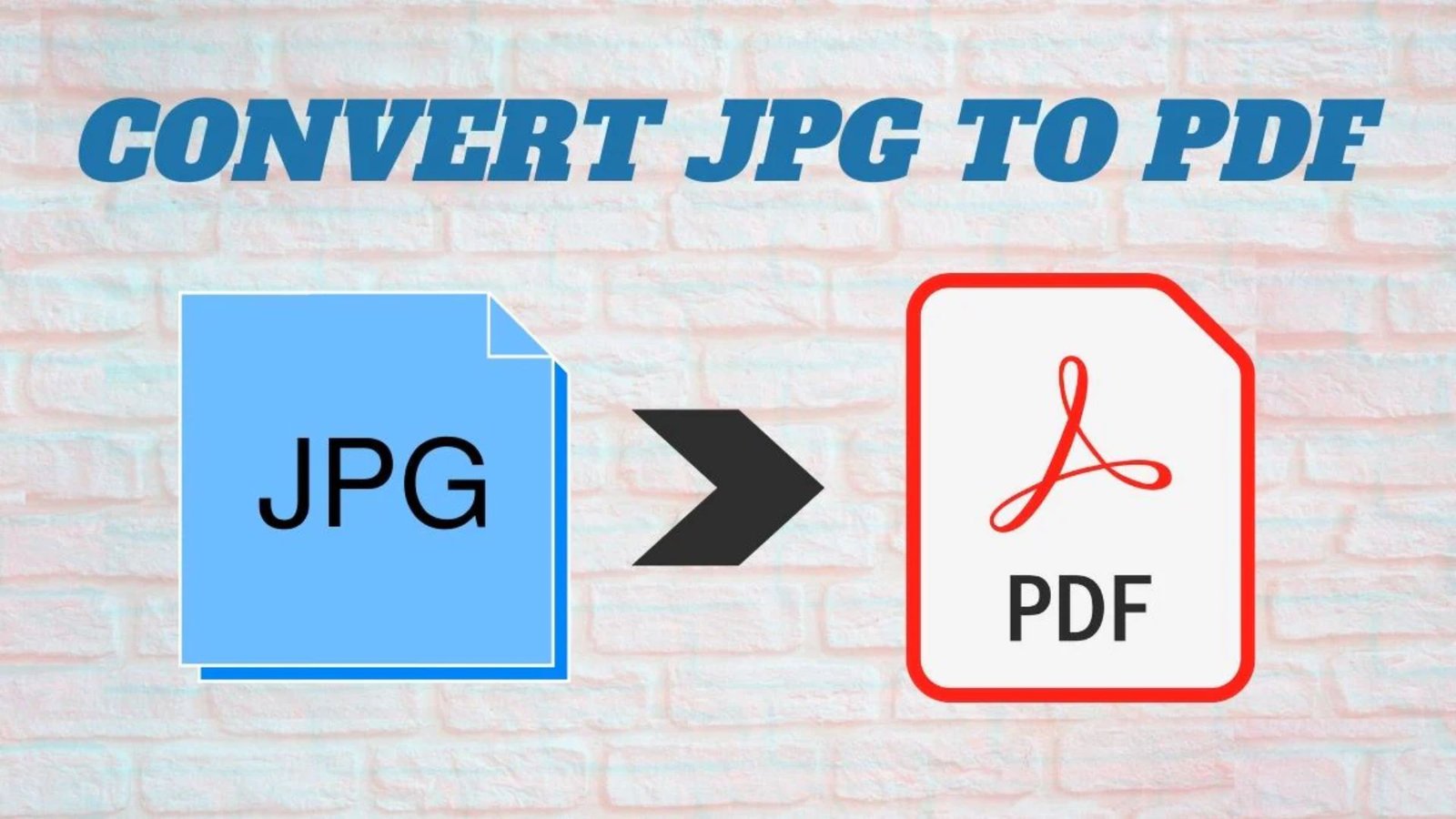
JPG to PDF Converter Free: How to Convert Images Easily
Need to turn photos, scanned documents, or image files into a single PDF? Finding a reliable jpg to pdf converter free tool can save time when preparing assignments, sharing receipts, submitting forms, or organizing business documents. The wrong tool may reduce image quality, add unwanted watermarks, or require registration. Fortunately, free online converters and offline applications offer simple ways to create PDFs. This guide explains how to choose a suitable tool, convert multiple images, protect your privacy, and avoid common mistakes.
What Is a JPG to PDF Converter Free?
A free JPG-to-PDF converter is a website, desktop program, or mobile application that turns an image file into a Portable Document Format (PDF) document without requiring payment for basic conversion.
A JPG stores an image, while a PDF provides a convenient way to package images into a document that can be viewed, printed, and shared across different devices.
You can use a converter to:
- Turn a photograph into a PDF page.
- Combine several images into one document.
- Prepare scanned receipts, invoices, and application forms.
- Share image-based assignments and reports.
- Keep documents in a consistent page layout.
- Create a PDF without changing the original JPG file.
How to Choose the Best Free JPG to PDF Converter
The best tool depends on the number of images you need to convert, your device, and whether your files contain sensitive information.
Consider these features before choosing a converter:
- No sign-up: Convert files without creating an account.
- Batch conversion: Combine multiple images into a single PDF.
- Image quality: Keep text, diagrams, and photographs clear.
- Page settings: Adjust page size, orientation, and margins.
- Privacy controls: Check how the service handles uploaded files.
- Easy downloads: Save the finished PDF without unnecessary steps.
- Device compatibility: Confirm that the tool works with your operating system or browser.
A tool that meets these requirements can simplify everyday document tasks without adding unnecessary costs.
Best Methods to Convert JPG to PDF
You do not always need to install a separate program. Depending on your requirements, an online service or a built-in device feature may be enough.
1. Use an Online Converter
An online converter lets you upload an image, process it through a browser, and download the resulting PDF. This method works well when you need a quick conversion without installing additional software.
The available features vary between providers. Some support multiple images, page adjustments, and compression, while others limit file sizes or require an account for certain features.
2. Use Microsoft Print to PDF
Windows includes a virtual PDF printer on supported versions. You can open a JPG image in a compatible application, select Print, choose Microsoft Print to PDF, and save the resulting document.
This approach is useful for offline conversion and does not require a separate online account. Combining several images into one PDF may require an application that supports printing multiple images together.
3. Use Preview on Mac
Mac users can use Preview for common image and PDF tasks. Open the image, check the available export options, and select PDF when supported.
For several images, you may need to arrange or combine the pages before saving the final document.
These methods have different workflows and limitations. Check the available features and operating-system compatibility before choosing one for important documents.
How to Use a JPG to PDF Converter Free Online
An online JPG to PDF converter free tool is often the quickest choice when you have an internet connection and do not want to install software.
Follow these steps:
- Open a trusted converter. Use a reputable service and check its privacy policy.
- Select your JPG image. Choose the image from your computer or phone.
- Adjust the settings. Select page size, orientation, margins, and image placement when available.
- Start the conversion. Allow the service to process your image.
- Download the PDF. Save the completed document to your device.
- Check the result. Open the PDF and confirm that the image appears correctly without cut-off edges.
For example, a student can convert a photograph of handwritten notes into a PDF for submission. A small business can also combine receipt images into one document for easier recordkeeping.
Can You Convert JPG to PDF Free Without Signing Up?
Yes. Some services allow basic image conversion without account registration. However, free access does not always mean that every feature is available without signing in.
Before uploading a file, check whether the service requires registration to download, share, or process multiple images.
A JPG to PDF converter free no sign up option is convenient for quick tasks. For confidential documents, an offline method may be a better choice because it avoids uploading images to an online service.
How to Convert Multiple JPG Images into One PDF
A multiple JPG to PDF converter free tool is useful when you need to turn several photos into a single, organized document.
For example, you might have six photographs of a paper contract. Instead of sending six separate files, you can arrange them in order and combine them into one PDF.
Use this process:
- Select all the images you need.
- Arrange them in the correct sequence.
- Choose a single PDF output if the tool supports it.
- Set the page size and orientation.
- Convert and save the document.
- Review every page to check the order and quality.
Practical tip: Rename files before uploading them, using names such as Page-01.jpg, Page-02.jpg, and Page-03.jpg. This makes it easier to maintain the correct order when a converter sorts files alphabetically.
JPG to PDF Converter Free Download: Is It Necessary?
A jpg to pdf converter free download can be useful if you regularly convert documents, work without internet access, or need more control over page layouts.
However, you do not need a dedicated download for every conversion. Start by checking the PDF features already available on your device.
Before installing software, follow these precautions:
- Download it from the official developer or a trusted app store.
- Read the installation requirements and supported operating systems.
- Check whether the basic conversion features are genuinely free.
- Avoid installers that bundle unrelated applications.
- Review requested permissions before installing a mobile app.
- Scan downloaded installers with your security software.
What About Windows 7?
People searching for a jpg to pdf converter free download for Windows 7 should check compatibility carefully. Windows 7 no longer receives routine security updates from Microsoft, which can make everyday internet use riskier.
Older conversion programs may work on some Windows 7 computers, but compatibility and security vary. Avoid downloading outdated installers from unknown websites simply because they advertise free conversion.
If you use an older computer, consider whether a trusted browser-based service or a compatible offline application better suits your needs.
Is FM JPG to PDF Converter Free 2.1 Worth Considering?
Searches for FM JPG to PDF Converter Free 2.1 and similar older programs usually indicate that users want a lightweight desktop converter.
Before installing a legacy application, verify the original publisher, supported Windows versions, installation-file authenticity, and available security information. Do not assume a program is safe or compatible solely because its version number appears in a search result.
How to Convert JPG to PDF Offline
An offline workflow is useful when you have limited internet access or want to keep documents on your own device.
For a compatible Windows computer:
- Open the JPG image in an application that supports printing.
- Select the Print command.
- Choose Microsoft Print to PDF from the available printers.
- Review the print preview, orientation, and page size.
- Select Print and choose where to save the PDF.
- Open the saved file to confirm that it looks correct.
Mac users can use Preview for image and PDF export tasks. Open the image and inspect the available export options to see whether PDF is supported for that workflow.
Offline conversion can help protect confidential files from unnecessary uploads, but privacy also depends on device security, backups, and who can access saved documents.
How to Keep Image Quality High
Converting a JPG into a PDF does not automatically improve the image. If the original picture is blurry, poorly lit, or too small, the resulting PDF may have the same problems.
Use these tips to achieve better results:
- Start with a clear image. Use the highest practical resolution available.
- Crop unnecessary areas. Remove empty space around the document when appropriate.
- Correct the orientation. Rotate sideways photographs before conversion.
- Choose a suitable page size. A4 is common in many countries, while Letter is common in the United States.
- Avoid excessive compression. Smaller files can come at the cost of clarity.
- Check small text. Zoom in on receipts, forms, and handwritten notes before sharing.
- Preview every page. Look for cut-off edges, unexpected blank pages, or incorrect ordering.
If the PDF is too large to email, use a trusted compression feature after checking the document’s readability.
Privacy and Security: What Should You Check?
A free converter can save money, but you should still consider what happens to your files.
Online conversion typically involves sending an image to a service for processing. The provider’s privacy policy should explain how it handles uploads, downloads, and stored files.
Before using an online converter for important paperwork, ask yourself:
- Does the provider explain how uploaded files are handled?
- Does it state when temporary files are deleted?
- Does it require an account for the features you need?
- Is the website operated by the genuine provider?
- Can you complete the task offline instead?
- Are the images safe to upload under your organization’s policies?
Avoid uploading identity documents, financial records, medical paperwork, or confidential business information to an unfamiliar service. When privacy matters, prefer an established offline workflow.
Complete Comparison Table: Free JPG to PDF Converter Options
The following table compares common conversion methods to help you choose the most suitable option.
| Feature | Online Converter | Windows Print to PDF | Mac Preview |
|---|---|---|---|
| Basic cost | Often free | Included in supported Windows versions | Included with macOS |
| Internet required | Usually yes | No, once the image is available | No, once the image is available |
| Additional installation | Usually unnecessary | Usually unnecessary | Usually unnecessary |
| Account required | Depends on provider | No online account needed for local conversion | No online account needed for local conversion |
| Single JPG conversion | Usually supported | Supported through compatible applications | Supported image and PDF workflows |
| Multiple images in one PDF | Depends on provider | Depends on the application and print workflow | May require arranging or combining pages |
| Page layout controls | Varies by tool | Depends on the application | Depends on the workflow |
| Privacy considerations | Files may be uploaded to a server | Local processing | Local processing |
| Best use | Quick browser-based conversion | Offline conversion on Windows | Everyday image and PDF tasks on Mac |
The main difference is convenience versus control. Online services can simplify batch conversion, while built-in applications can reduce the need to upload private documents.
Common JPG to PDF Problems and Their Solutions
Even a simple conversion can produce unexpected results. The following table explains common problems and practical fixes.
| Problem | Likely Cause | Practical Solution |
|---|---|---|
| PDF looks blurry | Low-resolution source image or compression | Use a clearer original and reduce compression |
| Image is cut off | Incorrect page size or margins | Adjust the layout and preview before saving |
| Pages appear in the wrong order | File sorting or upload order | Rename files and arrange them before conversion |
| PDF file is too large | High-resolution images | Use moderate compression while checking readability |
| Website will not upload a file | Unsupported format, file-size limit, or browser issue | Check the provider’s limits and try a supported browser |
| Download requires registration | Provider restricts downloads or sharing | Check its terms or choose another suitable method |
| Offline conversion fails | Application or printer configuration issue | Check print settings and try a compatible application |
The best solution is to inspect the source image first. Many apparent PDF problems begin with the original photograph rather than the conversion process.
Frequently Asked Questions
1. What is the best JPG to PDF converter free online?
The best jpg to pdf converter free online option depends on your needs. Compare supported file formats, batch conversion, page settings, sign-in requirements, and privacy practices before choosing a service.
2. Can I use a JPG to PDF converter free without signing up?
Yes. Some online services allow you to convert images without registration. However, a jpg to pdf converter free no sign up tool may still require an account for certain downloads or sharing features.
3. How can I convert multiple JPG images into one PDF for free?
Choose a multiple JPG to PDF converter free tool that supports combining images into a single document. Upload the pictures, arrange them in the correct order, select the PDF output, and check every page before saving.
4. Do I need a JPG to PDF converter free download for Windows?
No. A dedicated jpg to pdf converter free download is not always necessary. Compatible Windows computers may offer Microsoft Print to PDF, while online services can convert images through a browser.
5. Can I use a JPG to PDF converter free offline?
Yes. An offline jpg to pdf converter free workflow is possible with compatible desktop software or built-in PDF printing features. Offline conversion is useful when you have no internet connection or prefer not to upload private images.
6. Does converting JPG to PDF reduce image quality?
Not necessarily. A jpg to pdf converter free tool can preserve much of the original image quality when you use a clear source image and suitable settings. However, low-resolution pictures, aggressive compression, or incorrect page scaling can affect the final result.
Conclusion
Choosing the right jpg to pdf converter free tool makes it easier to organize photographs, prepare documents, and share files in a widely supported format. Online converters are convenient for quick tasks, while built-in desktop tools offer practical alternatives for offline use.
Before converting, check the image order, page layout, output quality, and privacy policy. If you regularly process sensitive documents, consider an offline method instead of uploading files to an unfamiliar website.
Ready to convert your images? Start with a trusted method, follow the steps in this guide, and review your finished PDF before sharing or submitting it.
SEO Publishing Checklist
- Suggested schema: Article and, where appropriate, FAQPage. Follow Google’s current structured-data requirements; displaying FAQs does not guarantee a rich result.
- Author trust signal: Add the real author’s name and a short biography describing relevant document-management or software experience.
- Editorial review: Verify tool features, operating-system compatibility, privacy statements, and download requirements before publication.
- Internal links: If your website has related articles, consider linking to content about PDF compression, image formats, and PDF security.
- Keyword use: Keep the primary keyword natural. Avoid forcing unusual variations such as repeated asterisks or arbitrary star sequences into headings and body text.
SEO note: No article can guarantee a first-page Google ranking, a specific E-E-A-T score, or 100% ranking success. Original writing, accurate information, useful content, and a good page experience give the article a stronger foundation for search visibility.



2 Comments