
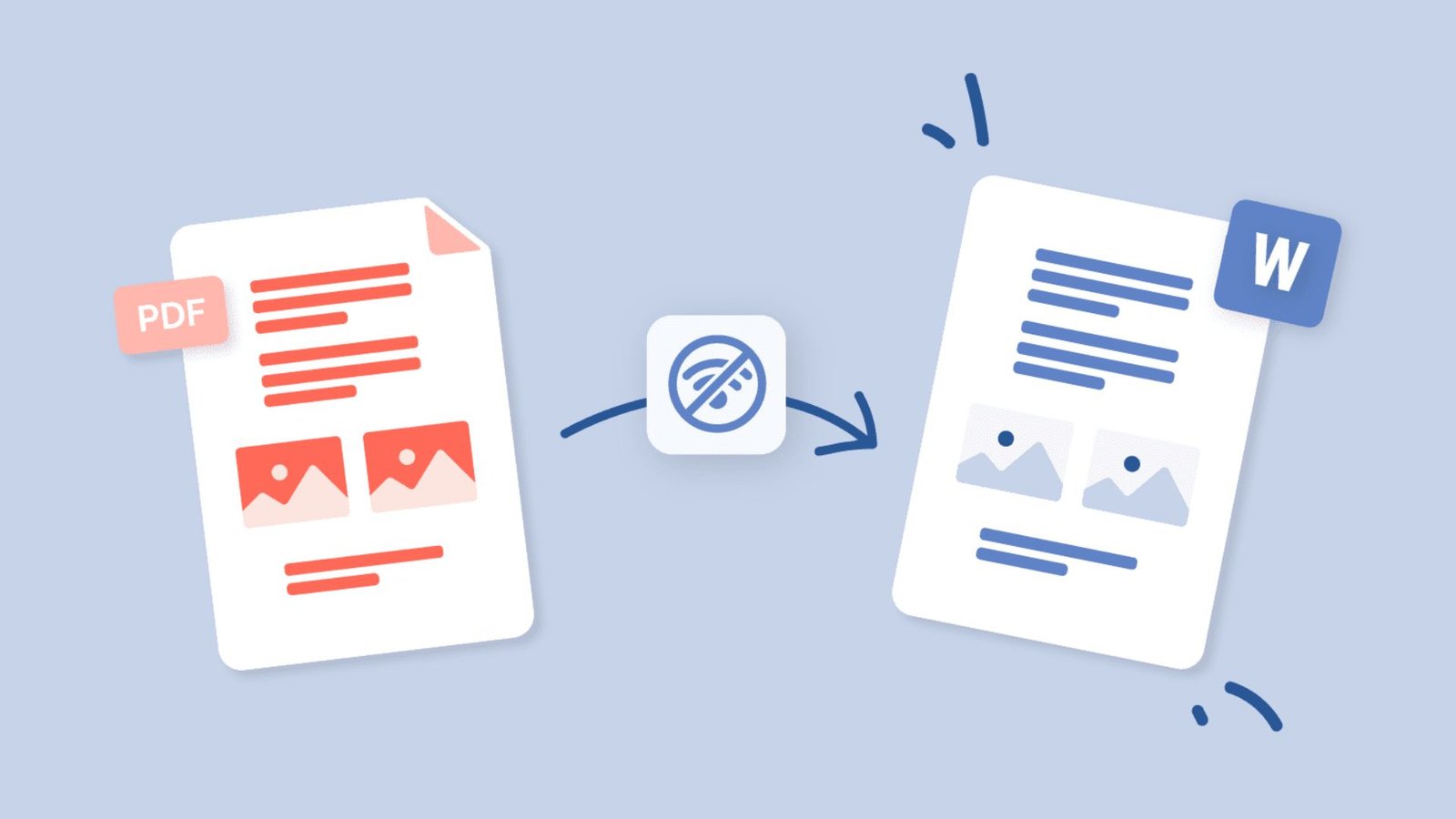
PDF to Word: How to Convert PDF Files for Free
A PDF can preserve a document’s layout, but editing its contents can become frustrating when you need to correct text, update figures, or reuse information. Converting PDF to Word gives you an editable document without requiring you to recreate every page manually. The right method depends on your file type, formatting needs, and privacy requirements. This guide explains how to convert PDF files into Word documents for free, compare popular tools, protect sensitive information, and fix common conversion problems.
1. What Is PDF to Word Conversion?
PDF to Word conversion changes a Portable Document Format (PDF) file into an editable Microsoft Word document, usually saved as .docx or .doc. Instead of rebuilding the content manually, you can revise paragraphs, update tables, change headings, and reuse text in another document.
The process does not always reproduce the original layout perfectly. Complex columns, unusual fonts, graphics, and scanned pages may need extra adjustments. Documents containing mostly selectable text generally convert more easily than image-based PDFs.
2. How to Convert PDF to Word for Free
You can convert PDF files using Microsoft Word or an online conversion service. Choose the method that fits your software, document type, and privacy needs.
Method 1: Use Microsoft Word
Microsoft Word can open many PDF files and create an editable copy.
- Open Microsoft Word on your computer.
- Select File → Open → Browse.
- Choose the PDF you want to convert.
- Confirm the conversion message if Word displays one.
- Review the converted text, tables, and page layout.
- Select File → Save As and save the file as a Word document (
.docx).
This method is useful when you already have access to Word. Keep the original PDF unchanged so you can compare the two versions.
Method 2: Use an Online PDF to Word Converter
An online PDF to Word converter lets you convert documents through a web browser without installing desktop software.
- Open a trusted PDF conversion service.
- Upload the PDF file you want to convert.
- Select Word or DOCX as the output format.
- Wait for the conversion to finish.
- Download the converted document when available.
- Open the file in a compatible word processor and check its formatting.
Free services may have file-size limits, account requirements, or restrictions on the number of conversions. Review the provider’s privacy terms before uploading a document.
Method 3: Use Google Docs
Google Docs can help when you want to work with documents in a browser. Depending on the PDF and the import method, you may need to open or convert its contents before editing them.
- Open Google Drive and upload the PDF.
- Check the available options for opening the file with Google Docs.
- Review the extracted text and make any necessary corrections.
- If the document opens as an editable Google document, select File → Download → Microsoft Word (.docx) when available.
- Open the downloaded file and inspect its layout.
Google Docs is useful for text-based documents, but it may not preserve every element of a complex PDF.
3. Which PDF to Word Converter Should You Choose?
The best PDF to Word converter depends on whether you prioritize convenience, formatting, offline access, or document privacy.
| Method | Best For | Main Advantage | Limitation |
|---|---|---|---|
| Microsoft Word | Everyday documents | Built-in conversion | Formatting may change |
| Online converter | Quick browser conversion | Simple workflow | Privacy and usage limits may apply |
| Google Docs | Basic text editing | Browser-based workflow | Complex layouts may need repair |
| Desktop PDF software | Frequent conversions | May offer advanced export and OCR | Some features require payment |
| Manual copy and paste | A few paragraphs | No full-file conversion needed | Layout often needs rebuilding |
For ordinary text files, start with Word if you already have it. For occasional online conversion, use a reputable service. For confidential files, check your organization’s approved software and privacy requirements before uploading anything to a third-party service.
4. PDF to Word: DOC vs. DOCX Explained
When you convert PDF to Word, you may encounter two file extensions: .doc and .docx.
| Feature | DOC | DOCX |
|---|---|---|
| Format generation | Older Word format | Newer Word format |
| Compatibility | Useful with older software | Designed for modern word processors |
| File structure | Older binary format | XML-based document package |
| Recommended use | Legacy requirements | Most new documents |
| Editing | Supported by compatible software | Supported by most modern office applications |
For most users, DOCX is the better choice because it is the modern Word document format. Choose DOC only when a recipient or older system specifically requires it.
5. How to Convert a PDF to Word When the File Is Scanned
A scanned PDF often contains photographs of pages instead of selectable text. If you try to copy the content, you may discover that the words cannot be selected or searched.
You need optical character recognition (OCR) to identify text in scanned pages and turn it into editable content. Some PDF applications include OCR, while others require a separate feature or paid plan.
Follow these steps:
- Open the scanned PDF in software that supports OCR.
- Select the text recognition or OCR option.
- Choose the correct document language if prompted.
- Run recognition and review the extracted text.
- Export or save the recognized content as a Word document.
- Check names, dates, numbers, punctuation, and tables against the original scan.
OCR works best when pages are clear, straight, and easy to read. Blurry images, handwritten notes, and low-resolution scans can produce errors.
6. How to Convert PDF to Word Without Losing Formatting
Formatting problems are common when converting a PDF into an editable document. A PDF preserves a fixed page layout, while Word rearranges content according to editable paragraphs, fonts, margins, and page settings.
Use these practical steps to improve the result:
- Check the page size: Confirm that the Word document uses the intended paper size.
- Review fonts: Replace missing fonts with similar available alternatives.
- Inspect tables: Check whether rows, columns, borders, and cell alignment remain correct.
- Fix page breaks: Remove unexpected blank pages or split headings.
- Check images: Confirm that pictures, logos, and diagrams appear in the correct places.
- Review headers and footers: Check page numbers, dates, and repeated text.
- Proofread the text: Look for missing symbols, unusual spaces, and incorrect characters.
For important reports or contracts, compare the converted document with the source PDF page by page. Do not assume the conversion is accurate just because the text appears editable.
7. Is a Free PDF to Word Converter Safe?
A free PDF to Word converter can save time, but you should consider privacy before uploading a document. Online services may process files on external servers, so read the provider’s privacy information and file-handling terms.
Follow these safety practices:
- Avoid uploading passwords, identity documents, financial statements, or confidential contracts to unapproved services.
- Use a trusted provider with clear privacy and deletion policies.
- Check whether the service requires an account or stores uploaded files.
- Use approved offline software for sensitive business documents when possible.
- Delete temporary downloads and unnecessary copies after finishing your work.
- Never upload a document to an unfamiliar site simply because it advertises free conversion.
For confidential material, choose a conversion method that meets your organization’s privacy and security requirements.
8. Common PDF to Word Conversion Problems and Solutions
Even a reliable converter may produce an imperfect result. The solution usually depends on how the original PDF was created.
| Problem | Possible Cause | Recommended Solution |
|---|---|---|
| Text cannot be selected | Scanned or image-based PDF | Run OCR |
| Words appear incorrectly | Poor scan quality or OCR errors | Improve scan quality and proofread |
| Tables become misaligned | Complex table structure | Rebuild the table in Word |
| Fonts change | Original fonts are unavailable | Use permitted font alternatives |
| Images move around | Layout differences between formats | Adjust image wrapping and positioning |
| Page breaks change | Different text flow or margins | Review page setup and paragraph spacing |
| File will not open | Damaged, protected, or unsupported file | Check the original file and access permissions |
| Converted file is too large | High-resolution images | Compress images carefully after conversion |
When troubleshooting, work on a copy of the converted document. This lets you correct errors without changing the original PDF.
9. How to Change PDF to Word on a Mobile Phone
You can change PDF to Word on a phone or tablet when your chosen application supports conversion.
On Android
- Open a trusted PDF application or conversion service.
- Select the PDF from your device or cloud storage.
- Choose Word or DOCX as the output format.
- Convert the document and save the result.
- Open the file in a compatible word-processing app to check it.
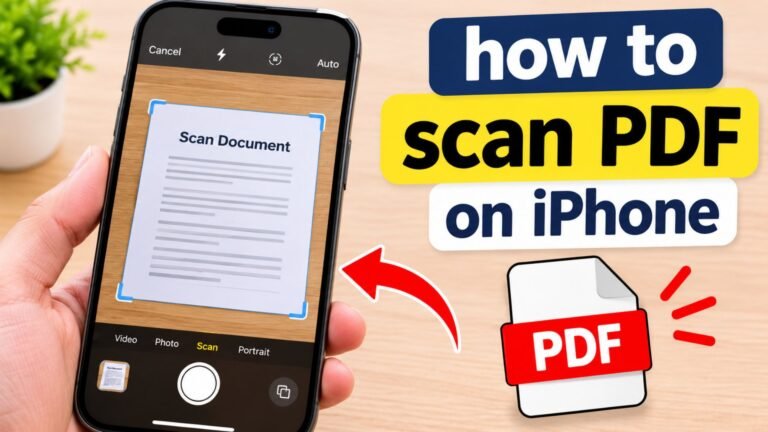
On iPhone or iPad
- Locate the PDF in the Files app or another approved location.
- Open a compatible PDF conversion application.
- Select the Word export option.
- Save the converted document to Files or your preferred storage location.
- Open it in Microsoft Word or another compatible editor.
Some services require an account, subscription, or internet connection. If the document contains confidential information, choose a method that meets your privacy requirements.
10. Can You Convert a PDF to Word and Edit It?
Yes. Converting a PDF to Word allows you to edit many types of content, including paragraphs, headings, lists, and some tables. The level of editability depends on the original PDF and the conversion method.
After conversion, you can typically:
- Correct spelling and grammar.
- Add or remove paragraphs.
- Update dates, figures, and headings.
- Rearrange sections.
- Reformat lists and tables.
- Add comments and tracked changes when supported by your editor.
- Save a revised DOCX file or export the finished document as a PDF.
However, a converted document is not automatically an exact copy of the original layout. For forms, signatures, complex graphics, or legally important documents, check that the conversion has not changed the meaning or removed essential elements.
11. How to Choose the Right Free PDF to Word Converter
Before selecting a free PDF to Word converter, evaluate more than its headline promise. A useful tool should handle your document type, produce a workable Word file, and explain any restrictions.
Use this checklist when comparing options:
- Conversion quality: Does the output preserve paragraphs, tables, and images?
- OCR support: Can it recognize scanned text if needed?
- Output format: Can it create a DOCX file?
- Privacy: Does the provider explain file storage and deletion?
- File limits: Are there restrictions on document size or conversion frequency?
- Ease of use: Can you convert and save the file without confusing steps?
- Cost transparency: Are downloads, OCR, or advanced features limited to paid plans?
- Device compatibility: Does it work with your computer, tablet, or phone?
Test a non-sensitive sample file before converting a large batch of documents. This helps you judge formatting quality and identify limitations before committing to a particular workflow.
12. Best Practices for Accurate PDF to Word Results
A few simple habits can improve the quality of your converted document and reduce editing time.
Before conversion:
- Check that the PDF opens correctly.
- Confirm that the file is not password-protected or restricted in a way that prevents conversion.
- Determine whether the text is selectable or scanned.
- Keep a backup of the original file.
After conversion:
- Compare headings, tables, and images.
- Verify names, dates, amounts, and special characters.
- Apply consistent heading styles and paragraph spacing.
- Save the editable version using a clear filename.
- Export a new PDF if you need to share a fixed-layout version.
Pro Tip: Convert a single representative page first when dealing with a long or complicated PDF. Reviewing the output early can help you identify layout problems before spending time correcting the entire document.
13. PDF to Word: Which Method Is Best for Your Needs?
The most suitable approach depends on the file, your available software, and how much editing you expect to do.
| Your Situation | Recommended Approach | Why |
|---|---|---|
| You already use Microsoft Word | Open the PDF in Word | No separate converter may be necessary |
| You need a quick online conversion | Use a trusted online converter | Provides a straightforward browser-based workflow |
| You want to edit text in a scanned PDF | Use a tool with OCR | Recognizes text from page images |
| You only need a short passage | Copy and paste the text | Avoids converting the entire file |
| Your document contains sensitive data | Use approved offline software | Reduces the need to upload the file externally |
| Your PDF has complex tables | Use suitable export software and inspect the tables | Helps identify layout issues before editing |
| You need to share a final, fixed-layout version | Export the edited Word document as PDF | Helps preserve the intended appearance |
No single converter works perfectly for every file. For a text-heavy document, Word is a sensible first option. For scanned files, prioritize OCR. For confidential material, prioritize approved handling and privacy.
Frequently Asked Questions
1. How do I convert PDF to Word for free?
You can convert PDF to Word for free by opening the PDF in Microsoft Word or using a free online converter. Select the PDF, complete the conversion, and save the result as a DOCX file. Check whether the tool has usage limits.
2. Can you convert a PDF to Word without losing formatting?
Many PDF files convert with much of their original formatting intact. However, complicated tables, columns, graphics, and fonts may change during conversion. Review the Word document and correct any differences before sharing it.
3. Which PDF to Word converter is best for scanned documents?
Choose a converter with optical character recognition (OCR). OCR identifies text inside scanned pages and makes it editable. Accuracy depends on image quality, language recognition, and document complexity, so always proofread the result.
4. How can I convert PDF to Word online free without installing software?
Use a trusted browser-based conversion service, upload your PDF, choose Word or DOCX, and download the converted file. Check current usage limits, sign-in requirements, and privacy terms before uploading your document.
5. What is the difference between PDF, DOC, and DOCX?
PDF is designed to preserve a document’s appearance across devices. DOC is an older Microsoft Word document format, while DOCX is the newer format commonly used for editable Word documents. Choose DOCX for most modern editing tasks.
6. Can I convert a PDF to Word on my phone?
Yes. You can use a compatible mobile application or online converter on Android or iPhone. Select your PDF, export it as a Word document, and open the result in a compatible editor. An internet connection may be required for online tools.
Conclusion: Make PDF Editing Easier
Converting PDF to Word is a practical way to update documents, reuse information, and avoid retyping entire pages. Microsoft Word is a convenient starting point for text-based PDFs, while online converters offer an alternative when you need browser-based access. Scanned documents may require OCR, and complex layouts often need manual corrections.
Choose a method that fits your document, check privacy requirements before uploading files, and review the final Word document carefully.
Start with a copy of your PDF, convert it to DOCX, and verify the result before using or sharing it.



One Comment