
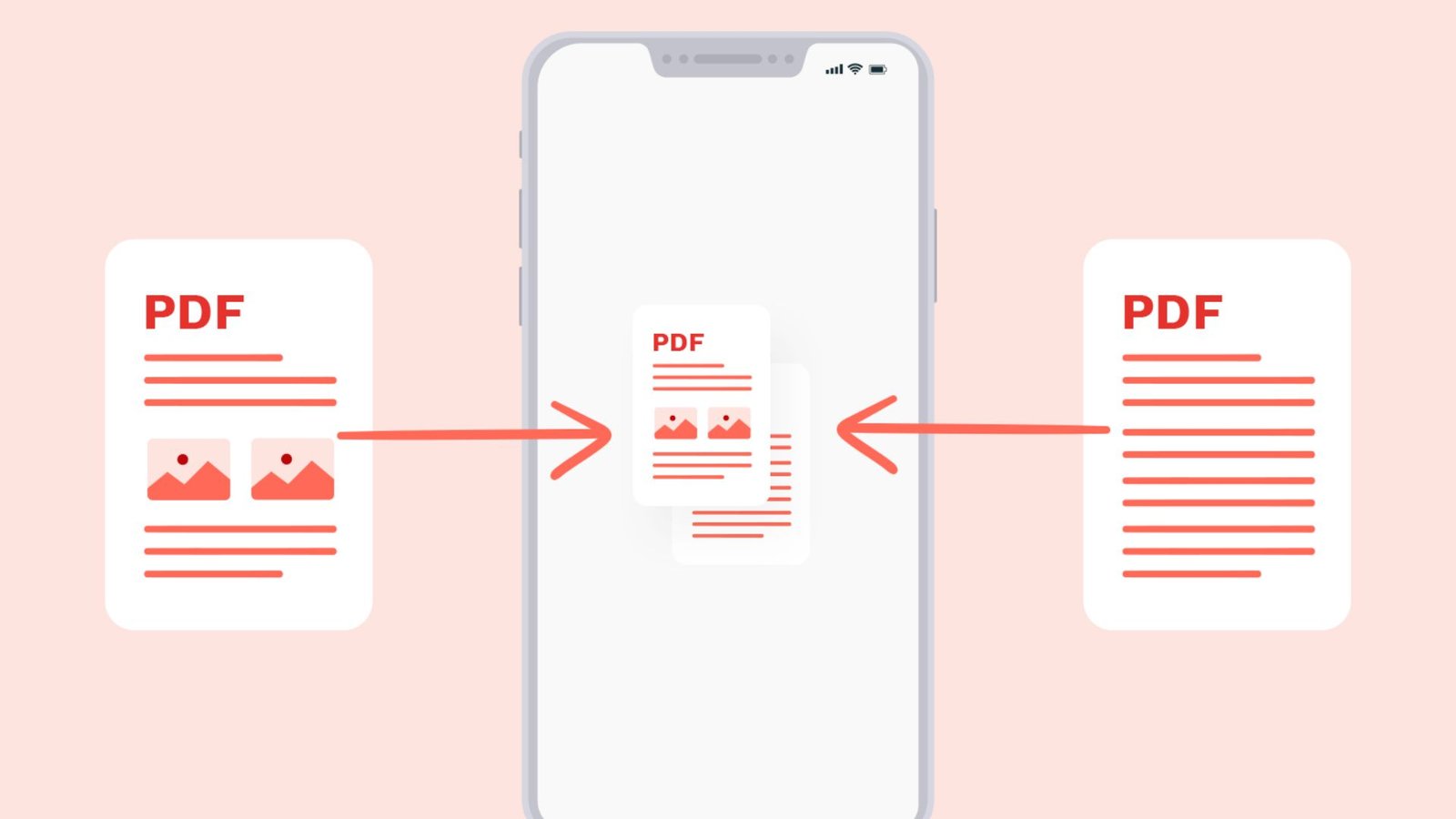
How to Combine PDFs Into One File for Free: Complete Guide
Managing multiple PDF documents can quickly become confusing when you need to share, print, or organize important information. Sending separate files takes extra time and makes document management difficult. Fortunately, you can combine PDFs into one organized document using free online tools or built-in computer applications. This guide explains simple methods to merge PDF files, arrange pages, maintain quality, and create one convenient document.
What Does It Mean to Combine PDFs Into One?
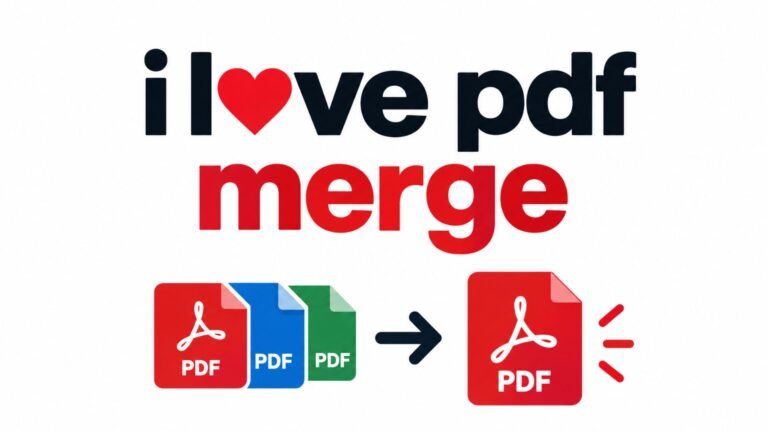
Combining PDFs means merging two or more PDF documents into a single file. Instead of opening and managing several documents separately, you bring their pages together in one organized PDF.
For example, you might have a resume, cover letter, certificates, and portfolio saved as separate files. Combining them creates one document that is easier to share with employers.
People commonly combine PDF documents for:
- School assignments and study notes.
- Business reports and proposals.
- Contracts and agreements.
- Invoices and financial statements.
- Scanned documents and receipts.
- Job applications and portfolios.
- Research papers and presentations.
The merging process generally keeps the original documents unchanged, although the result depends on the software and settings you use.
Why Should You Combine PDFs Into One File?
Combining PDF documents offers several benefits for personal, educational, and professional tasks.
1. Keep Important Documents Together
You can organize related documents in one place instead of storing them across multiple folders.
For example, a business proposal can include an introduction, pricing information, project details, and supporting documents.
2. Make Sharing Easier
Sending one PDF attachment is often more convenient than attaching several individual documents.
Recipients can open one file and read the information in the correct order.
3. Improve Document Organization
A combined PDF makes it easier to arrange documents according to their purpose, date, or project.
You can also create separate sections for different topics.
4. Save Time When Printing
Printing one combined document can simplify your workflow.
You can review all pages together and select the required page range before printing.
5. Reduce File Management Work
Managing one organized document is often easier than opening, renaming, and tracking multiple files.
This is especially useful for people who regularly handle digital paperwork.
How to Combine PDFs Into One File Online for Free
Using an online PDF merger is one of the easiest ways to combine multiple documents. Most online tools allow you to upload PDF files, arrange their order, and download the merged document.
You usually do not need to install additional software.
Follow these steps to combine PDFs into one online:
- Open a trusted online PDF merging tool.
- Find the Merge PDF or Combine PDF feature.
- Select the PDF documents from your computer.
- Upload all the files you want to merge.
- Arrange the documents in your preferred order.
- Review the selected files.
- Click the Merge or Combine button.
- Wait for the merging process to finish.
- Download the completed PDF.
- Open the new document and check every page.
Example: Suppose you have three files named Introduction.pdf, Report.pdf, and Conclusion.pdf. Arrange them in that sequence before merging. The final document will contain all three sections in one PDF.
What Should You Check Before Downloading?
Before downloading your combined document, review the following:
- All selected files appear correctly.
- Pages follow the intended sequence.
- No important pages are missing.
- Text and images remain readable.
- There are no unnecessary blank pages.
- The final document opens successfully.
For confidential documents, consider using an offline PDF application instead of uploading files to an online service.
How to Combine PDFs Into One on Mac
Mac users can use the built-in Preview application to combine PDF documents without purchasing additional software.
Preview provides tools for viewing, arranging, and moving PDF pages.
Steps to Merge PDFs Using Mac Preview
- Open the first PDF document in Preview.
- Open the second PDF in another Preview window.
- Select View from the top menu.
- Choose Thumbnails to display the page previews.
- Drag pages from the second PDF into the first document’s sidebar.
- Place the pages in the correct position.
- Review the complete document.
- Select File and save the updated PDF.
Can You Combine PDFs Into One on Mac for Free?
Yes. Preview comes with macOS, making it a convenient free option for combining PDF documents.
It works well for students, professionals, and everyday users who want to organize documents without installing another application.
Remember to duplicate your original PDFs before editing if you want to keep separate untouched copies.
How to Combine PDFs Into One Using Adobe Acrobat
Adobe Acrobat provides PDF management features that allow users to combine multiple documents into one file.
You can add PDF documents, arrange their order, remove unwanted pages, and create a new combined document.
Step-by-Step Instructions
- Open Adobe Acrobat.
- Find the Combine Files feature.
- Select Add Files.
- Choose the PDF documents you want to merge.
- Arrange the files in your preferred sequence.
- Review the page previews.
- Remove unnecessary documents or pages.
- Select Combine.
- Choose a suitable file name.
- Save the completed PDF.
Adobe Acrobat also supports combining certain other document formats, depending on the application version and available features.
How to Combine PDFs Into One File on Windows
Windows users can combine PDF documents using online services or compatible desktop applications.
The best method depends on how frequently you merge documents and whether you need offline access.
Method 1: Use an Online PDF Merger
This method works through a web browser.
- Open a trusted PDF merging service.
- Select the documents stored on your computer.
- Upload the PDF files.
- Arrange them in the correct order.
- Start the merging process.
- Wait until the document is ready.
- Download the combined PDF.
This option is useful when you need to combine documents occasionally.
Method 2: Use Desktop PDF Software
Desktop applications are useful for people who regularly manage PDF documents.
Most dedicated PDF editors provide a merge or combine feature.
The general process involves selecting documents, arranging their pages, merging the files, and saving the final document.
For confidential business records or personal paperwork, choose software that processes documents locally.
Can You Combine PDFs Into One for Free?
Yes. You can use several free PDF applications and services to merge documents without purchasing expensive software.
However, free versions may have restrictions on file size, the number of documents, or additional features.
Here is a comparison of common options.
| PDF tool | Platform | Free option | Best use |
|---|---|---|---|
| Apple Preview | Mac | Yes | Combining and arranging pages |
| Adobe Acrobat Online | Browser | Free merging option | Quick online merging |
| Adobe Acrobat Desktop | Windows and Mac | Features vary | Advanced PDF management |
| Online PDF mergers | Browser | Depends on provider | Basic document merging |
| Desktop PDF applications | Windows and Mac | Depends on software | Offline document management |
What Is the Best Free Way to Merge PDF Documents?
The best option depends on your requirements.
- Mac users: Apple Preview offers a convenient built-in solution.
- Occasional users: Online PDF mergers provide a quick method.
- Business professionals: Desktop PDF editors offer additional document management features.
- Privacy-conscious users: Offline applications can help avoid uploading sensitive files.
Always review the free version’s restrictions before choosing a PDF tool.
How to Combine PDFs Into One Document Without Losing Quality
Document quality is important when combining reports, scanned pages, photographs, and professional paperwork.
A standard PDF merging process generally brings existing pages together without converting every page into an image.
However, some applications may apply compression or change document settings.
Follow these recommendations to maintain quality:
- Choose software that preserves original PDF content.
- Avoid unnecessary image conversion.
- Maintain the original page dimensions when possible.
- Check scanned pages for readability.
- Review photographs, charts, and tables.
- Avoid unnecessary compression.
- Keep backup copies of your original documents.
Important: Combining multiple PDFs may increase the final file size because the new document contains the content of all selected files.
If the resulting PDF is too large, you can compress a separate copy after merging.
How to Arrange PDF Pages Before Combining Them
Page arrangement is an important part of creating an organized document.
Before merging files, decide which document should appear first and how the remaining pages should follow.
For example, a professional report might use this structure:
- Cover page.
- Introduction.
- Main report.
- Supporting information.
- Charts and tables.
- References.
- Appendix.
Tips for Better PDF Organization
- Use descriptive file names.
- Arrange documents according to their purpose.
- Place important information first.
- Keep related sections together.
- Check page numbering.
- Remove duplicate pages.
- Review the final document before sharing.
These practices help readers understand your combined PDF without unnecessary confusion.
How to Combine PDFs Into One Online Safely
Online PDF tools make document merging convenient, but privacy should remain a priority.
PDF documents may contain personal addresses, identification information, financial records, contracts, and confidential business details.
Follow these safety recommendations:
- Choose a reputable PDF service.
- Read its privacy policy.
- Check its file retention practices.
- Avoid unfamiliar websites when handling private documents.
- Use offline applications for highly sensitive information.
- Download files only through the official service.
- Delete temporary uploads when the service provides that option.
For confidential paperwork, an offline PDF merger is often a sensible choice.
Common Problems When Combining PDF Files
Sometimes PDF merging tools fail to process documents correctly. These issues may occur because of file restrictions, damaged documents, or software compatibility.
The following table explains common problems and their solutions.
| Problem | Possible reason | Recommended solution |
|---|---|---|
| PDF upload fails | File size restrictions | Try a smaller file |
| Password-protected PDF will not merge | Security restrictions | Use the authorized password |
| Pages appear in the wrong order | Incorrect file arrangement | Rearrange files before merging |
| Final PDF is too large | Large images or scanned pages | Compress a copy |
| Some pages look unclear | Low-quality original scans | Use better-quality source documents |
| Blank pages appear | Original files contain empty pages | Remove unwanted pages |
| Merged PDF will not open | Processing or download error | Download again and check the original files |
How to Fix PDF Merging Errors
Start by opening each original PDF separately to check whether the files work correctly.
If one document is damaged, password-protected, or unsupported, it may prevent the merging process from completing.
You can try another compatible PDF application or browser.
Always keep backup copies of important documents before making changes.
Best Practices for Creating One Organized PDF
A professional PDF should be easy to read, navigate, and share.
Use these practices when preparing your final document:
Choose a Logical Order
Place documents in the sequence readers expect. For example, put a cover letter before a resume when preparing a job application.
Use Clear File Names
Descriptive names help you identify documents before uploading them.
Check Page Orientation
Make sure portrait and landscape pages display correctly.
Review Document Formatting
Check fonts, images, tables, margins, and page layouts after merging.
Remove Unnecessary Pages
Delete duplicate pages and blank sections to keep the document clean.
Keep a Backup
Store original PDF documents separately so you can access them whenever needed.
Check the Final File
Open the merged document and review its pages before sharing or printing.
How to Combine Multiple PDF Files Into One Document for Work or Study
Different users have different reasons for merging PDF documents.
Here are some practical examples.
For Students
Students can combine lecture notes, assignments, research papers, study guides, and class materials.
This approach makes it easier to organize educational resources and prepare complete assignments.
For Businesses
Businesses can combine:
- Client proposals.
- Financial reports.
- Contracts.
- Company policies.
- Project documents.
- Meeting summaries.
A single PDF makes document sharing and record management more convenient.
For Job Applicants
Job applicants can combine their resume, cover letter, portfolio, and supporting certificates into one organized application document.
However, they should follow the employer’s submission requirements.
For Personal Documents
You can combine scanned receipts, bills, applications, travel documents, and household records.
Organizing these documents into separate categories makes future searches easier.
Frequently Asked Questions About Combining PDFs
1. How do I combine PDFs into one file for free?
Short answer: Use a free online PDF merger or Apple Preview on Mac.
Detailed answer: Upload your PDF documents to a trusted online merging tool, arrange their order, and select the merge option. Mac users can also use Preview to move pages between PDF documents and save the combined file.
2. Can I combine PDFs into one without downloading software?
Short answer: Yes, you can use an online PDF merging service.
Detailed answer: Open an online PDF merger in your browser, upload your documents, arrange their order, and download the completed PDF. You do not need to install desktop software for this method.
3. How do I combine PDFs into one on Mac?
Short answer: Use the built-in Preview application.
Detailed answer: Open your PDF documents in Preview, enable page thumbnails, and drag pages from one document into another. Arrange the pages and save the resulting PDF. Make backup copies if you want to preserve the originals.
4. Will combining PDFs reduce their quality?
Short answer: A standard PDF merge does not normally reduce original page quality.
Detailed answer: Merging generally brings existing PDF pages together rather than converting everything into low-resolution images. However, some applications apply compression or conversion settings, so check the final document before sharing it.
5. Can I combine password-protected PDF files?
Short answer: It depends on the document permissions and PDF application.
Detailed answer: Some PDF applications support protected documents when you provide the correct password. Other tools may reject secured files. You must have the necessary authorization to access and modify protected documents.
6. What is the best way to combine PDFs into one document?
Short answer: Choose a tool based on your device, privacy needs, and document requirements.
Detailed answer: Apple Preview is convenient for Mac users, while online PDF mergers work well for quick tasks. Desktop PDF editors are useful for frequent professional work and advanced page management.
Final Thoughts: Combine PDFs Into One File Easily
Learning how to combine PDFs into one file makes document management simpler, faster, and more organized. Whether you are a student preparing assignments, a professional managing reports, or a business owner organizing paperwork, merging PDFs can save time and reduce unnecessary file clutter.
You can use an online PDF merger for quick tasks, Apple Preview on Mac, or desktop PDF software for more advanced document management.
Before sharing your completed PDF, check its page order, formatting, readability, and file size. Keep your original documents as backups and choose trusted tools when handling confidential information.
Ready to organize your documents? Choose the method that works best for your device and bring your separate PDF files together in one convenient document.
One Comment