How to Remove Password from PDF: 7 Easy Methods
A password-protected PDF can make everyday tasks frustrating when you need to open, print, share, or edit an important document. Entering the password repeatedly wastes time, especially when you use the same file regularly. Fortunately, you can remove password from PDF documents using built-in Mac features, desktop software, or online tools. This guide explains practical methods for different devices, how to handle forgotten passwords, and how to protect your private information.
What Does It Mean to Remove a Password from a PDF?
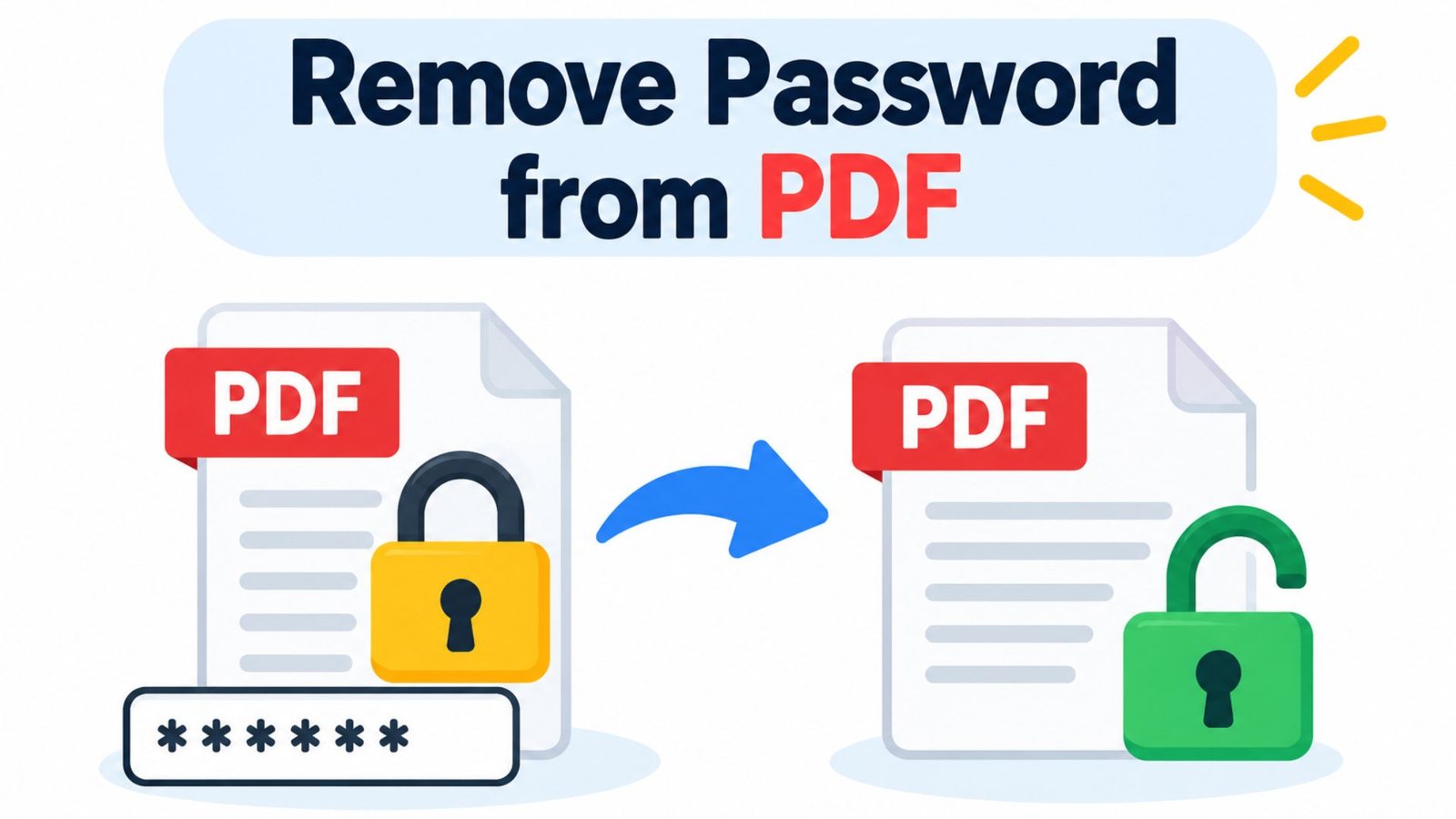
Removing a PDF password means changing the document’s security settings so you no longer need to enter a password for a protected action. The process depends on whether the file requires a password to open or uses a separate password to restrict printing, copying, or editing.
PDF files commonly use two types of password protection:
- Document-open password: You must enter it before viewing the file.
- Permissions password: The document may open normally, but certain actions remain restricted.
If you know the required password and have permission to change the document, a compatible PDF application may allow you to remove the protection.
Quick Comparison: Best Ways to Remove a PDF Password
| Method | Device | Password required? | Cost | Best use |
|---|---|---|---|---|
| Apple Preview | Mac | Usually, for encrypted files | Free | Saving an accessible copy |
| Adobe Acrobat | Windows and Mac | Usually, when changing security settings | Some features are paid | Managing PDF security |
| Online PDF tool | Any device with a browser | Usually, to open encrypted files | Free options available | Non-sensitive documents |
| Print to PDF | Windows and compatible computers | Must be able to open and print the original | Usually free | Creating a printable copy |
| Mobile PDF application | iPhone and Android | Usually | Depends on the app | Managing files on mobile |
The available options depend on the PDF’s encryption, permissions, and the software you use. No single method works for every protected document.
1. How to Remove Password from PDF on Mac Using Preview
Apple Preview is included with macOS, so you may not need to install additional software. If you know the password, you can try exporting or saving a new copy without password protection.
Steps to Remove a PDF Password Using Preview
- Find the PDF in Finder.
- Double-click the file to open it in Preview.
- Enter the password when prompted.
- Select File and then Export.
- Choose PDF as the file format.
- Review the available encryption or password settings.
- Disable password protection if the option is available.
- Save the new file and reopen it to check whether it still requires a password.
The exact options depend on your macOS version and the document’s security settings.
Important: Exporting a PDF does not always remove its encryption. If Preview preserves the password, use an application that supports changing the relevant security settings.
2. How to Remove Password from PDF Using Adobe Acrobat
Adobe Acrobat provides security controls for managing password-protected documents. It can help remove an opening password or permissions restrictions when you have the necessary authorization and credentials.
Steps to Remove PDF Security in Acrobat
- Open the protected PDF in Adobe Acrobat.
- Enter the document password if requested.
- Open the PDF protection or security tools.
- Access the document’s security properties.
- Select the option to change the security settings.
- Disable the applicable password or permissions restriction.
- Enter the permissions password if requested.
- Confirm the changes and save the document.
Menu names may differ between Acrobat versions. Some security features may also require a paid subscription.
3. How to Remove Password from PDF Online
Online PDF tools can help when you do not want to install desktop software. You can use a compatible service through a browser on a computer, tablet, or smartphone.
Steps to Remove Password from PDF Online
- Choose a reputable PDF service with a password-removal feature.
- Review its privacy policy and file-retention terms.
- Upload the PDF if you are authorized to process it.
- Enter the password when requested.
- Follow the instructions to remove supported protection.
- Download the processed document.
- Open the new PDF to confirm that the password has been removed.
Is It Safe to Remove Password from PDF Online?
Online tools are convenient, but uploading a file sends it outside your device. Avoid uploading bank statements, identity documents, medical records, contracts, or confidential business files unless you have verified that the service meets your privacy requirements.
For sensitive documents, offline software is generally the better choice. Free online tools may also limit file size, daily usage, or available features.
4. How to Remove Password from PDF Free
You may be able to remove PDF password protection without paying for software. Start with the tools already available on your device.
Consider these options:
- Mac: Try Apple Preview’s export options.
- Windows: Check whether your existing PDF application supports changing security settings.
- Online: Use a reputable free service for non-sensitive documents.
- Print to PDF: Create a new copy if the document opens and printing is permitted.
Free tools cannot guarantee that every encrypted document can be unlocked. Some applications require the correct password before allowing security changes.
5. How to Remove Password from PDF on Windows
Windows users can use a compatible PDF application or a browser-based workflow, depending on the document’s restrictions.
Using a PDF Application
- Open the PDF in a trusted application.
- Enter the password if prompted.
- Look for document properties, security settings, or protection options.
- Check whether the application allows you to change the security settings.
- Enter the required credentials.
- Save the revised file and reopen it to verify the result.
If the application does not offer the required security controls, try another supported method rather than repeatedly saving the same file.
Using the Print-to-PDF Method
This method may work when you can open and print the document, but it is not a universal password-removal solution.
- Open the PDF and enter its password.
- Press Ctrl + P to open the print dialog.
- Select Microsoft Print to PDF, if available.
- Check the page range and print settings.
- Select Print and choose where to save the new file.
- Open the new PDF and verify its contents.
The resulting document may not preserve interactive forms, digital signatures, bookmarks, hyperlinks, or the original layout. Some protected PDFs also prevent printing.
6. How to Remove Password from PDF Without Password
If you do not know the password, your options depend on the type and strength of the document’s protection.
Try these legitimate alternatives:
- Ask the document owner to provide the password.
- Request an authorized, unprotected copy.
- Check your password manager or saved records.
- Search your messages for the original password.
- If the file belongs to you, locate the original document and export a new PDF.
Can you always remove password protection without the password? No. Strong encryption may prevent access without the correct credentials. Free software and online tools cannot guarantee recovery of every encrypted PDF.
If the document belongs to another person or organization, obtain permission before attempting to change its security settings.
7. How to Remove Password from PDF on iPhone
You can manage PDF documents on an iPhone using Apple’s Files app and compatible PDF applications. However, Files does not provide a universal feature for removing every type of PDF encryption.
Steps to Try on an iPhone
- Open the PDF from the Files app or its original location.
- Enter the password to access the document.
- Open it in a PDF application that supports exporting or changing security settings.
- Look for a save-a-copy, export, or document-security option.
- Follow the application’s instructions if it supports removing the protection.
- Save the new file to Files.
- Reopen the saved PDF to verify the result.
If your application does not offer a password-removal feature, use a compatible desktop application instead.
8. How to Remove Password from PDF on Mobile Browsers
A mobile browser can provide access to online PDF services without requiring a separate application. This option may be convenient when you do not have access to a computer.
Follow these steps:
- Open a reputable PDF service in your mobile browser.
- Select its password-removal feature.
- Upload the document if its privacy terms are acceptable.
- Enter the password if required.
- Follow the instructions to process the file.
- Download the resulting PDF.
- Save it to your device and check whether it opens without a password.
Before uploading a document, consider whether it contains confidential information. Some services also restrict file size or the number of documents you can process for free.
9. Common Problems When Removing a PDF Password on Mac
Apple Preview is a useful starting point, but some restrictions can prevent a successful export.
| Problem | Possible reason | What to do |
|---|---|---|
| Preview asks for a password | The PDF has an opening password | Enter the correct password or contact the owner |
| Exported file still asks for a password | The export retained encryption | Review export options or use compatible PDF software |
| Printing is unavailable | The document restricts printing | Request permission or an authorized copy |
| Text cannot be copied | Copying is restricted or the PDF contains scanned pages | Check permissions or use OCR if authorized |
| Saved copy looks different | Exporting or printing changed the layout | Compare the new file with the original |
| Digital signature becomes invalid | The document was modified after signing | Preserve the original signed document |
Before changing a protected PDF, identify the restriction and choose a method that addresses it.
10. How to Remove Password from PDF Files Safely
A password often protects private or confidential information, so removing it should be a deliberate decision.
Follow these precautions:
- Keep the original: Store the protected PDF separately in case the new copy loses formatting or functionality.
- Confirm authorization: Make sure you have permission to change the document’s security settings.
- Prefer offline software: Use a trusted desktop application for confidential documents.
- Check the result: Review page order, text, images, hyperlinks, forms, and signatures.
- Store the new file securely: Anyone who receives an unprotected copy may be able to open it.
- Protect signed documents: Modifying a digitally signed PDF may invalidate its signature or affect verification.
The safest approach is to remove only the protection you no longer need while retaining suitable security for sensitive information.
11. How to Choose the Best PDF Password Removal Method
The right method depends on your device, password access, privacy requirements, and the restrictions applied to the original document.
| Your situation | Recommended method | Main consideration |
|---|---|---|
| You use a Mac and know the password | Apple Preview | Export options may vary |
| You need to change security settings | Compatible desktop PDF software | Credentials may be required |
| You have a non-sensitive PDF | Reputable online tool | Review privacy policies |
| You can open and print the PDF | Print to PDF | Some features may be lost |
| You use an iPhone or Android device | Compatible mobile PDF app | Not all apps support security changes |
| You forgot the password | Contact the owner or recover the original | Strong encryption may prevent access |
Choose a method that preserves the document’s contents and respects its existing permissions.
12. Frequently Asked Questions
1. How do you remove password from PDF files?
Open the PDF in a compatible application, enter the required password, and use its security settings or supported export options. Save a new copy and test whether it opens without a password.
2. Can I remove password from PDF online free?
Yes, some online services provide free password-removal features. They may require the correct password and impose usage limits. Avoid uploading confidential documents to services you do not trust.
3. How do I remove password from PDF without password?
You generally need the correct password to access a strongly encrypted PDF. If you have forgotten it, contact the document owner, check your password manager, or recover the original document if it belongs to you.
4. How do I remove password from PDF on Mac?
Open the PDF in Preview and enter its password. Try exporting a new copy and checking the available encryption settings. If Preview cannot remove the existing protection, use compatible PDF software.
5. Can I remove a PDF password on my iPhone or Android phone?
Yes, if a compatible mobile application or online service supports the document’s protection type. You may need the password, and some advanced security controls are easier to manage on a computer.
6. Does removing a PDF password affect document quality?
It depends on the method. Changing security settings directly generally preserves the document’s content, while printing to PDF may affect hyperlinks, forms, bookmarks, signatures, or other interactive features. Always compare the new copy with the original.
Conclusion
Knowing how to remove password from PDF files can make everyday document management faster and easier. Mac users can start with Preview, while Windows users may prefer a compatible PDF application. Mobile users can explore supported PDF apps or online tools for suitable documents.
The key is to choose a method that matches the document’s protection type, preserves its contents, and respects the owner’s permissions. Keep the original file, verify the new copy, and avoid exposing confidential information to untrusted services.
If you regularly work with protected documents, start with your device’s built-in tools and check the available security options before installing additional software. A verified copy can make future access easier while helping you maintain control over your files.
Editorial note:
Test the instructions on the operating-system and application versions you intend to cover before publishing. No article can guarantee a particular Google ranking; accuracy, usefulness, originality, and a good user experience all matter.