
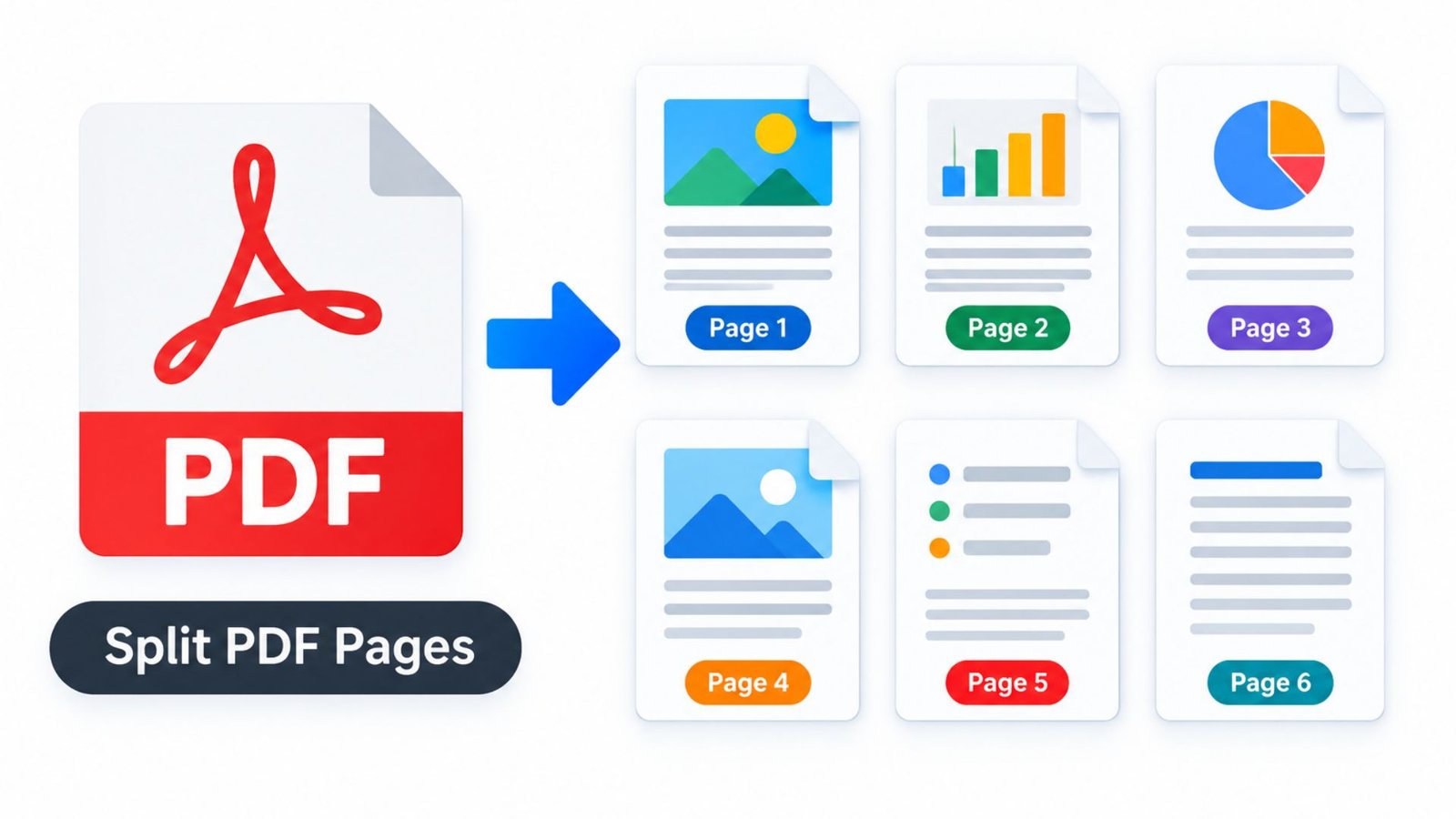
Split PDF Pages: How Can You Split a PDF for Free?
Large PDF files can make sharing documents difficult, slow down uploads, and hide the specific information you need. Sending an entire report when someone needs only two pages wastes time and creates unnecessary work. The good news is that you can split PDF pages into smaller documents, extract selected sections, or save individual pages without rebuilding the original file. This guide explains practical free and paid methods for computers, phones, and online tools.
What Does It Mean to Split PDF Pages?
Splitting a PDF means dividing one document into two or more smaller PDF files. You can separate a complete chapter, extract a single page, or divide a long document into smaller sections.
For example, imagine you have a 40-page business report. You can extract pages 1–10 into one file, pages 11–25 into another, and the remaining pages into a third document.
This process helps students, office workers, business owners, teachers, and anyone who regularly shares digital documents.
Common reasons to separate PDF documents include:
- Extracting important pages from a lengthy report.
- Sending selected pages by email.
- Separating invoices, receipts, or application forms.
- Organizing research papers and study notes.
- Reducing the size of documents sent through online forms.
- Creating individual files for different departments or clients.
How to Split PDF Pages Online for Free
An online PDF splitter is convenient when you want to work directly in a web browser without installing desktop software. Depending on the service, you may be able to choose page ranges, extract individual pages, or divide a document into multiple files.
Follow these steps:
- Choose a reputable online PDF splitting tool.
- Upload the PDF you want to divide.
- Select the pages or page ranges you want to extract.
- Choose whether to create separate files or retain selected pages together.
- Start the splitting process.
- Download the resulting PDFs.
- Open each file and check that the correct pages are included.
Example: If your document contains 20 pages and you need pages 4–8, select that range and export it as a separate PDF.
Before uploading a document, review the service’s privacy policy and file-handling practices. For confidential contracts, financial statements, identification documents, or medical records, an offline application is generally a safer choice.
How to Split PDF Pages Free Without Installing Software
You can sometimes extract PDF pages without downloading a dedicated PDF editor. The best method depends on your operating system and the tools already available on your device.
A browser’s print dialog can create a new PDF containing selected pages. However, this method is different from a dedicated PDF splitter and may not preserve every document feature in the same way.
Try this general process:
- Open the PDF in a compatible browser or PDF viewer.
- Press Ctrl + P on Windows or Command + P on Mac to open the print dialog.
- Select the option to save or print to PDF, if available.
- Enter the required page range, such as 2–5 or 8, 10, 12.
- Choose the destination and save the new file.
- Reopen the saved document to confirm the result.
This approach works best when you need a copy of selected pages. If you need to divide a large document into many files automatically, use a dedicated splitting tool instead.
How to Split PDF Pages into Separate Files
When each section needs its own document, splitting by page range is usually the simplest approach. You can create separate files for individual chapters, invoices, assignments, or application forms.
Use the following example for a 12-page document:
| Original page range | Suggested filename | Purpose |
|---|---|---|
| Pages 1–3 | Introduction.pdf | Opening section |
| Pages 4–6 | Main-Report.pdf | Main information |
| Pages 7–9 | Supporting-Details.pdf | Supporting material |
| Pages 10–12 | Appendix.pdf | Final section |
To create these files, open your PDF splitter, choose the required ranges, and export each section separately. If the application supports automatic splitting, you may also divide the document after a set number of pages.
For example, splitting a 12-page PDF every three pages produces four files containing three pages each.
Always use descriptive filenames. Clear names make it easier to find documents later and reduce the risk of sending the wrong attachment.
How to Split PDF Pages in Adobe Acrobat
Adobe Acrobat provides dedicated tools for organizing PDF documents. Its desktop application supports splitting documents by page count, file size, or top-level bookmarks, depending on the version and available features.
To split a PDF in Acrobat:
- Open your document in Adobe Acrobat.
- Select All tools and open Organize pages.
- Choose Split.
- Select the splitting method available in your version.
- Set the page count, file size, or bookmark criteria.
- Configure the output location and filenames.
- Select the option to split the document.
- Review the resulting files.
Adobe also offers a web-based splitting workflow. Its available options and account requirements may differ from those of the desktop application.
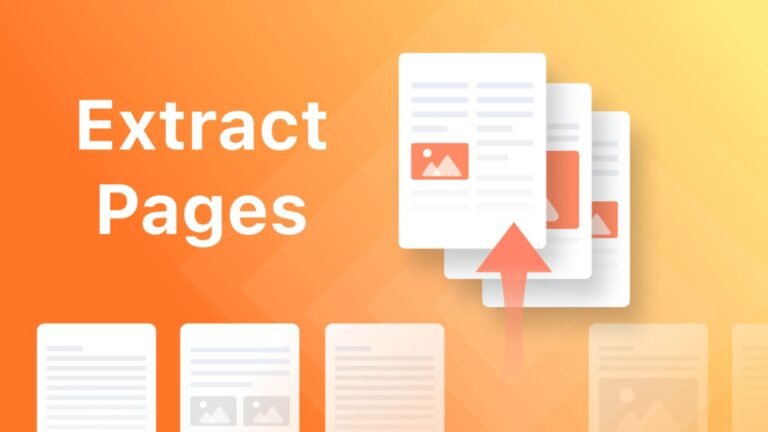
If you only need one or two pages, extracting selected pages may be quicker than splitting the entire document.
How to Split PDF Pages on Windows
Windows users can choose between a browser-based splitter, a desktop PDF editor, or a print-to-PDF workflow. The right option depends on whether you need individual pages, several page ranges, or automatic document separation.
Method 1: Use Microsoft Edge
Microsoft Edge can open PDFs and provides a print dialog for selecting page ranges.
- Open your PDF in Microsoft Edge.
- Press Ctrl + P.
- Choose Microsoft Print to PDF or another available PDF destination.
- Enter the page numbers or range you want.
- Select Print and choose where to save the new file.
- Open the output PDF to verify the pages.
This method is useful for extracting selected pages into a new file. It does not automatically split every page into a separate document.
Method 2: Use a Desktop PDF Editor
For larger documents, a dedicated PDF editor is more practical. Open the document, locate its page organization or splitting feature, and choose how to divide the file.
Some applications provide batch splitting, automatic filename generation, and bookmark-based separation. Check the application’s licensing before relying on premium features.
How to Split PDF Pages on Mac
Mac users can use Preview for basic PDF page management or a dedicated PDF editor for more advanced splitting options.
Preview lets you view PDF thumbnails, manage pages, and work with documents stored locally or in iCloud.
To extract selected pages using Preview:
- Open the PDF in Preview.
- Select View > Thumbnails to display the page sidebar.
- Select the page thumbnails you need. Use Command-click to select multiple nonadjacent pages where supported.
- Choose File > Print.
- Select the appropriate page options in the print dialog.
- Choose the PDF saving option and save the selected pages as a new document, if supported by your macOS version.
- Check the saved file before sharing it.
The exact menu options may vary by macOS version. Keep a copy of the original document before making changes, particularly when working with important files.
For recurring tasks or large batches, a PDF editor with a dedicated splitting function may provide a more straightforward workflow.
How to Split PDF Pages on Android
Android users can separate PDF pages through a compatible PDF application or a mobile-friendly online tool. Available features vary by app, device, and subscription.
To extract pages on Android:
- Open your PDF using a compatible document application.
- Look for an option such as Organize pages, Extract pages, or Split PDF.
- Select the page numbers you need.
- Choose the option to create a new PDF.
- Save the document to your device or preferred file location.
- Open the saved PDF to confirm its contents.
If your application does not include a splitting feature, use a trusted online service for non-sensitive documents.
Avoid uploading confidential files to unfamiliar websites. Also, check the final document before deleting or moving the original file.
How to Split PDF Pages on iPhone
You can manage PDFs on an iPhone using compatible document apps and available iOS file and print features. For precise page extraction, a PDF editor with page-selection controls is often the easiest option.
Follow these steps:
- Open the PDF in a suitable application.
- Find the page organization or extraction feature.
- Select the pages you want to keep.
- Export or save them as a new PDF.
- Choose a location in Files or another supported storage destination.
- Open the new document and check the page order.
If your current app does not support extraction, consider a reputable mobile-friendly PDF splitter.
The process may differ between iOS versions and applications. Avoid assuming that every PDF viewer includes a dedicated split function.
How to Split PDF Pages in Half
Splitting PDF pages in half can mean two different things: separating a document into two page groups or cutting each physical page into two smaller sections.
These tasks require different methods.
Split the Document into Two Groups
If you have 20 pages and want two separate PDFs, divide the document into pages 1–10 and pages 11–20. Select each range and save it as a separate file.
Cut Each Page into Two Parts
If you want to divide a scanned page into left and right halves, use a PDF editor that supports cropping, page splitting, or document-region extraction.
For a landscape scan containing two book pages, you may need to crop each half and save the resulting pages separately. Check whether the software creates new pages or merely hides the cropped areas.
Cropping is not always the same as securely removing content. If a document contains confidential information, use a suitable redaction method rather than relying on visual cropping alone.
Split PDF Pages Online vs. Offline: Which Method Is Best?
Both online and offline methods can help you separate PDF documents, but each has advantages.
| Feature | Online PDF splitter | Offline PDF application |
|---|---|---|
| Installation | Usually not required | Usually requires an app |
| Internet access | Generally required | Often not required after installation |
| Quick page extraction | Convenient | Convenient with the right tool |
| Large document batches | Depends on the service | Depends on the software |
| Privacy | Requires reviewing upload and retention policies | Files can remain on your device |
| Automatic splitting | Available on some services | Available in some desktop editors |
| Cost | Free tiers may have limits | Free and paid options exist |
| Best use | Quick, non-sensitive documents | Confidential or recurring work |
For a short, non-sensitive PDF, an online tool may save time. For business contracts, personal records, or confidential reports, consider an offline application that processes files locally.
What Should You Check Before Saving a Split PDF?
A successful export should preserve the information you actually need. Do not assume the file is correct simply because the application reports that the process has finished.
Check these items before sharing the new document:
- Page selection: Confirm that every required page appears in the output.
- Page order: Make sure the pages follow the intended sequence.
- Text and images: Check that important content remains readable.
- Links and annotations: Verify that interactive elements and comments still work when needed.
- Forms and signatures: Check whether form fields or digital signatures remain valid after processing.
- Filename: Use a clear name that describes the document.
- Privacy: Remove unnecessary copies and avoid sharing confidential files through untrusted services.
If the resulting PDF looks different from the original, try another extraction method and compare the output before distributing it.
Common Problems When Splitting PDF Documents
The PDF Will Not Upload
The document may exceed the website’s file-size limit, have a damaged file structure, or require a password. Try a trusted desktop application or check the service’s stated requirements.
Some Pages Are Missing
Review the selected page range and remember that displayed page numbers can differ from printed page numbers. A document’s cover page may also use a different numbering system.
The New File Is Too Large
Scanned pages and high-resolution images can increase file size. Consider using a suitable compression tool after splitting, but check image and text quality before sharing the result.
The Document Requires a Password
Only process documents you are authorized to access. Use the appropriate password and follow the document owner’s instructions rather than attempting to bypass access controls.
The Formatting Has Changed
Some print-based methods may alter how a PDF is rendered or affect interactive elements. If you need to preserve forms, annotations, bookmarks, or signatures, use a PDF editor designed to extract pages directly.
How to Choose the Right PDF Splitting Tool
The best tool is the one that matches your document, privacy requirements, and desired output.
Consider these factors:
- Page selection: Can you choose individual pages and custom ranges?
- Output options: Can you create one file per page or divide the document into groups?
- Privacy: Does the tool explain how it handles uploaded documents?
- File limits: Does it support the size of your PDF?
- Ease of use: Can you complete the task without unnecessary steps?
- Cost: Are the features you need available without a subscription?
- Compatibility: Does the tool work on your device and operating system?
For occasional tasks, a browser-based option may be enough. For repeated business use, a desktop application with batch processing and clear output controls may be more efficient.
Frequently Asked Questions
1. How can I split PDF pages for free?
Use a free online splitter or a compatible PDF application. Upload or open the document, select your required pages, and save the output as a new PDF. Check for file-size limits, feature restrictions, and privacy terms before using an online service.
2. Can I split a PDF into separate files without losing the original?
Yes. Most splitting tools create new output files while leaving the source document unchanged. However, save the new files in a separate location and keep a backup until you have checked the results.
3. How do I split PDF pages online without installing software?
Open a reputable PDF splitting website in your browser, upload the document, select the page ranges, and download the resulting files. For confidential information, prefer a suitable offline tool.
4. Can I split a PDF on Android or iPhone?
Yes. You can use a compatible mobile PDF editor or a mobile-friendly online service. The available features depend on the application, operating system, and any subscription requirements.
5. Can I separate every page of a PDF into its own file?
Yes, if your chosen tool supports splitting by individual pages or a page count of one. Some applications also offer automatic batch processing, which can save time with long documents.
6. Is Adobe Acrobat necessary to split a PDF?
No. Adobe Acrobat is one option, but it is not the only way to extract or separate PDF pages. Browser print-to-PDF features, built-in document applications, and other PDF editors may be suitable depending on your needs.
Conclusion
Splitting a PDF makes long documents easier to organize, share, and manage. Whether you need to extract a single page, divide a report into chapters, or create separate files on Windows, Mac, Android, or iPhone, the right method can save time and reduce unnecessary work.
Start by identifying the exact pages you need and choosing a tool that supports your preferred output. Check the resulting files before sharing them, and use an offline method when document confidentiality matters.
Take action: Try extracting a small page range first. Once you confirm that the output looks correct, use the same workflow for larger documents.
Editorial Trust and Source Guidance
This article is intended as a practical educational guide. For publication, have the instructions reviewed against the software versions your audience uses, and add an identifiable author, reviewer credentials where applicable, and an update date.
Official documentation worth consulting during fact-checking includes Adobe Acrobat’s PDF splitting guide, Adobe’s online splitting instructions, Apple’s Preview user guide, and Microsoft Edge’s print support documentation.

One Comment