
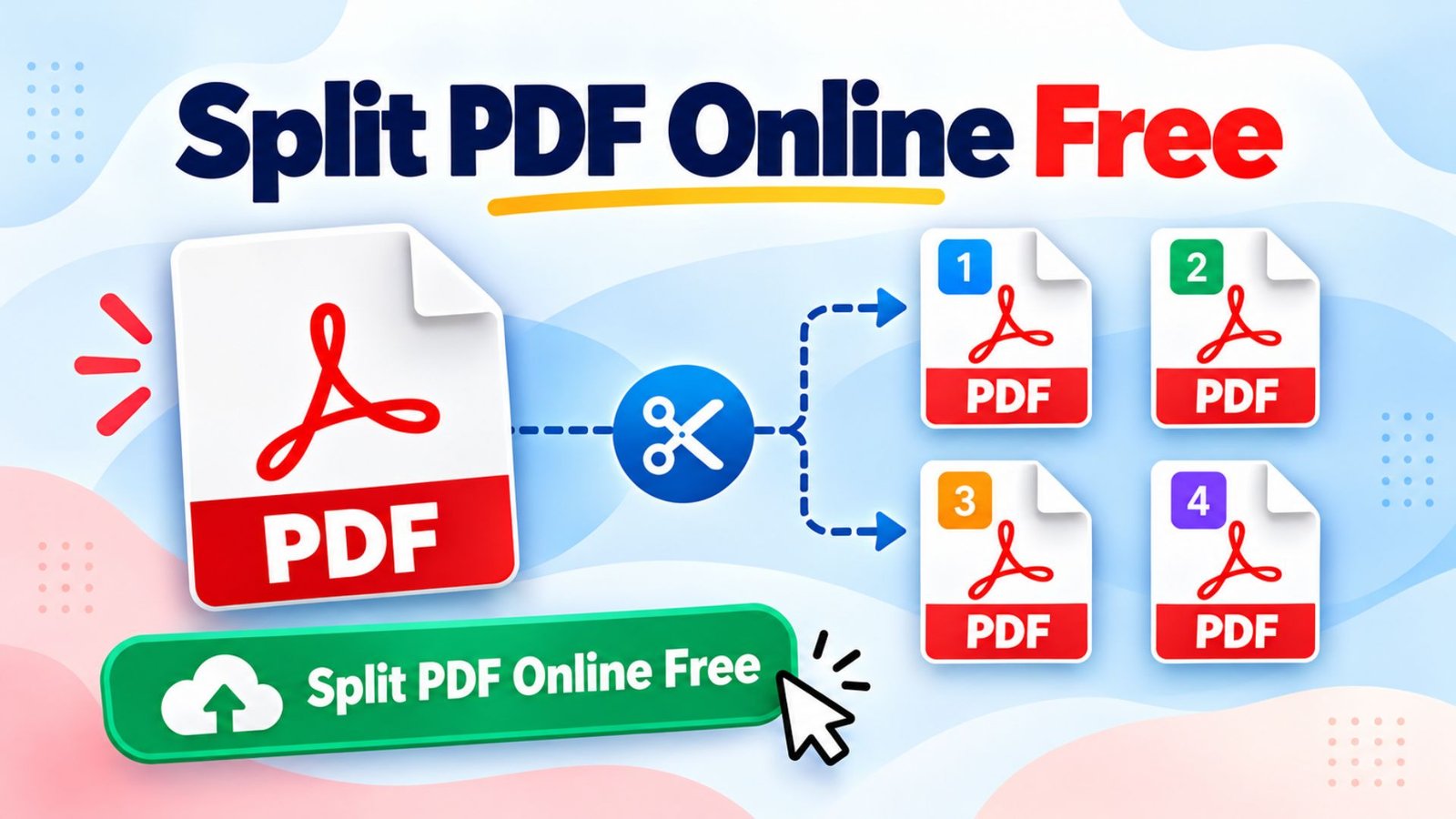
How to Split PDF Online Free: Best Tools, Simple Steps, and File Size Limits
Need to separate a few pages from a PDF but don’t want to install software or pay for a subscription? Large documents can be difficult to share, and uploading the wrong pages can expose information you never intended to send. The good news is that you can split pdf online free using browser-based tools that let you extract pages, divide documents, and download smaller files in minutes.
What Does It Mean to Split a PDF Online for Free?
Quick answer:
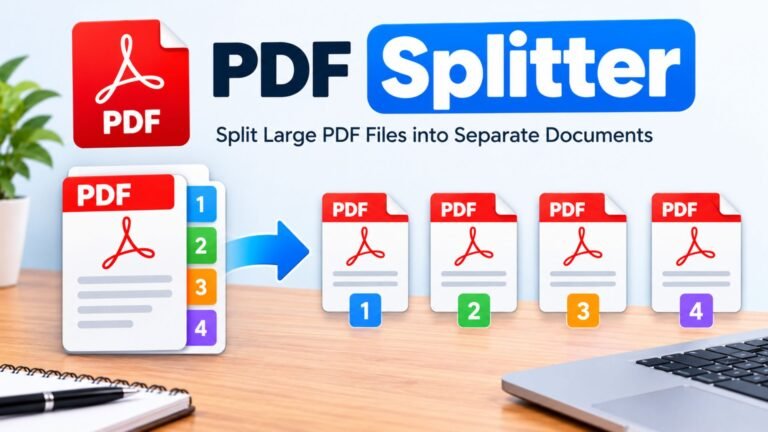
Splitting a PDF means dividing one document into two or more separate PDF files without changing the original document’s contents.
For example, imagine you have a 60-page training manual but only need pages 15–20. Instead of sending the entire manual, you can extract those six pages and save them as a separate file.
A reliable split pdf online free tool can help you:
- Extract one or several pages from a document.
- Divide a PDF into specific page ranges.
- Separate every page into its own PDF.
- Create smaller documents for emailing or sharing.
- Organize contracts, assignments, reports, and invoices.
- Save only the pages relevant to your work.
PDF splitting is different from PDF compression. Splitting removes pages from a particular output file, while compression attempts to reduce the storage space used by the PDF.
How to Split PDF Online Free in 5 Simple Steps
Quick answer: Choose an online PDF splitter, upload your document, select the pages or ranges, process the file, and download the results.
Follow these steps to split pdf online free without installing a desktop application.
Step 1: Choose a trusted PDF splitter
Open a reputable PDF service such as PDF24, iLovePDF, or Adobe Acrobat in your browser.
Check whether the tool requires an account, limits free usage, or applies file size restrictions before uploading anything.
Step 2: Upload your PDF document
Click the button labeled Choose Files, Select PDF, or something similar.
Find the document on your computer or phone. Some services also support files from connected cloud storage.
Step 3: Select the pages you want
Choose how to divide your file.
For example, a 40-page report might need these sections:
- File 1: Pages 1–10
- File 2: Pages 11–20
- File 3: Pages 21–30
- File 4: Pages 31–40
Be sure to check how the service interprets page numbers, especially if the PDF includes an unnumbered cover or introductory pages.
Step 4: Process the PDF
Select the split or extract option.
The service processes the document according to your selected ranges. Processing speed depends on file size, document complexity, internet connection, and server workload.
Step 5: Download and check your files
Download the new PDFs. If the service creates several files, it may package them in a ZIP archive.
Open each file and confirm that its page order, images, text, and formatting are correct.
Helpful tip: Keep your original PDF until you have checked every resulting document.
Best Free Online PDF Splitter Tools Compared
Not every free PDF tool offers the same features. Some require an account, while others let you process ordinary documents without registering.
The following comparison explains which service works best for different situations.
| Feature | PDF24 | iLovePDF | Adobe Acrobat Online |
|---|---|---|---|
| Online PDF splitting | Yes | Yes | Yes |
| Free functionality | Yes | Yes, with plan limits | Free access with usage conditions |
| Registration needed | No | Not generally for basic use | Sign-in required in the standard split workflow |
| Custom page ranges | Yes | Yes | Yes |
| Extract individual pages | Yes | Yes | Splitting by dividers; extraction tools also available |
| Supports large files | Depends on technical limits | Depends on account and tool limits | Up to 1GB for online splitting |
| Unlimited free usage | Advertised without usage restrictions | Not guaranteed | Depends on account and region |
| Installation | Not required | Not required | Not required |
| Main advantage | No registration or subscription | Flexible page extraction | Adobe document workflow |
| Main consideration | Online uploads still involve a server | Free-plan restrictions | Account and usage restrictions |
Which should you choose?
For simple, occasional splitting without registration, PDF24 is a practical starting point. iLovePDF offers convenient extraction and range controls, while Adobe Acrobat is useful when you already work with Adobe documents.
Always check the provider’s current usage limits, especially when processing unusually large PDFs.
Can You Split PDF Online Free Without Signing Up?
Quick answer:
Yes. PDF24 provides an online PDF splitting tool without mandatory account registration.
If you want to split pdf online free no sign up, open the PDF24 splitter, upload your document, choose the desired split method, and download the processed files.
PDF24 states that its online tools are free to use without registration, subscriptions, or time-based usage restrictions.
This makes it useful for:
- Students extracting assignment pages.
- Employees separating nonconfidential reports.
- Small businesses organizing documents.
- People working on shared or temporary computers.
- Anyone who does not want another online account.
However, no-sign-up access does not mean that an uploaded file stays on your device. PDF24 processes online files through its servers and states that uploaded files are automatically deleted after one hour.
For highly confidential material, consider an approved offline PDF application instead.
How to Split PDF Online Free Without Email
You do not always need an email address to separate PDF pages.
For a split pdf online free without email workflow, select a service that permits anonymous access to the splitting feature.
PDF24 is one option because the provider states that its online tools do not require registration.
A typical process looks like this:
- Open the PDF24 Split PDF page.
- Upload the document.
- Select your preferred page ranges or split settings.
- Start the splitting operation.
- Save the generated files to your device.
You should not need to submit an email address just to download a basic result through this workflow.
Keep in mind that some competing websites initially advertise free processing but request registration before downloading the final file.
Check those requirements before uploading sensitive or large documents.
How to Use iLovePDF to Split PDF Pages
iLovePDF is a popular browser-based PDF service with tools for splitting, merging, compressing, and organizing documents.
The ilovepdf split pdf online free workflow is designed for separating a document into page ranges or extracting selected pages.
Splitting by page ranges
Open the official iLovePDF splitter and upload your document.
Choose the Range option, then select a custom or fixed range depending on the available controls.
For instance, a 25-page document can be divided into:
| Output file | Selected pages | Total pages |
|---|---|---|
| Introduction.pdf | 1–5 | 5 |
| Main-Report.pdf | 6–20 | 15 |
| Appendix.pdf | 21–25 | 5 |
| Total | 1–25 | 25 |
Start processing and download the resulting documents.
Extracting individual pages
If you only need pages 2, 6, and 10, choose the page extraction option instead of dividing the entire document into continuous ranges.
Depending on the selected setting, you can combine the extracted pages into one new PDF or create separate files.
Is iLovePDF completely free?
iLovePDF offers free basic PDF tools, but certain features and processing limits depend on account type.
For example, its size-based splitting feature is identified as Premium on the official tool interface.
Check the current account limits before uploading a very large file.
How to Split PDF Online Free Using Adobe Acrobat
Adobe Acrobat offers browser-based tools for organizing and separating PDF documents.
To split pdf online free adobe users can open the official online Split PDF service and follow the available free workflow.
Instructions
- Visit the Adobe Acrobat Split PDF page.
- Select the PDF you want to divide.
- Sign in when Adobe requests authentication.
- Review the page thumbnails.
- Insert divider lines between the relevant pages.
- Click Continue and save the results.
- Download the new PDFs.
Adobe’s published online splitter supports single PDFs up to 1GB and a maximum of 1,500 pages.
The company’s online documentation has shown differing divider-line limits across interfaces, so follow the limit displayed in your active Adobe session.
Adobe Acrobat free vs. paid
| Feature | Online free access | Acrobat Pro |
|---|---|---|
| Basic PDF splitting | Available subject to usage conditions | Available |
| Installation for web splitting | No | Not necessary for web use |
| Account | Required in standard workflow | Paid account |
| Advanced PDF editing | Limited | Broader features |
| Repeated use | Subject to current account limits | Subject to subscription terms |
| Professional document workflow | Basic tasks | More extensive editing and organization |
For someone who occasionally needs to split a document, online access may be enough.
If you frequently edit, combine, protect, organize, and export PDFs, the paid Acrobat features may offer greater convenience.
Can You Split PDF Online Free With No Size Limit?
Quick answer: No online tool can guarantee that every file size will work. Even providers advertising unrestricted use have technical limits.
The phrase split pdf online free no size limit usually reflects what users want: a service that does not impose a restrictive everyday upload allowance.
There is an important difference between unlimited usage and unlimited file size.
- Unlimited usage: You can perform repeated splitting operations without a fixed free-operation quota.
- Unlimited file size: The service would theoretically accept PDFs of any size, regardless of server capacity.
- Unlimited pages: There would be no page-count restriction for processing documents.
These are three different claims.
PDF24 advertises unrestricted free use, but that should not be interpreted as a technical guarantee for every possible file size.
Adobe publishes a 1GB online splitting limit. Other providers apply restrictions based on their tools and subscription plans.
For unusually large documents, an offline PDF editor may be more dependable because it avoids internet upload requirements.
How to Split PDF Online Free for 100MB, 150MB, and 200MB Files
Large PDFs often contain scanned pages, high-resolution photographs, diagrams, and embedded graphics.
If you need to split pdf online free 200mb documents, compare the service’s upload limits before beginning.
File size comparison
| Original PDF size | Adobe online splitter | PDF24 | iLovePDF |
|---|---|---|---|
| 10MB | Within published size limit | No fixed universal size cap published on splitter page | Check free-plan restrictions |
| 50MB | Within published size limit | Subject to technical capacity | Check free-plan restrictions |
| 100MB | Within published size limit | Subject to technical capacity | Check free-plan restrictions |
| 150MB | Within published size limit | Subject to technical capacity | Check free-plan restrictions |
| 200MB | Within published size limit | Subject to technical capacity | Check free-plan restrictions |
| 500MB | Within published size limit | Subject to technical capacity | Check free-plan restrictions |
| 1GB | At published limit | Subject to technical capacity | Check free-plan restrictions |
| Above 1GB | Exceeds published online split limit | Depends on technical capacity | Depends on current plan and tool limits |
Within a published size limit does not guarantee processing success. Password protection, PDF corruption, file complexity, and service conditions may still prevent completion.
Tips for processing large PDFs
First, check whether the file contains unnecessary photographs or scanned pages.
If possible, remove unneeded content before splitting. Otherwise, consider compressing a copy of the PDF to reduce upload time.
Avoid repeated high-compression processing when fine print, diagrams, or images must remain easy to read.
For large confidential files, use an approved desktop program rather than uploading them to an unfamiliar website.
How to Merge and Split PDF Online Free
PDF merging and splitting perform opposite operations, but they work well together.
Splitting divides one PDF into smaller documents. Merging combines two or more PDF files into a single document.
For example, imagine that you have a 100-page report and only need three sections:
- Pages 5–10
- Pages 31–35
- Pages 80–90
First, extract each required range.
Then combine those extracted sections into one document if you need a single file.
This merge and split pdf online free workflow can help prepare:
- Job applications.
- School assignments.
- Business proposals.
- Training handbooks.
- Legal document packets.
- Project portfolios.
Before merging, name your files clearly and place them in the correct sequence.
Always inspect the resulting PDF to make sure no pages were omitted or duplicated.
Can You Split PDF Online Free and Download Separate Pages?
Quick answer: Yes. Many PDF splitters allow you to extract selected pages and download them as individual documents.
A split pdf online free download operation usually produces PDF files or a ZIP archive containing multiple PDFs.
For example, if you extract all 12 pages of a document individually, you should expect 12 PDF files.
However, tools differ in how they package the output.
Some let you select multiple pages and save them as one combined document, while others create separate files for every extracted page.
How to organize downloaded PDFs
Use simple, descriptive filenames such as:
- Invoice-January.pdf
- Invoice-February.pdf
- Report-Section-01.pdf
- Report-Section-02.pdf
- Contract-Signature-Pages.pdf
Avoid generic names such as file1.pdf or document-final-new.pdf.
Clear filenames save time, especially when managing many downloaded documents.
Adobe Compress PDF: How to Reduce File Size After Splitting
Sometimes splitting a document does not reduce its size enough for email attachments or online applications.
That is when PDF compression becomes useful.
The adobe compress pdf online service reduces file size by optimizing document elements, including images, embedded fonts, and unnecessary data.
Adobe’s official instructions describe three compression settings:
| Compression setting | Main purpose | Important consideration |
|---|---|---|
| High | Prioritize smaller files | More aggressive compression may affect image detail |
| Medium | Balance size and readability | Often worth trying first |
| Low | Apply less aggressive compression | Output may remain relatively large |
How to compress a PDF using Adobe
- Open the official Adobe Acrobat compression service.
- Upload the PDF file.
- Select a compression level.
- Start the compression process.
- Download the optimized file.
- Compare the result against the original.
Adobe’s April 2026 documentation lists a 2GB compression file size limit.
This is different from the 1GB published limit for its online PDF splitter.
The amount of space saved depends on the contents of your document. A scanned PDF with large images may shrink substantially, while a PDF that is already optimized may show little improvement.
Should you split or compress first?
The best order depends on your goal.
| Your goal | Recommended action |
|---|---|
| Keep only a few pages | Split first |
| Email an entire large report | Compress first |
| Extract pages from a huge scanned PDF | Consider reducing file size before upload |
| Create separate chapters | Split by page ranges |
| Make selected pages fit an upload limit | Split, then compress |
| Preserve detailed images | Split without unnecessary compression |
The adobe compress pdf free workflow may be useful for occasional tasks, but available free transactions, sign-in requirements, and paid features can vary.
Do not assume that every advanced compression option or unlimited repeated use is included for free.
Is It Safe to Use an Online PDF Splitter?
Online PDF services can be convenient, but uploading documents always deserves attention.
Even a reputable platform processes information according to its own infrastructure, security practices, and privacy policy.
Before uploading any document, check the following:
- Does the website use HTTPS?
- Is the company identifiable?
- Does it explain how uploaded files are processed?
- Does it publish a file retention or deletion policy?
- Can you download your results without unnecessary permissions?
- Does the document contain information that should not leave your device?
PDF24 states that it uses SSL-protected transfers, operates servers in Germany, and automatically removes uploaded files after one hour.
Adobe also publishes information about uploaded documents and its cloud storage workflow.
For financial records, medical information, confidential contracts, identity documents, and other sensitive files, follow your organization’s security policies and use approved offline software where appropriate.
A password-protected PDF also deserves special care. Only remove or work around restrictions when you own the document or have permission to modify it.
How to Split PDF Files on Android, iPhone, Windows, and Mac
One advantage of browser-based PDF tools is that they work across different operating systems.
You can generally upload documents through a modern browser without installing a dedicated PDF editor.
| Device | Typical method | Useful tip |
|---|---|---|
| Windows PC | Open a browser and upload the PDF | Save files into a clearly named folder |
| Mac | Use Safari, Chrome, or another supported browser | Check downloaded files in Finder |
| Android | Open a PDF splitter in your mobile browser | Use the Files app to locate the result |
| iPhone | Open the service in Safari | Save resulting PDFs to the Files app |
| Chromebook | Use a browser-based PDF tool | Organize files in Downloads or Drive |
Mobile interfaces may arrange controls differently from desktop versions.
For long documents with many page ranges, a larger screen makes it easier to review the page thumbnails and confirm each split position.
If an upload fails on mobile, check the file’s location, your internet connection, and available device storage.
Common PDF Splitting Problems and Easy Fixes
An unsuccessful split does not necessarily mean the PDF is damaged.
Many problems occur because of incorrect page selections, file restrictions, or upload conditions.
| Problem | Possible reason | Recommended solution |
|---|---|---|
| PDF will not upload | File is too large | Check the provider’s supported size |
| Document cannot be opened | File is damaged | Test the original in a trusted PDF reader |
| Split pages are missing | Incorrect ranges | Recheck every start and end page |
| Download is unavailable | Account or service restriction | Check the tool’s requirements |
| Pages appear out of order | Incorrect extraction sequence | Review selected ranges and reprocess |
| PDF requires a password | Security restrictions | Obtain authorized access |
| File remains too large | High-resolution content | Compress an appropriate copy |
| Text looks blurry | Excessive compression | Use lower compression or the original file |
| Processing stops | Network or server error | Retry with a stable connection |
| ZIP file will not open | Incomplete download | Download the results again |
Why is the resulting PDF still large?
PDF splitting does not automatically optimize every embedded image or font.
If you extract half the pages from a document, the new file may not be exactly half the original file size.
Shared resources, duplicated fonts, document structure, and PDF optimization settings affect the outcome.
If the file is still too large, try a separate compression step.
How to Choose the Best Free PDF Splitting Site
The best tool is the one that solves your particular document problem without unnecessary restrictions.
Before choosing a split pdf online free site, consider these factors.
1. Ease of use
Can you upload a file and select page ranges without complicated menus?
A clean interface reduces the chances of splitting the wrong pages.
2. File size support
Always check the file size restrictions before selecting a service, particularly when working with 100MB or larger documents.
3. Account requirements
If privacy and convenience matter, choose a service that clearly explains whether registration is necessary.
4. Page selection features
Some users need custom ranges. Others want each page saved separately.
Check whether the tool offers the exact splitting method you need.
5. Download options
Look for simple PDF downloads and ZIP support when splitting documents into many files.
6. Document security
Review file retention, deletion policies, and server processing practices.
7. Free usage conditions
A service may offer one free operation but charge for repeated processing.
Read the current terms rather than relying on a broad “free” label.
Practical Examples of Splitting PDF Documents
The easiest way to understand PDF splitting is through everyday examples.
Example 1: Separate a school assignment
A student has an 80-page textbook PDF but only needs pages 25–32 for a class.
The student extracts those eight pages and saves them as a new document, provided the use complies with applicable copyright and school rules.
Example 2: Prepare a job application
An applicant has a portfolio containing 40 pages.
The employer requests only the resume and three selected examples of previous work.
The applicant extracts the required pages and combines them into one smaller application PDF.
Example 3: Organize monthly invoices
A business receives a 60-page PDF containing invoices for several months.
The administrator separates the invoices by month and saves each section using a descriptive filename.
Example 4: Share part of a research report
A team member needs to send pages 15–28 from a lengthy project report.
Instead of sharing the whole document, the team member extracts the required section after checking that no confidential or irrelevant material is included.
Example 5: Create smaller training documents
A company has a 150-page employee handbook.
The training team divides it into introductory, safety, workplace policy, and reference sections.
Separate documents make it easier for employees to find the information they need.
Frequently Asked Questions About Free PDF Splitting
1. How can I split PDF online free without installing software?
Answer: Open a browser-based PDF splitter, upload your document, select the required pages, process the file, and download the results.
PDF24 is one option that does not require installation or registration for its basic online splitter.
2. Is there a split PDF online free no signup option?
Answer: Yes. PDF24 advertises free PDF splitting without account registration.
Other providers may request sign-in before allowing processing or downloading. Always verify the current conditions on the official website.
3. Can I split PDF online free 100MB or 150MB files?
Answer: Yes, some providers support files of those sizes. Adobe’s published online PDF splitting limit is 1GB.
Other services may apply different upload limits depending on the tool and subscription.
4. Can I split PDF online free unlimited times?
Answer: PDF24 advertises unrestricted use of its free tools, but unlimited usage does not guarantee unlimited technical processing capacity.
Free plans from other providers may restrict the number of operations or impose additional conditions.
5. Is Adobe Acrobat better than iLovePDF for splitting PDF files?
Answer: Adobe Acrobat is useful for people who already use Adobe’s document services, while iLovePDF offers convenient page extraction and range selection.
The better choice depends on whether you value a familiar document ecosystem, free usage, flexible extraction, or minimal registration.
6. Can I merge PDFs after splitting them?
Answer: Yes. Extract the pages or sections you need, then combine the resulting PDFs using a merge tool.
Check the final page order and confirm that the combined document contains every required page.
Final Thoughts: Choose the Right Free PDF Splitter
You do not need complicated software to separate pages from ordinary PDF documents.
If you want to split pdf online free, start by deciding whether you need individual pages, continuous page ranges, or several separate files.
PDF24 is a sensible choice for people who want no-registration access. iLovePDF provides straightforward extraction controls, while Adobe Acrobat offers a familiar document-management environment.
For larger files, check upload limits before processing. For confidential documents, choose approved offline software whenever possible.
Ready to organize your PDFs?
Pick a trusted splitter, extract the pages you actually need, and review your downloaded files before sharing them.

One Comment