
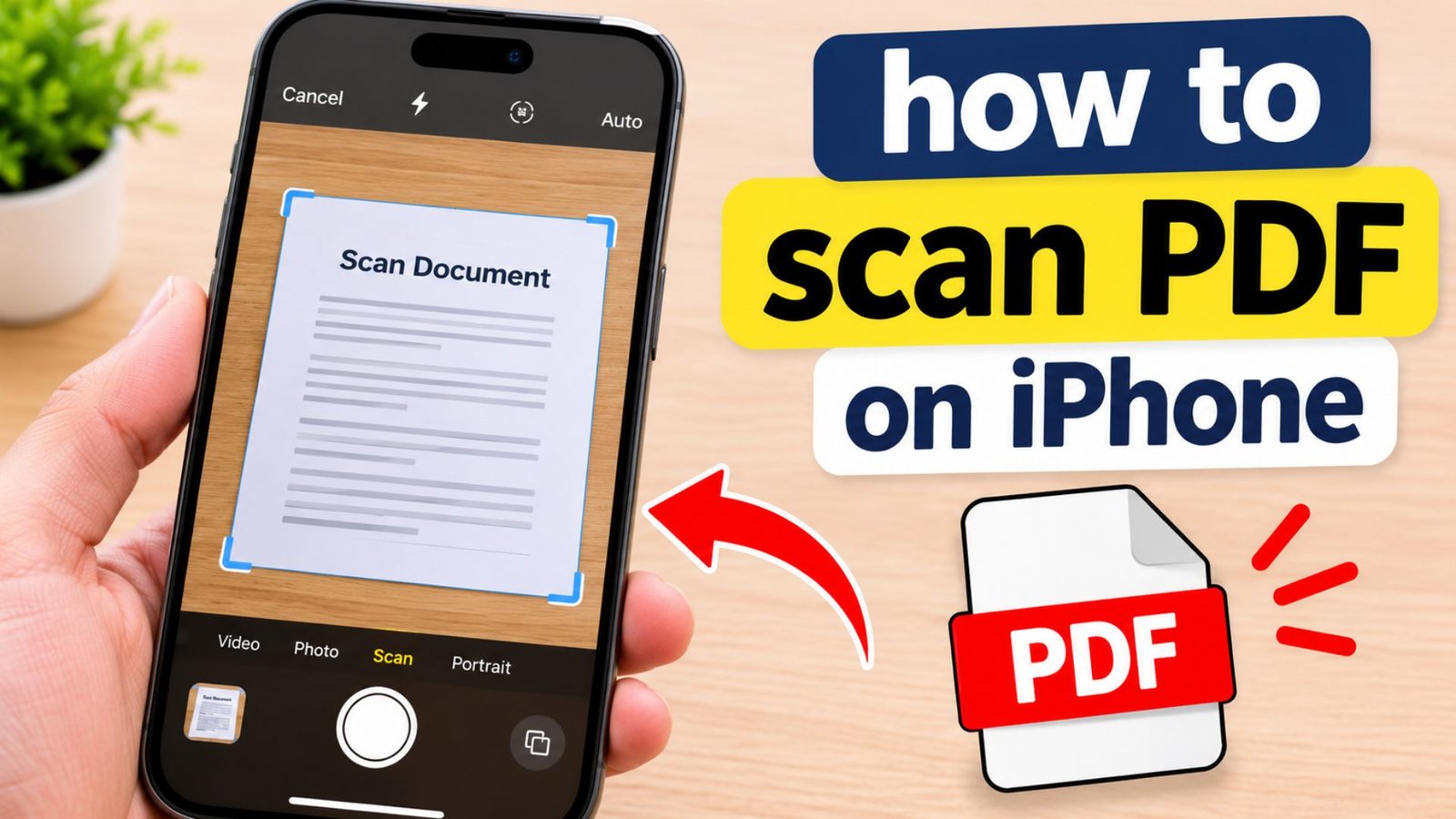
How to Scan PDF on iPhone: A Complete Step-by-Step Guide
Need to turn paper documents into digital files but don’t have a scanner? Your iPhone already has the tools to help. Learning how to scan PDF on iPhone makes it easy to digitize receipts, school notes, contracts, invoices, and important paperwork. You can scan documents using Apple’s built-in Notes and Files apps, save them as PDFs, and share them without installing extra software. This guide explains every step, including text recognition, editing, and troubleshooting.
What Does Scanning a PDF on iPhone Mean?
Scanning a PDF means using your iPhone camera to capture a physical document and turn it into a digital PDF file. The scanning feature detects page edges, adjusts the document, and creates a clean digital copy.
For example, you can scan:
- School assignments and handwritten notes.
- Business contracts and agreements.
- Bank statements and invoices.
- Identity documents and application forms.
- Receipts, bills, and certificates.
- Printed books and study materials.
A scanned PDF is useful because you can store, organize, email, print, and share documents without carrying physical copies.
How to Scan PDF on iPhone Using the Notes App
The Apple Notes app provides a convenient way to scan documents without downloading another application. It can capture multiple pages and save them together as a PDF.
Follow these steps:
- Open the Notes app on your iPhone.
- Create a new note or open an existing one.
- Tap the attachment or camera button.
- Select Scan Documents.
- Place your paper document in front of the camera.
- Allow your iPhone to detect the document edges.
- Capture the page automatically or tap the shutter button manually.
- Adjust the corners if necessary.
- Tap Keep Scan.
- Repeat the process for additional pages.
- Tap Done when you finish.
Your scanned document will appear inside the note as a PDF. You can open it, review the pages, and use the sharing options to save or send a copy.
How to Scan PDF on iPhone Using the Files App
The Files app is another excellent option, especially when you want to save a document directly into a folder instead of keeping it inside a note.
Here is the process:
- Open the Files app.
- Navigate to the folder where you want to save your document.
- Tap the three-dot menu.
- Select Scan Documents.
- Position your document inside the camera frame.
- Wait for automatic capture or switch to manual mode.
- Adjust the page corners.
- Tap Keep Scan.
- Scan additional pages if needed.
- Tap Done.
- Choose your preferred storage location and tap Save.
Your document will be saved as a PDF in the selected location.
Why choose Files?
- Saves scanned documents directly into folders.
- Makes PDF organization easier.
- Supports convenient file sharing.
- Helps keep business and personal documents separate.
- Works with local storage and supported iCloud Drive locations.
How to Scan Multiple Pages Into One PDF on iPhone
If you have a document with several pages, you don’t need to create a separate PDF for every page. Your iPhone can capture multiple pages during one scanning session.
Follow these instructions:
- Open Notes or Files.
- Select Scan Documents.
- Capture the first page.
- Tap Keep Scan.
- Place the second page under the camera.
- Continue capturing each page.
- Review the captured pages.
- Adjust cropping or orientation where necessary.
- Finish the scanning session.
- Save the document as one PDF.
Example: If you have a 10-page school assignment, you can scan all 10 pages into one PDF instead of creating 10 individual files.
Before sharing, check that the pages appear in the correct order and that no page is missing.
How to Scan PDF on iPhone Using Adobe Scan
Adobe Scan is a popular option for people who regularly scan paperwork and need additional document-processing features.
To use it:
- Install Adobe Scan from the App Store.
- Open the application.
- Allow camera access when requested.
- Position your document inside the camera frame.
- Let the application detect the page boundaries.
- Capture the document.
- Review the scan and adjust its cropping.
- Add more pages if required.
- Select Save PDF.
- Open or share your saved document.
Adobe Scan also provides OCR technology, which can recognize printed text in scanned documents and make it easier to work with the content.
One important detail: Adobe Scan uses Adobe cloud services for document storage and processing, so consider your storage and privacy requirements before choosing it for sensitive paperwork.
Which Is the Best App to Scan PDF on iPhone?
The best app depends on what you need. If you only want to digitize everyday documents, Apple’s built-in tools are a good starting point. If you need additional OCR or document-management features, a dedicated scanner may be more suitable.
| App | Main purpose | Best for |
|---|---|---|
| Apple Notes | Built-in document scanning | Everyday paperwork |
| Apple Files | Scanning and file storage | Organized PDF files |
| Adobe Scan | PDF creation and OCR | Searchable document workflows |
| OneDrive | Document scanning and cloud storage | Microsoft 365 users |
My recommendation: Start with Notes or Files because they are already available on supported iPhones. Choose Adobe Scan when you need its additional scanning and OCR capabilities.
How to Convert a Scanned PDF to Text on iPhone
A scanned PDF may contain pictures of words rather than actual selectable text. This means you might not be able to copy a sentence, search for a particular word, or edit the content directly.
Optical Character Recognition (OCR) solves this problem by identifying letters and words in document images.
To scan PDF to text, follow these steps:
- Capture your document using Notes, Files, or Adobe Scan.
- Open a supported text-recognition feature.
- Select the text you want to extract.
- Review the recognized content.
- Copy the extracted text.
- Paste it into Notes, Pages, or another text editor.
Apple Notes also provides a separate Scan Text feature for inserting recognized text directly into a note. Availability depends on the supported language and iOS version.
How to Convert Scan PDF Text to Word
If you want to edit a scanned document in Microsoft Word, you need to extract its text first.
A typical conversion process involves:
- Create a scanned PDF using your iPhone.
- Open the PDF in an OCR-enabled application or conversion service.
- Run text recognition.
- Choose Word or DOCX as the output format, if supported.
- Review the converted document.
- Correct formatting, spelling, and spacing.
- Save the Word file.
Important: OCR does not always reproduce the original layout perfectly. Tables, signatures, handwriting, columns, and unusual fonts may require manual corrections.
How to Scan PDF to Word Using an Online Converter
A scan PDF to Word converter can help when you need an editable document instead of a fixed PDF.
The general process is:
- Open a trusted PDF conversion service.
- Select your scanned PDF.
- Upload the document.
- Choose PDF to Word conversion.
- Allow OCR processing if the file contains image-based pages.
- Download the converted DOCX file.
- Open it in Microsoft Word and review the formatting.
Avoid uploading confidential contracts, financial statements, or identity documents to unknown conversion websites. Check their privacy and file-retention policies first.
How to Scan PDF for Words Using OCR
Sometimes you don’t want to convert an entire PDF into Word. You may only need to locate a name, date, address, or particular sentence.
OCR makes this easier by converting image-based text into machine-readable content.
For better results:
- Use a clear, high-resolution scan.
- Keep the document straight.
- Avoid shadows and reflections.
- Use good lighting.
- Select the correct document language.
- Review similar-looking characters such as O and 0.
Once text recognition is complete, use the application’s search function to find specific words and phrases.
How to Scan PDF on Android
Although this guide focuses on iPhone, Android users can also create digital PDFs using mobile scanning applications.
A common method is Google Drive:
- Open Google Drive on an Android phone.
- Tap the camera or scan option if available.
- Position the paper inside the camera frame.
- Capture the document.
- Adjust the crop.
- Add additional pages.
- Save the document as a PDF.
The exact interface may vary depending on your Android version and application updates.
How to Scan PDF Documents on Windows
Windows users can also scan physical documents and save them as PDFs using compatible scanners and scanning applications.
A typical workflow is:
- Connect a compatible scanner to your computer.
- Install the required scanner driver.
- Open Windows Scan or the manufacturer’s scanning application.
- Select your scanner.
- Choose the document and color settings.
- Scan the paper.
- Save the resulting file in PDF format if supported.
The traditional Windows Fax and Scan application may be useful for compatible scanning workflows, but available save formats depend on the software and scanner.
How to Scan PDF for Virus on iPhone
Downloading or receiving a PDF from an unknown sender can create security risks. A PDF may contain suspicious links, misleading attachments, or content designed to exploit software vulnerabilities.
To check a PDF safely:
- Avoid opening unexpected PDF attachments.
- Check who sent the document.
- Update your iPhone to the latest available iOS version.
- Avoid tapping suspicious links inside PDF files.
- Use a reputable security service if you need additional file inspection.
- Delete suspicious files rather than forwarding them.
iPhone does not provide a universal built-in PDF antivirus scanner. Be careful with online virus-scanning websites, particularly when dealing with private documents.
How to Improve the Quality of a Scanned PDF
A clear scan makes documents easier to read, share, print, and process with OCR. Small improvements during scanning can significantly improve the final result.
Use these practical tips:
- Choose good lighting: Scan in a bright room to prevent dark areas.
- Use a flat surface: Place the paper on a clean, level background.
- Keep your phone steady: Avoid moving the camera while capturing.
- Capture the entire page: Make sure all four corners are visible.
- Clean your camera lens: Remove fingerprints and dust.
- Check page alignment: Straighten tilted pages before saving.
- Choose suitable filters: Use color for images and grayscale or black and white for ordinary text.
- Review every page: Check for missing information before sharing.
- Use meaningful filenames: Name documents according to their purpose.
Following these tips helps you create professional-looking digital documents without needing an expensive scanner.
How to Reduce the File Size of a Scanned PDF
Large PDF files can take longer to upload, email, or share. Reducing the file size makes documents easier to manage.
Try these methods:
- Avoid scanning unnecessary blank pages.
- Use grayscale for documents that don’t need color.
- Avoid unnecessarily high image resolution.
- Remove duplicate pages.
- Use a trusted PDF compression application.
- Check the compressed document to ensure the text remains readable.
Compression can reduce image quality, so always keep an original copy of important paperwork.
How to Share a Scanned PDF From iPhone
After scanning, the next step is sharing the finished document.
You can send your PDF through several available options:
| Sharing method | How it helps |
|---|---|
| Send documents as attachments | |
| AirDrop | Transfer PDFs to nearby Apple devices |
| Messages | Share documents through text messages |
| iCloud Drive | Store and share files |
| Send PDFs to contacts | |
| Google Drive | Share files through cloud storage |
To share your document:
- Open the scanned PDF.
- Tap the Share button.
- Select your preferred sharing application.
- Choose the recipient.
- Send the document.
Always double-check the recipient before sharing confidential paperwork.
Common Problems When Scanning PDF on iPhone
Sometimes scanning doesn’t work as expected. The following table explains common problems and their solutions.
| Problem | Possible reason | Solution |
|---|---|---|
| Camera doesn’t detect paper | Poor lighting | Move to a brighter location |
| Blurry scanned PDF | Camera movement | Hold your iPhone steadily |
| Missing document corners | Incorrect positioning | Adjust the camera angle |
| PDF not saving | Storage or app issue | Check available storage |
| Text isn’t selectable | Image-based PDF | Use OCR |
| Large PDF file | High-resolution images | Compress the PDF |
| Pages appear in the wrong order | Scanning sequence | Rearrange pages before sharing |
| Scan Documents option missing | Different app interface | Check the latest app version |
iPhone PDF Scanning: Complete Feature Comparison
Here is a quick comparison of the main scanning methods and additional PDF features.
| Feature | Notes | Files | Adobe Scan |
|---|---|---|---|
| Document scanning | Yes | Yes | Yes |
| Multi-page scanning | Yes | Yes | Yes |
| PDF creation | Yes | Yes | Yes |
| File organization | Notes | Folders | Adobe storage |
| OCR support | Supported text recognition | Depends on workflow | Yes |
| Document sharing | Yes | Yes | Yes |
| Additional installation | No | No | Yes |
| Best use | Quick scans | File management | Advanced scanning |
The best choice depends on your workflow. Notes is convenient for everyday scanning, Files is useful for document storage, and Adobe Scan offers additional scanning features.
Frequently Asked Questions
1. How to scan PDF on iPhone for free?
Open the Apple Notes or Files app, select Scan Documents, capture your paper, and save the scanned document. Both apps provide built-in scanning without requiring a separate scanner application.
2. Can I scan multiple pages into one PDF on iPhone?
Yes. You can capture several pages during the same scanning session using Notes or Files. Review the page order and save the document as one PDF.
3. How do I scan PDF on iPhone without an app?
Use the built-in Notes or Files app. You don’t need to download another application because supported iPhones already include document-scanning functionality.
4. How can I convert a scanned PDF to Word?
Use an OCR-enabled PDF converter that supports DOCX export. Upload your scanned document, recognize its text, select Word format, and review the converted file for formatting errors.
5. Can I scan PDF on iPhone and make the text searchable?
Yes. Use OCR technology to recognize printed text in your scanned document. This allows compatible applications to search for words and phrases within the PDF.
6. What is the best app to scan PDF on iPhone?
Apple Notes and Files are excellent free choices for everyday scanning. Adobe Scan is another option if you need additional OCR and document-processing features.
Conclusion
Learning how to scan PDF on iPhone can save time and make document management much easier. With Apple Notes and Files, you can capture paper documents, combine multiple pages, create PDFs, and share files without purchasing a physical scanner.
For additional features, Adobe Scan provides OCR and other document-processing options. Choose the method that suits your needs, keep your scans organized, and always review important documents before sharing them.
Have you tried scanning documents using your iPhone? Share your preferred scanning method and help others discover an easier way to manage digital documents.



One Comment