
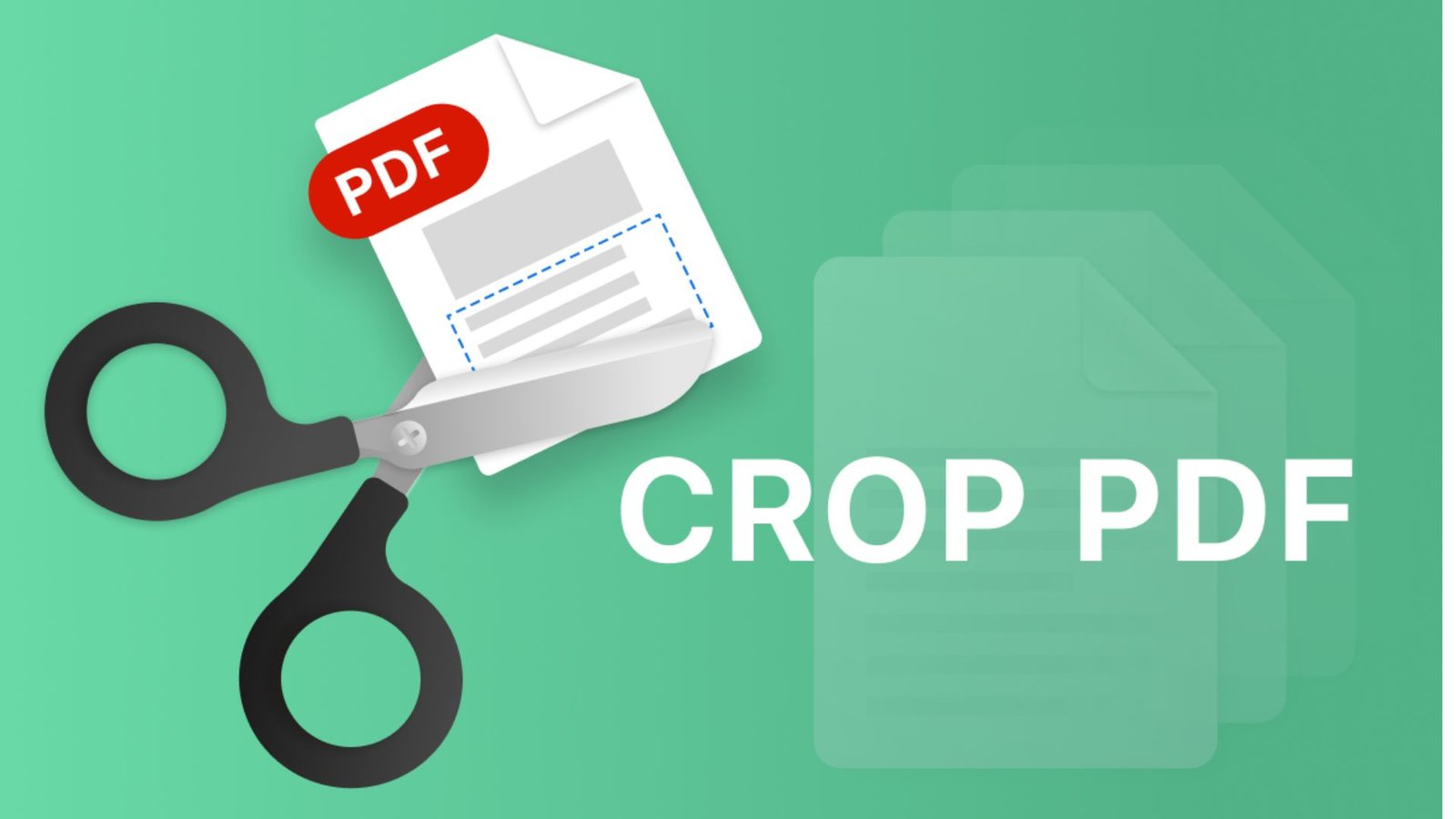
How to Crop PDF Pages Online Free and Easily
Unwanted margins, extra white space, and poorly framed pages can make a PDF difficult to read, print, or share. These issues can also make professional documents look untidy. Learning how to crop PDF pages gives you a simple way to improve page layout without recreating the entire document. Whether you need to crop PDF online free, adjust a scanned document, or use Adobe Acrobat on your computer, this guide explains the practical methods, important settings, and common mistakes to avoid.
What Does It Mean to Crop a PDF?
Cropping a PDF means changing the visible boundaries of a page to focus on the content you want to display. You can remove unwanted margins, hide unnecessary blank areas, or make a to view and print.
For example, imagine a scanned invoice with a large white border around the text. You can crop the page to make the invoice look cleaner and use the available page space more effectively.
PDF cropping is useful for:
- Removing excessive white margins from scanned documents.
- Improving the appearance of reports and presentations.
- Focusing on charts, tables, images, or specific text.
- Preparing documents for printing.
- Making pages with different layouts look more consistent.
- Removing visible portions of unwanted page content.
Important: Cropping generally changes the visible page area rather than permanently deleting the hidden content. Do not rely on cropping to protect confidential information.
How to Crop PDF Online Free
Using an online PDF editor is often the quickest option if you do not want to install additional software. Most browser-based tools follow a similar process, although their free features, file limits, and privacy policies vary.
Follow these steps to crop PDF online:
- Choose a reputable online PDF cropping tool.
- Open its PDF editing or crop feature.
- Upload your PDF document if you are comfortable with the service’s privacy practices.
- Select the page you want to adjust.
- Drag the crop handles around the area you want to keep.
- Preview the selected area and check that no important text or images fall outside it.
- Apply the crop to the selected page or chosen page range.
- Export or download the edited PDF.
- Open the saved file and inspect the final result.
How to Choose a Free Online PDF Cropper
Before selecting a tool, check whether it supports the features you need.
- Free access: Confirm that cropping and downloading do not require an unexpected payment.
- Page selection: Look for options to crop individual pages or multiple pages.
- File limits: Check maximum file size and page restrictions.
- Privacy: Review how the service handles uploaded files and whether it automatically deletes them.
- Output quality: Make sure text remains readable and page dimensions suit your needs.
- Ease of use: Choose an interface that lets you preview the crop before applying it.
A free online tool can be convenient for ordinary documents. For confidential contracts, financial records, identification documents, or sensitive business files, an offline editor may be a better choice.
How to Crop PDF in Adobe Acrobat
Adobe Acrobat provides controls for adjusting PDF page boundaries. Its desktop interface is particularly useful when you need more precise control over margins and page ranges.
Here is how to crop PDF in Adobe Acrobat on a computer:
- Open the PDF in Adobe Acrobat.
- Select Edit from the toolbar.
- Choose Crop page from the available editing tools.
- Drag a rectangle around the content you want to keep.
- Adjust the rectangle using its corner handles.
- Double-click inside the selected area to open the page-cropping settings.
- Review the margin values and page range.
- Choose the pages that should receive the crop.
- Confirm the settings and save the document.
The exact interface may differ depending on your Acrobat version and subscription.
Understanding Adobe Acrobat Crop Settings
The crop settings can help you control which part of a page remains visible.
- CropBox: Defines the visible page area.
- TrimBox: Defines the intended finished page size for print production.
- BleedBox: Defines the area extending beyond the trim boundary for printing.
- Page range: Specifies which pages receive the selected cropping settings.
- Margin controls: Help you adjust the distance between page boundaries and content.
Some advanced page-box settings require Acrobat Pro. If you only need to remove ordinary white margins, the basic crop controls may be sufficient.
How to Crop PDF in Adobe Acrobat Without Cutting Text
Precision matters when cropping business documents, academic papers, or scanned forms.
Before confirming the crop, check the following:
- Keep headings, footnotes, page numbers, and signatures visible.
- Leave enough space around text so it does not appear cramped.
- Review tables and images near the edges.
- Inspect several pages if the document uses different layouts.
- Save a separate copy before making extensive changes.
Using Adobe Acrobat crop PDF tools can help standardize page appearance, but always inspect the exported file before sharing or printing it.
How to Crop PDF on Mac Using Preview
Mac users can crop a PDF using Preview, the built-in application for viewing and working with PDFs and images. This is a convenient option when you want to make basic cropping adjustments without installing another application.
Follow these steps to crop PDF on Mac:
- Open the PDF in Preview.
- Click the Show Markup Toolbar button if the toolbar is hidden.
- Select the Rectangular Selection tool.
- Drag over the part of the page you want to keep.
- Adjust the selection until it includes the required content.
- Click the Crop button in the markup toolbar.
- Review the result and save the document.
If you make a mistake immediately after cropping, use Edit > Undo Crop. Preview also provides ways to return to earlier file versions when available.
Can You Crop Multiple PDF Pages on a Mac?
Preview is suitable for basic page-level cropping, but the workflow may not be ideal when many pages need identical margins. For a large document, check whether your chosen editor supports applying consistent crop settings across a selected page range.
If each page has different content near its edges, inspect pages individually. Applying the same crop blindly could remove important information from some pages.
How to Crop PDF Pages Individually or in Bulk
The right method depends on whether your PDF contains one page, several pages with a consistent layout, or a mixture of different page designs.
Crop a Single PDF Page
Use individual cropping when only one page contains excessive margins or unwanted white space.
- Open the PDF in your editor.
- Select the page you want to change.
- Draw the crop boundary.
- Preview the result.
- Apply the crop and save the file.
This approach works well for receipts, scanned forms, individual diagrams, and selected report pages.
Crop Multiple PDF Pages
Bulk cropping is useful when every page has a similar layout.
- Open the PDF in an editor that supports page-range settings.
- Select the crop area on one page.
- Open the page-range or cropping settings.
- Choose the required pages or all pages.
- Apply the crop.
- Review the beginning, middle, and end of the document.
- Save a new copy.
Pro tip: Do not automatically apply one crop to every page of a document containing different paper sizes, landscape pages, portrait pages, or content positioned near the edges.
How to Crop PDF Files Using Bluebeam Revu
Bluebeam Revu is commonly used for construction drawings, architectural plans, and technical documents. Its PDF editing tools can help users manage page boundaries and prepare drawings for review or printing.
To crop PDF files in Bluebeam Revu, first identify whether you need to change the visible page area or physically trim content from a drawing.
A general workflow is:
- Open the drawing or PDF in Bluebeam Revu.
- Locate the appropriate page or document editing tools.
- Identify the area you want to retain.
- Use the cropping or page-boundary controls available in your version.
- Review the drawing scale, dimensions, annotations, and page layout.
- Save a copy and verify the output.
The exact steps depend on the version and the operation you need. Bluebeam includes different tools for page cropping, content manipulation, and page sizing, so these functions should not be treated as interchangeable.
Important Checks for Construction Drawings
When you crop technical PDFs, take extra care with:
- Scale indicators and measurement references.
- Drawing titles and revision information.
- Dimension lines and annotations.
- Approval stamps and other required markings.
- Printer margins and page-size settings.
Cropping the visible area can change how a drawing is presented without changing the underlying measurement data. Nevertheless, check the output before relying on a drawing for construction or engineering work.
Best Tool to Crop PDF: Detailed Comparison
The best tool to crop PDF pages depends on your operating system, privacy requirements, budget, and editing needs.
| Tool or method | Best use | Cost considerations | Main advantage | Limitation |
|---|---|---|---|---|
| Online PDF cropper | Quick browser-based edits | Free features vary | No installation required | Requires uploading the document |
| Adobe Acrobat desktop | Precise page boundaries | Some advanced features require a paid plan | Detailed crop and page-range controls | Certain tools require a subscription |
| Adobe Acrobat online | Browser-based PDF editing | Features may depend on account or plan | Works without desktop installation | Files may be stored in cloud services |
| Apple Preview | Basic PDF cropping on Mac | Included with macOS | Convenient built-in application | Limited compared with dedicated PDF editors |
| Bluebeam Revu | Technical and construction PDFs | Commercial licensing may apply | Useful document and drawing workflows | More features than casual users may need |
| Other desktop PDF editors | Regular offline editing | Free and paid options vary | Can reduce dependence on online uploads | Available features differ by product |
No single tool is best for every situation. For occasional, non-sensitive edits, an online cropper may be enough. For regular work, precise page control, or sensitive documents, compare desktop applications and their available features.
Crop PDF vs. Resize PDF vs. Split PDF
These operations solve different problems. Understanding the difference helps you select the correct tool and avoid unnecessary editing.
| Operation | What it changes | Example use | Does it remove pages? |
|---|---|---|---|
| Crop PDF | Changes the visible boundaries of a page | Removing extra white margins | No |
| Resize PDF | Changes page dimensions or scales content, depending on the tool | Preparing pages for a different paper size | No |
| Split PDF | Separates a document into multiple PDF files | Creating separate files for different chapters | It divides the document but does not necessarily delete the original pages |
| Extract PDF pages | Saves selected pages as a separate document | Sharing only pages 3–5 | Usually creates a separate file |
| Compress PDF | Reduces file size through supported optimization methods | Making a document easier to email | No |
| Redact PDF | Permanently removes selected sensitive content when applied correctly | Hiding confidential information | No, but the selected content is removed |
If your goal is to hide confidential information permanently, use a proper redaction tool rather than relying on cropping. If you want to reduce file size, cropping alone may not help because the underlying content can remain in the document.
Common Problems When You Crop PDF Online
Cropping usually takes only a few steps, but mistakes can affect the finished document.
Important Text Gets Cut Off
This happens when the crop boundary sits too close to the content. Leave sufficient space around headings, paragraphs, signatures, and footnotes.
Different Pages Have Different Margins
A single crop setting may not suit every page. Check the page layout before applying the same settings to the entire document.
The PDF File Size Does Not Decrease
Cropping changes the visible page area but does not necessarily remove hidden objects or data. Use a PDF optimization tool if reducing file size is your main objective.
The Crop Tool Is Missing
Your application may use a different interface, or the feature may require a particular version or subscription. Check the available editing tools and product documentation.
The Saved PDF Looks Different
The output may use different page dimensions or display settings. Reopen the exported file in a PDF viewer and inspect its layout before sending it to someone else.
Sensitive Information Remains in the File
A crop can hide material without permanently deleting it. Use proper redaction for confidential text, and verify the final document before distributing it.
How to Get the Best Results When Cropping PDF Pages
A few simple practices can improve the quality of your finished document.
- Keep the original: Save a backup before making changes.
- Preview before applying: Confirm that the selected area contains all required content.
- Use consistent margins: Apply matching settings when the pages share the same layout.
- Check the output: Open the exported PDF rather than assuming the operation worked correctly.
- Inspect printed pages: If the document is intended for printing, confirm the paper size and printer margins.
- Protect confidential files: Prefer a trusted offline application when uploading a document would create unnecessary privacy risks.
- Use the right operation: Choose cropping for visible boundaries, resizing for page dimensions, and redaction for permanently removing sensitive content.
These practices help prevent avoidable editing mistakes and make the document easier to read, share, and print.
Frequently Asked Questions About Crop PDF
1. How can I crop PDF pages for free?
You can use a free online PDF editor or a built-in application such as Preview on Mac. Choose the area you want to keep, apply the crop, and check the saved document. Free online features and file limits vary by service.
2. How do I crop PDF online without installing software?
Open a reputable browser-based PDF cropping tool, upload your file, select the page area, apply the crop, and export the result. Review the service’s privacy policy before uploading confidential documents.
3. How to crop PDF in Adobe Acrobat?
Open the PDF, select Edit, choose Crop page, draw the desired crop area, and double-click inside the selection to review the settings. Choose the appropriate page range, confirm the crop, and save the document.
4. How do I crop PDF on Mac without downloading an application?
Open the document in Preview, display the Markup toolbar, select Rectangular Selection, choose the area you want to keep, and click Crop. Review the result and save your changes.
5. Can I crop all PDF pages at once?
Yes, if your PDF editor supports applying crop settings to a selected page range or all pages. Check that the pages have compatible layouts before applying identical margins throughout the document.
6. Does cropping a PDF permanently delete the unwanted content?
Not necessarily. Cropping typically changes the visible page boundaries while leaving the hidden content in the file. If you need to permanently remove confidential information, use a proper redaction tool and verify the result.
Conclusion
Learning how to crop PDF pages makes it easier to clean up scanned documents, remove unnecessary margins, and prepare professional files for sharing or printing. You can crop PDF online free for simple tasks, use Adobe Acrobat for detailed page controls, work with Preview on Mac, or choose Bluebeam Revu for technical documents.
The key is to select the right tool, review the crop boundaries carefully, and inspect the saved document before sharing it. Keep an original copy whenever possible, and use redaction rather than cropping when sensitive information must be permanently removed.



2 Comments