
How to Rotate PDF Files Online, Free, and Permanently
Have you ever opened a PDF only to find its pages sideways or upside down? Reading, printing, or sharing a document in the wrong direction can waste time and create confusion. Fortunately, you don’t need expensive software or advanced technical skills to fix it. You can rotate PDF pages online, use free desktop tools, or adjust individual pages with Adobe Acrobat. This guide explains simple ways to rotate, save, and permanently correct PDF files on any device.
1. What Does It Mean to Rotate a PDF?
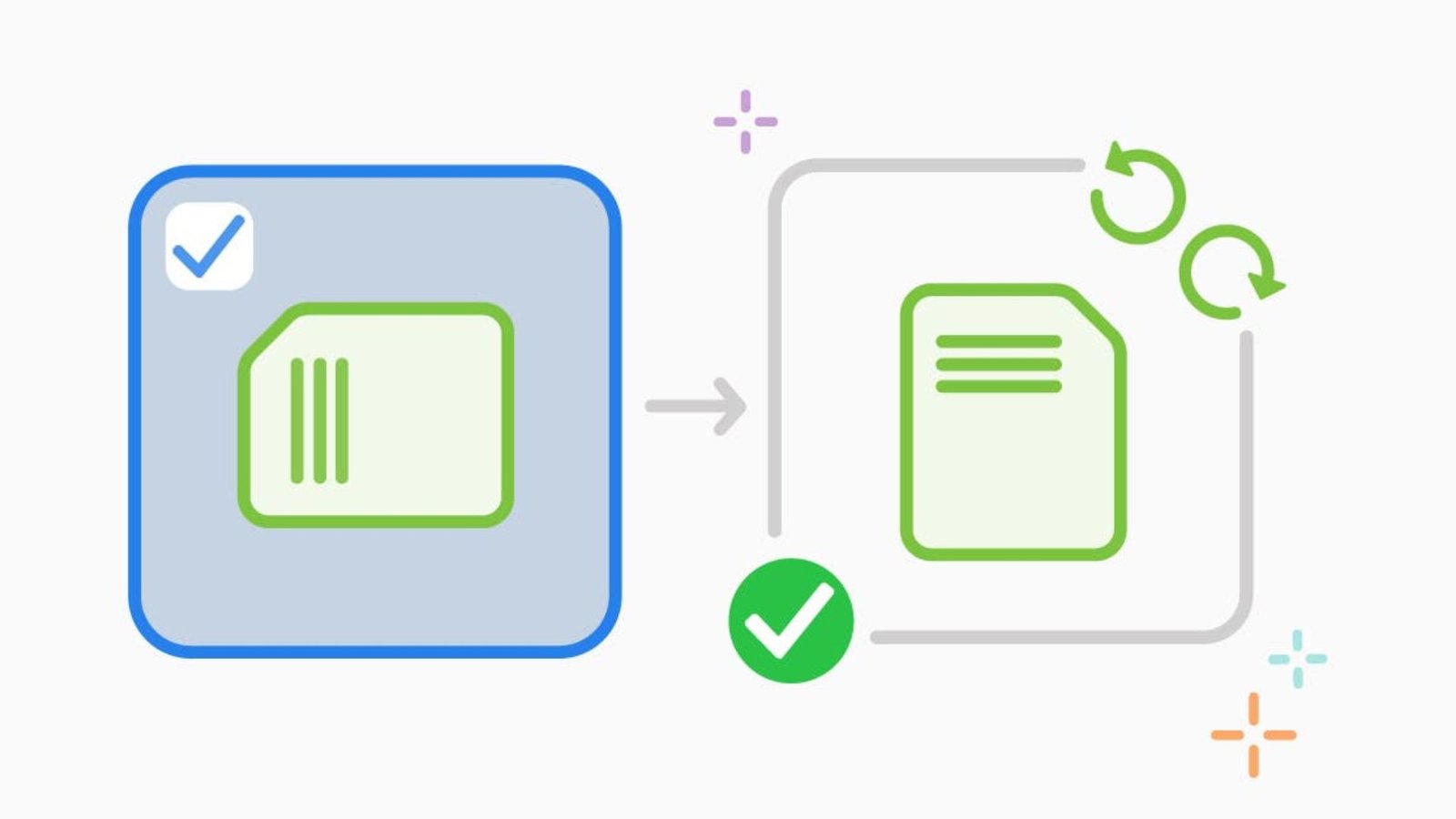
Rotating a PDF means changing the viewing direction of one or more pages without rewriting the document. You can turn a page 90 degrees clockwise, 90 degrees counterclockwise, or 180 degrees to correct upside-down content.
This feature is useful when scanned documents, photographs, receipts, forms, and business reports appear in the wrong direction.
There are two common types of PDF rotation:
- Temporary rotation: Changes how a page appears while viewing it but may not save the adjustment.
- Permanent rotation: Changes the saved page orientation so the corrected direction remains when you reopen or share the file.
Understanding this difference helps you choose the correct method.
2. How to Rotate PDF Pages Online
Using an online PDF tool is one of the easiest ways to correct document orientation. You don’t need to install additional software, and most online tools work through a standard web browser.
Follow these steps:
- Open a trusted online PDF rotation tool.
- Select the PDF file from your computer or device.
- Wait for the document to upload.
- Choose the page you want to correct.
- Select the clockwise or counterclockwise rotation option.
- Preview the updated page orientation.
- Apply the changes.
- Download the corrected PDF.
Check the document before downloading it. If multiple pages have different orientations, review each page individually to avoid changing pages that are already correct.
3. How to Rotate PDF Free Without Installing Software
You can rotate PDF files free using browser-based services and free PDF applications. This is particularly helpful when you only need to correct a document occasionally.
Some useful options include:
- Adobe Acrobat: Offers PDF editing and page organization features.
- PDF24 Tools: Provides online PDF utilities, including page rotation.
- iLovePDF: Offers PDF page organization and rotation features.
- Preview on Mac: Allows users to adjust PDF page orientation without purchasing a separate editor.
Before uploading a document, check the tool’s privacy policy. Avoid sending confidential business, financial, or personal information to an online service unless its security practices meet your needs.
4. How to Rotate PDF and Save Changes Permanently
One common problem is rotating a PDF successfully but finding the pages in their original direction after reopening the document.
This usually happens when the viewer changes the display orientation rather than saving the page rotation.
To permanently save your changes:
- Open your PDF in an editor that supports page rotation.
- Find the Organize Pages, Rotate Pages, or similar option.
- Select the pages that need correction.
- Choose the required rotation angle.
- Apply the changes.
- Select Save or Save As.
- Close and reopen the document to verify the result.
The important step is saving the modified document rather than simply rotating the screen or viewer.
5. How to Rotate PDF in Adobe Acrobat
Adobe Acrobat provides tools for rotating individual pages or multiple pages in a document.
Follow these steps:
- Open Adobe Acrobat on your computer.
- Open the PDF you want to edit.
- Select All Tools.
- Choose Organize Pages.
- Select the page or page range you want to adjust.
- Click Rotate Left or Rotate Right.
- Save the updated PDF.
You can select odd pages, even pages, all pages, or enter specific page numbers. This makes Acrobat useful for long documents containing a mixture of portrait and landscape pages.
Important: Avoid confusing Organize Pages with Rotate View. Rotate View changes the temporary display, while Organize Pages allows you to save the actual page orientation.
6. How to Rotate PDF on Mac
Mac users can use Preview, the built-in application for viewing and managing PDF documents. You don’t need to purchase an additional PDF editor for basic page rotation.
Here’s how:
- Find your PDF document.
- Right-click the file and select Open With.
- Choose Preview.
- Open the thumbnail sidebar if it isn’t visible.
- Select the page you want to correct.
- Use the Rotate Left or Rotate Right command.
- Save your changes.
Can you rotate multiple pages on Mac?
Yes. Select multiple page thumbnails when supported by your Preview version, then use the rotation command. Check the selected pages before saving to make sure you haven’t changed the wrong pages.
7. How to Rotate PDF on Windows
Windows users have several ways to correct PDF orientation. You can use Adobe Acrobat, PDF24 Creator, or another PDF editor that supports saving page-level changes.
The following process works with a suitable desktop PDF editor:
- Open your PDF editing application.
- Import the PDF file.
- Find the page organization or editing section.
- Select the incorrect page.
- Click the rotation button.
- Check the page preview.
- Save the updated document.
Which Windows option should you choose?
- Use Adobe Acrobat for advanced document editing.
- Use PDF24 Creator for free desktop PDF tools.
- Use an online editor when you don’t want to install software.
A desktop application is generally a better choice for sensitive documents because you can avoid uploading the file to an external website.
8. How to Rotate PDF on Android
You can correct PDF page orientation on an Android phone using a compatible PDF editor or online PDF service.
Follow these steps:
- Open your preferred PDF editing application.
- Locate the PDF in your device storage.
- Open the document.
- Find the page organization or rotation feature.
- Select the page that needs correction.
- Tap Rotate Left or Rotate Right.
- Apply the change.
- Save or export the updated PDF.
Some mobile PDF viewers only rotate the screen or document view. If you want to save the actual page orientation, use an editor that supports permanent page rotation.
For documents containing private information, consider an offline editing application rather than uploading them through a mobile browser.
9. How to Rotate PDF Pages Individually
Sometimes a PDF contains 20 or more pages, but only two or three need correction. Rotating the entire document would make the other pages look incorrect.
Individual page rotation solves this problem.
For example, imagine a document with the following layout:
| Page number | Current orientation | Required action |
|---|---|---|
| Page 1 | Portrait | No change |
| Page 2 | Landscape | Rotate 90° |
| Page 3 | Upside down | Rotate 180° |
| Page 4 | Portrait | No change |
| Page 5 | Sideways | Rotate 90° |
| Page 6 | Portrait | No change |
To correct these pages:
- Open the PDF in a page-organizing editor.
- Select Page 2 and rotate it once.
- Select Page 3 and rotate it twice.
- Select Page 5 and rotate it once.
- Leave the remaining pages unchanged.
- Save the final document.
Always preview the complete document after making adjustments.
10. How to Rotate PDF Shortcut: Keyboard Methods
Keyboard shortcuts can make PDF viewing faster, especially when you frequently work with long documents.
Adobe Acrobat supports temporary page-view rotation shortcuts on Windows.
| Action | Windows shortcut |
|---|---|
| Rotate view clockwise | Ctrl + Shift + + |
| Rotate view counterclockwise | Ctrl + Shift + – |
| Save document | Ctrl + S |
| Save as | Ctrl + Shift + S |
Does the rotate PDF shortcut permanently change the page?
No. The rotation shortcuts above change the viewing direction, not the saved page orientation. To permanently rotate PDF pages, use the Organize Pages tool and save the document.
Shortcut availability can vary by Acrobat version, operating system, and keyboard layout.
11. How to Rotate PDF Page Using Java
Developers can rotate PDF pages programmatically using Java PDF libraries. This approach is useful when building document management applications, automated processing systems, or PDF editing services.
One common option is Apache PDFBox, an open-source Java library for working with PDF documents.
A basic example using PDFBox:
import org.apache.pdfbox.pdmodel.PDDocument;
import org.apache.pdfbox.pdmodel.PDPage;

import java.io.File;

public class RotatePdf {
    public static void main(String[] args) throws Exception {

        File input = new File("input.pdf");
        File output = new File("rotated.pdf");

        try (PDDocument document = PDDocument.load(input)) {

            PDPage page = document.getPage(0);

            int currentRotation = page.getRotation();
            page.setRotation((currentRotation + 90) % 360);

            document.save(output);
        }
    }
}
How does this code work?
PDDocument.load()opens the existing PDF.getPage(0)selects the first page.getRotation()retrieves the current page rotation.setRotation()changes its orientation by 90 degrees.save()creates the updated PDF.
This example rotates only the first page. For a complete document, use a loop to process selected pages or all pages.
Add the appropriate PDFBox dependency to your Java project before running the code.
12. Understanding PDF Rotation Angles
Choosing the correct rotation angle helps prevent unnecessary adjustments.
| Rotation angle | Direction | Best use |
|---|---|---|
| 0° | Original position | Page is already correct |
| 90° | Clockwise | Page appears sideways |
| 180° | Upside down | Text faces the wrong direction |
| 270° | Counterclockwise | Page needs the opposite turn |
A 90-degree adjustment changes portrait orientation to landscape or landscape to portrait when the page content is turned sideways.
A 180-degree adjustment turns an upside-down page into its correct reading direction without changing its portrait or landscape shape.
13. Comparison: Best Ways to Rotate PDF Files
Different tools work better for different situations. Compare the options before choosing your preferred method.
| Tool or method | Platform | Cost | Individual pages | Permanent saving |
|---|---|---|---|---|
| Adobe Acrobat | Windows, Mac, Web | Free and paid features | Yes | Yes |
| PDF24 Tools | Browser | Free | Yes | Yes |
| iLovePDF | Browser, Mobile | Free and paid features | Yes | Yes |
| Mac Preview | Mac | Included with macOS | Yes | Yes |
| PDF24 Creator | Windows | Free | Yes | Yes |
| Android PDF editor | Android | Depends on app | Depends on app | Depends on app |
| Apache PDFBox | Java | Free, open source | Yes, through code | Yes |
Which method is best?
- For occasional tasks, use a browser-based PDF rotation tool.
- For private documents, choose a trusted offline editor.
- For Mac users, Preview is a convenient built-in option.
- For professional editing, Adobe Acrobat offers additional document management features.
- For developers, Apache PDFBox supports automated PDF processing.
14. Common Problems When You Rotate PDF Files
Even a simple document adjustment can sometimes create unexpected results. Understanding common problems helps you avoid them.
Problem 1: The PDF returns to its original orientation
You may have used a temporary view rotation. Open the document in a PDF editor, change the page orientation, and save the file.
Problem 2: Every page rotates instead of one page
Check the page selection before applying the rotation. Select only the required thumbnails rather than choosing All Pages.
Problem 3: The PDF looks different after downloading
Open the downloaded document in another PDF reader. Some viewers display page rotation differently, so checking the saved file is important.
Problem 4: The rotation button is unavailable
The document may have editing restrictions, or your current application may only support viewing. Check its permissions and use an editor that supports page modification.
Problem 5: The PDF is password-protected
Some PDF files restrict editing. You may need the document owner’s permission or the correct password before making changes.
Problem 6: The PDF is too large to upload
Try an offline application or check whether your online service has file-size restrictions.
15. Tips for Getting the Best Results When Rotating a PDF
Follow these practical tips to keep your document organized and readable.
- Keep an original copy: Save a backup before editing important documents.
- Check page numbers: Confirm that you are selecting the correct pages.
- Use the right angle: Choose 90°, 180°, or 270° depending on the problem.
- Preview before saving: Review every adjusted page.
- Avoid unnecessary compression: Rotation should not require reducing document quality.
- Check document permissions: Make sure you have permission to edit protected files.
- Verify the final PDF: Reopen the saved file to confirm the changes remain.
These simple practices can help you maintain a professional document layout and avoid editing mistakes.
Frequently Asked Questions (FAQs)
1. How do I rotate a PDF file for free?
Open a free PDF editing tool, upload your document, select the pages, and choose the rotation direction. Apply the changes and download the updated PDF.
2. How do I rotate PDF pages and save them permanently?
Use a PDF editor with page organization features. Select the required pages, rotate them, and save or export the document. Avoid temporary viewing rotation.
3. Can I rotate PDF pages online without installing software?
Yes. Browser-based PDF services let you adjust page orientation without installing desktop software. Upload your file, rotate the required pages, and download the corrected document.
4. How do I rotate a PDF on Mac?
Open the document in Preview, display the page thumbnails, select the page, and choose Rotate Left or Rotate Right. Save the document to preserve your changes.
5. Why does my PDF return to its original orientation after rotation?
This usually happens because you changed the viewer’s display orientation rather than the actual page orientation. Use a PDF editing feature that saves page modifications.
6. Can I rotate just one page in a PDF?
Yes. Open your document in an editor that supports individual page rotation. Select the specific page, apply the required angle, and save the updated document.
Conclusion
Correcting document orientation doesn’t need to be difficult. Whether you use Adobe Acrobat, Mac Preview, Windows software, an Android application, or an online PDF tool, you have several convenient ways to fix sideways and upside-down pages.
The most important thing is to choose a method that saves the actual page rotation instead of temporarily changing how the document appears. Review your pages, save the updated file, and reopen it to verify the result.
Which PDF rotation method do you prefer: an online tool or desktop software? Choosing the right option can make your document editing faster, easier, and more convenient.
Author: Editorial Team
Editorial note:
Software features and menu names can vary by version. Always verify the saved document before sharing it. No article can guarantee a particular Google ranking, but useful, accurate, original content provides a stronger foundation for search visibility.


One Comment