
PDF Combiner: How to Merge PDF Files Free Online
Managing separate PDF files can waste time, create confusing folders, and make important documents harder to share. A reliable pdf combiner solves this problem by joining multiple files into one organized document. Whether you need to merge school assignments, business reports, scanned receipts, or images converted into PDFs, the right method can make the process simple. This guide explains free tools, Adobe Acrobat options, file preparation, privacy considerations, and practical ways to combine documents efficiently.
What Is a PDF Combiner?
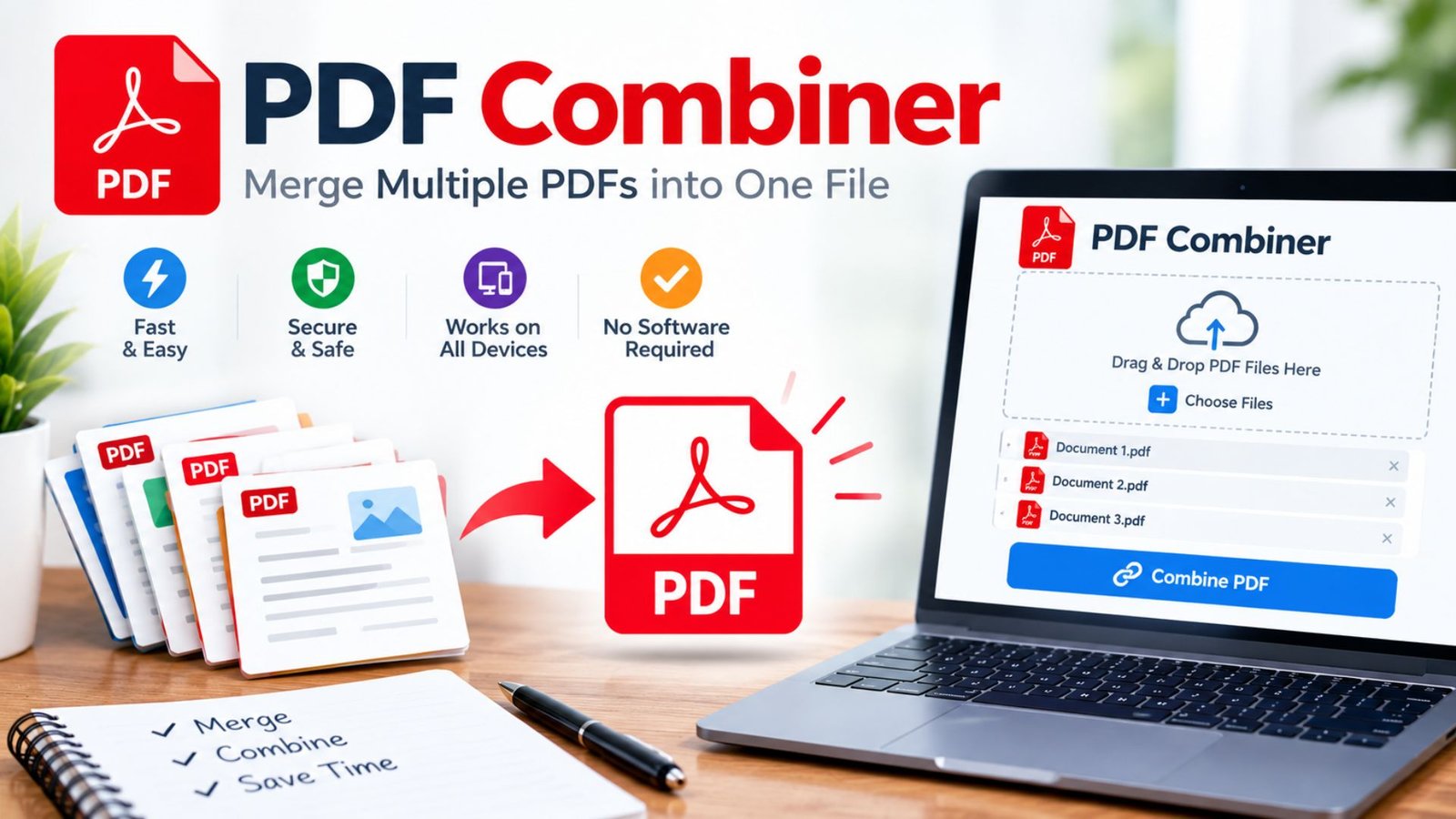
A pdf combiner is a digital tool that merges two or more PDF documents into one file. Instead of sending several attachments, you can create a single document that keeps related information together and makes sharing easier.
For example, students can combine lecture notes and assignments, while businesses can merge invoices, proposals, contracts, and reports.
Most tools offer features such as:
- Combining multiple PDF files into one document.
- Changing the order of files before merging.
- Removing unwanted documents from the selection.
- Preserving the original page layout and readable text.
- Creating a downloadable PDF for sharing or storage.
Some tools also support image conversion, page rearrangement, compression, and document protection.
Why Should You Use a PDF Combiner?
Handling several documents separately can create unnecessary work. You may send the wrong attachment, forget an important page, or spend extra time searching through folders.
Using a pdf combiner helps you organize documents into a clear sequence. It can also reduce email attachments and make long projects easier to review.
The main benefits include:
- Better organization: Keep related documents in one place.
- Faster sharing: Send one file instead of multiple attachments.
- Improved accessibility: Make reports and assignments easier to navigate.
- Simpler storage: Group related files under one descriptive filename.
- More efficient workflows: Prepare document packages without recreating each page.
Combining files does not automatically improve their content. Review the final document to ensure that pages appear in the correct order and no essential information is missing.
How to Combine PDF Files Online for Free
A free online PDF tool can help you merge documents without installing a desktop application. The exact interface varies by service, but the general process is similar.
Follow these steps to create one PDF from multiple files.
- Choose a merging tool: Select a service that supports your file types and privacy requirements.
- Select your documents: Upload or choose the PDF files you want to combine.
- Arrange the sequence: Move the files into the order you want them to appear.
- Check the selection: Remove duplicates and confirm that every required document is included.
- Combine the files: Start the merging process and wait for the tool to finish.
- Download the result: Save the combined document to your device.
- Review the final PDF: Check page order, formatting, readability, and completeness.
A pdf combiner free online option is convenient for everyday tasks, especially when you need to merge documents from different devices. However, check whether the service imposes file-size limits, usage restrictions, watermarks, or account requirements.
Free PDF Combiner vs. Paid PDF Software
The best option depends on how often you combine files and which additional features you need. A free tool may be enough for occasional merging, while paid software may suit users who regularly manage complex documents.
| Feature | Free online tools | Paid PDF software |
|---|---|---|
| Basic PDF merging | Commonly available | Commonly available |
| Software installation | Usually unnecessary | May be required |
| Page reordering | Available in many tools | Commonly available |
| Image-to-PDF conversion | Depends on the tool | Often supported |
| Advanced editing | May be limited | Often more extensive |
| OCR for scanned documents | Varies by service | Often available |
| Batch processing | Depends on limits | May offer advanced options |
| Offline operation | Depends on the tool | Available in some desktop apps |
| File-size restrictions | May apply | Depend on the product and plan |
| Privacy controls | Depend on processing method | May include local processing |
Which should you choose? Use a free service for occasional, straightforward tasks. Consider desktop software when you need offline processing, advanced editing, or frequent document management.
What Is the Best Free PDF Combiner?
The best free PDF combiner is one that combines your files accurately, provides the features you need, and handles your documents appropriately.
Before choosing a service, compare these practical factors:
- Ease of use: Can you select and arrange files without confusion?
- File limits: Does the tool support your total file size and page count?
- Output quality: Does it preserve text, images, page dimensions, and orientation?
- Privacy: Does it process files locally or upload them to a remote server?
- Registration: Can you complete the task without creating an account?
- Compatibility: Does it work with your browser, computer, or mobile device?
- Additional tools: Can you convert images, compress PDFs, or rearrange pages when necessary?
A free PDF combiner should not require you to accept unnecessary risks just to complete a simple task. If you handle sensitive business or personal documents, prioritize privacy over convenience.
Adobe PDF Combiner: Is Adobe Acrobat a Good Choice?
Adobe Acrobat is a well-known PDF application that supports combining files into one document. It can also help users arrange files and review individual pages before creating the final PDF.
The Adobe PDF combiner is particularly useful for people who already work with Acrobat and need more control over document organization.
Typical steps in the desktop application are:
- Open Adobe Acrobat.
- Find the Combine Files tool.
- Select the files you want to include.
- Arrange their order and remove unwanted items.
- Select the combine option.
- Save the finished document under a suitable filename.
The exact menu labels may vary by version and operating system.
Is Adobe Acrobat PDF Combiner Free?
Adobe offers online PDF tools, but access to specific functions and usage limits can vary. Some features may require an account, a subscription, or a paid plan.
If you are looking for an Adobe free PDF combiner, check the current terms of the particular tool before starting. Do not assume every desktop feature is available free of charge.
Adobe Acrobat is worth considering if you need a wider range of PDF functions. If you only need to join two or three files, a simpler free alternative may be sufficient.
Online PDF Combiner vs. Offline PDF Software
An online PDF combiner works through a browser, while offline software processes documents on your computer when the required functionality is available locally.
Both approaches can work well, but their advantages differ.
| Consideration | Online PDF combiner | Offline PDF software |
|---|---|---|
| Setup | Usually quick | May require installation |
| Internet connection | Usually required | Often unnecessary after installation |
| Convenience | Works through a browser | Works through a desktop application |
| Sensitive files | Depends on the service’s processing method | Can keep processing on your device |
| Large documents | Depends on upload and processing limits | Depends on computer resources and software |
| Updates | Usually managed by the provider | May require software updates |
| Best for | Quick, occasional tasks | Frequent or privacy-sensitive work |
For everyday documents, an online tool may be the easiest choice. For confidential contracts, financial records, identification documents, or client files, consider an offline option that keeps the entire merging process on your device.
Check the product’s actual behavior rather than assuming every browser-based tool uploads files or every desktop application works entirely offline.
How to Combine JPG Images Into One PDF
A JPG to PDF combiner is useful when you have photographs, scanned pages, receipts, or screenshots that you want to place inside one document.
Instead of sharing each image separately, you can convert the images into PDF pages and combine them into a single file.
Steps to Convert JPG Images to PDF
- Select the JPG images you want to include.
- Open an image-to-PDF conversion tool.
- Arrange the images in the required sequence.
- Choose the page size and orientation if the tool provides these settings.
- Convert the images into a PDF document.
- Open the resulting file and check that every image appears correctly.
If you already have several PDFs containing images, you can merge those documents afterward.
A pdf combiner can help organize scanned paperwork, although converting an image into a PDF does not automatically make its text searchable. You may need optical character recognition (OCR) to extract searchable text from scanned pages.
How to Combine PNG Images Into a PDF
PNG images are common in screenshots, diagrams, logos, charts, and graphics with transparent backgrounds. A PNG to PDF combiner can place these images on separate pages within one document.
The process is similar to converting JPG files:
- Select the PNG images.
- Arrange them in the correct order.
- Set page dimensions and orientation when available.
- Convert the images into PDF format.
- Review the final document for cropping, spacing, and readability.
Keep the original image files if you may need to edit them later. PDF conversion can change how transparency, image dimensions, and page backgrounds appear.
What Is the Easiest Way to Combine PDF Files?
What’s the easiest PDF combiner for a beginner? Usually, it is a tool with a simple upload area, visible file previews, drag-and-drop ordering, and a straightforward download option.
You should not need advanced technical knowledge to merge ordinary documents.
For the easiest experience, choose a tool that lets you:
- Add multiple files in one step.
- Preview the selected documents.
- Rearrange files before merging.
- Remove an incorrect selection quickly.
- Download the finished PDF without confusing menus.
A free PDF combiner online can be a practical choice when you need to combine files occasionally. If you regularly work with hundreds of pages, compare batch-processing capabilities and file-size limits before selecting a service.
How to Combine Large PDF Files Without Problems
Large documents can take longer to process and may exceed the limits of browser-based tools. Reports with high-resolution images, detailed diagrams, or hundreds of pages can also create large output files.
The best PDF combiner for large files is one that supports your total file size, handles the required page count, and has enough processing capacity for your documents.
Use these steps to reduce common problems:
- Check the file size: Review the combined size of all documents before uploading.
- Remove unnecessary content: Delete duplicate or irrelevant pages if appropriate.
- Compress oversized files: Use a suitable PDF compression tool when file size is the main problem.
- Try desktop software: An offline application may work better if the online service has strict upload limits.
- Merge in smaller groups: Combine sections separately and then join the resulting PDFs if the tool cannot handle everything at once.
- Check the final document: Confirm that all pages are present and readable.
Avoid excessive compression when documents contain fine print, technical diagrams, or detailed images. A smaller file is useful only if the information remains clear.
Can You Use a PDF Combiner Free Without Signing Up?
Yes, some services allow you to merge documents without creating an account. However, registration requirements depend on the provider, tool, and current usage limits.
If you need a pdf combiner free no sign up, check the following before selecting your files:
- Whether merging is available without registration.
- Whether a daily usage limit applies.
- Whether the service adds watermarks.
- Whether downloading the finished file requires an account.
- Whether the service charges for larger files or additional features.
A no-registration tool can save time when you need to combine documents quickly. Still, avoid choosing a service based only on the word “free.” Check its privacy policy and processing method, particularly when documents contain personal or confidential information.
How to Protect Your Privacy When Combining PDFs
PDF files often contain private information, including addresses, financial records, signatures, identification details, and business agreements. Before using any online service, understand how it handles uploaded documents.
A free online PDF combiner may process files on remote servers, while other tools can perform the work directly in your browser. These methods offer different privacy considerations.
Follow these precautions:
- Use offline software for highly confidential files when possible.
- Read the service’s file-retention and deletion policy.
- Avoid uploading documents to unfamiliar websites.
- Use trusted networks and keep your browser updated.
- Check whether the final PDF contains unnecessary metadata.
- Confirm that sensitive information is properly redacted before sharing.
Important: Drawing a black box over text may not permanently remove the underlying information. Use a genuine redaction feature when you need to conceal confidential content.
Combining documents does not automatically secure them. If you need password protection, encryption, or digital signatures, verify that your chosen software supports those features and configure them separately.
Common PDF Combining Problems and Their Solutions
Even a straightforward merge can produce unexpected results when the source files contain damaged pages, restrictions, unusual layouts, or incompatible features.
| Problem | Possible reason | Practical solution |
|---|---|---|
| Upload fails | File-size or service limit | Reduce file size or try a suitable desktop tool |
| PDF will not open | Damaged or incomplete file | Re-download or repair the original |
| Pages appear in the wrong order | Files were arranged incorrectly | Reorder files before merging |
| Pages have different sizes | Source documents use different dimensions | Adjust page sizes if the software supports it |
| Text is not searchable | Pages contain scanned images | Apply OCR |
| Password-protected file fails | Document restrictions | Obtain permission and use an authorized method |
| Digital signatures stop working | Merging can affect signature validity | Preserve the original signed files and verify signatures afterward |
| Output file is too large | High-resolution images or many pages | Compress suitable content or merge in stages |
| Some forms behave differently | Interactive fields may not transfer as expected | Test the combined document and retain original forms |
A pdf combiner generally joins pages rather than correcting every issue in the original files. Preparing your documents first can prevent many avoidable problems.
Best Practices for Creating a Professional Combined PDF
A well-organized document is easier to read, review, and share. Before using a pdf combiner for an important project, prepare the files and decide how the final document should flow.
Use this checklist:
- Choose a logical order: Place the cover page first, followed by the main content and supporting documents.
- Use descriptive filenames: Name the final file clearly, such as
annual-business-report.pdf. - Check page orientation: Ensure portrait and landscape pages display correctly.
- Remove duplicate pages: Check for repeated scans or accidentally selected files.
- Review links and bookmarks: Test navigation elements that matter to the reader.
- Inspect interactive features: Check forms, attachments, and digital signatures after merging.
- Keep a backup: Preserve the original files until you have verified the final document.
- Test readability: Open the PDF on a computer or phone to ensure the content remains clear.
These habits are especially valuable when combining legal documents, business proposals, academic assignments, and client reports.
Practical Uses of a PDF Combiner for Work, School, and Home
Combining documents can simplify many everyday tasks. The following examples show how different users can benefit.
Students and Teachers
Students can merge assignments, research notes, references, and scanned worksheets into one submission. Teachers can organize lesson materials, reading lists, and classroom handouts.
Businesses and Freelancers
Businesses can assemble proposals, invoices, project reports, and supporting documents into a single package. Freelancers can also combine portfolios and project deliverables before sending them to clients.
Job Seekers
Applicants can organize a résumé, cover letter, certificates, and selected work samples into a professional application package when the employer permits a combined PDF.
Home and Personal Administration
Individuals can organize receipts, travel documents, household records, and scanned paperwork for easier storage. Keep confidential records protected and share only the pages that recipients actually need.
How to Choose the Right PDF Combiner for Your Needs
The right tool depends on the task, not simply the number of features it advertises.
| Your requirement | Recommended approach | What to check |
|---|---|---|
| Merge two or three ordinary PDFs | Free online tool | Ease of use and download limits |
| Combine files without registration | No-sign-up service | Current account requirements |
| Work with confidential records | Offline PDF application | Local processing and privacy controls |
| Merge large reports | Desktop or high-capacity tool | File-size and page-count limits |
| Combine photos and scans | Image-to-PDF converter with merging | Image quality and page layout |
| Edit pages after merging | PDF editor | Page deletion, rotation, and rearrangement |
| Handle scanned documents | PDF tool with OCR | Searchable text and language support |
| Prepare documents frequently | Dedicated PDF software | Batch processing and recurring costs |
For occasional tasks, a free PDF combiner may provide everything you need. For regular professional work, compare the software’s complete feature set, privacy practices, compatibility, and total cost.
Frequently Asked Questions About PDF Combiner Tools
1. What is a PDF combiner used for?
A pdf combiner joins multiple PDF files into one document. It helps organize reports, assignments, invoices, scanned pages, and other related paperwork for easier sharing and storage.
2. Is there a free PDF combiner online?
Yes. Some online services provide free PDF merging without requiring desktop installation. Features, file-size limits, account requirements, and usage restrictions vary, so check the service before using it.
3. Is Adobe Acrobat PDF combiner free?
Adobe provides online PDF tools, but free access and feature availability can vary. Check the current terms for the specific Adobe tool to determine whether merging, downloads, or additional features require payment or registration.
4. Can I combine JPG and PNG images into one PDF?
Yes. Use an image-to-PDF converter to turn JPG or PNG images into PDF pages, then combine the resulting documents if necessary. Review image orientation, page dimensions, and image quality before sharing the file.
5. What’s the easiest PDF combiner for beginners?
The easiest option is generally a tool with simple file selection, drag-and-drop ordering, clear previews, and straightforward downloads. Choose one that supports your file sizes and does not require unnecessary steps for basic merging.
6. Is a free online PDF combiner safe for confidential files?
Safety depends on the provider and its processing method. Some tools upload files to remote servers, while others process them locally in the browser. For sensitive documents, prefer a trusted offline tool that keeps processing on your device and review its security features before use.
Conclusion: Combine PDF Files Faster and More Efficiently
A pdf combiner can make document management easier by bringing separate files into one clear, organized PDF. Whether you are preparing a school assignment, arranging business reports, converting images, or managing large documents, the right tool can save time and simplify sharing.
Start by identifying your file sizes, privacy requirements, and editing needs. Choose a free online service for straightforward tasks or dedicated desktop software when you need offline processing and more advanced controls. Before sharing the finished document, check its page order, readability, and completeness.
Your next step: Select the documents you need to merge, arrange them in the correct order, and create a combined PDF that is ready to use.
2 Comments