
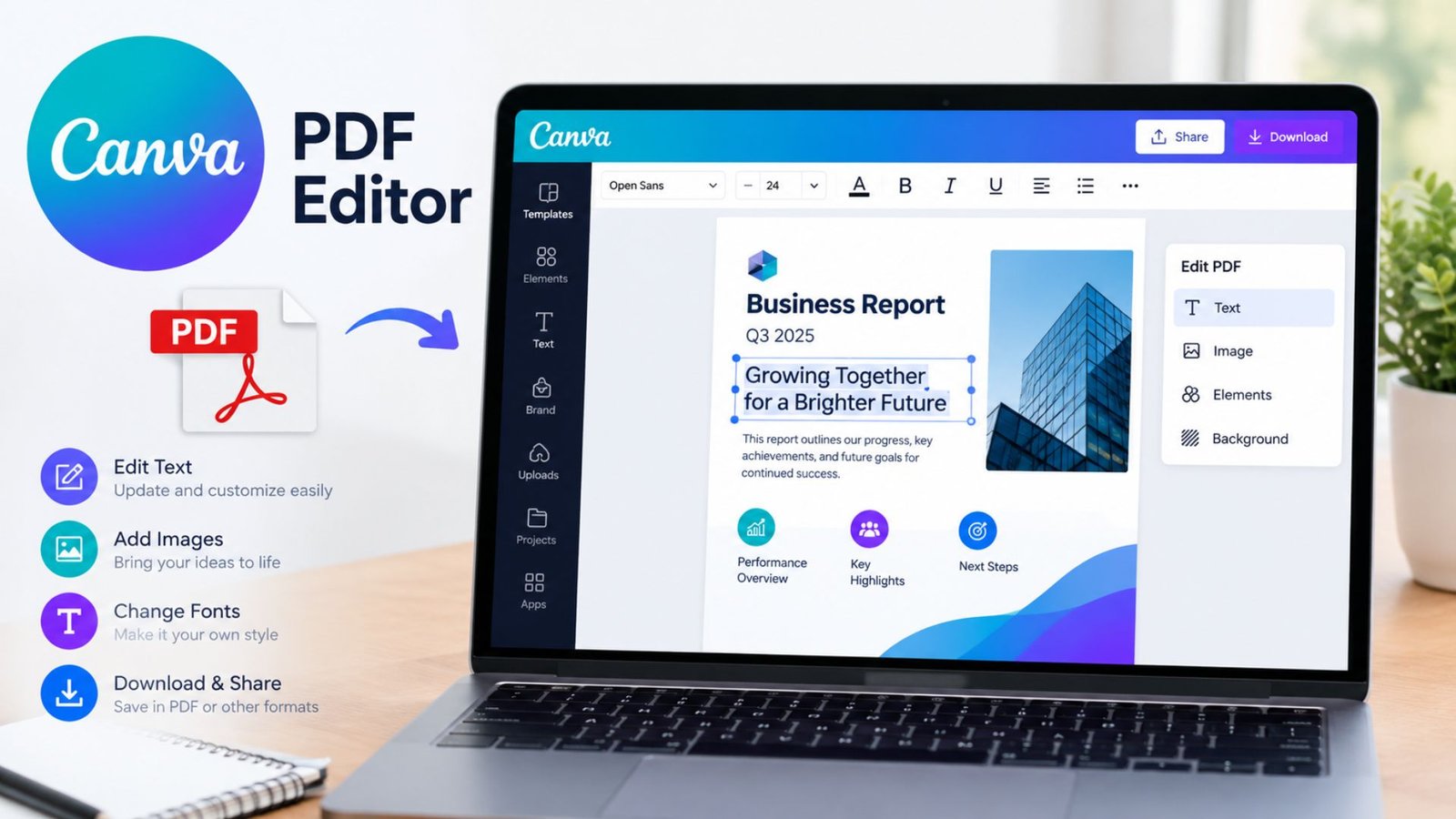
Canva PDF Editor: Is It Free? Features & Review 2026
Need to edit a PDF without installing complicated software or paying for an expensive subscription? The Canva PDF editor offers a simple way to upload documents, change supported text, add images, and improve page designs. However, its tools may not work like those in a dedicated PDF application, especially when a document contains complex formatting. This guide explains its free features, limitations, interface, and practical uses so you can decide whether it meets your needs.
What Is the Canva PDF Editor?
The Canva PDF editor is an online tool that allows users to import PDF documents and work on them inside Canva’s visual design workspace. Instead of rebuilding a document from scratch, users can often reuse existing text, images, and page elements.
It is particularly useful for reports, brochures, menus, worksheets, flyers, and business documents. Users can improve a document’s visual appearance and export the finished design as a PDF.
Who Should Use It?
The tool can help different types of users:
- Students: Improve assignments, project documents, and presentations.
- Small businesses: Update brochures, menus, product sheets, and company profiles.
- Content creators: Prepare downloadable guides, workbooks, and digital resources.
- Teachers: Create attractive worksheets and educational materials.
- Marketing teams: Update promotional documents and maintain consistent branding.
However, users who regularly edit legal documents, complex contracts, or scanned forms may benefit more from specialist PDF software.
Is the Canva PDF Editor Free in 2026?
Yes, Canva provides free PDF editing capabilities. Users can import supported documents, make available edits, and download their work without automatically needing a paid subscription.
The free plan also provides design tools, templates, and PDF export options. However, some templates, graphics, and advanced features require a paid plan. Available options depend on the feature and account.
What Can You Do for Free?
The free version generally supports tasks such as:
- Uploading supported PDF files.
- Editing text and moving editable elements.
- Adding available text, shapes, and graphics.
- Adjusting colors, fonts, and page layouts.
- Creating additional pages.
- Exporting finished designs as PDFs.
- Downloading supported image formats when needed.
For users who need to make occasional document changes, these tools can be enough. Before starting a large project, check which features and design assets are available under your account.
Canva PDF Editor Features: A Complete Overview
The main advantage of the Canva PDF editor is its combination of document editing and graphic design. Users can improve the visual appearance of a document rather than relying only on basic text editing.
The following table explains its main capabilities, practical uses, and limitations.
| Feature | What It Does | Best Use | Important Limitation |
|---|---|---|---|
| PDF import | Opens supported PDF files in Canva | Reusing existing documents | Some elements may change during import |
| Text editing | Changes editable text | Correcting headings and paragraphs | Scanned text may not be editable |
| Font formatting | Adjusts font style, size, and alignment | Improving readability | Original fonts may be replaced |
| Image editing | Adds, moves, or removes supported images | Updating brochures and flyers | Some imported images may not separate cleanly |
| Layout editing | Repositions editable elements | Refreshing document designs | Complex layouts may shift |
| Page management | Adds pages and supports multipage designs | Workbooks and reports | Large files may require additional processing |
| Templates | Provides starting points for designs | Marketing and educational materials | Some templates require payment |
| Graphics and shapes | Adds icons, lines, and decorative elements | Visual improvements | Availability varies by asset |
| Collaboration | Shares designs for viewing or editing | Team projects | Permissions affect access |
| PDF export | Downloads the finished design as a PDF | Printing and sharing | Export settings need checking |
| Image export | Saves supported designs as images | Social posts and previews | Images are not editable PDF documents |
| Online workspace | Works through a supported browser | Quick document updates | Online editing normally requires internet access |
Actual results depend on the original PDF, document complexity, and available account features.
Canva PDF Editor Interface: How Easy Is It to Use?
The Canva PDF editor interface follows a visual editing approach. Users can select text boxes, images, shapes, and other available elements instead of working exclusively through technical PDF commands.
The workspace typically includes a central document canvas, editing controls, design resources, and sharing or download options.
Main Interface Areas
1. Document canvas
The main workspace displays the PDF pages. Users can select an editable element to adjust its position, size, or appearance.
2. Editing toolbar
When users select an element, available controls allow them to change properties such as font, alignment, spacing, and color.
3. Design resources
The side panel provides access to available templates, elements, uploads, and other design resources.
4. Sharing and downloading
The sharing and download controls help users distribute their work or export the completed document.
Interface controls and their placement may change depending on the device, account, and product updates.
How to Edit a PDF in Canva Online
Users can start with the Canva PDF editor through a supported web browser without downloading a separate desktop PDF application.
Follow these steps to edit an existing document.
- Open Canva: Sign in to your account if prompted.
- Upload your PDF: Select the upload option and choose a document from your device.
- Open the imported file: Find the document in your projects and open it in the editor.
- Check the imported pages: Determine whether the text, images, and layout elements remain editable.
- Make your changes: Update supported text, adjust design elements, and add available graphics.
- Review the document: Check spelling, page spacing, fonts, images, and alignment.
- Download the finished file: Choose an appropriate PDF format and save the document.
Practical Example
Imagine you have a restaurant menu saved as a PDF. You need to change three prices, replace an outdated food image, and update the restaurant’s colors.
After importing the menu, check whether the prices and images are separate editable elements. Update the supported content, review every page, and export a new PDF.
If the original text is flattened into an image, you may need to cover the old text and recreate the affected section. This approach works well for visual updates, but it may not suit documents that require exact formatting.
Can You Edit Existing PDF Text in Canva?
Yes, provided Canva imports the text as an editable element. Users can select the relevant text box and change its wording, font, size, spacing, or alignment using the available controls.
However, not every PDF contains editable text. A scanned page may be treated as a single image, while unsupported fonts and complicated layouts can produce changes during import.
Before editing a long document, test one page and compare it with the original. This helps identify formatting problems before you spend time on the entire file.
Canva PDF Editor Free Limitations in 2026
The free version is useful for everyday tasks, but it does not guarantee perfect editing of every PDF. The biggest limitation is often the structure of the uploaded document rather than the price of the tool.
| Limitation | Why It Matters | What You Can Do |
|---|---|---|
| Scanned documents | Text may be imported as one image | Use OCR software or recreate the page |
| Font replacement | Text may wrap differently | Choose a similar font and check spacing |
| Layout changes | Elements may shift during import | Compare each page and correct the layout |
| Complex files | Some content may not import completely | Simplify the PDF or use specialist software |
| Flattened text | Individual words cannot be selected | Rebuild the affected section with editable text |
| Premium assets | Some graphics and templates require payment | Use free assets or alternative graphics |
| Team restrictions | Locked elements may resist changes | Request the required permissions |
| Protected PDFs | Password-protected files may not upload | Use authorized software to remove protection first |
File-size, page-count, and import restrictions can change over time. Check the current requirements before uploading a large document, and always inspect the imported file for missing or altered content.
Canva PDF Editor Reviews: Main Pros and Cons
A useful Canva PDF editor review should consider how well the tool handles real documents, not just how attractive its designs look.
Canva is strongest when a PDF needs visual improvements. It is less predictable when users need precise editing of every original text element or must preserve complicated formatting.
Advantages
- Beginner-friendly workflow: The visual interface is approachable for new users.
- Design flexibility: Users can combine text, images, shapes, and colors.
- Free starting option: Basic PDF editing tasks do not automatically require a paid subscription.
- Multiple export options: Supported designs can be downloaded as PDFs or images.
- Useful templates: Existing layouts can reduce the time needed to create new documents.
- Sharing capabilities: Available collaboration features support team projects.
Disadvantages
- Imported formatting may not match the original exactly.
- Scanned PDFs do not automatically become editable text.
- Some fonts or document elements may be replaced or flattened.
- Premium resources can add costs to a project.
- Complex documents may require manual corrections after import.
Overall assessment: Canva is a practical choice for design-focused PDF editing. For detailed document repair, advanced page manipulation, or scanned documents, a dedicated PDF editor may be more suitable.
Canva PDF Editor vs. Dedicated PDF Software
The right tool depends on the changes you need to make. A design platform and a specialist PDF application solve overlapping but different problems.
| Requirement | Canva | Dedicated PDF Editor |
|---|---|---|
| Improve visual design | Strong fit | Depends on the application |
| Add decorative elements | Convenient | Varies by tool |
| Edit supported text | Available | Often offers document-focused controls |
| Edit scanned documents | May require workarounds | May offer built-in OCR |
| Preserve complex formatting | May require manual correction | Often better suited to document editing |
| Create promotional materials | Strong fit | Depends on the application |
| Work with templates | Extensive design-oriented options | Varies |
| Advanced document security | Check available controls | May offer specialized security features |
| Cost | Free tier and paid plans | Free and paid options vary |
| Best use | Visual editing and document design | Detailed document management and advanced PDF tasks |
This comparison describes typical use cases rather than every product’s capabilities. Specific features depend on the software and subscription.
Canva PDF Editor Online vs. the Mobile App
Canva supports design work through desktop browsers and its mobile application. Both options can be useful, but the best choice depends on the document’s size and the precision required.
Desktop Browser
A desktop browser is usually better for:
- Editing longer PDFs.
- Comparing original and updated layouts.
- Adjusting text and spacing precisely.
- Managing multiple pages.
- Reviewing documents before printing.
Mobile App
The Canva app can help users make quick changes while away from a computer. It supports access to projects and available design tools.
However, selecting small text boxes and aligning detailed layouts can be harder on a phone. A desktop browser is often more convenient for extensive editing.
Do You Need to Download the Canva PDF Editor?
No separate desktop PDF editor download is required to use Canva in a supported web browser. Users can open the online editor, import their documents, and start working.
People who prefer using a phone or tablet can install the official Canva app through the relevant app store.
Keep these points in mind:
- Use the official Canva website or a verified app-store listing.
- Check permissions before connecting cloud storage.
- Avoid unofficial installers that claim to unlock paid features.
- Review the downloaded PDF to confirm it contains the intended pages and content.
The online editor is a convenient option for people who want to avoid installing another desktop program.
How to Get Better Results When Editing PDFs in Canva
A few simple checks can help you avoid common problems and produce a cleaner document.
- Keep an original copy: Save the source PDF before making changes.
- Test a single page: Check text selection, fonts, and image quality before editing the entire file.
- Use consistent typography: Keep headings, body text, and captions visually consistent.
- Check line breaks: A replacement font may change how words fit inside a text box.
- Inspect every page: Look for missing images, overlapping text, shifted margins, and unwanted blank pages.
- Choose the correct export format: PDF Standard generally suits digital sharing, while PDF Print is intended for print-oriented output.
- Protect confidential information: Avoid uploading sensitive documents unless the service meets your privacy and security requirements.
These checks are particularly useful for business proposals, educational resources, product brochures, and client-facing documents.
Is Canva PDF Editor Worth Using in 2026?
For many everyday users, yes. Canva combines PDF importing with familiar design tools, making it easier to update attractive documents without learning a specialist application.
Its value depends on your needs. If you primarily change headings, add images, refresh colors, or redesign a brochure, it can be a good starting point. If you need advanced OCR, precise editing of complex documents, or specialized PDF security workflows, compare dedicated alternatives before choosing.
For an accurate decision, test your own PDF with the free option before committing to a paid plan.
Frequently Asked Questions
1. Is Canva PDF editor free?
Yes. Canva offers free PDF editing capabilities, including supported document imports and exports. Some design assets and advanced features may require a paid plan.
2. Can Canva edit an existing PDF?
Yes. It can edit supported text boxes and design elements after importing a PDF. The result depends on whether the original content remains editable.
3. Can I use Canva PDF editor online without downloading software?
Yes. You can use the online editor in a supported web browser. A separate desktop PDF application is not required.
4. Why can’t I edit text in my Canva PDF?
The text may be flattened into an image, particularly in scanned documents. You may need OCR software or have to recreate that part of the page using editable text.
5. Does Canva change PDF formatting after uploading?
It can. Unsupported fonts, complex layouts, and flattened content may affect how a document appears after import. Review the imported pages and correct any differences before downloading.
6. Is Canva PDF editor good for professional work?
It can work well for brochures, reports, menus, marketing materials, and other design-focused documents. For complex contracts, advanced document security, or precise technical editing, dedicated PDF software may be a better fit.
Final Verdict: Should You Choose Canva PDF Editor?
The Canva PDF editor is a useful option for people who want to update PDF documents, improve their visual appearance, and create professional-looking materials without immediately paying for specialist software.
Its biggest strengths are ease of use, design flexibility, and access to a free starting option. Its main weaknesses involve scanned documents, font substitutions, and layouts that do not import perfectly.
Before choosing a tool, consider what you need to edit, how accurately the original formatting must be preserved, and whether you need advanced document features. Try a sample file first, inspect the results, and choose the workflow that saves you time without compromising quality.
Have you tried editing a PDF in Canva?
Share your experience or questions with other readers to help them decide which PDF editing approach suits their needs.
One Comment