
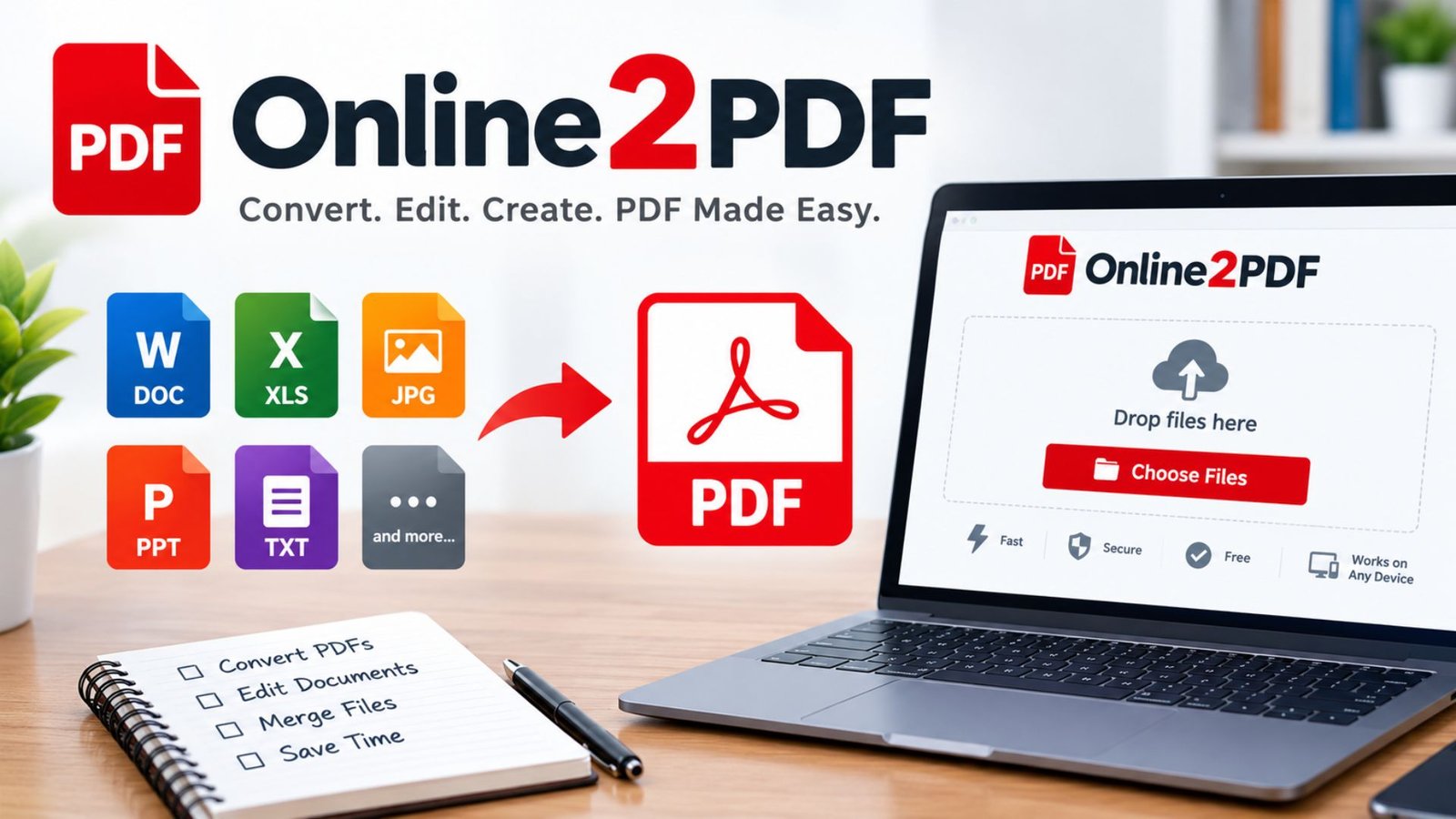
Online2PDF: How to Convert, Compress and Edit PDF Files
Working with PDF files can become frustrating when you need to edit a document, reduce its size, convert a spreadsheet, or extract individual pages. Installing desktop software for a simple task takes extra time, while choosing the wrong converter may create formatting or privacy concerns. Online2PDF offers browser-based tools for common PDF tasks, helping users manage documents without installing dedicated software. Understanding its features, limitations, and security considerations can help you choose the right workflow.
What Is Online2PDF?
Online2PDF is an online document conversion service that helps users transform and manage PDF files through a web browser. Depending on the selected tool and available settings, users can convert documents, compress PDFs, combine files, extract pages, and work with different document formats.
The service can be useful for students, office workers, freelancers, teachers, and small businesses that regularly handle digital documents. Instead of installing a complete PDF editor, users can perform many routine tasks online.
However, an online converter does not replace every feature of professional PDF software. Advanced editing, reliable optical character recognition (OCR), electronic signatures, and complex document workflows may require additional tools.
How Does Online2PDF Work?
The process usually involves uploading a document, selecting an operation, adjusting the available settings, and downloading the processed file.
- Select your file: Choose a supported document from your computer or device.
- Choose an operation: Select conversion, compression, merging, page extraction, or another available function.
- Adjust settings: Configure the output format, page range, image quality, or other options when available.
- Process the document: Start the conversion and wait for the operation to finish.
- Download the result: Save the processed file and open it to check its quality.
The exact options and upload limits may change. Check the current interface before processing large documents or files with complicated formatting.
Online2PDF Features at a Glance
Online2PDF brings several document operations together in one interface. The following table explains common PDF tasks, their practical uses, and important considerations.
| Feature | Main purpose | Best use case | What to check |
|---|---|---|---|
| PDF to Word | Converts PDF content into an editable document | Editing reports and letters | Fonts and page layout |
| PDF to Excel | Extracts tables into spreadsheets | Analyzing tabular information | Rows, columns, and values |
| PDF to JPG | Converts pages into images | Sharing individual pages | Resolution and clarity |
| PDF compression | Reduces document size | Email attachments | Image quality |
| Booklet creation | Arranges pages for printing | Programs and handouts | Page order |
| Page extraction | Saves selected pages | Sharing document sections | Selected page range |
| PDF merging | Combines multiple files | Creating a complete report | File sequence |
| Password-related tools | Handles supported PDF protection tasks | Authorized document management | Password and permissions |
| Scan processing | Helps process scanned documents | Improving document usability | Text readability |
| Excel to PDF | Converts spreadsheets into PDFs | Sharing reports and invoices | Print areas and page breaks |
| OCR | Recognizes text in scanned pages when supported | Making scanned text searchable | Recognition accuracy |
Availability depends on the operation, file type, and current service settings. Always verify the finished document before using it for important work.
How to Use Online2PDF PDF to Word Converter
A PDF-to-Word conversion is useful when you need to edit text rather than simply read a document. It can help with reports, letters, study materials, business documents, and other files originally saved in PDF format.
Follow these steps:
- Open the PDF conversion interface.
- Select the PDF file you want to convert.
- Choose Word as the output format.
- Select OCR if the document contains scanned pages and the option is available.
- Start the conversion and download the resulting document.
- Open the file in Microsoft Word or a compatible editor.
- Check headings, tables, fonts, page breaks, and special characters.
The phrase pdf to word converter online2pdf describes this workflow. Conversion usually works best when the original PDF contains selectable text. Scanned pages may require OCR, and complicated layouts can need manual corrections.
How Can You Improve PDF-to-Word Results?
Start with a clear source document and avoid unnecessary conversion steps. If the PDF contains columns, tables, or images, inspect each section after conversion.
For important documents, compare the converted version with the original before sharing or publishing it. This helps prevent missing text, incorrect spacing, and formatting errors.
Online2PDF PDF to Excel: Can It Extract Tables?
The online2pdf pdf to excel feature is intended to turn PDF content into spreadsheet data. It can save time when a document contains tables that you need to sort, filter, calculate, or analyze.
For the best results, use a PDF with clear table boundaries and readable text. A PDF primarily preserves a visual page layout, so the conversion may not recreate the original spreadsheet’s formulas or cell relationships.
Check these details before using the converted file:
- Confirm that every value appears in the correct column.
- Check decimal separators and date formats.
- Look for missing rows or merged cells.
- Verify totals against the original PDF.
- Rebuild formulas where necessary.
For example, converting a monthly expense report into Excel may make it easier to categorize costs. However, verify all figures before using the spreadsheet for accounting or financial decisions.
How to Convert Excel to PDF Using Online2PDF
The convert excel to pdf online2pdf workflow helps you share spreadsheets in a format that is easier to view consistently across devices.
Follow these steps:
- Select your Excel workbook.
- Choose PDF as the output format.
- Review the available spreadsheet settings.
- Set the appropriate sheet layout, page orientation, and scaling where supported.
- Convert the file and open the resulting PDF.
- Confirm that the columns, totals, and page breaks look correct.
A spreadsheet that looks neat on a computer screen may produce several printed pages after conversion. Adjusting the print area and scaling beforehand can prevent clipped columns and unreadable text.
Online2PDF PDF to JPG: Turning Pages Into Images
The online2pdf pdf to jpg option is useful when you want to share a page as an image or include document pages in a presentation.
A PDF may contain several pages, so check whether the conversion creates separate images for each page or provides another output arrangement. Select an appropriate resolution or image quality setting if the tool offers one.
JPG works well for photographs and general visual sharing, but it uses lossy compression. If your document contains small text, diagrams, or sharp lines, inspect the output carefully or consider a lossless image format when available.
Online2PDF Compress: How to Reduce PDF Size
Large PDFs can be difficult to email, upload to application portals, or share with colleagues. Searches such as online2pdf compress and online2pdf reduce size usually relate to reducing the storage space a document requires.
Compression may reduce image resolution, adjust image quality, or optimize the document’s internal structure. Image-heavy files often offer more opportunities for size reduction than documents containing mostly simple text.
Steps to Compress a PDF
- Select your PDF file.
- Choose the compression or file-size optimization option.
- Adjust image quality or resolution if those settings are available.
- Process the document and download the result.
- Compare the original and compressed file sizes.
- Zoom in to check text, signatures, charts, and images.
| Compression goal | Suggested approach | What to check |
|---|---|---|
| Email attachment | Use moderate compression | Text remains readable |
| Scanned document | Balance resolution and size | Small print remains clear |
| Presentation | Reduce oversized images | Charts remain sharp |
| Archival copy | Use conservative compression | Important details remain intact |
| Online application | Meet the portal’s size limit | Required pages remain visible |
Practical tip: Keep an untouched copy of the original PDF. If the compressed file becomes blurry or difficult to read, return to the original and use a less aggressive setting.
Online2PDF Increase Contrast in PDF Scans
Scanned PDFs can look faded when the original paper has low contrast, uneven lighting, or poor scanner settings. The search phrase online2pdf increase contrast in pdf scans refers to improving the readability of image-based documents.
Depending on the available scan-processing controls, you may be able to adjust image quality or improve the appearance of scanned pages. Check the current interface rather than assuming that every image adjustment is available.
For clearer results:
- Start with the highest-quality scan available.
- Straighten tilted pages before processing when possible.
- Increase contrast carefully without removing faint characters.
- Check stamps, handwritten notes, and signatures.
- Use OCR when you need searchable text rather than an image alone.
If the original scan is extremely blurry, contrast adjustment cannot reliably restore information that the image never captured.
Online2PDF Booklet: How to Create a Printable Booklet
The online2pdf booklet feature can arrange PDF pages for booklet-style printing. This is useful for classroom handouts, event programs, short guides, newsletters, and small publications.
Instead of placing pages in ordinary reading order on each printed sheet, a booklet layout positions pages so they can be folded and assembled into a publication.
How to Use Online2PDF Create Booklet
- Prepare the PDF in its intended reading order.
- Select the booklet or multiple-page layout option.
- Review the paper size and page arrangement.
- Convert the document.
- Print a test sheet before producing the full booklet.
- Fold the pages and check that the sequence is correct.
The phrase online2pdf create booklet refers to this page-arrangement process. Booklet printing often requires double-sided printing and suitable paper settings. Follow your printer’s instructions for flipping sheets, and check whether blank pages are needed to complete the layout.
When Should You Use Booklet Printing?
Booklet printing works well when you want to distribute a compact publication rather than a stack of individual pages. It can reduce paper handling and make printed material easier to carry.
Before printing multiple copies, check the page order, margins, fold position, and text size. A test print can help you catch layout problems before using additional paper and ink.
Online2PDF Password Remover: What You Should Know
The searches online2pdf password remover, online2pdf remove password, and online2pdf remove pdf restrictions relate to different types of PDF protection.
A PDF may require a password to open, or it may allow viewing while restricting printing, copying, or editing. These protections are not identical, and the available options depend on the document’s encryption and permissions.
Use password-related features only when you own the document or have authorization from its owner. If a PDF requires a password to open, you generally need the correct password to access its contents.
Removing supported editing or printing restrictions differs from decrypting a password-protected document. Stronger encryption, digital rights management, or other protections may prevent processing.
For confidential business records, legal documents, or sensitive personal files, consider whether an offline PDF application is more appropriate before uploading the document to an online service.
Is Online2PDF Safe to Use?
The question “is online2pdf safe” deserves a practical answer: the service publishes information about its file handling and security practices, but no online tool should be treated as completely risk-free.
Review the provider’s current privacy policy, file-retention terms, and security information before uploading a document. A published deletion policy is useful, but it does not remove every possible privacy risk associated with online processing.
Follow these precautions:
- Avoid uploading confidential contracts, identity documents, banking statements, or sensitive medical records unless your organization’s rules permit it.
- Check the site’s privacy policy and file-retention information.
- Confirm that you are using the correct official domain and a secure HTTPS connection.
- Download the converted file and confirm that it opens correctly.
- Delete local copies from shared devices when appropriate.
- Never upload a document you do not have permission to process.
For ordinary, non-sensitive documents, a browser-based converter can be convenient. For highly confidential material, an offline PDF application provides greater control over where the document is processed.
Online2PDF vs UPDF: Which Is Better?
Online2PDF and UPDF serve related purposes, but their best use cases differ. Online2PDF focuses on browser-based conversion and document processing, while UPDF provides a dedicated PDF application for broader document workflows.
| Comparison | Online2PDF | UPDF |
|---|---|---|
| Main approach | Browser-based processing | Dedicated PDF application |
| File conversion | Supports various document conversions | Supports PDF conversion and related workflows |
| Installation | Usually no installation required | Application installation is generally required |
| Basic compression | Useful for routine file-size reduction | Available through supported tools |
| Editing workflow | Best suited to supported processing tasks | Designed for broader PDF editing |
| Privacy considerations | Files are uploaded for online processing | Local processing options depend on the feature used |
| Best for | Quick document tasks | Users needing a broader PDF workspace |
Choose Online2PDF when you need a straightforward conversion or compression task. Consider UPDF when you regularly edit, annotate, organize, or manage PDFs using a dedicated application.
Compare current features, pricing, platform support, and privacy policies before choosing a long-term solution.
Online2PDF Comprimere PDF: Compress PDFs in Multiple Languages
The phrase online2pdf comprimere pdf means compressing a PDF and is commonly associated with Italian-language searches. Users searching in different languages may be looking for the same basic function: reducing document size without making it unreadable.
The process remains similar regardless of the search language. Upload a supported file, select the compression settings, process the document, and inspect the output.
If your document contains photographs or scanned pages, test different quality settings to find the right balance between file size and clarity.
Online2PDF Remove Pages From PDF: A Simple Guide
The search remove pages from pdf online2pdf relates to deleting unwanted pages or creating a smaller document from selected sections.
This can help when you need to share certain chapters of a report, remove blank pages, or prepare an excerpt for a presentation.
- Open the PDF processing interface.
- Select the relevant document.
- Find the page-selection or extraction settings.
- Specify the pages you want to keep or remove, depending on the available options.
- Process the document.
- Review the final page count and order.
Keep a copy of the original document before removing pages. This is particularly important for contracts, applications, and records where missing pages could change the meaning.
Online2PDF.com: Common Problems and Solutions
When using online2pdf com, users may encounter upload errors, conversion failures, or unexpected formatting changes. Many problems result from the source document, file size, browser settings, or unsupported features.
| Problem | Possible cause | What to try |
|---|---|---|
| Upload fails | File is too large or unsupported | Check the current upload limit and file format |
| Conversion takes too long | Large or complex document | Try a smaller file or simpler operation |
| Word formatting changes | Complex PDF layout | Correct the layout in a word processor |
| Excel columns are incorrect | Poorly structured source table | Adjust columns and verify values |
| Compressed PDF looks blurry | Excessive image compression | Use a higher quality setting |
| Password-protected PDF fails | Encryption or permissions prevent processing | Use an authorized password or supported application |
| Scanned text is not editable | PDF contains page images | Use OCR if available |
| Download does not work | Browser or connection issue | Retry with a supported browser and stable connection |
If an error continues, test the file with a small sample or use another trusted PDF application. Avoid repeatedly uploading sensitive documents just to troubleshoot an unknown problem.
Who Should Use Online2PDF?
Online2PDF can be useful for people who need basic document processing without maintaining a complex software setup.
- Students: Convert study materials, combine notes, and prepare printable booklets.
- Teachers: Organize worksheets and distribute course materials.
- Office workers: Convert reports, spreadsheets, and administrative documents.
- Freelancers: Prepare client deliverables in suitable formats.
- Small businesses: Compress routine documents and organize PDF files.
- Researchers: Extract pages and prepare documents for review.
It may be less suitable for users who need extensive page-level editing, advanced document redaction, complex electronic signature workflows, or guaranteed offline processing.
Tips for Getting Better Results With Online2PDF
A few simple checks can prevent common document problems and save time.
- Start with a clean source file. Correct orientation and remove unnecessary pages before conversion.
- Choose the correct output format. Word is useful for text editing, Excel for structured data, and JPG for sharing individual pages as images.
- Preserve important formatting. Inspect tables, headers, footers, page numbers, and special characters.
- Avoid excessive compression. Keep text and images readable at normal viewing size.
- Verify converted data. Check numbers, formulas, dates, and totals before relying on a converted spreadsheet.
- Protect the original. Keep an unchanged copy until you have confirmed the final document.
- Consider privacy first. Use offline software for files that should not leave your device.
- Test complicated documents. Process a sample before converting a large batch.
- Keep filenames organized. Use clear names so the original and converted files are easy to distinguish.
These habits improve the quality of your results regardless of which PDF converter you choose.
Frequently Asked Questions About Online2PDF
1. What is Online2PDF used for?
Online2PDF is a browser-based service for common PDF tasks, including supported file conversions, compression, page organization, and document processing. Its exact capabilities depend on the operation selected.
2. Is Online2PDF safe?
It may be suitable for ordinary document tasks, but safety depends on the file’s sensitivity and the service’s current privacy practices. Avoid uploading confidential files unless you have verified that the service meets your security requirements.
3. Can Online2PDF convert PDF to Word?
Yes, PDF-to-Word conversion is one of its intended uses. The output may require formatting corrections, especially when the original contains complex tables, columns, or scanned pages.
4. Can Online2PDF remove a PDF password?
Some PDF protection tasks may be supported when you have the necessary authorization and credentials. Removing an opening password differs from changing printing or editing restrictions, and stronger encryption may prevent processing.
5. Can Online2PDF compress a PDF without losing quality?
The result depends on the compression method and the contents of the original document. Conservative settings can help preserve readability, but reducing image resolution or using lossy compression may affect quality.
6. Is Online2PDF better than UPDF?
Neither option is best for every user. Online2PDF is convenient for quick browser-based tasks, while UPDF may be more appropriate for users who need a dedicated PDF editing environment. Compare the features and privacy options you actually need.
Conclusion
Online2PDF provides a convenient way to handle everyday PDF tasks, from converting documents and extracting tables to reducing file sizes and preparing printable booklets. Understanding its features, limitations, and privacy considerations helps you choose the right settings and avoid common conversion problems.
Before using any converted document professionally, check its formatting, data accuracy, and readability. For sensitive files, prioritize a workflow that meets your privacy requirements.
Have a PDF task you need to complete?
Identify the required output format, preserve your original file, and choose the conversion method that delivers the best balance of convenience, accuracy, and security.

One Comment