
How to Sign PDF Online Free: Easy Guide for 2026
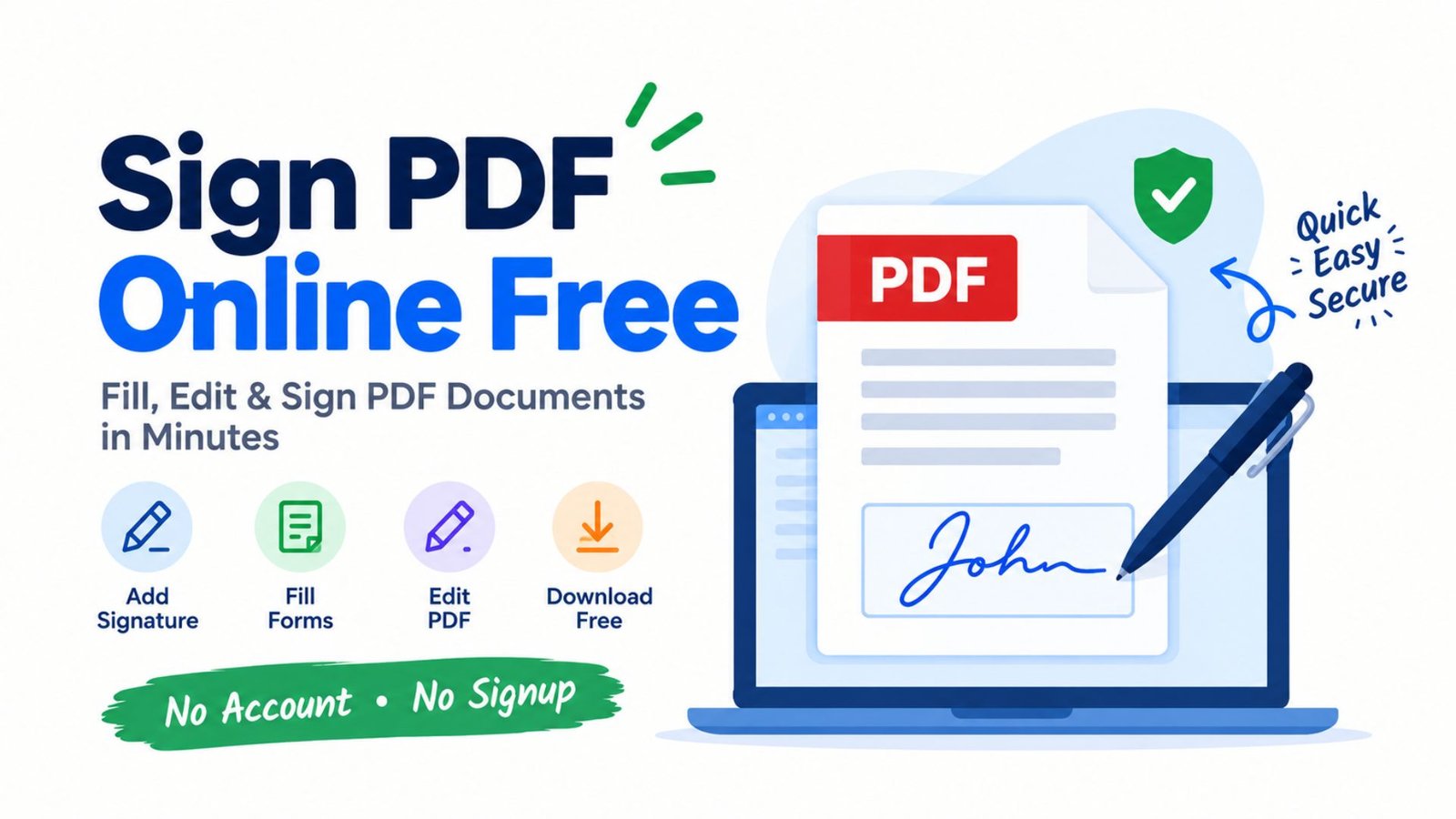
Signing paperwork can be frustrating when you do not have a printer, scanner, or paid PDF editor. You may need to approve a job offer, complete a school form, or return a business agreement before a deadline. The good news is that you can often sign PDF online free using a browser-based tool, add the required details, and save a completed copy without printing a single page.
What Does It Mean to Sign a PDF Online Free?
To sign a PDF online free means adding your signature to a Portable Document Format (PDF) file using a free online service or a compatible browser tool. You can usually type your name, draw a handwritten-style signature, or insert an image of your signature.
Many tools also let you fill out forms, enter dates, add initials, and place text in empty spaces. However, a basic electronic signature is not always the same as a certificate-based digital signature.
For most everyday paperwork, an electronic signature may be sufficient. Contracts, regulated documents, and official submissions can have additional identity, security, or legal requirements.
What Can You Do With a Free PDF Signing Tool?
Depending on the service, you may be able to:
- Add a signature to one or more pages.
- Fill in names, addresses, dates, and other details.
- Add initials beside specific clauses.
- Check boxes and complete simple forms.
- Save the signed PDF to your device.
- Share the completed document with another person.
Check the tool’s current free features before uploading a document. Some providers offer free basic signing but reserve advanced editing, signature requests, audit trails, or certain downloads for paid plans.
How to Sign PDF Online Free in 2026
The simplest method is to use a reputable online PDF signing service. The exact buttons vary by provider, but the general process remains similar.
Step 1: Choose a PDF Signing Tool
Select a service that supports electronic signatures and downloading completed PDFs. Adobe Acrobat online is one option for filling and signing documents through a browser.
Before uploading your file, review the service’s privacy policy, account requirements, file limits, and free-plan restrictions.
Step 2: Upload Your PDF Document
Open the selected tool and choose your PDF from your computer, tablet, or phone. Some services also support dragging a file into an upload area.
Wait for the document to load. If the file contains sensitive financial, employment, or identity information, consider an offline option instead of uploading it to a website.
Step 3: Create Your Signature
Most basic signing tools offer one or more of these methods:
- Type: Enter your name and select a signature style.
- Draw: Use your finger, mouse, or touchpad to draw your signature.
- Upload: Insert an image of your handwritten signature when supported.
Choose the method accepted by the document recipient. A typed signature may be convenient, while a drawn signature can look closer to your usual handwriting.
Step 4: Place the Signature Correctly
Move the signature to the designated signing line. Adjust its size so that it fits neatly without covering instructions, existing text, or other signature fields.
If the document has several pages, check whether additional signatures or initials are required elsewhere.
Step 5: Complete the Remaining Fields
Enter any missing information, including your printed name, date, title, or address. Make sure the details match the information requested by the organization receiving the form.
Do not sign a document with blank terms or missing pages if those omissions could affect your agreement.
Step 6: Review and Download the Signed PDF
Inspect the entire document before saving it. Confirm that the signature appears on the correct line, the text remains readable, and all required fields are complete.
Download the finished PDF and open it again to verify the saved version. Keep the original file separately when you need a record of the unsigned document.
Best Ways to Sign a PDF Without Paying
You have several options for adding a signature without buying a full PDF editing subscription. The right choice depends on your document, privacy needs, and whether you need a simple signature or a verifiable digital certificate.
Compare Free PDF Signing Methods
| Method | Signature options | Account needed? | Best use |
|---|---|---|---|
| Adobe Acrobat online | Type, draw, or insert an image where supported | Requirements can vary by workflow | Browser-based form filling and signing |
| Google Chrome PDF viewer | Draw a signature and add text | No separate PDF account is generally needed for local PDF viewing | Basic signing and annotations |
| Adobe Acrobat Reader desktop | Type, draw, or insert a signature image | Basic local signing does not generally require a paid subscription | Signing saved documents offline |
| Certificate-based PDF signing | Digital ID or certificate | Depends on the certificate and software | Documents requiring identity verification or integrity checks |
| Other online PDF signing services | Depends on the provider | Varies by service | Simple signing and form completion |
Free features and account requirements can change. Verify the current terms before choosing a service, especially if you need to sign without registering.
Which Method Should You Choose?
- Choose an online service when you want a guided process and do not mind uploading the document.
- Choose Chrome’s built-in PDF tools for basic signing and annotations on a local file.
- Choose desktop PDF software when you prefer to work without sending the document to an online service.
- Choose a certificate-based digital signature when the recipient specifically requires a verifiable digital ID.
A free method is not automatically the best method for every document. Security, compatibility, and acceptance requirements matter just as much as price.
How to Fill and Sign PDF Online Free
Filling out a PDF and signing it are related tasks, but they are not always identical. A form may contain interactive fields that accept typed information, or it may be a flat document that requires you to place text manually.
To fill and sign PDF online free, follow these steps:
- Open the PDF in a compatible editor or signing service.
- Select the text or form-filling tool.
- Enter the information requested in each field.
- Add check marks or initials where necessary.
- Insert your signature in the correct location.
- Review the information for spelling and accuracy.
- Save or download the completed file.
What If the PDF Has No Fillable Fields?
You can often use an Add Text tool to place information over a blank area. This approach works well for simple applications, consent forms, and documents that were scanned from paper.
If the PDF is a scanned image, text may not be selectable. You may need optical character recognition (OCR) to recognize existing text, or you can manually position text boxes and your signature.
Always check the final document’s appearance. Manually added text can shift or overlap existing content if you place it incorrectly.
Can You Sign PDF Online Free With No Account?
Yes, some tools allow basic PDF signing without requiring an account, but not every service offers this option for every workflow.
The phrase sign pdf online free no account describes a specific need: signing a document without creating a profile or logging in. A service may let you upload a file and add a signature but require registration to download, store, or share the result.
Before choosing a tool, check whether you can complete the entire process as a guest.
How to Sign a PDF Online Free With No Sign-Up
- Find a reputable service that explicitly supports guest signing.
- Read its privacy and file-retention terms.
- Upload a non-sensitive sample document if you want to test the workflow.
- Add your signature and complete the required fields.
- Download the completed PDF without registering, if supported.
- Verify that the downloaded file opens correctly.
Do not assume that a service offers signing without registration just because its homepage advertises a free tool. Some features may require a free account.
Can You Sign a PDF Without Installing Software?
Yes. A browser-based signing service can let you work without installing a desktop application. Google Chrome also supports basic PDF annotations and signing features in its built-in viewer on supported versions.
For documents you cannot upload to a third-party website, a desktop application may be a better choice. You can complete the process locally and save the result to your computer.
How to Sign a PDF Online Free With Adobe Acrobat
Adobe Acrobat provides online tools for filling out and signing PDF documents. Its exact workflow and account requirements depend on the service and the action you want to complete.
To use the online signing workflow:
- Open Adobe Acrobat’s online Fill and Sign tool.
- Select your PDF file.
- Wait for the document and signing controls to load.
- Enter information in the required fields.
- Create or select a signature.
- Place the signature and review the document.
- Follow the prompts to finish and save the file.
Adobe may require you to sign in for certain completion, storage, or download steps. Confirm the current requirements before relying on it for a no-account workflow.
Is Adobe Acrobat Free for Signing PDFs?
Basic PDF filling and signing are available through Adobe’s free options, but not every Acrobat feature is free. Advanced PDF editing, complex signature workflows, and some business features may require a subscription.
If you only need to add your own signature to a document, begin with the basic signing features. If you need to request signatures from multiple people or maintain detailed signing records, compare the available plans and requirements.
How to Digitally Sign a PDF Online Free
The term digitally sign PDF online free can refer to either adding a visible signature or applying a cryptographic digital signature. These processes are different, so it is essential to understand what your recipient expects.
Electronic Signature vs. Digital Signature
An electronic signature is a broad category that includes electronic methods of indicating agreement. A typed name, a drawn signature, or a signature applied through an online service may qualify, depending on the circumstances and applicable law.
A certificate-based digital signature uses cryptographic technology and a digital ID to help verify the signer’s identity and detect changes to the signed document.
| Feature | Basic electronic signature | Certificate-based digital signature |
|---|---|---|
| Appearance | Typed name, drawing, or signature image | May display a visible signature and certificate details |
| Identity verification | Depends on the process used | Uses a digital ID and certificate |
| Detecting document changes | Not inherently guaranteed | Can help detect changes after signing |
| Setup | Often simple | May require a digital ID or certificate |
| Typical use | Everyday forms and approvals | Documents requiring stronger verification |
A visible signature image alone does not provide the same cryptographic protections as a certificate-based digital signature.
When Do You Need a Digital Certificate?
You may need a certificate-based signature when an employer, government agency, business partner, or other recipient explicitly requires one. Some documents have technical requirements that a simple typed or drawn signature cannot meet.
Check the recipient’s instructions before signing. A signature that looks correct on the page may still fail a digital validation requirement.
How to Edit and Sign PDF Online Free
Sometimes you need to correct a date, add missing details, or complete a form before signing it. Some free PDF tools support both editing and signing, while others only let you add annotations and signatures.
To edit and sign PDF online free:
- Open the file in an editor that supports the changes you need.
- Correct text or add missing information.
- Review the layout and make sure no existing content has been obscured.
- Insert your signature.
- Save a new copy of the completed document.
- Reopen the file and verify the changes.
Can You Change Existing PDF Text for Free?
It depends on the software and document structure. Some free tools allow you to add text, highlight content, or annotate a PDF without changing its original text objects.
Editing existing paragraphs, replacing images, or rearranging complex layouts may require a more advanced tool or a paid feature. If you need to make substantial changes, editing the original Word document and exporting it again as a PDF may be easier.
Never alter the terms of an agreement after another party has signed it without obtaining the necessary approval.
How to Sign a PDF on a Phone
You can sign many PDF documents using a smartphone or tablet. A mobile browser or PDF application can help you complete forms without a computer.
Sign a PDF on Android
- Open the PDF in a compatible browser or PDF application.
- Select the signing, drawing, or annotation tool.
- Use your finger to draw a signature or choose another supported method.
- Place it on the correct signing line.
- Add any missing details.
- Save or export the completed PDF.
Sign a PDF on an iPhone or iPad
- Open the PDF in a compatible document viewer.
- Look for the Markup or signing option.
- Create or select your signature.
- Position and resize the signature.
- Review the completed form.
- Save or share the signed copy.
The exact buttons depend on the operating system, application, and file location. For official paperwork, verify that the recipient accepts the signature format before sending it.
How to Download and Save a Signed PDF
A signature is only useful if the final document saves correctly and the recipient can open it. After signing, use the service’s download, export, or save option.
Follow these checks:
- Give the file a clear name, such as
signed-employment-form.pdf. - Save it in a folder you can find later.
- Open the downloaded copy to verify that the signature appears.
- Check all pages for missing text or incorrect placement.
- Keep the original document if you may need to compare versions.
- Use a secure storage location for confidential paperwork.
If the service saves the completed file to cloud storage, download a local copy when appropriate. Do not rely solely on a temporary browser tab or an expiring sharing link.
Is It Safe to Sign a PDF Online Free?
Online PDF signing can be convenient, but you should assess privacy and security before uploading personal documents. A PDF may contain your address, date of birth, bank information, employment details, or legally sensitive terms.
How to Protect Your Documents
Use these practical precautions:
- Choose a reputable provider. Check the service’s identity, privacy policy, and security information.
- Review file retention. Understand whether the provider stores uploaded and signed documents and how deletion works.
- Avoid suspicious websites. Be cautious of misleading download buttons, unexpected redirects, and unnecessary browser extensions.
- Use trusted connections. Avoid handling confidential paperwork on public or shared computers whenever possible.
- Limit access. Do not share signed documents through public links unless you intend to make them accessible.
- Check the final file. Confirm that you have saved the correct document before sending it.
Can You Sign a PDF Without Uploading It?
Yes, if you use a compatible local PDF tool. For example, Google Chrome’s PDF viewer supports drawing signatures and adding text to PDFs. Google’s documentation states that OCR processing of scanned PDFs in Chrome occurs on the device rather than sending that OCR data to Google or third parties.
A local workflow can reduce the need to upload your document to a separate online signing service. However, privacy also depends on the software, operating system, extensions, cloud-sync settings, and where you choose to save the file.
For highly confidential documents, check the software’s behavior and your organization’s security policy before proceeding.
Common Problems When Signing a PDF
If your signature tool does not work as expected, the problem may relate to the document, browser, permissions, or signing method.
The PDF Will Not Upload
Check your internet connection, file size, and the service’s supported file types. Try opening the PDF locally to see whether the file is damaged or password-protected.
If the file is confidential, avoid uploading it to several different services just to find one that works.
The Signature Will Not Stay in Place
Some tools require you to click or tap a confirmation button after positioning the signature. Others save changes only after you export or download the document.
Try saving a new copy and reopening it to confirm that the signature remains visible.
The PDF Is Read-Only or Password-Protected
A protected PDF may restrict editing, form filling, or signing. Check the document owner’s instructions and request an authorized, signable copy if necessary.
Do not attempt to bypass restrictions without permission.
The Recipient Cannot Verify the Signature
A visible signature may not satisfy a recipient that requires a certificate-based digital signature or a particular signing platform. Ask the recipient which signature method and validation standard they accept.
If the document requires a digital certificate, use a compatible signing tool rather than simply placing an image of your signature on the page.
How to Make Your Signed PDF Look Professional
A neat, complete document helps the recipient review your information quickly. Before sending your PDF, spend a moment checking the details.
- Keep the signature within the designated area.
- Use a readable signature size and consistent text formatting.
- Enter dates in the format requested by the recipient.
- Avoid covering legal wording, labels, or existing content.
- Complete every required field.
- Remove accidental annotations and unnecessary blank pages where permitted.
- Confirm that all required parties have signed.
- Save the document with a clear filename.
For contracts and formal applications, read the entire document before signing. A professional-looking signature cannot correct missing terms or inaccurate information.
Frequently Asked Questions About Signing PDFs for Free
1. How can I sign PDF online free?
Short answer: Use a free PDF signing service or a compatible browser tool.
Open the document, create a typed or drawn signature, place it on the correct line, complete any missing fields, and save the final PDF. Check whether the tool requires registration or restricts downloads.
2. How do I sign a PDF online free without an account?
Short answer: Choose a service that explicitly supports guest signing and downloading.
Some services allow basic signing without registration, while others require a login to finish the process. Review the current workflow before uploading an important document.
3. Can I fill out and sign a PDF online for free?
Short answer: Yes, many PDF tools offer basic form filling and signing at no cost.
You can enter details, add dates, mark checkboxes, and place your signature. Advanced editing, multi-party signature requests, and certain storage features may require payment.
4. Is Adobe Acrobat free for signing PDF documents?
Short answer: Adobe offers free basic PDF signing options, but some features require an account or paid plan.
You can use its online tools or compatible desktop software for common signing tasks. Check the current account requirements and feature limits for your chosen workflow.
5. What is the difference between an electronic signature and a digital signature?
Short answer: An electronic signature is a broad category, while a certificate-based digital signature uses cryptographic verification.
A typed name or drawn signature can be an electronic signature. A certificate-based digital signature uses a digital ID to help verify identity and document integrity.
6. Can I sign a PDF on my phone without downloading an app?
Short answer: Yes, a compatible mobile browser may let you sign a PDF without installing an application.
Open the file using a browser-based signing service, complete the required fields, and save the result. Availability depends on the browser, service, document type, and any account restrictions.
Conclusion: Sign Your PDF Online Free With Confidence
You do not always need a printer, scanner, or paid subscription to complete PDF paperwork. A free browser-based tool or a compatible desktop PDF application can help you fill in details, add a signature, and save a finished document.
Before you sign PDF online free, choose a method that fits your privacy needs and the recipient’s requirements. Review the document carefully, confirm that the saved copy is complete, and use a certificate-based digital signature when the recipient requires stronger verification.
Your next step:
Open your PDF, identify the signature method the recipient accepts, and choose a trusted tool that offers the features you need without unnecessary costs.

One Comment