
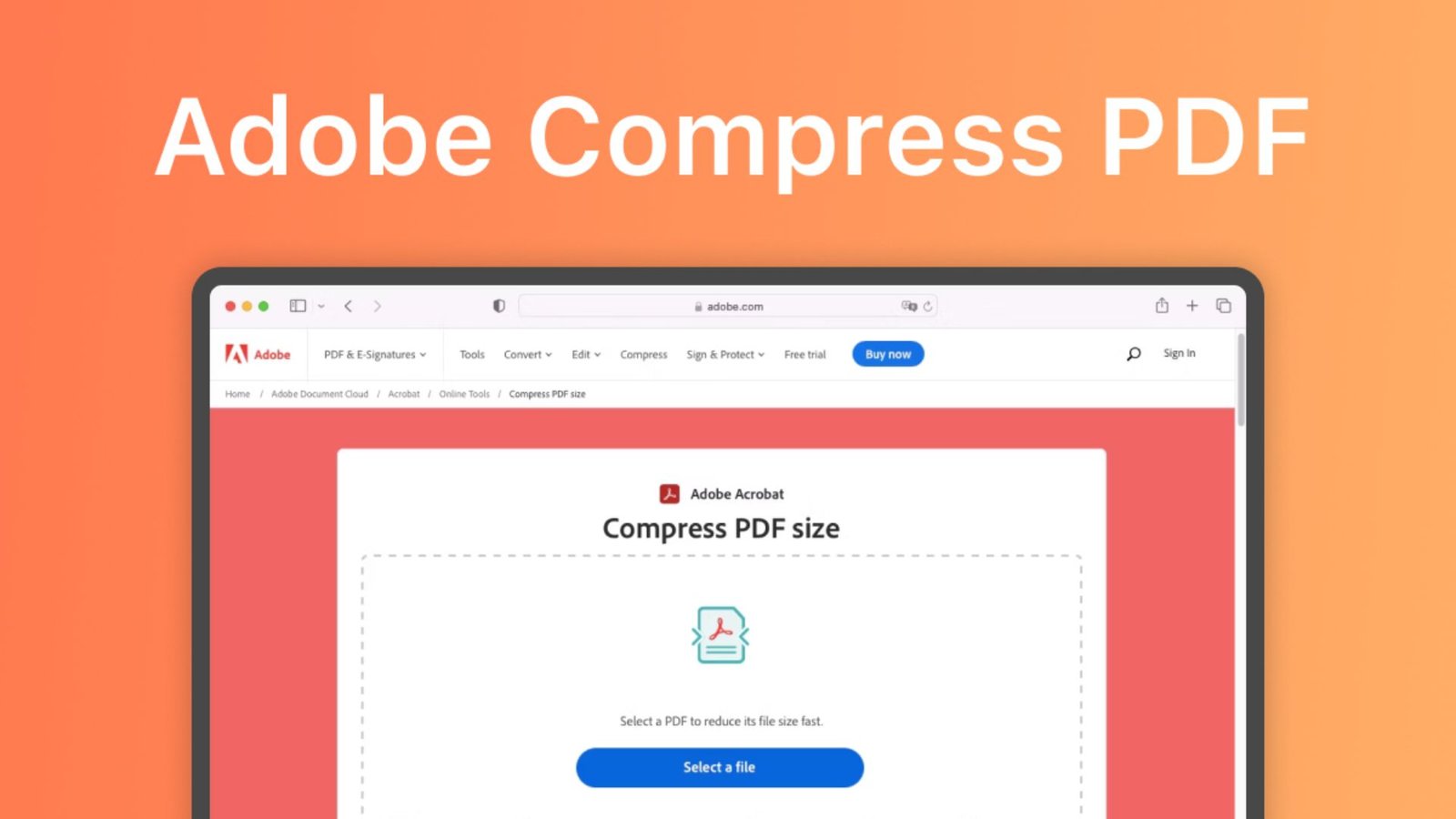
Adobe Compress PDF: How to Reduce File Size Online for Free?
Struggling to upload a PDF because the file is too large? Big documents can slow down email attachments, take up storage, and cause submission errors. The problem gets worse when a PDF contains scanned pages or high-resolution images.
Adobe Compress PDF offers a simple way to make documents smaller without installing software. This guide explains how to use the tool, choose compression settings, protect document quality, and avoid common mistakes.
What Is Adobe Compress PDF?
Adobe Compress PDF is a document compression feature available through Adobe Acrobat. It reduces PDF file sizes by optimizing images, removing unnecessary data, and improving how information is stored inside a document.
The online version works directly in your web browser. You can upload a PDF, choose a compression level, process the document, and download the smaller file.
Quick answer: Adobe Acrobat can compress PDFs online for free with usage limits. It supports common documents such as reports, scanned pages, presentations, and image-heavy files.
The tool is useful for:
- Students submitting assignments through online portals.
- Office workers sending PDF attachments by email.
- Businesses sharing reports, contracts, and brochures.
- Designers preparing smaller document previews.
- Job applicants uploading resumes and certificates.
- Website owners reducing PDF download sizes.
Adobe also provides advanced optimization controls through Acrobat Pro for people who need more precise results.
How to Use Adobe Compress PDF Online for Free
The Adobe Compress PDF online tool lets you reduce document size without downloading a separate program.
Follow these steps:
- Open the official Adobe PDF compressor.
- Click Select a file or drag your PDF into the upload area.
- Choose the PDF document you want to reduce.
- Select the available compression level.
- Allow Adobe Acrobat to process the file.
- Review the result and download the compressed document.
- Open the downloaded PDF to check its appearance and functionality.
You can perform basic compression without installing Acrobat on your computer. Adobe offers free online compression with usage limits, and some additional features require an account or paid plan.
Helpful tip:
Save the compressed document under a different filename. Keeping the original gives you a backup if the new PDF has lower image quality or missing functionality.
Can You Use Adobe Compress PDF for Free?
Yes. The free Adobe Compress PDF option allows limited online compression without purchasing a subscription.
Adobe offers basic browser-based compression for everyday use. However, repeated operations, batch processing, advanced settings, or other premium features may require a paid Acrobat subscription.
Here is a practical comparison.
| Feature | Free online compression | Acrobat Pro |
|---|---|---|
| Reduce PDF file size | Yes, limited use | Yes |
| Works without installing software | Yes | Desktop installation available |
| Standard compression presets | Yes | Yes |
| Advanced image optimization | Limited | Yes |
| Detailed font controls | No | Yes |
| Remove selected embedded objects | Limited automatic optimization | Yes |
| Batch compression | Limited or unavailable | Supported |
| Save compressed PDFs | Yes | Yes |
| Control output quality | Basic presets | Detailed settings |
| Suitable for occasional users | Excellent choice | More than most occasional users need |
| Suitable for professional workflows | Depends on requirements | Strong choice |
Free allowances and subscription entitlements can change. Check Adobe’s current plan information before purchasing.
Best choice: Use free online compression for occasional documents. Consider Acrobat Pro when you regularly prepare large reports, scanned archives, or print-ready PDFs.
Adobe Compress PDF Features Explained
The Adobe Compress PDF features are designed to make documents easier to store, download, upload, and share.
1. Image optimization
High-resolution images can make PDF documents unnecessarily large. Acrobat can compress image data and reduce resolution where appropriate.
This is especially helpful for brochures, presentations, scanned documents, and photo-heavy reports.
2. Different compression levels
The online tool offers High, Medium, and Low compression presets.
These options help you balance smaller file sizes against visual quality. Stronger compression generally saves more space but can reduce image sharpness.
3. Browser-based processing
The online compressor works through a supported web browser. You do not need a separate desktop application for basic compression.
This makes it convenient when working on different computers.
4. Large file support
Adobe documents a PDF compression file-size limit of 2 GB for its cloud compression service.
However, processing depends on internet speed and document complexity. Some files may fail even when they are below the published size limit.
5. Document optimization
Compression may reduce redundant data, unnecessary metadata, and the space required by embedded images.
Advanced Acrobat Pro options provide additional control over fonts, transparency, embedded objects, and cleanup settings.
6. Easy file download
Once processing finishes, users can download the smaller PDF.
Always inspect the downloaded version before sending it to another person or uploading it to an important portal.
Which Adobe Compress PDF Size Setting Should You Choose?
Choosing the correct Adobe Compress PDF size setting helps prevent unnecessary quality loss.
The ideal option depends on the document’s purpose.
| Compression level | File size | Expected image quality | Recommended use |
|---|---|---|---|
| High | Usually smallest | Greater risk of visible quality loss | Email attachments and basic screen viewing |
| Medium | Balanced | Moderate quality preservation | Reports, study notes, and general documents |
| Low | Usually largest output | Better detail preservation | Image-rich documents and higher-quality viewing |
These are general expectations rather than guaranteed outcomes. Actual output depends on the PDF’s content.
For example, a scanned 30-page report may shrink significantly because its pages contain large images. A two-page text document may show only a small reduction.
Recommendation:
Start with Medium compression. If the result remains too large, test High compression and compare the documents before sharing.
How Much Can Adobe Compress PDF Reduce File Size?
Adobe Compress PDF can deliver noticeable file-size reductions, particularly when a document contains images that have not already been optimized.
Adobe states that certain image-heavy documents can experience reductions exceeding 50–80%. However, this should not be treated as a guaranteed result for every file.
The following figures are hypothetical examples showing how different reductions affect document size.
| Original PDF size | Example reduction | Resulting size | Space saved |
|---|---|---|---|
| 2 MB | 20% | 1.6 MB | 0.4 MB |
| 5 MB | 40% | 3 MB | 2 MB |
| 10 MB | 60% | 4 MB | 6 MB |
| 20 MB | 75% | 5 MB | 15 MB |
| 50 MB | 80% | 10 MB | 40 MB |
| 100 MB | 50% | 50 MB | 50 MB |
These are calculation examples, not measured Adobe compression test results.
You can calculate the reduction percentage using:
Compression reduction (%) = (Original size − New size) ÷ Original size × 100
For example, reducing a 20 MB document to 5 MB produces a 75% reduction.
Keep in mind that compressing an already optimized PDF may produce little improvement.
How to Compress a PDF Without Losing Quality
Many users want the smallest possible PDF without making text or images blurry.
The important distinction is between lossless compression and lossy compression.
Lossless compression reduces unnecessary data without discarding the information needed to reconstruct the original content.
Lossy compression removes some image information to achieve a smaller file. This can reduce visual quality, particularly around fine text embedded in scanned images.
To preserve quality:
- Start with Low or Medium compression.
- Avoid unnecessarily reducing image resolution.
- Zoom in to check small text and fine details.
- Inspect diagrams, graphs, and photographs.
- Check every page rather than judging only the cover.
- Compare the new file with the original.
- Preserve the original document for future editing or printing.
If a document contains mostly selectable text, simple compression may preserve its appearance very well.
Documents containing scanned pages require more attention because their text may actually be part of an image.
For professional printing, verify the required resolution, color settings, embedded fonts, and print specifications before compressing.
Adobe Compress PDF Online vs Desktop Acrobat
The Adobe Compress PDF online service is convenient for quick document processing. Acrobat desktop software gives users more control over how their PDFs are optimized.
| Comparison factor | Adobe online compressor | Acrobat desktop |
|---|---|---|
| Access method | Browser | Installed application |
| Installation | Not required | Required |
| Internet connection | Required | Not generally required for local compression |
| Processing location | Adobe servers | Local device for desktop compression |
| Compression controls | Presets | Presets and advanced optimization options |
| Image adjustments | Automatic | Detailed configuration available |
| Font optimization | Automatic or limited | Advanced settings in Acrobat Pro |
| Multiple files | Depends on plan | Supported batch workflows |
| Best for | Fast everyday compression | Professional and repeated document work |
Acrobat Pro supports optimization of images, fonts, transparency, and other PDF elements.
For example, it can reduce embedded image resolution or remove selected unnecessary objects. These changes can produce smaller files, but they may also affect how the document behaves or displays.
Choose the desktop version when you need detailed output control or prefer processing sensitive files locally.
How to Reduce PDF File Size Using Adobe Acrobat Pro
If you already have Acrobat Pro, you can use its advanced PDF Optimizer.
For Windows:
- Open your PDF in Acrobat.
- Select Menu > Save as Other > Optimized PDF.
- Choose the appropriate optimization settings.
- Adjust images, fonts, transparency, or cleanup options if needed.
- Select the required Acrobat compatibility.
- Click OK.
- Choose a filename and save the optimized PDF.
On macOS, Adobe documents the path File > Save as Other > Optimized PDF.
Important Acrobat Pro optimization settings
| Setting | What it changes | Main consideration |
|---|---|---|
| Image downsampling | Reduces image resolution | Fine details may become less sharp |
| Image compression | Changes how image data is stored | Lossy methods can reduce quality |
| Font unembedding | Removes selected embedded font data | Font appearance may change on another device |
| Transparency flattening | Simplifies transparent visual elements | May change editing capabilities |
| Discard objects | Removes selected document elements | Could affect interactive content |
| Discard user data | Removes selected comments, metadata, or other information | Important information could be lost |
| Cleanup | Removes or restructures unnecessary data | Review output for compatibility |
Some optimization choices permanently discard information.
Always save a copy before applying advanced settings, especially when working with contracts, accessible PDFs, fillable forms, or print-production documents.
Is the Official Adobe Compress PDF Tool Safe?
The official Adobe Compress PDF service uses Adobe’s online infrastructure to process uploaded documents.
Adobe states that online files are handled on secure servers and deleted automatically unless users sign in to save them.
However, using an online service still involves uploading document information to external servers.
Before uploading a PDF, consider whether it contains:
- Confidential business information.
- Customer or employee records.
- Financial account details.
- Medical information.
- Personal identification documents.
- Private contracts or sensitive correspondence.
For confidential work, a locally processed document may be more appropriate if your organization’s security policy allows it.
Password-protected PDFs can also require the correct password before compression. Some encrypted files have additional restrictions.
Important:
Compression does not automatically mean a file has been anonymized, sanitized, or stripped of confidential metadata. Review sensitive documents separately before sharing them.
Can Adobe Compress PDF Handle Scanned Documents?
Yes. Adobe Compress PDF can process many scanned PDFs, including documents created from paper records.
Scanned documents often contain a full-page image for every sheet. This can make a relatively short document unusually large.
Compression reduces the space required to store those images.
For example, a scanned school certificate or business report may contain far more image data than a PDF created directly from Microsoft Word.
To get better results:
- Check whether the scan is color, grayscale, or black and white.
- Confirm that important handwriting and stamps are readable.
- Choose a compression setting suitable for the document.
- Download and inspect the smaller PDF.
- Verify that signatures and small text remain clear.
Optical character recognition (OCR) can make scanned text searchable, but OCR is a separate process from basic compression.
Avoid sacrificing readability simply to reach a smaller file size.
How to Compress a PDF to 1 MB, 2 MB, or 5 MB
Many websites, email systems, and application portals impose strict upload limits.
You may need a PDF below 1 MB, 2 MB, or 5 MB.
The Adobe Compress PDF tool can help, but it does not guarantee that every document will reach a particular size.
To target a 1 MB limit
Begin by removing unnecessary pages from a copy of the document.
If you can recreate the original PDF, use appropriate image settings before exporting. Then try compression and check the output size.
To target a 2 MB limit
Start with Medium compression and inspect the result.
If the file remains above 2 MB, try High compression. Check scanned text and photographs for visible degradation.
To target a 5 MB limit
A 5 MB target generally gives more room for document detail than a 1 MB target.
Try Low or Medium compression first and move to stronger settings only when required.
| Upload requirement | Suggested first approach | What to verify |
|---|---|---|
| Under 1 MB | Remove unnecessary content, then compress | Small text and document completeness |
| Under 2 MB | Medium, then High if necessary | Scans, signatures, and readability |
| Under 5 MB | Low or Medium | Images and diagrams |
| Under 10 MB | Low compression first | Appearance and layout |
| No strict size limit | Preserve quality unless smaller size helps | Accurate display and usability |
If compression alone cannot meet the limit, returning to the source file and exporting a smaller PDF often offers a better solution.
How to Download a Compressed PDF from Adobe
After processing your document, the Adobe Compress PDF download process is straightforward.
Select the available Download option once compression finishes. Your browser should save the resulting PDF according to its download settings.
Open the file and verify that the document has been saved correctly.
Check these details before sending it:
- Correct filename and file extension.
- Expected number of pages.
- Readable text and images.
- Working links and bookmarks, where required.
- Correct tables and page layout.
- Acceptable final file size.
If you are searching for an Adobe Compress PDF free download, remember that the browser-based compressor does not require a separate software installation.
For desktop applications, download Acrobat only through Adobe’s official website.
Avoid unofficial installers advertising modified or unlocked versions of paid PDF software.
Why Is Adobe Compress PDF Not Working?
Sometimes Adobe Compress PDF does not reduce file size as expected, or an upload fails before processing finishes.
The cause may relate to document structure, connectivity, account limitations, or file complexity.
Use this troubleshooting table to identify the likely problem.
| Problem | Possible cause | Recommended solution |
|---|---|---|
| PDF does not upload | Connectivity, file restrictions, or browser issue | Check connection, file size, and browser |
| File remains too large | Images or embedded objects need additional optimization | Try another preset or Acrobat Pro |
| Text becomes blurry | Strong image downsampling | Use lower compression |
| Very little size reduction | PDF was already optimized | Review the source file |
| Processing fails | Complex file structure or damaged PDF | Re-export the original PDF |
| Password request appears | PDF has protection enabled | Enter the authorized password |
| Download does not start | Browser settings or session issue | Check downloads and retry |
| Interactive content stops working | Optimization changed document elements | Restore the original and use safer settings |
| Free compression becomes unavailable | Usage entitlement reached | Check current account limits |
Do not repeatedly compress an already compressed image-heavy file expecting unlimited savings.
Multiple rounds of lossy compression can continue to reduce image quality without producing a useful reduction in size.
If a document repeatedly fails, recreate the PDF from its original source when possible.
Adobe Compress PDF Feature Review and Evaluation
How good is Adobe Compress PDF for everyday document compression?
The main advantage is convenience. Users can upload a PDF, select a compression level, and download the processed file without learning complicated editing software.
Its limitations become more noticeable when users need exact target sizes, detailed image settings, frequent processing, or local-only workflows.
| Evaluation category | Practical assessment |
|---|---|
| Ease of use | Simple upload-and-download workflow |
| Beginner friendliness | Well suited to first-time users |
| Free access | Available with usage limits |
| Compression flexibility | Three online presets |
| Advanced control | Requires desktop Acrobat Pro for detailed optimization |
| Large-file handling | Published 2 GB limit; processing is not guaranteed |
| Quality preservation | Depends on the source and selected settings |
| Privacy considerations | Online processing uploads files to Adobe servers |
| Professional document work | Stronger capabilities in Acrobat Pro |
| Exact output-size targets | Not guaranteed |
| Offline compression | Available through desktop Acrobat |
| Overall suitability | Good for routine PDF size reduction |
This is a feature-based evaluation, not a hands-on benchmark. Actual compression speed, file reduction, and document quality should be tested using representative files.
Main advantages
- Simple interface for ordinary PDF files.
- No desktop installation required for online compression.
- Multiple presets to balance quality and size.
- Official Adobe service.
- Support for many scanned and image-heavy documents.
- Advanced options available through Acrobat Pro.
Main limitations
- Free usage is limited.
- Compression results vary by document.
- Strong compression can reduce image quality.
- Exact size targets are not guaranteed.
- Online processing requires uploading the document.
- Advanced controls may require a paid subscription.
Verdict:
Adobe Acrobat is a sensible starting point for occasional PDF compression. Professional users benefit most from its advanced desktop controls.
Best Practices for Smaller, High-Quality PDFs
Getting a smaller file is useful, but keeping the document readable and functional matters more.
Follow these recommendations:
- Keep the original file. Avoid overwriting your only copy.
- Export carefully. Create PDFs with suitable image resolution and quality settings from the beginning.
- Choose compression based on purpose. Email copies and print files do not need identical settings.
- Remove unnecessary pages. Deleting unwanted content can reduce size without degrading the remaining pages.
- Inspect every page. Pay attention to small fonts, QR codes, images, tables, and diagrams.
- Check document functions. Test links, form fields, and signatures where applicable.
- Respect privacy requirements. Avoid uploading confidential files unless authorized.
- Test the final upload. Confirm that the destination accepts the document.
For complex documents, use Acrobat Pro’s PDF Optimizer rather than repeatedly applying strong compression to the same exported file.
A well-prepared PDF should be small enough to share while preserving the information readers need.
Frequently Asked Questions
1. Can Adobe Compress PDF online for free?
Yes. Adobe Acrobat offers free online PDF compression with usage limits. You can upload a PDF, choose an available compression level, and download the smaller document.
More frequent use and advanced compression functions may require an Acrobat subscription.
2. Does Adobe Compress PDF reduce file quality?
It can. Compression may lower image resolution or remove unnecessary data. Text-based documents often retain their appearance well, while scanned or image-heavy PDFs may show some loss of detail.
Use Low or Medium compression when image quality matters.
3. What is the maximum Adobe Compress PDF file size?
Adobe lists a 2 GB compression limit for its cloud PDF compression service.
The actual ability to process a file depends on complexity, internet connection, and other technical factors.
4. Is Adobe Compress PDF official and safe to use?
The official Acrobat compression service is provided by Adobe. Adobe states that it processes files on secure servers and automatically deletes online uploads unless they are saved through a signed-in workflow.
Sensitive documents should still be handled according to applicable privacy and organizational security requirements.
5. Can Adobe Compress PDF reduce a document to 1 MB?
Possibly, but it cannot guarantee a 1 MB result. The final size depends on the number of pages, images, fonts, and existing compression.
If the PDF remains too large, remove unnecessary content or optimize the original source before creating a new PDF.
6. Do I need to download Acrobat to compress a PDF?
No. You can use Adobe’s online compressor in a web browser without installing the desktop application.
Desktop Acrobat is useful when you need offline processing, advanced optimization settings, or repeated professional workflows.
Final Thoughts: Make Your PDFs Smaller Without Losing What Matters
Adobe Compress PDF is a practical solution for reducing document size before emailing, uploading, or storing files.
For ordinary documents, start with Adobe’s free online tool and choose a balanced compression setting. For sensitive files, advanced optimization, and regular professional work, consider the desktop Acrobat options.
The best compressed PDF is not necessarily the smallest one. It is the file that meets your upload requirements while keeping the document accurate, readable, and useful.
Ready to reduce your document size?
Visit the official Adobe PDF compression tool, test a suitable compression setting, and inspect the result before sharing.
One Comment