Sejda PDF: Is It Safe, Free, and Worth Using in 2026?
Editing PDF documents can be frustrating when you need to correct text, combine files, or convert a document without installing expensive software. Choosing the wrong tool can waste time, damage formatting, or create privacy concerns. Sejda PDF offers online and desktop tools for common document tasks, but its free limits and privacy options deserve attention. This guide explains its features, pricing, limitations, and alternatives to help you decide whether it meets your needs.
What Is Sejda PDF?
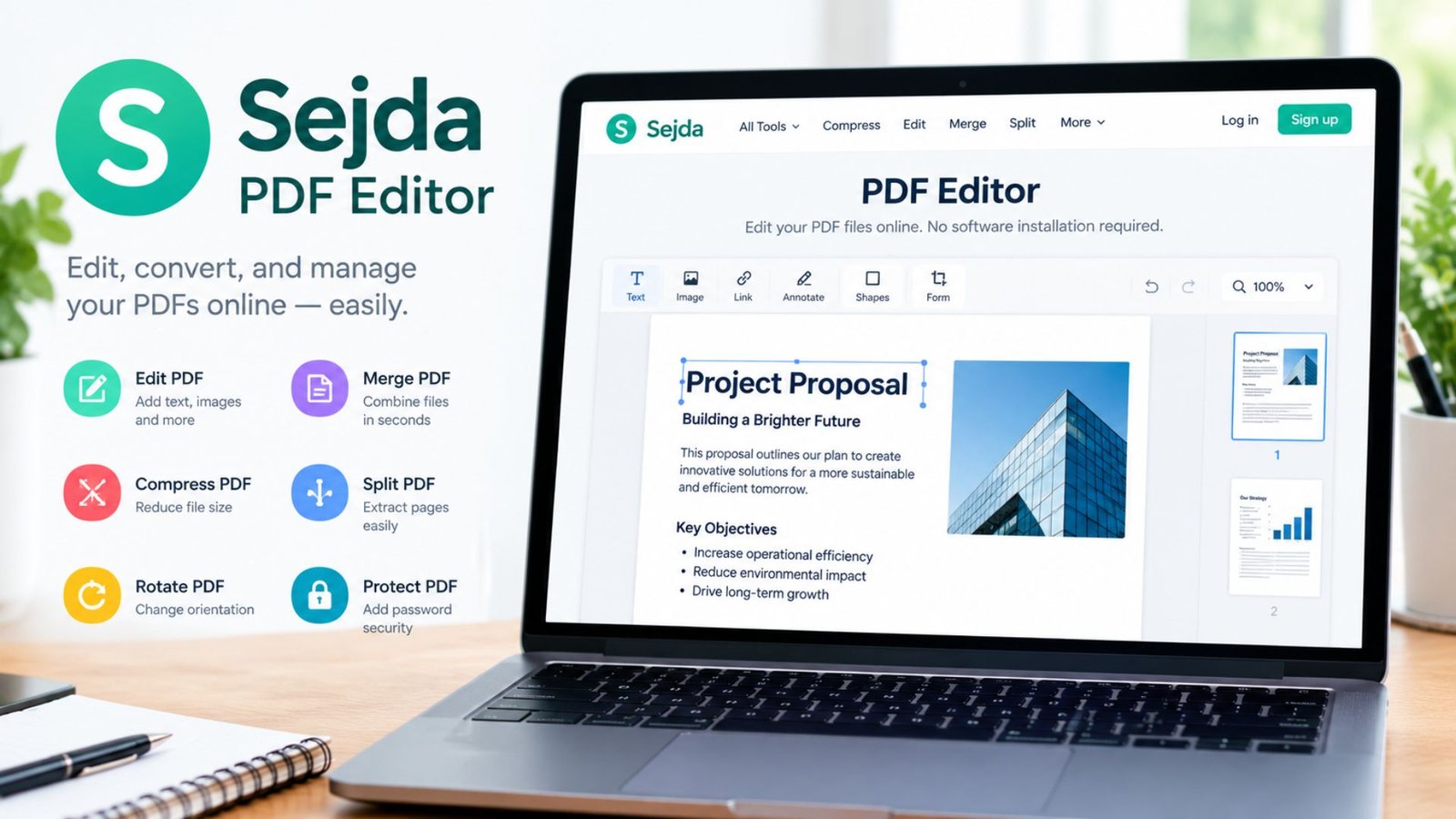
Sejda PDF is a document management platform that provides tools for editing PDF text, merging files, rearranging pages, cropping documents, signing forms, and converting files into other formats.
The platform offers two main options:
- Sejda PDF Editor Online: A browser-based service for users who want to edit documents without installing traditional desktop software.
- Sejda PDF Desktop: A computer application that supports local processing for compatible tasks.
Students, freelancers, office workers, teachers, and small businesses can use these tools to manage everyday documents. The free version suits occasional tasks, while paid options may benefit people who process files frequently.
How Does Sejda PDF Work?
Sejda PDF provides separate tools for different document operations. The exact process depends on whether you use the online editor or desktop application.
For online editing, follow these steps:
- Open the required PDF tool.
- Upload your document from your computer.
- Select the editing or processing option.
- Make the necessary changes.
- Review the result for formatting errors.
- Download the finished PDF.
For desktop editing, install the application, open a document from your computer, and perform the required task. Save the output and check the final file before sharing it.
Keep a backup of important documents before making changes. Working on a copy makes it easier to recover the original if the output contains errors.
What Features Does Sejda PDF Offer?
Sejda PDF includes several tools for everyday document management. The available options can vary by tool, version, and subscription.
PDF Text Editing
The Sejda PDF editor allows users to make supported text changes, add text, insert images, and annotate documents. It can help correct small errors without recreating an entire document.
Editing existing text can be challenging when the original PDF contains unusual fonts or tightly arranged content. Always check spacing, font appearance, and page layout after making changes.
PDF Merging and Page Management
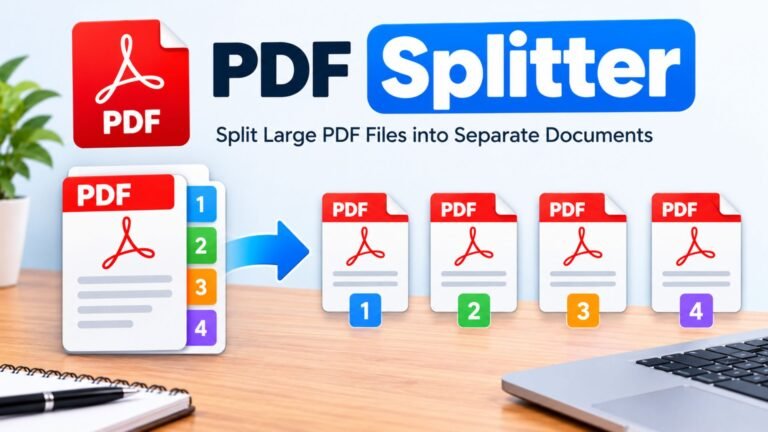
The Sejda PDF merge tool combines multiple PDF documents into one file. Users can also rearrange pages, split documents, extract selected pages, and remove unwanted sections.
These features are useful for combining assignments, invoices, reports, contracts, and supporting documents. Check the page order and orientation before sharing the final file.
PDF Conversion
Sejda supports conversion between PDF files and selected document formats. Its PDF-to-Word tool can turn supported PDF documents into editable Word files.
Conversion results depend on the original document. Simple text files generally convert more cleanly than scanned pages, complex tables, or documents with multiple columns.
PDF Cropping and Compression
The Sejda PDF crop tool removes unwanted visible areas around a page. It can help prepare scanned documents, trim excessive margins, or create a more consistent page layout.
Compression tools can reduce document size for easier uploading and sharing. However, excessive compression may affect image quality, so inspect the output before using it professionally.
Forms and Electronic Signatures
Sejda also provides tools for filling supported forms and adding signatures. Depending on the tool, users may be able to insert text, dates, checkboxes, and signature images.
Some official or regulated documents require a specific electronic-signature process. Confirm the recipient’s requirements before relying on a basic signature tool.
Is Sejda PDF Editor Free?
Yes. Sejda offers free online and desktop PDF tools, but both options have usage restrictions.
The online editor is suitable for occasional tasks such as correcting text, merging short documents, or converting a file. The desktop version provides another option for users who prefer working with files on their computers.
Free access does not mean unlimited processing. Users may encounter restrictions based on task frequency, file size, page count, or the selected operation.
If you regularly process large documents or many files, compare the free limits with the available paid plans before deciding whether an upgrade is worthwhile.
Sejda PDF Editor Free Limits: Official Details
Sejda publishes restrictions for its free online editor and desktop application. The following table summarizes commonly published limits; individual tools may have additional restrictions, and current terms should be checked before use.
| Free-use condition | Online editor | Desktop application |
|---|---|---|
| Task frequency | Up to 3 tasks per hour | Up to 3 tasks per day |
| Document size | Up to 50 MB | Up to 50 MB for supported tasks |
| Document length | Up to 200 pages | Up to 200 pages |
| OCR | Depends on the tool and plan | Up to 10 pages |
| PDF merging | Free-task restrictions apply | Up to 30 files and 50 pages |
| Batch processing | Free usage restrictions apply | Conversion may be limited to one file at a time |
| Paid upgrade | Higher limits, depending on the plan | Higher limits, depending on the plan |
These figures are published product limits, not a guarantee that every tool supports every listed condition. Check the relevant tool’s current restrictions before processing a large document.
What Do the Free Limits Mean in Practice?
Consider these examples:
- Editing an assignment: The free version may be sufficient if the file meets the size and page restrictions.
- Combining several reports: The desktop application may work for a small project, but larger files can exceed the combined page limit.
- Processing dozens of documents: Free task limits may slow down repetitive work, making a paid plan or another workflow more practical.
Check the limits before starting a large job to avoid interruptions.
Sejda PDF Editor Online vs. Sejda PDF Desktop
Both versions handle common PDF tasks, but their processing methods and usage restrictions differ.
| Comparison factor | Online editor | Desktop application |
|---|---|---|
| Installation | Normally not required | Required |
| Processing location | Sejda’s servers | Your computer for supported local tasks |
| Internet connection | Required for online processing | Can work offline for supported tasks |
| Device compatibility | Browser-based | Windows, macOS, and Linux options |
| Privacy considerations | Files are uploaded | Files can remain on your computer |
| Best for | Quick edits from different devices | Frequent work and local processing |
| Free usage | Hourly task restrictions | Daily task restrictions |
| Upgrade options | Web-specific or combined plans | Desktop-specific or combined plans |
The online editor is convenient when you need a quick correction without installing software. The desktop application may be preferable when offline access or local file processing matters.
Before choosing, confirm operating system compatibility and make sure the selected version includes the features you need.
How to Use Sejda PDF Editor Online
The online editor is designed to help users complete PDF tasks through a browser.
Follow this process:
- Open the required online PDF tool.
- Select the document you want to modify.
- Wait for the document to load.
- Choose the relevant operation, such as editing, signing, or cropping.
- Apply your changes.
- Review the document for missing content and formatting problems.
- Download the finished file and open it to confirm that it works correctly.
How to Edit Existing PDF Text
Editing existing text can be more difficult than adding a new text box. PDF files often store text as separately positioned elements rather than the continuous paragraphs found in a word processor.
When changing text, check the following:
- Replacement text fits within the available space.
- Font size and appearance remain consistent.
- Nearby paragraphs and images have not moved.
- Page numbers, headers, and footers remain correct.
Scanned PDFs need special attention. If a page contains only an image, you may need optical character recognition (OCR) before editing its text.
Sejda PDF to Word: How Does Conversion Work?
The Sejda PDF-to-Word tool helps convert supported PDF documents into editable Word files.
The process generally involves selecting the PDF, choosing the conversion tool, processing the document, and downloading the resulting Word file.
Conversion quality depends on how the original PDF was created. Documents with simple layouts often convert more cleanly than scanned forms, multi-column reports, or files containing complex tables.
After conversion, review:
- Headings and paragraph spacing
- Tables and column alignment
- Images and captions
- Page breaks and margins
- Special characters and symbols
For scanned documents, check whether text recognition is available and whether the extracted content is accurate. Do not assume that the converted document matches the original without reviewing it.
Sejda PDF Merge: How to Combine Multiple PDFs
The merge tool combines separate PDF files into a single document. It is useful for assembling assignments, contracts, invoices, reports, and supporting paperwork.
To merge files:
- Select the PDF documents you want to combine.
- Arrange them in the correct reading order.
- Check the page count and file-size restrictions.
- Start the merge process.
- Download the combined PDF.
- Review the final document.
Merging makes documents easier to share, archive, and print. However, it does not automatically correct inconsistencies between files.
Check for duplicate pages, blank sections, inconsistent page sizes, and incorrect page order before distributing the combined document.
Sejda PDF Crop: How to Remove Unwanted Margins
The crop tool changes the visible area of PDF pages. It can remove excessive margins, trim scanned documents, or prepare pages for printing.
To crop a document, open the crop tool, select the relevant pages, adjust the crop area, apply the changes, and save the output.
Cropping requires care because it can hide important content near page edges. Before saving, confirm that you have not cut off:
- Page numbers or footnotes
- Signatures and official stamps
- Table borders and column labels
- Legal disclaimers and headings
- Text near the margins
If you want to change the actual paper size instead of trimming visible content, use a page-resizing tool. Cropping and resizing serve different purposes.
Sejda PDF Filler: Forms and Electronic Signatures
The form-filling tools help users complete supported PDF forms without printing every page.
Depending on the document and available features, users may be able to enter text, add dates, place signatures, or mark checkboxes. These options can simplify routine paperwork, applications, and internal business forms.
Before signing, confirm that the recipient accepts the signature method. Some documents require identity verification or a specific digital-signature process.
Keep a copy of the original form and review every completed field before sending the document.
Is Sejda PDF Editor Safe?
Sejda provides privacy-related features, but safety depends on how you use the service and what type of document you process.
The online service states that file transfers use encryption and that uploaded files are automatically deleted after two hours. The desktop application supports local processing, allowing compatible tasks to be completed without uploading the document to Sejda’s servers.
These measures can reduce certain risks, but they do not eliminate every possible security concern.
How to Protect Your Documents
Follow these precautions when using any PDF editor:
- Avoid uploading confidential records unless the service meets your privacy requirements.
- Consider desktop processing for sensitive files when supported.
- Download software only from the official provider.
- Keep your operating system and security software updated.
- Review privacy terms before processing personal information.
- Check for sensitive information or metadata before sharing a document.
For highly sensitive or regulated information, consult your organization’s security requirements before selecting an online service.
Sejda PDF Editor Interface: Is It Easy to Use?
The Sejda PDF editor interface focuses on individual tasks rather than requiring users to learn a complicated document-editing system.
Most tools follow a straightforward process: choose an operation, open a file, adjust settings, process the document, and save the result.
This approach can make routine jobs accessible to beginners. However, editing remains challenging when a document contains unusual fonts, complex layouts, scanned pages, or text that does not fit the available space.
Who Can Use Sejda PDF?
- Students: Edit notes, combine assignments, and convert documents.
- Office workers: Rearrange reports and prepare forms.
- Freelancers: Review documents and make simple corrections.
- Small businesses: Manage invoices, contracts, and everyday paperwork.
- Occasional users: Complete basic PDF tasks without purchasing expensive software.
People who need advanced publishing tools, extensive collaboration, or enterprise document controls should compare more specialized applications.
Sejda PDF Editor Pricing: Is the Paid Version Worth It?
The free version is a reasonable starting point, but frequent users may need a paid subscription.
The following table summarizes published individual-plan prices observed during research. These prices are not guaranteed to remain current.
| Plan | Published price | Billing type | Suitable for |
|---|---|---|---|
| Free online editor | $0 | Free access with limits | Occasional tasks |
| Web Week Pass | $5 for 7 days | One-time payment | Short-term online projects |
| Web Monthly | $7.50 per month | Recurring | Regular browser-based editing |
| Desktop Week Pass | $7.95 for 7 days | One-time payment | Short-term desktop work |
| Desktop + Web Annual | $63 per year | Recurring | Users needing both versions |
Prices, regional availability, taxes, and subscription conditions may change. Confirm the amount and renewal terms before purchasing.
When Should You Upgrade?
A paid plan may be worthwhile if you frequently reach free task limits, process larger files, or need to handle multiple documents in one session.
It may not be necessary if you only correct a few words or merge a short document occasionally.
Before purchasing, confirm whether the selected plan covers the online editor, desktop software, or both. Check renewal conditions carefully, particularly when choosing a recurring subscription.
Sejda PDF Editor Review: Pros and Cons
A useful review considers both convenience and limitations.
| Advantages | Limitations |
|---|---|
| Offers online and desktop options | Free usage is restricted |
| Supports common PDF tasks | Complex layouts may convert imperfectly |
| Provides editing, merging, cropping, and conversion | Online processing requires uploading files |
| Desktop processing supports local file handling | Installation and compatibility require attention |
| Paid plans support heavier workloads | A subscription may be unnecessary for occasional users |
| Useful for everyday document management | Advanced enterprise workflows may need specialized software |
Overall Assessment
Sejda is a practical option for users who want several PDF utilities in one place. Its main strengths are its range of common tools and the choice between browser-based and desktop processing.
Its main drawback for casual users is the limit on free tasks. Users should test their own document types before relying on the software for large projects or important files.
Sejda PDF Editor Alternative: Which Tools Should You Consider?
If Sejda’s free limits do not fit your workflow, consider other PDF editors.
Adobe Acrobat
Adobe Acrobat is a candidate for professional PDF workflows, advanced document editing, and extensive PDF management. Check which features require a paid subscription.
PDF24
PDF24 offers a collection of PDF utilities and may appeal to users who prefer desktop tools, particularly on Windows. Confirm compatibility with your operating system.
Smallpdf
Smallpdf provides browser-based document conversion, compression, and other PDF tools. Review its free-use restrictions and paid features before choosing it.
PDFgear
PDFgear is another option to investigate for PDF editing and conversion. Check current platform support, privacy terms, and the features available without payment.
Which Alternative Is Best for You?
The right option depends on your priorities.
- Choose a professional editor for advanced document controls and business workflows.
- Compare free desktop utilities if you want to avoid uploading documents.
- Consider a browser-based alternative if you prefer not to install software.
- Compare paid plans if you regularly process many files.
How to Get Better Results When Editing PDFs
A few simple habits can prevent errors and reduce unnecessary work.
1. Identify the task first. Decide whether you need to edit text, convert a document, crop pages, or merge files.
2. Keep a backup. Save a copy before editing important records.
3. Check file limits early. Confirm maximum file size, page count, and task frequency.
4. Inspect the output. Review every page after conversion, merging, or cropping.
5. Protect sensitive information. Choose local processing when appropriate and avoid uploading confidential files to services that do not meet your requirements.
6. Compare the total cost. If you regularly reach free limits, compare upgrading with using another PDF tool.
These habits are useful regardless of which document editor you choose.
Frequently Asked Questions
1. What is Sejda PDF used for?
Sejda PDF is used to edit PDF text, merge and split documents, crop pages, fill forms, add signatures, compress files, and convert documents into other formats.
2. Is Sejda PDF editor free?
Yes. Sejda offers free online and desktop tools with usage limits. The online editor generally limits users to three tasks per hour, while the desktop application has a separate daily allowance.
3. Is Sejda PDF editor safe to use?
Sejda states that its online service uses encrypted transfers and automatically deletes uploaded files after two hours. Its desktop application supports local processing. Review current privacy terms before processing sensitive documents.
4. What are the Sejda PDF editor free limitations in 2026?
Published limits include up to three online tasks per hour, documents up to 50 MB or 200 pages, and three desktop tasks per day. Individual tools may have additional restrictions, so check current terms before using the service.
5. Can Sejda PDF convert PDF to Word?
Yes. Its PDF-to-Word tool converts supported PDF files into editable Word documents. Complex formatting, scanned pages, and tables may need manual correction after conversion.
6. What is the best Sejda PDF editor alternative?
There is no single best alternative for everyone. Adobe Acrobat may suit advanced professional work, PDF24 may appeal to users seeking desktop utilities, and Smallpdf may suit browser-based tasks. Compare pricing, features, and privacy before choosing.
Final Verdict: Should You Use Sejda PDF?
Sejda PDF is worth considering if you need a straightforward way to edit, merge, crop, sign, or convert PDF documents. Its online tools are convenient for quick tasks, while the desktop application provides an option for local processing.
The free version is best for occasional use. If you regularly handle large files or process many documents, compare paid plans with alternative PDF editors before deciding.
For the best results, test the tool with a non-sensitive sample document, check current usage limits, and inspect every edited file before sharing it.
Have you used Sejda PDF for editing or converting documents? Share which features worked best for you and what limitations you encountered. Your experience may help other readers choose a suitable PDF editor.