
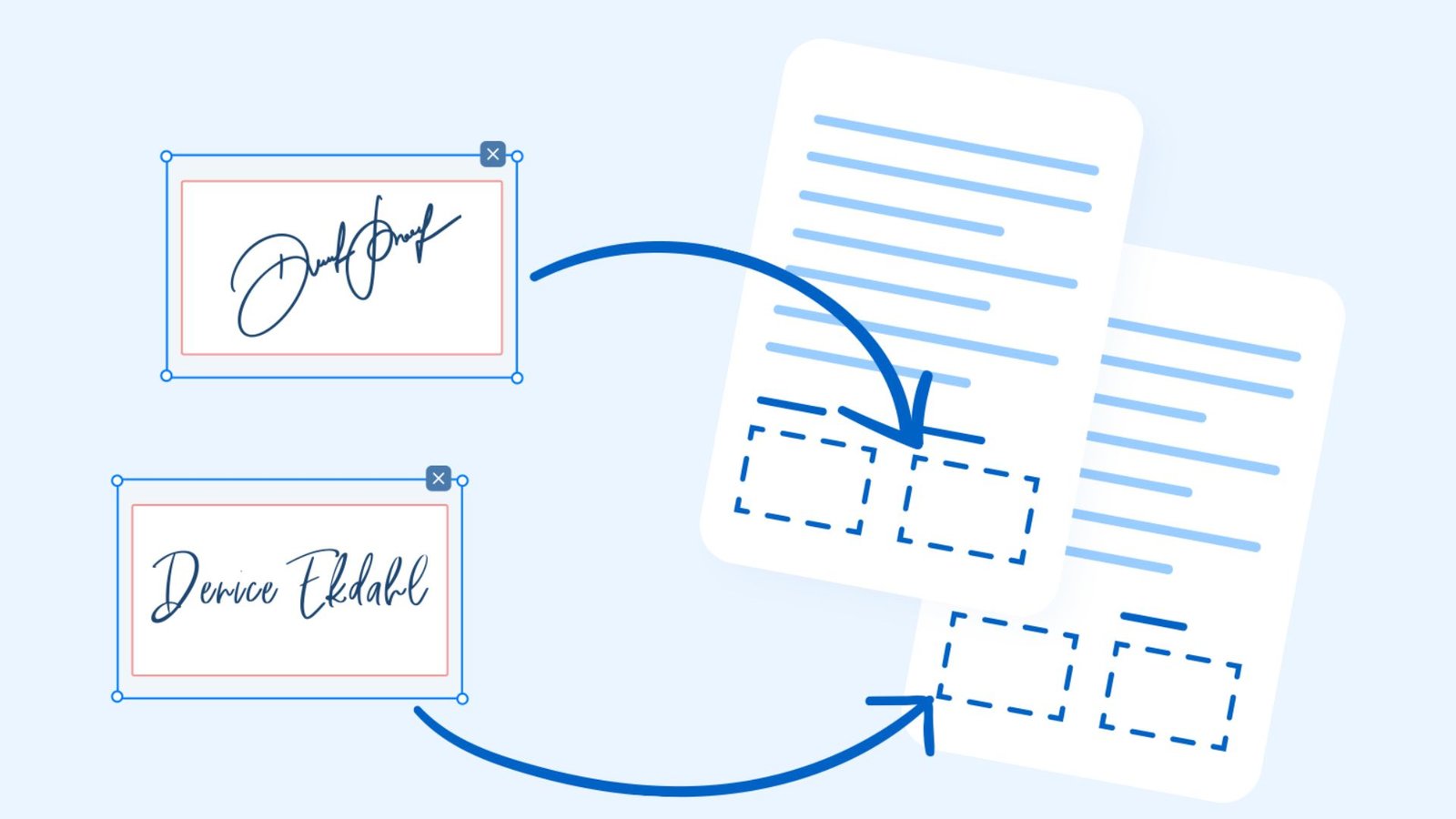
How to Sign PDF Documents: Free Steps for Every Device
Signing paperwork can be frustrating when you need to print a document, write your name, scan every page, and send it back. This process takes time and creates unnecessary work, especially when you need to complete an important form quickly. Fortunately, you can now sign documents directly from your phone or computer without printing a single page. Learning how to sign PDF files makes it easier to handle contracts, applications, business agreements, and other important paperwork. With the right tools, you can create an electronic signature, place it in the correct position, and save your completed document within minutes.
What Does Signing a PDF Mean?
Signing a PDF means adding your signature to a Portable Document Format file to confirm your identity, approval, or agreement with its contents.
A PDF signature can appear as handwritten text, a typed name, an uploaded signature image, or a certificate-based digital signature.
People use signed PDF documents for many purposes, including:
- Employment contracts and job applications.
- Business agreements and service contracts.
- School and university application forms.
- Financial and insurance paperwork.
- Permission slips and authorization letters.
- Government applications and official documents.
- Sales agreements and purchase orders.
You do not always need specialized software to complete this task. Many modern devices and applications include built-in tools that make signing documents simple.
How to Sign PDF Documents Step by Step
If you want to understand how to sign pdf files, start by choosing a suitable PDF application. Adobe Acrobat Reader, Apple Preview, and other document tools offer convenient signing options.
Follow these general steps:
- Open the PDF document using a compatible application.
- Find the Fill & Sign, Sign, or Markup option.
- Choose the option to create a new signature.
- Type your name, draw your signature, or upload an image.
- Move the signature to the correct location.
- Adjust its size to fit the signature field.
- Review the completed document.
- Save a new copy of the signed PDF.
Your document is now ready to share with the intended recipient.
Important: Some documents require a certificate-based digital signature rather than a simple handwritten-style signature. Always check the recipient’s signing requirements before choosing a method.
How to Sign PDF on iPhone
An iPhone provides convenient options for signing documents without installing complicated software. Depending on your iOS version, you can use Apple’s Preview or Markup features.
Here is how to sign pdf on iphone using the available signing tools.
Method 1: Use the Preview App
Recent iPhone software versions include a Preview app that supports PDF viewing and form signing.
Follow these instructions:
- Open the Preview app on your iPhone.
- Find and open the PDF document.
- Select the form-filling or annotation option.
- Tap the Add button.
- Choose the signature option when available.
- Create your signature using your finger.
- Position it in the appropriate field.
- Save the completed document.
Method 2: Use Markup
You can also use Apple’s Markup tools to add a signature to a supported PDF.
- Open the PDF from the Files app.
- Tap the Markup icon.
- Select the Add option.
- Choose Signature.
- Draw or select your saved signature.
- Place it where required.
- Tap Done to save your changes.
Best for: People who need to sign everyday documents without purchasing additional software.
How to Sign PDF on Android
Android users can sign documents using applications such as Adobe Acrobat Reader and Google Drive’s PDF annotation tools.
For a dedicated signing workflow, Adobe Acrobat Reader offers a Fill & Sign feature.
Steps to Sign a PDF Using Adobe Acrobat
- Install and open Adobe Acrobat Reader.
- Select the PDF you want to sign.
- Open the Fill & Sign feature.
- Tap Signature.
- Select Add Signature.
- Draw your signature with your finger or choose another available method.
- Tap Done.
- Place the signature in the required location.
- Adjust its size and position.
- Save the completed PDF.
Adobe Acrobat supports adding signatures and completing PDF forms on Android and iOS devices.
Can You Sign a PDF Using Google Drive?
Google Drive supports PDF annotation on Android devices. You can use your finger or a stylus to write on a document.
However, its annotation feature is different from a dedicated electronic signature workflow. If you need a formal signing process, choose an application that supports the required signature type.
How to Sign PDF on Mac
Mac users can sign PDF documents through Apple Preview without downloading additional PDF editing software.
Preview includes a built-in signature feature that allows you to create a signature using your trackpad, camera, or a compatible Apple device.
Steps to Sign a PDF in Preview
- Find the PDF file on your Mac.
- Right-click the document.
- Select Open With and choose Preview.
- Click the Show Markup Toolbar button.
- Select the Sign icon.
- Create your signature using the trackpad or camera.
- Alternatively, use a compatible iPhone or iPad.
- Select the saved signature.
- Drag it into the required signature field.
- Resize and position it correctly.
- Save the document.
Why Choose Apple Preview?
Preview is useful because it offers several PDF features in one application.
You can:
- Add electronic signatures.
- Insert text into documents.
- Highlight important information.
- Add notes and annotations.
- Review PDF pages.
- Save completed documents.
This makes it a convenient choice for Mac users who regularly handle digital paperwork.
How to Sign PDF on Windows Computer
Windows users have several options for adding signatures to PDF documents. Adobe Acrobat Reader is a popular choice because it offers dedicated form-filling and signing features.
Using Adobe Acrobat Reader
Follow these steps:
- Open Adobe Acrobat Reader.
- Select the PDF document from your computer.
- Choose Fill & Sign.
- Click Add Signature.
- Type your name, draw a signature, or upload a signature image.
- Select Apply.
- Click the appropriate location in the document.
- Adjust the signature size.
- Save the signed PDF.
You can use this method for employment forms, business agreements, and other documents that accept electronic signatures.
How to Sign PDF Documents Without Installing Software
If you do not want to install a desktop application, you can use a supported browser-based PDF signing service.
Generally, the process involves:
- Open the signing service in your browser.
- Upload your PDF document.
- Select the signature tool.
- Create or upload your signature.
- Place it in the correct field.
- Download the completed document.
Always check the service’s privacy policy, file-retention practices, and pricing before uploading sensitive paperwork.
How to Sign PDF Electronically
An electronic signature allows you to sign a document digitally instead of printing and signing it by hand.
Electronic signatures can take different forms depending on the application and the document’s requirements.
Common electronic signature methods include:
- Typing your full name.
- Drawing your signature using a mouse or touchscreen.
- Uploading an image of your handwritten signature.
- Using an electronic signing platform.
- Applying a certificate-based digital signature.
Steps for Adding an Electronic Signature
- Open your PDF using a compatible signing application.
- Select the electronic signature feature.
- Enter or draw your signature.
- Confirm your identity if required.
- Place the signature in the designated field.
- Review the document.
- Save or submit the signed file.
Are Electronic Signatures Legally Valid?
Electronic signatures can be legally valid, but their acceptance depends on the applicable laws, document type, and signing requirements.
For example, the United States ESIGN Act generally prevents electronic signatures and records from being denied legal effect solely because they are electronic.
However, certain documents and transactions have additional requirements. Some agreements also require identity verification, consent records, or specific signing procedures.
Always check the laws that apply to your location and document.
How to Sign PDF Digitally
Electronic signatures and digital signatures are related but not identical.
A digital signature typically uses cryptographic technology and a digital certificate to help verify the signer’s identity and detect changes made to a document after signing.
This makes certificate-based signing particularly useful for official, business, and security-sensitive paperwork.
Steps for Applying a Digital Signature
- Obtain a valid digital certificate from an accepted certificate authority.
- Open the PDF using software that supports certificate-based signing.
- Select the digital signature option.
- Choose your digital ID or certificate.
- Select the signature area.
- Review the certificate information.
- Enter your certificate password if requested.
- Apply the digital signature.
- Save the signed document.
Electronic Signature vs. Digital Signature
| Feature | Electronic Signature | Digital Signature |
|---|---|---|
| Main purpose | Show agreement or approval | Verify identity and document integrity |
| Technology | Typing, drawing, or uploading | Cryptography and digital certificates |
| Ease of use | Usually simple | Requires additional setup |
| Identity verification | Depends on the signing process | Certificate-based verification |
| Document integrity | Depends on the platform | Helps detect document changes |
| Common usage | Everyday forms and agreements | Official and security-sensitive documents |
Choose the method that matches the recipient’s requirements.
How to Sign PDF for Free
You do not necessarily need a paid subscription to sign a PDF. Several applications offer basic signing features at no cost.
Here are some options worth considering.
1. Adobe Acrobat Reader
Adobe Acrobat Reader provides free PDF viewing, form-filling, and signing features on supported desktop and mobile platforms.
It allows users to:
- Create handwritten-style signatures.
- Add initials.
- Complete PDF forms.
- Position signatures.
- Save signed documents.
Some advanced PDF editing and document management features require a paid subscription.
2. Apple Preview
Mac users can create and insert signatures through Preview.
It is useful for everyday PDF signing without purchasing another application.
3. iPhone Markup
Apple’s Markup feature provides a simple way to add signatures and annotations to supported PDF files.
4. Google Drive
Google Drive supports PDF annotation on Android. It is useful for adding handwritten marks, notes, and other annotations.
It should not be confused with a dedicated certificate-based signing service.
Which Free PDF Signing Method Should You Choose?
| Tool | Supported Device | Main Features | Cost |
|---|---|---|---|
| Adobe Acrobat Reader | Windows, Mac, Android, iPhone | Fill forms and add signatures | Basic signing is free |
| Apple Preview | Mac | Create and insert signatures | Included with macOS |
| Apple Markup | iPhone | Add signatures and annotations | Built-in feature |
| Google Drive | Android | Annotate PDF documents | Basic annotation is free |
| Browser-based signing tools | Supported browsers | Upload and sign PDFs | Free options and paid plans |
Always review the current feature limits before selecting an application.
How to Sign PDF Online Without Downloading Software
Online PDF signing tools allow you to complete documents directly through a web browser.
This approach is helpful when you are using a shared computer or do not want to install another application.
General Online Signing Process
- Open a trusted PDF signing website.
- Select the PDF upload option.
- Choose the document from your device.
- Find the electronic signature feature.
- Type, draw, or upload your signature.
- Position it in the required area.
- Review all pages.
- Download the completed document.
Is Online PDF Signing Safe?
Online signing can be convenient, but document privacy matters.
Before uploading a file, consider these precautions:
- Use a reputable signing provider.
- Check whether uploaded documents are encrypted.
- Review the provider’s file deletion policy.
- Avoid public Wi-Fi when handling sensitive paperwork.
- Never upload confidential documents to unfamiliar websites.
- Enable additional identity verification when available.
For financial, legal, or personal documents, an offline application may be a better choice.
How to Sign PDF Without Adobe
Adobe Acrobat is not the only option for signing PDF documents. Several operating systems provide built-in tools that allow users to add signatures.
Here are some alternatives:
On Mac: Use Apple Preview to create a signature with your trackpad or camera.
On iPhone: Use Markup or Preview to add a signature to a supported PDF.
On Android: Use a PDF application with signing support or an available annotation feature.
On Windows: Use a compatible PDF signing application or a trusted online service.
The best alternative depends on the type of signature required. A handwritten-style signature may be enough for an everyday form, while a certificate-based digital signature requires specialized support.
How to Sign PDF Forms Correctly
Signing a PDF form requires more attention than simply placing your name on the page.
Some forms contain specific signature fields, dates, initials, and other information that must be completed before submission.
Follow these recommendations:
- Read the entire document before signing.
- Complete all required fields.
- Check your name and personal information.
- Use the correct signature field.
- Add the date if requested.
- Include initials where necessary.
- Review the final document.
- Save a separate copy for your records.
If a PDF contains interactive fields, use an application that supports those fields rather than placing text randomly over the document.
How to Sign PDF With CAC
A Common Access Card (CAC) is a smart card used by eligible U.S. Department of Defense personnel and other authorized individuals.
It contains identity and authentication credentials and can support certificate-based digital signatures.
If your organization requires CAC signing, you need compatible hardware, certificates, drivers, and approved software.
Requirements for CAC PDF Signing
Before starting, make sure you have:
- A valid CAC.
- A compatible smart card reader.
- Required smart card drivers.
- Appropriate certificate configuration.
- Compatible PDF signing software.
- Any required organizational security settings.
General CAC Signing Process
- Connect your CAC reader to the computer.
- Insert your CAC into the reader.
- Open an approved PDF signing application.
- Select the certificate-based digital signature option.
- Choose the appropriate signing certificate.
- Select the signature area in the PDF.
- Enter your CAC PIN when prompted.
- Complete the signing process.
- Save the signed document.
- Verify the digital signature.
The exact process depends on your organization’s configuration and approved software.
A CAC-based digital signature is different from simply inserting an image of your handwritten signature. If a recipient requires CAC authentication, an ordinary electronic signature will not replace that requirement.
Common Problems When Signing PDF Documents
Sometimes a PDF does not allow users to insert signatures or save changes. Understanding the cause can help you solve the problem quickly.
| Problem | Possible Reason | Solution |
|---|---|---|
| Signature option is missing | Application does not support signing | Open the file in a compatible PDF application |
| Cannot edit the document | PDF restrictions are enabled | Contact the document owner for permission |
| Signature appears too large | Incorrect signature dimensions | Resize the signature before saving |
| PDF does not save | File permissions or storage issue | Save a separate copy in an accessible folder |
| Signature looks blurry | Low-quality signature image | Create a clearer signature |
| Digital signature shows invalid | Certificate or document validation issue | Check certificate status and document integrity |
| Form fields are unavailable | Unsupported or restricted PDF form | Use compatible software or request another copy |
How to Avoid Signature Errors
Before sending a signed PDF, check these important details:
- The signature appears in the correct location.
- Your name is spelled correctly.
- All required fields are completed.
- The document opens after saving.
- No pages are missing.
- The recipient accepts your signature method.
These simple checks can prevent unnecessary delays.
Tips for Keeping Signed PDF Documents Secure
Signed documents often contain personal, financial, or business information. Protecting them should be part of your signing process.
Consider the following security practices:
- Use trusted PDF applications.
- Avoid uploading confidential files to unknown websites.
- Protect sensitive documents with appropriate passwords.
- Keep a backup of important signed agreements.
- Verify certificate-based signatures when required.
- Share files only with authorized recipients.
- Avoid changing a document after applying a digital signature.
- Use secure storage for business and personal records.
A reliable signing process helps protect your information and makes document management easier.
Benefits of Signing PDF Documents Electronically
Electronic signing offers several advantages over traditional paper-based methods.
Saves Time
You can complete documents without printing, signing by hand, scanning, and emailing them.
Reduces Paper Usage
Digital documents reduce the need for physical paperwork and printing supplies.
Makes Remote Work Easier
People can sign and exchange documents from different locations without meeting in person.
Simplifies Document Management
You can store completed files in organized digital folders and find them when needed.
Supports Faster Business Processes
Companies can reduce delays when collecting signatures for applications, approvals, and agreements.
Offers Different Signing Options
Users can choose between typed signatures, handwritten-style signatures, and certificate-based digital signatures according to their needs.
Frequently Asked Questions
1. How to Sign PDF Documents for Free?
You can use free tools such as Adobe Acrobat Reader, Apple Preview, and supported mobile signing features. Open your document, select the signing option, create your signature, place it in the required field, and save the PDF.
2. How to Sign PDF on iPhone Without Installing an App?
You can use Apple’s built-in Markup tools or Preview on supported iPhone software versions. Open the PDF, select the annotation or signature option, add your signature, and save the document.
3. How to Sign PDF Documents With an Electronic Signature?
Open your PDF in a compatible signing application, select Add Signature, and type or draw your name. Place it in the correct field and save the completed document.
4. Can I Sign a PDF Without Adobe Acrobat?
Yes. Mac users can use Apple Preview, iPhone users can use Markup, and Android users can use compatible PDF applications. You can also use trusted browser-based signing services.
5. Is a Digital Signature the Same as an Electronic Signature?
No. An electronic signature is a broad term for electronic methods of signing. A digital signature uses cryptographic technology and a digital certificate to help verify the signer and document integrity.
6. Can I Sign a PDF on My Phone?
Yes. Both Android and iPhone devices support PDF signing through compatible applications. You can create a signature with your finger, place it in the document, and save the completed file.
Conclusion
Learning how to sign pdf documents makes everyday paperwork faster, easier, and more convenient. Whether you use an iPhone, Android device, Mac, or Windows computer, several tools allow you to complete documents without printing or scanning them.
For basic signing, free applications such as Adobe Acrobat Reader and Apple Preview provide convenient solutions. If you need stronger identity verification, choose a certificate-based digital signature or an approved electronic signing service.
Always review your document before submitting it and make sure the signing method meets the recipient’s requirements. With the right approach, you can manage contracts, applications, business forms, and other important PDF documents confidently and securely.
Start signing your PDF documents digitally and make your paperwork easier to manage

One Comment