
iLovePDF: What Is It, Is It Safe, and How Does It Work?
Managing PDF documents can become frustrating when you need to combine files, reduce their size, edit text, or convert them into another format. Switching between different applications wastes time and makes simple document tasks harder than necessary. iLovePDF offers an accessible solution by bringing common PDF tools together in one place. From merging multiple documents to converting PDFs into Word files, this guide explains its main features, free and paid options, security considerations, and practical ways to get better results.
What Is iLovePDF?
iLovePDF is an online PDF management platform that helps users edit, organize, compress, and convert documents. It also offers desktop and mobile options for different working needs.
Students can use it to organize assignments, professionals can prepare reports, and businesses can manage invoices, forms, and contracts. Many tools work directly through a web browser, so users do not always need to install additional software.
The platform includes tools for:
- Combining multiple PDF files into one document.
- Splitting large PDFs into smaller files.
- Compressing PDFs for easier sharing.
- Converting PDFs to Word documents and images.
- Adding page numbers, watermarks, and signatures.
- Protecting documents with passwords.
- Organizing, rotating, and removing pages.
- Translating or summarizing documents with supported AI tools.
What Are the Main iLovePDF Features?
The platform groups its tools around common document tasks. The best option depends on whether you want to change a file’s size, structure, format, or appearance.
| Tool | Main purpose | Best use |
|---|---|---|
| Merge PDF | Combines multiple PDFs | Reports and assignments |
| Split PDF | Separates pages or page ranges | Extracting selected chapters |
| Compress PDF | Reduces file size | Email attachments |
| PDF to Word | Converts PDFs into editable documents | Updating existing content |
| Word to PDF | Converts Word documents into PDFs | Sharing final documents |
| PDF to JPG | Converts PDF pages into images | Presentations and previews |
| JPG to PDF | Combines images in a PDF | Scans and photographs |
| Edit PDF | Makes supported document changes | Basic document adjustments |
| Organize PDF | Reorders or removes pages | Correcting document structure |
| Protect PDF | Adds password protection | Restricting access |
| Sign PDF | Adds electronic signatures | Forms and agreements |
| Translate PDF | Translates supported document content | Reading documents in another language |
Availability, processing limits, and advanced features may vary by plan. Check the official iLovePDF tools and features page before relying on a particular function.
How to Use iLovePDF to Merge PDF Files
The iLovePDF merge tool combines two or more PDF documents into a single file. It is useful when you need to bring separate reports, scanned pages, or assignment sections together.
Steps to Merge PDFs
- Open the official Merge PDF tool.
- Select the PDF files from your device or a supported cloud storage account.
- Arrange the files in the order you want them to appear.
- Review the file selection and page order.
- Select the merge option to process the documents.
- Download the combined PDF and check the finished file.
Example: If your assignment contains separate introduction, research, and conclusion PDFs, merging them creates one document that is easier to submit and share.
For the Persian-language search query “نحوه ادغام pdf با ilovepdf”, the process is the same: upload the documents, arrange their order, merge them, and download the resulting PDF.
Pro Tip:
Give your files clear names before merging them. This makes it easier to arrange chapters correctly and avoid submitting pages in the wrong order.
How to Compress PDF Files
Large PDFs can be difficult to email, upload to a website, or share through messaging applications. The iLovePDF compress tool reduces file size to make documents easier to transfer.
Follow these steps:
- Open the Compress PDF tool.
- Upload the PDF you want to reduce.
- Select an available compression level.
- Start the compression process.
- Download the smaller file.
- Open the result and check that text, images, and diagrams remain readable.
Higher compression may reduce image quality. For documents containing detailed charts, photographs, or scanned text, compare the available settings before choosing the final version.
How to Split PDF Files
The iLovePDF split feature separates a document into smaller files. This is particularly helpful when you only need specific pages from a lengthy report.
To split a PDF:
- Open the Split PDF tool.
- Upload your document.
- Select the required page ranges or individual pages.
- Choose the available splitting option.
- Process the file and download the results.
For example, a 100-page report may contain a 10-page section you need to send to a colleague. Splitting the document lets you share the relevant pages without distributing the entire report.
How to Convert PDF to Word with iLovePDF
The PDF-to-Word tool converts a PDF into an editable Word document. This helps when you need to revise paragraphs, update information, or reuse content in a new report.
Use the PDF to Word converter to upload your file, start the conversion, and download the resulting Word document.
Conversion quality depends on the original PDF. Text-based documents often convert more cleanly than complex layouts containing columns, tables, unusual fonts, or extensive graphics. Scanned documents may require optical character recognition (OCR), and advanced OCR availability can depend on your subscription.
Always review the converted document before editing or sharing it. Check headings, page breaks, tables, symbols, and images for formatting errors.
How to Convert Word to PDF
The Word-to-PDF feature turns editable Word documents into a format that is generally easier to distribute consistently across devices.
To use it:
- Visit the Word to PDF tool.
- Upload your Word document.
- Start the conversion.
- Download the generated PDF.
- Check the document’s layout before sending it.
This feature is useful for resumes, business proposals, school assignments, invoices, and reports. Saving a final copy as a PDF helps preserve the intended layout, although you should still verify the output.
How to Convert PDF to JPG or JPG to PDF
Image conversion is useful when you need to share a page as a picture or combine scanned images into a document.
PDF to JPG
Open the PDF to JPG tool, upload your PDF, and select the available conversion option. You can convert pages into JPG images or extract embedded images when supported.
JPG to PDF
Open the JPG to PDF tool, upload your images, arrange their order, adjust available page settings, and create the PDF.
These tools can help with scanned notes, receipts, product images, and presentation materials. Review image quality and page orientation before downloading the finished file.
Is iLovePDF Safe to Use?
The question “is iLovePDF safe” matters whenever you upload personal or business documents to an online service.
iLovePDF states that it uses HTTPS encryption, follows data protection requirements, and deletes processed files from its servers within two hours, subject to the applicable service terms. Its official security and data protection page explains its security practices and certifications. <Cite refs={[“turn831942search6″,”turn831942search8″,”turn831942search10”]}/>
However, no online service can eliminate every security risk. Your choice should depend on the sensitivity of the document and your organization’s policies.
Follow these safety practices:
- Use the official iLovePDF website rather than unfamiliar copies or lookalike domains.
- Avoid uploading highly confidential documents unless your organization’s rules permit it.
- Remove unnecessary personal information before uploading a file.
- Use password protection when appropriate, and share passwords through a separate channel.
- Download your completed document and confirm that the output is correct.
- Consider the desktop application for supported offline processing when local handling better suits your privacy requirements.
For highly sensitive legal, financial, medical, or identity documents, review the applicable privacy terms before using any online PDF converter.
Is iLovePDF Free?
Yes. iLovePDF offers a free plan with access to essential PDF tools, subject to usage and file-processing limits. You can use supported features without automatically purchasing a subscription.
The free option can suit occasional tasks such as merging assignments, compressing a document, or converting a small number of files. Users who regularly process large documents or need advanced functions may prefer a paid plan.
The exact limits depend on the tool and subscription. Review the official iLovePDF pricing page for current plan details.
What Is iLovePDF Pricing?
The platform offers different options for individual users and organizations. Pricing and included features can change, so check the official pricing page before making a purchase.
| Plan | Intended user | Main benefits |
|---|---|---|
| Basic (Free) | Occasional users | Essential tools with processing limits |
| Premium | Frequent users and professionals | Broader tool access, higher limits, and additional features |
| Business | Teams and organizations | Business-focused features and customized arrangements |
When comparing plans, consider more than the subscription price. Check file-size limits, batch processing, OCR access, AI credits, desktop availability, and the number of documents you handle each month.
Which plan should you choose? Start with the free option if you only need basic PDF tasks occasionally. Consider Premium if usage limits interrupt your regular work, and review Business if your organization needs centralized administration or team-oriented features.
Can iLovePDF Edit PDF Documents?
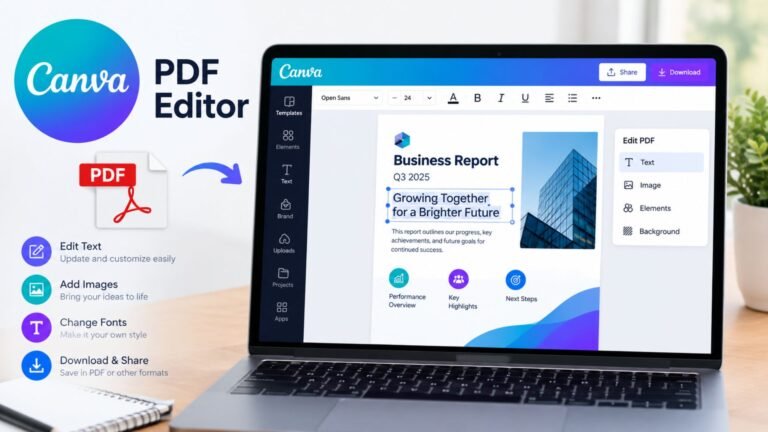
Yes. The platform includes an edit PDF tool, along with features for organizing pages, adding annotations or elements through supported editing options, and managing document appearance.
You can start with the official Edit PDF tool and review the available editing controls.
However, editing a PDF is not always the same as editing a Word document. Some PDFs contain scanned images rather than selectable text, while others use complicated layouts that limit direct editing.
For the best results:
- Check whether the text is selectable.
- Use OCR when a supported tool is needed to recognize scanned text.
- Review fonts, spacing, and page layout after editing.
- Keep an untouched copy of the original file.
For extensive rewriting, converting a PDF to Word and editing the resulting document may be more practical.
Does iLovePDF Offer a PDF Translation Tool?
Yes. iLovePDF lists a PDF translation tool among its AI-powered document features. Access, page limits, and credit requirements can vary by subscription. <Cite refs={[“turn831942search0″,”turn831942search3”]}/>
The translation feature can help readers understand documents written in another language. For example, a student might need to understand an English research paper, or a professional might need to review a document written in Spanish.
Before using a translated document for important decisions, review names, technical terms, numbers, dates, and legal wording. Machine translation can miss context or interpret specialized language incorrectly.
If the document contains confidential information, confirm that uploading it complies with your privacy and data-handling requirements.
What Are the Advantages and Limitations of iLovePDF?
iLovePDF offers several practical benefits, but it may not suit every document or workflow.
Advantages
- Easy access: Many tools work in a browser.
- Multiple functions: Users can merge, split, compress, and convert PDFs in one place.
- Flexible devices: Web, mobile, and desktop options support different workflows.
- Cloud integration: Supported tools can work with Google Drive and Dropbox.
- Free access: Basic tasks are available without a paid subscription.
- Offline processing: The desktop application supports local processing for supported tasks.
Limitations
- Free usage comes with limits that vary by tool.
- Converting complicated layouts can create formatting errors.
- Scanned PDFs may require OCR for text recognition.
- Online processing requires uploading files to a service.
- Advanced features may require a subscription or AI credits.
Official feature descriptions explain the available tools and platform options. <Cite refs={[“turn831942search2″,”turn831942search5”]}/>
Who Should Use iLovePDF?
iLovePDF can help a wide range of people who regularly work with PDF documents.
| User | Practical use |
|---|---|
| Students | Combine assignments and compress research papers |
| Teachers | Organize classroom materials and worksheets |
| Office workers | Convert reports and prepare business documents |
| Freelancers | Format proposals, invoices, and client files |
| Small businesses | Manage forms, reports, and routine paperwork |
| Researchers | Extract pages and convert documents for analysis |
| Job seekers | Prepare and format resumes and application documents |
The right workflow depends on your needs. A student combining two assignments may only need the merge tool, while a business processing many files may need a paid plan, desktop software, or an approved enterprise document system.
How to Get Better Results with iLovePDF
A few simple habits can make document processing easier and reduce mistakes.
- Keep a backup: Save the original before changing a document.
- Choose the correct tool: Use compression for file size, merging for combining documents, and splitting for extracting pages.
- Check the page order: Confirm that the final PDF follows the intended sequence.
- Review conversions: Inspect tables, images, fonts, and page breaks.
- Protect sensitive information: Choose a workflow that meets your privacy requirements.
- Check plan limits: Confirm file size and processing limits before starting a large task.
- Verify the final file: Open the downloaded document and make sure it works as expected.
These habits are useful whether you process one PDF each month or manage documents every day.
Key Takeaway
iLovePDF provides a convenient collection of tools for merging, splitting, compressing, editing, and converting PDF documents. Its free plan can meet many everyday needs, while paid subscriptions provide additional access and capacity.
Before choosing a tool, identify your document task, check the current plan limits, and consider the sensitivity of your files. A quick review of the final document can prevent formatting problems and help you share a clean, professional result.
Frequently Asked Questions
1. What is iLovePDF used for?
iLovePDF helps users manage PDF documents online or through supported desktop and mobile applications. Common tasks include merging files, compressing documents, splitting pages, converting formats, and adding supported document elements.
2. Is iLovePDF safe for personal documents?
iLovePDF reports using HTTPS encryption and deleting processed files from its servers within two hours under its stated terms. However, users should review the privacy policy and avoid uploading sensitive documents unless the service meets their security requirements.
3. How do I merge PDF files using iLovePDF?
Open the Merge PDF tool, upload the files, arrange them in the desired order, and start the merging process. Download the combined document and check the page sequence before sharing it.
4. Can I use iLovePDF for free?
Yes. iLovePDF offers a free plan for essential PDF tasks, but file sizes, processing quantities, and access to certain advanced features may be limited. Check the official pricing page for current restrictions.
5. Can iLovePDF convert PDF files into Word documents?
Yes. Its PDF-to-Word converter creates an editable Word file from a supported PDF. Complex layouts and scanned pages may require additional corrections or OCR, so review the converted document carefully.
6. Does iLovePDF work on mobile devices?
Yes. iLovePDF offers mobile applications for supported devices, as well as browser-based tools. Available features depend on the application, device, and subscription plan.
Final Thoughts
iLovePDF is a useful option for people who want to handle everyday PDF tasks without learning complicated software. Its merge, compress, split, and conversion tools cover many common document needs, while its additional editing and AI features offer more options for eligible users.
Start with the free tools, verify the current usage limits, and choose the workflow that fits your documents. For sensitive files, prioritize privacy and security over convenience.
The best results come from selecting the right tool, checking the finished document, and keeping your original files safe.

One Comment