
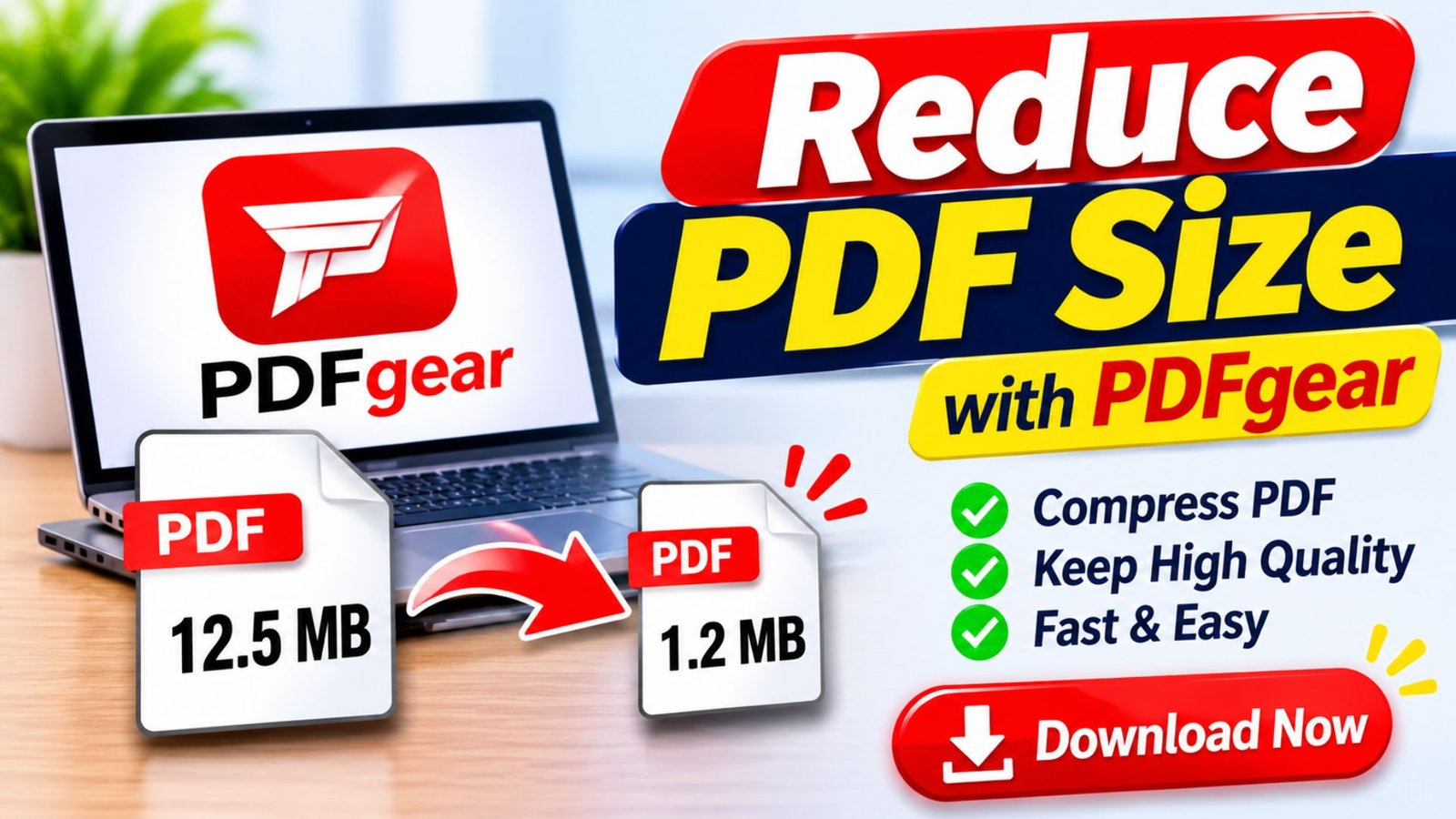
How to Reduce PDF Size Without Losing Quality?
Large PDF files can make uploading, sharing, and storing documents difficult. High-resolution images, scanned pages, and unnecessary document data can quickly increase file size, causing problems with email attachments and online submission limits. Fortunately, you don’t need advanced technical skills to solve this problem. You can reduce PDF size using free online tools, Adobe Acrobat, Mac Preview, or your iPhone while maintaining readable text and clear images.
What Does It Mean to Reduce PDF Size?
Reducing PDF size means making a PDF document smaller in megabytes (MB) or kilobytes (KB) without unnecessarily changing its original content.
PDF compression works by optimizing different elements inside a document, including:
- Images: Reducing image resolution and unnecessary image data.
- Fonts: Removing unused font information.
- Metadata: Removing unnecessary document information.
- Objects: Cleaning up unused document elements.
- Scanned pages: Optimizing large page images.
- Document structure: Removing unnecessary data.
For example, a PDF containing 25 high-resolution scanned pages might occupy 18 MB. After image optimization and compression, its size may become considerably smaller.
The actual result depends on the document’s content and compression settings.
Why Should You Reduce PDF Size?
A smaller PDF offers several practical advantages, especially when you regularly work with digital documents.
1. Upload Documents Faster
Some websites have strict upload limits. Large documents can take longer to upload or fail completely.
A smaller PDF makes it easier to submit applications, assignments, business documents, and other files.
2. Save Device Storage
PDF documents containing images and scanned pages can consume significant storage space.
Compression helps you store more documents without constantly deleting important files.
3. Send Email Attachments Easily
Email services often restrict the maximum attachment size.
When you reduce PDF size, you can make documents easier to attach and send without splitting them into multiple files.
4. Improve File Sharing
Smaller documents are easier to transfer through messaging applications, cloud storage platforms, and online collaboration tools.
They can also reduce download times on slower internet connections.
5. Improve Document Management
Organizing hundreds of large documents can become difficult.
Optimized PDFs make digital document libraries easier to maintain, transfer, and back up.
How to Reduce PDF Size Online Free
Using an online PDF compressor is one of the easiest ways to make a document smaller. You don’t need to install desktop software, and most online tools provide simple compression controls.
Follow these steps:
- Open a trusted PDF compression website in your browser.
- Find the Compress PDF feature.
- Select the PDF document from your computer or mobile device.
- Upload the file to the compression tool.
- Choose the available compression level.
- Start the compression process.
- Wait for the tool to optimize your document.
- Download the compressed PDF.
- Open the downloaded document and check its quality.
Example of PDF compression:
| Original PDF | Example Compressed PDF |
|---|---|
| 15 MB | 6 MB |
| 10 MB | 4 MB |
| 8 MB | 3 MB |
| 5 MB | 2 MB |
These are illustrative examples. Actual compression results depend on the document.
Before uploading a document to an online service, check its privacy policy. Avoid uploading confidential contracts, financial records, identification documents, or sensitive business information to services you do not trust.
Best Software to Reduce PDF Size
Choosing the right PDF compression software depends on your device, document type, budget, and quality requirements.
Here is a comparison of popular options.
| Software | Platform | Free Option | Main Features |
|---|---|---|---|
| Adobe Acrobat | Windows, Mac, Web | Limited free features | PDF compression and optimization |
| PDFgear | Windows, Mac, iOS | Available | PDF editing and compression |
| Preview | Mac | Yes | Built-in PDF compression |
| iLovePDF | Web, Desktop, Mobile | Free tier | Online PDF compression |
| Smallpdf | Web, Desktop, Mobile | Limited free use | PDF compression and editing |
| Foxit PDF Editor | Windows, Mac | Limited free features | PDF editing and optimization |
Adobe Acrobat
Adobe Acrobat is suitable for professional PDF optimization. It offers compression and optimization features that help reduce document size while maintaining important content.
PDFgear
PDFgear provides several PDF management features, including compression and editing tools. It is an option for users who want an accessible PDF utility.
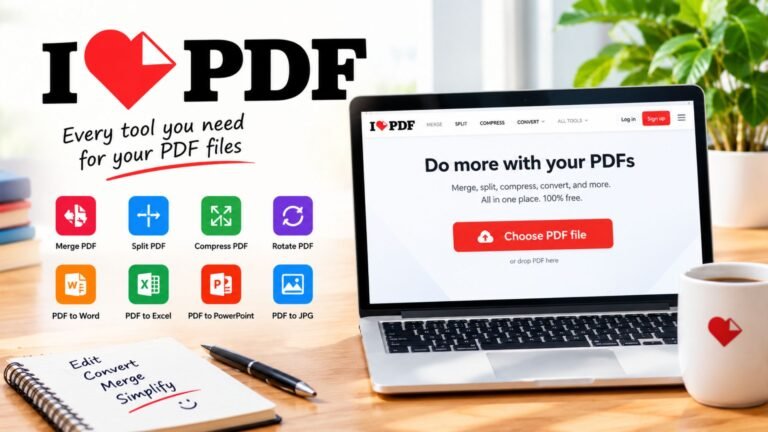
iLovePDF
iLovePDF offers browser-based tools for reducing PDF file sizes. It is useful when you want to compress a document without installing desktop software.
Smallpdf
Smallpdf provides PDF compression alongside conversion, editing, and other document tools. Some features and compression levels may require a paid plan.
Foxit PDF Editor
Foxit provides PDF editing and optimization features that help users manage larger PDF files and document workflows.
How to Reduce PDF Size in Adobe Acrobat
Adobe Acrobat is a popular option for people who regularly create, edit, and share PDF documents.
Its compression features help optimize documents by reducing unnecessary file data and adjusting document settings.
Follow these steps:
- Open your PDF in Adobe Acrobat.
- Select the All Tools section if your version displays it.
- Find the Compress a PDF feature.
- Open the compression options.
- Select the appropriate compression setting.
- Start the optimization process.
- Save the compressed document using a new filename.
- Open the new file to check its appearance.
Adobe Acrobat Reduced Size PDF
You can also use the Reduced Size PDF feature in the desktop application.
- Open the PDF in Acrobat.
- Select Menu.
- Choose Save as Other.
- Select Reduced Size PDF.
- Choose the required compatibility option.
- Select OK.
- Save the optimized document.
Menu labels may vary between Acrobat versions.
Adobe Acrobat Reduce PDF Size Without Losing Quality
One common concern is whether compression will make a PDF blurry or difficult to read.
Adobe Acrobat provides optimization settings that help users balance file size and document quality.
For better results, consider these options:
- Use moderate image compression.
- Avoid unnecessarily reducing image resolution.
- Keep important fonts embedded.
- Remove unused objects when appropriate.
- Review the document before saving.
- Preserve important interactive elements and form fields.
Acrobat Pro also provides PDF Optimizer settings for adjusting image compression, fonts, transparency, and other document elements.
The best approach is to reduce unnecessary data rather than applying the strongest compression setting to everything.
How to Reduce PDF Size on Mac
Mac users can compress PDF documents without installing additional software.
The built-in Preview application includes a feature that allows you to export PDFs with reduced file sizes.
Steps to Compress a PDF Using Mac Preview
- Open Finder on your Mac.
- Locate the PDF you want to optimize.
- Right-click the document.
- Select Open With and choose Preview.
- Select File from the menu bar.
- Choose Export.
- Find the Quartz Filter option.
- Select Reduce File Size.
- Choose a destination.
- Save the compressed document.
Your Mac will create an optimized PDF using the selected filter.
Additional Mac Compression Options
Depending on your macOS version and available settings, you can:
- Optimize images for screen viewing.
- Save images as JPEG.
- Create a linearized PDF for faster web viewing.
Keep in mind that Apple’s built-in Reduce File Size filter can sometimes reduce image quality significantly. Always compare the original and compressed documents before replacing the original.
How to Reduce PDF Size on iPhone
You can also manage PDF compression directly from your iPhone.
Recent versions of iOS provide Preview features for exporting and compressing supported documents. The exact options depend on your iOS version.
Steps to Compress a PDF on iPhone
- Open the Preview app.
- Find and open your PDF document.
- Tap the Actions Menu next to the filename.
- Select Export.
- Choose PDF as the export format.
- Look for Optimize Images for Screen.
- Enable the relevant optimization options.
- Select Done.
- Choose where to save the new document.
- Give it a new filename and save it.
Apple also provides options such as Save Images as JPEG when exporting PDFs.
These options can reduce image-related file data while keeping the document in PDF format.
Tip: If your iPhone does not show these options, check your iOS version and available applications. You can also use a trusted PDF compression application.
How to Reduce PDF Size Without Losing Quality
Reducing file size while maintaining quality requires choosing the right optimization settings.
Not every PDF needs aggressive compression. Text-based documents, image-heavy reports, and scanned files require different approaches.
1. Choose Moderate Compression
High compression can remove more image information than necessary.
Start with a moderate setting and check whether the document remains readable.
2. Optimize Large Images
Images are often responsible for a large portion of PDF file size.
If a document contains high-resolution photographs, reducing their resolution to an appropriate viewing level can help.
3. Remove Unnecessary Pages
Check whether your PDF includes duplicate pages, blank pages, or outdated information.
Removing unnecessary pages can reduce the total document size without changing the quality of the remaining content.
4. Use Suitable Image Formats
Different image formats work better for different types of content.
- JPEG works well for photographs.
- PNG is useful for graphics that require sharp edges or transparency.
- ZIP compression can be suitable for illustrations and flat-color images.
Choose formats according to the document’s purpose.
5. Remove Unnecessary Metadata
Some PDFs contain extra information, including unused metadata, attachments, and document elements.
A PDF optimizer can help remove selected unnecessary information.
However, check whether metadata or attachments are required before deleting them.
6. Keep a Backup of the Original
Always save the compressed document as a separate file.
This allows you to return to the original if compression affects image clarity, formatting, signatures, or document functionality.
Reduce PDF Size Online Free Without Installing Software
Online PDF compression tools are useful when you need a quick solution.
They allow users to work through a browser instead of downloading a complete desktop application.
A typical online compression process includes:
- Selecting a PDF from your device.
- Uploading it to the compression service.
- Choosing a compression level.
- Processing the document.
- Downloading the optimized version.
Advantages of Online PDF Compressors
- No complicated installation process.
- Easy to use on different operating systems.
- Convenient for occasional compression.
- Suitable for quick document sharing.
- Often include additional PDF utilities.
Disadvantages of Online PDF Compressors
- Require an internet connection.
- May have daily usage restrictions.
- Some features require payment.
- Uploading confidential documents can create privacy risks.
- Compression results vary between platforms.
For sensitive documents, an offline desktop application is generally a better choice.
How to Reduce PDF Size on Windows
Windows users have several options for compressing large PDF files.
You can use Adobe Acrobat, PDFgear, Foxit, or another trusted PDF optimization application.
Using PDF Compression Software
- Install a trusted PDF editor or compressor.
- Open the application.
- Select its PDF compression feature.
- Import the document.
- Choose the required compression settings.
- Start the optimization process.
- Save the smaller PDF.
- Review the final document.
Using Adobe Acrobat on Windows
If you already have Acrobat installed, you can use its Reduced Size PDF feature.
Open the document, select Menu, choose Save as Other, and select Reduced Size PDF.
Follow the compatibility instructions and save the optimized version.
Windows does not provide a universal built-in PDF compression feature in File Explorer, so a dedicated PDF application is usually the simplest option.
What Makes a PDF File Too Large?
Understanding why a PDF occupies too much storage can help you select the correct compression method.
Several elements can increase document size.
| PDF Element | Why It Increases File Size | Recommended Solution |
|---|---|---|
| High-resolution images | Contains large amounts of pixel data | Optimize image resolution |
| Scanned pages | Stores page images inside the PDF | Apply scan optimization |
| Embedded fonts | Adds font information | Remove unused fonts when safe |
| Large attachments | Includes additional files | Remove unnecessary attachments |
| Multiple pages | Increases document content | Remove unnecessary pages |
| Uncompressed images | Uses more storage | Apply suitable image compression |
| Metadata | Stores additional document information | Remove unnecessary metadata |
| Complex graphics | Contains detailed visual elements | Optimize graphic objects |
Why Are Scanned PDFs Usually Larger?
Scanned documents often contain images of entire pages instead of searchable digital text.
For example, when you scan a paper document at high resolution, each page can contain millions of pixels.
When several pages are combined into one PDF, the file can become very large.
You can address this problem by:
- Choosing an appropriate scanning resolution.
- Using grayscale for documents that do not require color.
- Applying image compression.
- Using OCR to make scanned text searchable.
- Avoiding unnecessarily high-resolution scans.
The correct settings depend on whether you need the document for screen viewing, printing, or professional archiving.
Best PDF Compression Settings for Different Documents
There is no single compression setting that works best for every PDF.
A document containing plain text needs different settings from a photograph-heavy presentation.
| Document Type | Recommended Approach | Main Priority |
|---|---|---|
| Text documents | Light compression | Text readability |
| Business reports | Moderate compression | Professional appearance |
| Scanned documents | Image optimization and OCR | Clear and searchable pages |
| Photo PDFs | JPEG compression | Image clarity |
| Academic assignments | Moderate compression | Charts and text readability |
| Presentations | Image optimization | Visual quality |
| Legal documents | Minimal compression | Accuracy and preservation |
| Archived documents | Carefully tested compression | Long-term readability |
These are general recommendations rather than guaranteed compression settings. Always test the final output.
How Much Can You Reduce PDF Size?
The amount of space you can save depends on the original document.
A text-only PDF may already be relatively small, so compression might produce only a minor improvement.
An image-heavy document may offer more opportunities for optimization.
For example:
| Original Size | Example Optimized Size | Reduction |
|---|---|---|
| 20 MB | 8 MB | 60% |
| 15 MB | 6 MB | 60% |
| 10 MB | 4 MB | 60% |
| 8 MB | 5 MB | 37.5% |
| 5 MB | 3 MB | 40% |
These figures are hypothetical examples, not promised results from any specific compressor.
To calculate your actual reduction percentage, use this formula:
\[ \text{Reduction \%} = \frac{\text{Original Size – New Size}}{\text{Original Size}} \times 100 \]
For example, if a PDF decreases from 20 MB to 8 MB, the file size has been reduced by 60%.
Common PDF Compression Problems and Their Solutions
Sometimes compression does not produce the expected results.
Here are common problems and practical ways to fix them.
PDF Quality Becomes Blurry
This usually happens when the compression tool reduces image resolution too much.
Solution: Choose moderate compression or increase the image quality settings.
PDF Size Does Not Change
Some documents already use efficient compression.
Solution: Check whether the file contains large images, unnecessary pages, or other elements that can be optimized.
PDF Text Becomes Difficult to Read
Aggressive image compression can affect scanned text.
Solution: Use OCR when appropriate and choose settings that preserve readable text.
PDF Cannot Be Opened After Compression
The output may have compatibility or processing issues.
Solution: Try opening the file in another PDF reader or repeat the process with a trusted application.
Online Compression Takes Too Long
Large files and slow internet connections can delay uploads and processing.
Solution: Try an offline compressor or reduce the size of large images before creating the PDF.
PDF Formatting Changes
Some optimization processes may affect transparency, forms, embedded fonts, or interactive elements.
Solution: Use a suitable PDF optimizer and inspect the final document carefully.
Tips for Getting the Best Results When Compressing PDF Files
Follow these practical recommendations to make document optimization easier.
- Always keep the original: Save a separate copy before applying compression.
- Select the correct compression level: Avoid maximum compression when image quality matters.
- Check image resolution: Use appropriate resolution for the intended purpose.
- Remove unnecessary pages: Delete content that is no longer required.
- Choose trusted software: Use reputable tools with clear privacy policies.
- Review document formatting: Check fonts, tables, images, and page layouts.
- Test the final file: Open the PDF on another device if possible.
- Check file compatibility: Make sure the recipient can open the compressed document.
- Use OCR when needed: Keep scanned documents searchable when the workflow requires it.
- Avoid repeated compression: Repeated lossy compression can reduce image quality.
Frequently Asked Questions About Reducing PDF Size
1. How can I reduce PDF size for free?
You can use a free online PDF compressor or compatible desktop application. Upload your document, choose a compression level, process the file, and download the optimized version. Always review the document before sharing it.
2. What is the best software to reduce PDF size?
Adobe Acrobat is a strong choice for advanced PDF optimization. PDFgear, iLovePDF, Smallpdf, and Foxit also offer PDF management and compression features. The best option depends on your device, budget, and document requirements.
3. How do I reduce PDF size without losing quality?
Use moderate compression, optimize large images, and avoid unnecessarily lowering image resolution. Keep a backup of the original and compare the compressed document before using it.
4. How can I reduce PDF size on Mac?
Open your document in Preview, select File, choose Export, and select Reduce File Size from the Quartz Filter menu. Save the optimized document under a new filename.
5. How do I reduce PDF size on iPhone?
On supported iOS versions, open the PDF in Preview, tap the Actions Menu, choose Export, and adjust the available PDF optimization settings. Save the new document to your preferred location.
6. Can Adobe Acrobat compress large PDF files?
Yes. Adobe Acrobat provides Reduced Size PDF and PDF Optimizer features. These options help reduce unnecessary document data, optimize images, and manage other PDF elements.
Conclusion
Learning how to reduce PDF size makes document sharing, uploading, and storage much easier. Whether you use an online compressor, Adobe Acrobat, Mac Preview, or an iPhone, several practical options can help you create smaller PDF documents.
The most important step is choosing compression settings that match your document. Text files, scanned documents, photographs, and business reports all require different optimization approaches.
Always keep an original copy, check the final document’s quality, and use trusted software when handling private information.
Have a large PDF that you need to share or upload? Start with moderate compression, compare the results, and choose the smallest version that still meets your quality requirements.

One Comment