
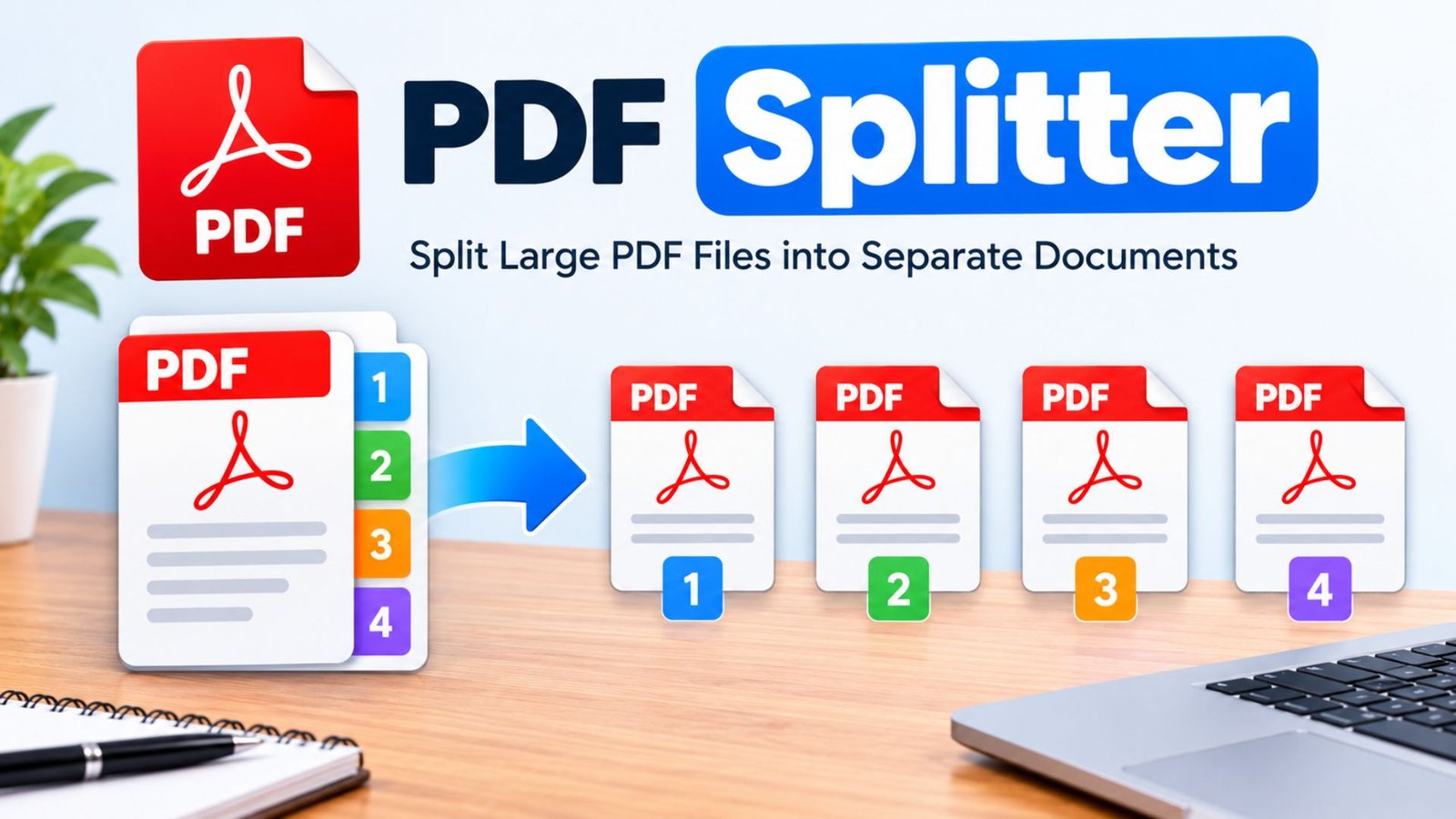
PDF Splitter: How to Split PDF Files Online for Free
Large PDF files can make sharing, editing, and organizing documents difficult. Extracting just a few pages from a lengthy report or separating chapters from an ebook should not require complicated software. A PDF Splitter offers a simple solution by allowing users to divide documents into smaller files, select specific pages, and manage important information more efficiently. With free online options and desktop software available, finding the right solution is easier than ever.
What Is a PDF Splitter?
A PDF Splitter is a digital tool that separates one PDF document into multiple smaller PDF files. It allows users to select individual pages, extract specific sections, or divide a large document into equal parts.
For example, if a PDF contains 100 pages but you only need pages 10–20, you can use a splitting tool to extract those pages into a separate document.
Most PDF splitting tools provide features such as:
- Splitting PDFs by page range.
- Extracting individual pages.
- Dividing documents into equal sections.
- Removing unnecessary pages from the workflow.
- Creating multiple PDF files from one document.
- Downloading separated documents for sharing.
The main purpose is to make document management faster, easier, and more convenient.
Why Do People Need a PDF Splitter?
PDF documents often contain more information than users actually need. Sending an entire document when someone only requires two pages can create unnecessary work.
A PDF splitting tool solves this problem by allowing users to separate relevant information without rebuilding the original document.
Common reasons include:
- Business documents: Separate invoices, contracts, and financial reports.
- Education: Extract individual chapters, assignments, and lecture notes.
- Office work: Divide lengthy reports into smaller documents.
- Personal organization: Keep important certificates and records separate.
- Document sharing: Send only the pages that recipients need.
- File management: Organize large PDF collections into smaller files.
A suitable tool can save time and make everyday document tasks much simpler.
How Does an Online PDF Splitter Work?
An online PDF splitter works through a web browser. Users upload a document, choose the pages they want to separate, and download the newly created PDF files.
Most tools follow a similar process:
- Upload your PDF: Select a document from your computer, tablet, or phone.
- Choose splitting options: Select individual pages, page ranges, or other available splitting methods.
- Preview the document: Check the selected pages before processing.
- Start splitting: Allow the tool to separate the selected content.
- Download your files: Save the newly created PDF documents.
Some services also support cloud storage platforms, making it easier to import and export documents.
How to Split PDF Files Online for Free
You do not always need paid software to separate PDF pages. A free PDF splitter can handle many everyday document tasks without requiring advanced technical knowledge.
Follow these steps:
- Open a trusted online PDF splitting service.
- Upload the PDF document you want to separate.
- Choose the page range you need.
- Select the splitting option.
- Review your page selection carefully.
- Start the splitting process.
- Download the resulting PDF files.
- Open the downloaded documents to confirm that everything looks correct.
Example: Suppose your original document contains 50 pages. You need pages 1–10 for a presentation, pages 11–30 for a report, and pages 31–50 for an archive. You can create three separate PDF documents instead of sharing the complete file.
What Are the Different PDF Splitting Methods?
Not every document needs the same splitting method. Choosing the correct option helps you avoid unnecessary files and keeps your information organized.
Here are the most useful methods.
1. Split PDF by Page Range
This option separates selected groups of pages into individual documents.
For example:
- Pages 1–5: Introduction.
- Pages 6–15: Main report.
- Pages 16–25: Supporting information.
It works particularly well for reports, educational materials, and business documents.
2. Extract Individual PDF Pages
Page extraction allows users to save selected pages without keeping the entire document.
It is useful when you only need a certificate, invoice, application form, or specific information from a larger PDF.
3. Split PDF into Equal Parts
This method divides a document after a fixed number of pages.
For instance, a 60-page PDF can be separated into six files containing 10 pages each.
4. Split PDF by File Size
Some desktop applications can divide documents according to a target file size.
This option helps when email attachments or document-sharing platforms have file-size restrictions.
5. Split PDF by Bookmarks
Certain advanced applications use PDF bookmarks to identify document sections.
This method works well for ebooks, manuals, research reports, and lengthy business documents with organized chapters.
Adobe Acrobat supports splitting by page count, file size, and top-level bookmarks in its desktop application. Adobe Acrobat+1
Best Free PDF Splitter Tools to Consider
Choosing the right software depends on your document size, privacy requirements, budget, and preferred device.
The following tools provide different approaches to splitting PDF documents.
1. Adobe Acrobat
Adobe Acrobat offers PDF organization and splitting features for users who need additional document management options.
Its splitting capabilities include:
- Separating documents by page count.
- Dividing files by size.
- Splitting documents using bookmarks.
- Organizing multiple PDF documents.
- Managing output folders and filenames.
The online version also allows users to mark page boundaries and create separate files. Some features require signing in or a paid subscription. Adobe Acrobat+1
2. iLovePDF
iLovePDF provides browser-based PDF tools for everyday document management.
Its splitting options include:
- Dividing documents by page ranges.
- Extracting all pages.
- Working with files from Google Drive or Dropbox.
- Processing password-protected documents where supported.
The platform offers free access with account-dependent limits. iLovePDF – Online tools for PDF
3. PDFsam Basic
PDFsam Basic is a free, open-source desktop application.
Its main advantages include:
- Local document processing.
- Splitting by page numbers.
- Dividing documents every specified number of pages.
- Extracting selected pages.
- Splitting by bookmarks.
- No internet connection required for local processing.
It supports Windows, macOS, and Linux. PDFsam Basic
4. eSoftTools PDF Splitter and Merger
eSoftTools PDF Splitter and Merger is a Windows-based application designed for users who want splitting and merging features in one program.
Its advertised features include:
- Splitting PDF documents by pages.
- Extracting selected page ranges.
- Separating odd and even pages.
- Merging multiple PDF documents.
- Processing multiple files.
The provider lists a demonstration edition with watermarks and a paid version. Check the current software version and system requirements before purchasing. eSoftTools Software
Detailed Comparison of Popular PDF Splitter Tools
The following table compares the tools according to their documented features and typical use cases. Free access does not necessarily mean every feature is unlimited.
| Tool | Free option | Splitting features | Processing | Best for |
|---|---|---|---|---|
| Adobe Acrobat | Limited online features | Pages, ranges, size, bookmarks | Online and desktop | Professional documents |
| iLovePDF | Yes, with limits | Page ranges and extraction | Online | Everyday tasks |
| PDFsam Basic | Yes | Pages, ranges, bookmarks, equal parts | Offline desktop | Privacy-conscious users |
| eSoftTools | Demo available | Pages, ranges, odd/even pages | Windows desktop | Bulk document management |
Which tool should you choose?
- Choose Adobe Acrobat for advanced PDF management.
- Choose iLovePDF for straightforward browser-based tasks.
- Choose PDFsam Basic for offline processing.
- Consider eSoftTools when you need its specific Windows splitting and merging features.
These are feature-based suggestions, not independently verified rankings based on customer reviews.
What Makes the Most Reliable PDF Splitter Service?
Finding the most reliable PDF splitter service requires more than checking whether a website offers free processing.
A dependable service should provide accurate results, clear instructions, and appropriate security measures.
Consider these factors before selecting a tool.
Document Accuracy
The software should preserve the original page content, text, images, and formatting during the splitting process.
Always inspect the resulting documents before sharing them.
File Security
Documents can contain confidential business information, financial records, and personal details.
Before uploading a file, check:
- Whether the website uses encrypted connections.
- How long uploaded documents remain on its servers.
- Whether automatic deletion is available.
- Whether the service explains its privacy practices.
- Whether local processing is available.
Processing Speed
The fastest PDF splitter available for one user may not be the fastest for everyone.
Processing time depends on several factors:
- Original file size.
- Number of pages.
- Image quality.
- Internet connection.
- Device performance.
- Server workload.
A lightweight document will generally process faster than a large, image-heavy report.
Ease of Use
A good interface should make page selection and downloading straightforward. Clear previews and simple instructions reduce mistakes.
File Size Restrictions
Free services often apply upload limits, daily usage restrictions, or processing limitations.
Review these conditions before choosing an online tool.
How to Choose a PDF Splitter Free Online Without Signing Up
Many users prefer a PDF splitter free online service because it avoids installing additional applications.
A free PDF splitter no sign up option can also make occasional document tasks more convenient.
However, compare the following features before using a service:
- No registration: Check whether an account is required.
- Page selection: Make sure you can choose specific pages.
- File limits: Review maximum upload sizes and daily restrictions.
- Privacy: Understand how the service stores and deletes documents.
- Download options: Confirm that you can save individual files.
- Watermarks: Check whether the free version adds branding.
- Device support: Confirm compatibility with your browser and operating system.
A free service is suitable for simple documents, but sensitive records may be better handled with offline software.
Can You Split PDF Files Using Adobe PDF Splitter?
Yes. Adobe Acrobat provides tools for separating PDF documents into smaller files.
The desktop application offers more advanced splitting methods, while Acrobat on the web provides a visual approach to selecting page boundaries.
Steps to Split a PDF Using Adobe Acrobat
- Open your document in Adobe Acrobat.
- Navigate to the Organize Pages section.
- Select the Split option.
- Choose your preferred splitting method.
- Set the required page count, file size, or bookmark options.
- Select the output location.
- Start the splitting process.
- Save the newly created documents.
The exact menu options depend on the Acrobat version and subscription.
For users who regularly manage professional documents, Adobe’s PDF splitter can be a useful part of a wider document workflow.
Is a Free Online PDF Splitter Safe to Use?
A free online PDF splitter can be safe when the provider follows clear security practices. However, uploading a document to a website means trusting that provider with its contents.
Not every online service handles documents in the same way.
For better protection, follow these precautions:
- Use reputable providers.
- Read the privacy policy.
- Avoid uploading sensitive documents to unfamiliar websites.
- Check automatic file deletion policies.
- Use offline software for confidential information.
- Keep an original copy of important documents.
- Verify the downloaded files before deleting the source.
If you work with financial statements, legal agreements, or private business records, local processing is often a better choice.
How to Split Large PDF Files Without Losing Quality
Large PDF documents can include high-resolution images, scanned pages, charts, and embedded fonts.
A PDF splitting process should separate pages without unnecessarily changing their original content.
Follow these recommendations:
- Use a reliable desktop application for very large documents.
- Keep the original PDF as a backup.
- Avoid unnecessary conversion before splitting.
- Select the correct page ranges.
- Check the output document’s page order.
- Open the new files and inspect images and text.
- Confirm that the output documents are not corrupted.
Splitting a PDF is different from compressing or converting it. Simply separating pages should not require reducing image resolution.
Common PDF Splitting Problems and Their Solutions
Even a simple document task can sometimes produce unexpected results.
Understanding common problems can help you complete the process successfully.
| Common problem | Possible reason | Recommended solution |
|---|---|---|
| Upload fails | File exceeds the service limit | Try a desktop application |
| PDF will not open | Corrupted document | Open the original in a trusted PDF reader |
| Wrong pages extracted | Incorrect page range | Review page numbers before processing |
| Download does not start | Browser or connection issue | Retry or use another browser |
| Password restriction | Document permissions | Use authorized access and appropriate software |
| Output file is too large | High-resolution content | Consider a trusted compression tool |
| Pages appear out of order | Incorrect selection | Check the output sequence |
A careful review before downloading can prevent most page-selection mistakes.
How Does a PDF Splitter Help Students and Businesses?
Document splitting is useful across different industries because it makes information easier to organize and distribute.
For Students
Students can separate lecture notes, assignments, research papers, and textbook chapters into smaller documents.
For Teachers
Teachers can extract examination papers, worksheets, reading materials, and individual lesson sections.
For Businesses
Companies can divide invoices, customer records, proposals, contracts, and financial reports into separate files.
For Legal Professionals
Legal teams can organize case documents, agreements, supporting evidence, and individual sections of lengthy records.
For Freelancers
Freelancers can separate client documents, project reports, receipts, and other important business information.
What Features Should the Best-Reviewed PDF Splitter Tool Have?
A best-reviewed PDF splitter tool should offer useful features rather than relying only on marketing claims.
Look for these capabilities:
- Easy page selection.
- Accurate document splitting.
- Multiple splitting methods.
- High-quality output.
- Secure file handling.
- Support for large documents.
- Clear download options.
- Compatibility with common devices.
- No unnecessary watermarks.
- Helpful customer support.
A PDF splitter with best user reviews should also demonstrate consistent performance across different document types. Read recent customer feedback and check whether reviews describe actual usage experiences.
Do not assume that a top-rated PDF splitter online is automatically the best option for every user. Compare features against your own requirements.
Online PDF Splitter vs PDF Splitter Software: Which Is Better?
Both options can separate documents, but they serve different needs.
| Comparison | Online PDF tool | Desktop PDF software |
|---|---|---|
| Installation | Usually unnecessary | Required |
| Internet | Usually required | Often unnecessary |
| Accessibility | Browser-based | Installed device |
| Privacy | Depends on provider | Local processing is possible |
| Large files | May have restrictions | Depends on device and software |
| Advanced features | Varies by service | Often more extensive |
| Best use | Occasional tasks | Regular document management |
Our recommendation: Use an online tool for simple, non-sensitive documents. Choose desktop software when you regularly process large files or need greater control over document privacy.
Tips for Getting Better Results When Splitting PDF Documents
A few simple practices can make document management more efficient.
- Plan page ranges: Decide which pages belong in each new document.
- Use descriptive filenames: Name files according to their content.
- Check page orientation: Make sure pages remain readable.
- Keep original files: Maintain a backup before making changes.
- Review extracted pages: Confirm that no important information is missing.
- Choose appropriate software: Match the application to your document requirements.
- Protect confidential information: Prefer local processing for sensitive records.
These practices help prevent mistakes and make your document collection easier to manage.
PDF Splitter Release Date: Is There an Official Launch Date?
A common question is whether PDF Splitter has a specific release date.
There is no single universal PDF Splitter release date because PDF splitting is a feature offered by many different applications and online platforms.
Each provider has its own development history and software release schedule.
For example:
- PDFsam Basic states that its open-source project has been available since 2006.
- Adobe Acrobat provides PDF splitting through its document management products.
- iLovePDF offers PDF splitting as part of its online document tools.
- eSoftTools provides its own dedicated PDF Splitter and Merger application.
These products have separate versions, updates, and release histories. Therefore, users searching for a specific PDF Splitter release date should identify the exact software or product first.
For software version information, check the provider’s official product page or release notes rather than relying on an unverified date.
Frequently Asked Questions About PDF Splitter
1. What is a PDF Splitter used for?
A PDF Splitter separates one PDF document into multiple smaller files. It allows users to extract specific pages, divide chapters, and organize documents without manually recreating their contents.
2. Can I split a PDF file online for free?
Yes. Several online services provide free PDF splitting features. You can upload a document, select page ranges, process the file, and download the separate PDFs. Free plans may include file-size or usage restrictions.
3. Which is the fastest PDF splitter available?
Processing speed depends on file size, document complexity, internet speed, and server performance. Lightweight files generally process faster. Test a few reputable services using a similar document to compare their actual performance.
4. Is Adobe PDF Splitter free to use?
Adobe offers online PDF splitting capabilities, including limited free access. Some advanced features require an Adobe account or a paid Acrobat subscription. Availability depends on the product and account.
5. Can I use a free PDF splitter without signing up?
Yes. Some online tools allow users to split PDF documents without creating an account. However, registration requirements and free usage limits vary between providers. Always review privacy and file-handling policies before uploading documents.
6. Which PDF splitter software is best for large documents?
PDFsam Basic is worth considering because it processes documents locally and offers several splitting methods without a fixed file-size limit imposed by its product. Adobe Acrobat and eSoftTools are other options, depending on your requirements and budget.
Final Thoughts
Choosing the right PDF splitting solution can make document management significantly easier. Whether you need to extract a few pages, separate lengthy reports, or organize business records, the right tool can save time and reduce unnecessary work.
Adobe Acrobat, iLovePDF, PDFsam Basic, and eSoftTools offer different approaches to PDF management. Compare their features, privacy policies, pricing, and processing capabilities before making your decision.
Start with a small document, test the available features, and check the resulting files. A suitable PDF splitting solution will help you keep your documents organized, accessible, and ready to share.
Which PDF splitting method do you prefer: an online tool or desktop software? Your experience can help other users choose the right document management solution.

2 Comments