
PDFescape Review: Is This Free PDF Editor Worth Using?
Editing a PDF can become frustrating when you need to complete a form, add a note, correct a document, or prepare a file for work. Installing expensive software for a small task may feel unnecessary, especially when you only need a few basic tools. PDFescape offers a practical alternative by allowing users to view, annotate, fill out, and modify PDF documents through a web browser.
But is PDFescape the right choice for students, office workers, freelancers, and small businesses? Its free version covers many everyday tasks, while paid plans provide additional editing and document-management features. Understanding these differences can help you avoid paying for tools you rarely use. This guide explains its features, limitations, pricing, Mac compatibility, security considerations, and alternatives so you can make an informed decision.
What Is PDFescape?
PDFescape is an online PDF reader, editor, form filler, and form designer. Its browser-based version lets users work with PDF files without installing a desktop application. A separate Windows desktop application offers additional capabilities for users who need more advanced editing tools.
The platform is designed for people who want to manage documents without learning complicated publishing software. For example, a student can annotate lecture notes, an employee can complete a form, and a freelancer can add comments to a client document.
The main distinction is between basic online editing and the more extensive features available through paid desktop and online plans.
How Does PDFescape Work?
The online editor follows a straightforward workflow. Users open a document, select the appropriate editing tool, make changes, and save or download the result.
A typical workflow includes:
- Open the PDF editor in a supported web browser.
- Upload a PDF from your computer or choose an available document-opening option.
- Select the required tool, such as text insertion, highlighting, annotation, or page rotation.
- Review the document to check formatting and accuracy.
- Save your changes and download the edited PDF.
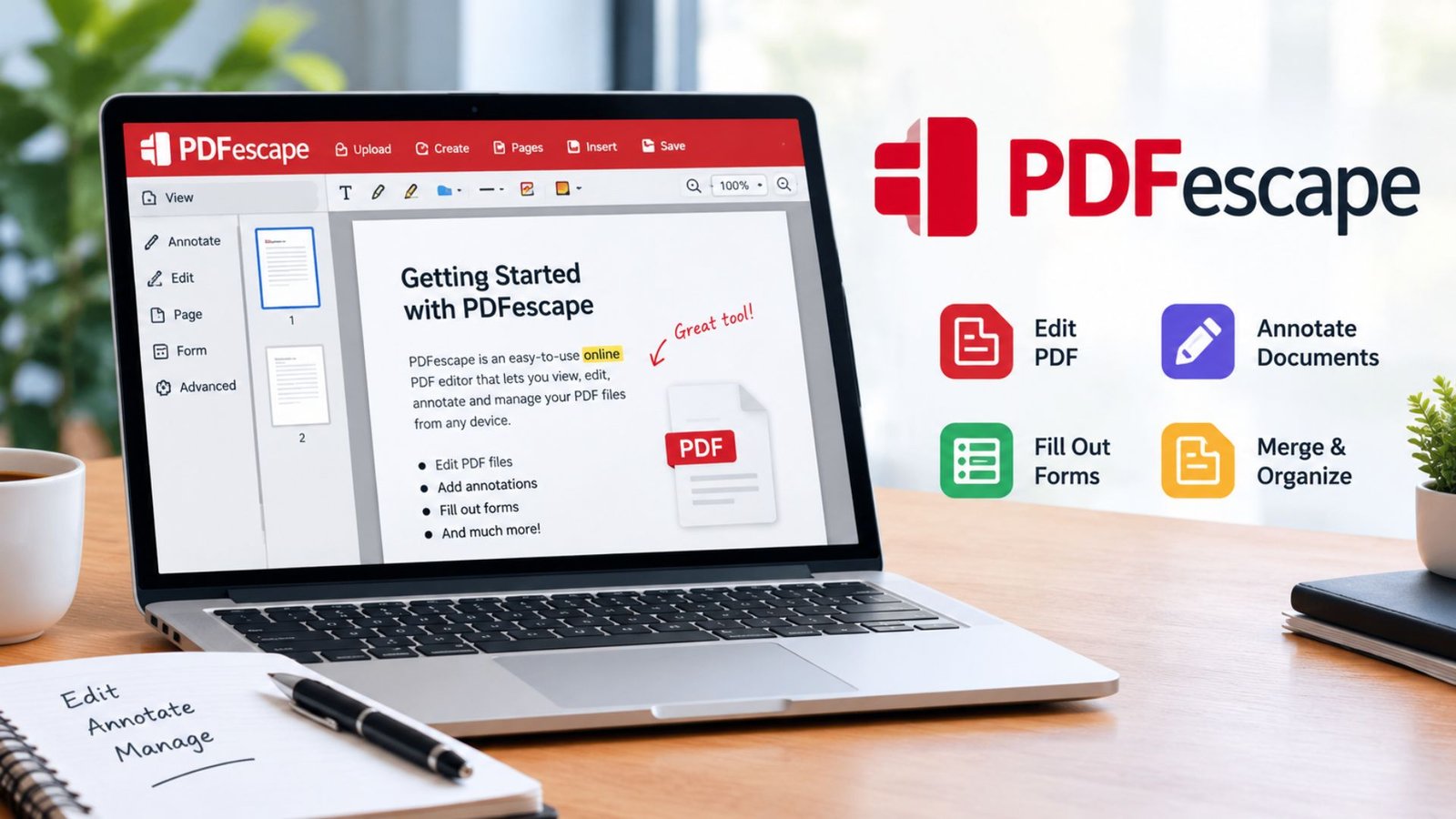
The updated interface includes separate controls for editing, viewing, selecting text, annotations, page management, saving, and downloading. This layout helps users find common tools without navigating complicated menus.
PDFescape Features: What Can You Do?
The available features depend on whether you use the free online editor or a paid plan.
1. Edit and Annotate PDF Documents
The free online version supports adding text, shapes, highlights, notes, and other annotations. These tools are useful when you need to provide feedback, mark important information, or add instructions to an existing document.
However, adding text over a PDF is not always the same as editing its original text. More advanced editing of existing text and images is available through paid options.
2. Fill Out PDF Forms
PDFescape allows users to complete many digital forms directly in the browser. Depending on the form, you can enter information, select checkboxes, and interact with other supported fields.
This can be helpful for applications, registration forms, questionnaires, and routine office paperwork.
3. Create Basic Fillable Forms
Users can create basic interactive PDF forms by adding fields such as text boxes, checkboxes, radio buttons, and dropdown lists.
This feature is useful for small businesses and individuals who collect information electronically. More advanced form creation and publishing capabilities require an appropriate paid plan.
4. Manage PDF Pages
The online editor provides page-management tools for tasks such as rotating, cropping, moving, inserting, and deleting pages, subject to the available plan and tool limitations.
These options help you correct page orientation, remove unnecessary sections, and improve document organization without rebuilding the entire file.
5. Add Password Protection
Password protection can help restrict access to a PDF. Before sharing a protected file, confirm that the recipient knows the password and that the document’s protection settings meet your requirements.
Password protection is not a replacement for careful handling of confidential information. Always check the saved file and use an appropriate security method for sensitive records.
6. Sign and Share Documents
You can add a signature-like mark to a document using available annotation or insertion tools. However, an inserted signature image is not necessarily equivalent to a verified digital signature.
PDFescape’s paid desktop features include more advanced electronic-signature and certificate-signing capabilities. Choose the appropriate method when a contract, employer, or institution requires a formal digital-signature process.
Complete PDFescape Features Comparison
The following table summarizes the principal differences between the free online version and paid options. Feature availability and limits can change, so review the current plan details before purchasing.
| Feature | Free Online | Premium | Ultimate |
|---|---|---|---|
| View PDF documents | Yes | Yes | Yes |
| Add annotations and comments | Yes | Yes | Yes |
| Fill PDF forms | Yes | Yes | Yes |
| Create basic PDF forms | Yes | Yes | Yes |
| Edit existing text and images | No | Yes | Yes |
| Merge PDF documents | No | Yes | Yes |
| Convert PDFs to other formats | No | Yes | Yes |
| Add watermarks and page numbers | No | Yes | Yes |
| Compress PDF files | No | Yes | Yes |
| Create advanced PDF forms | No | No | Yes |
| Advanced digital signatures | No | No | Yes |
| Permanent PDF redaction | No | No | Yes |
Important: The table describes the advertised plan differences, not a guarantee that every feature is available for every file or use case. Upload limits and other restrictions may apply.
PDFescape Online: Is the Free Version Enough?
For occasional document tasks, the free version may provide everything you need. It supports PDF viewing, annotations, form filling, basic form creation, and other everyday operations.
The main limitation is that advanced editing features are reserved for paid plans. If you regularly need to change existing text, merge several documents, or convert files into other formats, you may need to upgrade.
The free online plan has also advertised a maximum file size of 10 MB, while paid plans have offered higher limits. Check the current restrictions before uploading a large document.
Who Should Use the Free Version?
The free version is suitable for:
- Students adding notes to study materials.
- Job applicants completing digital forms.
- Office workers reviewing documents.
- Freelancers providing feedback on PDF files.
- Individuals making occasional, simple PDF changes.
For extensive editing or regular professional work, compare the paid features against your actual requirements.
PDFescape Price: How Much Does It Cost?
The cost depends on the selected plan and billing schedule. PDFescape offers a free online option alongside paid Premium and Ultimate plans.
| Plan | Advertised price | Best suited for |
|---|---|---|
| Free | $0 | Basic PDF tasks |
| Premium | $2.99/month billed yearly or $5.99/month billed monthly | Advanced editing and desktop tools |
| Ultimate | $5.99/month billed yearly or $8.99/month billed monthly | Advanced forms, signatures, and redaction |
Prices are based on the published plan information available for this review and may change. Confirm the current price, renewal terms, and applicable taxes before subscribing.
Is PDFescape Free Really Free?
Yes, its basic online editor is offered as a free service. You can complete supported tasks without purchasing a subscription, although file-size restrictions, advertisements, storage limits, and feature restrictions may apply.
You do not need to pay for premium tools if your work only involves basic annotations and form filling. Review the available features first to determine whether an upgrade offers enough value.
How to Download PDFescape
Some users prefer a desktop application because it offers additional editing capabilities and allows them to work outside a browser-based interface.
To get the desktop version:
- Find the official PDFescape website using your preferred search engine.
- Navigate to the Windows desktop product section.
- Review the supported Windows versions and system requirements.
- Select the official download or purchase option.
- Follow the installation instructions and verify that the application opens correctly.
Avoid unofficial download sites that distribute modified installers. A third-party installer may contain unwanted programs or security risks.
Can You Download PDFescape for Mac?
The browser-based version can be used on a Mac through a compatible web browser. However, PDFescape’s dedicated desktop application is intended for Windows, rather than macOS.
Mac users who need advanced desktop-only features should compare browser-based tools or PDF applications designed specifically for macOS.
PDFescape Edit PDF Mac Features
When evaluating PDFescape on a Mac, it is important to distinguish browser-based tools from Windows desktop features.
The online version can handle many routine tasks, including:
- Adding text and annotations.
- Highlighting and underlining passages.
- Filling supported form fields.
- Rotating and cropping pages.
- Saving and downloading edited documents.
Some advanced capabilities, such as editing existing text and images, merging multiple PDFs, and converting files, depend on the paid product and its supported environment.
If your work involves frequent document editing, test a sample PDF in your browser before relying on the platform for a larger project.
PDFescape Reviews: Advantages and Disadvantages
A useful PDFescape review should consider both its convenience and its limitations.
Advantages
- Easy access: The online editor works through a browser without requiring a desktop installation.
- Free basic tools: Everyday annotation and form-filling tasks do not necessarily require a subscription.
- Practical workflow: Common controls make it easier to complete routine document tasks.
- Useful page tools: Supported page-management options help organize PDFs.
- Desktop option: Windows users can access additional capabilities through the desktop product.
Disadvantages
- Restricted free editing: Changing existing text and images requires a paid option.
- File-size limits: The free version has historically offered a smaller upload allowance than paid plans.
- Mac desktop limitations: The dedicated desktop application is not designed for macOS.
- Sensitive-document concerns: Uploading confidential documents to an online service requires careful consideration.
- Advanced feature costs: Users who need extensive editing may find the free version insufficient.
Is PDFescape Worth Using?
PDFescape is worth considering if you need a convenient way to fill out forms, annotate documents, or make straightforward PDF changes. It is less suitable when your workflow depends on extensive desktop editing on a Mac or frequent advanced document operations without a subscription.
Rather than relying on a single rating, compare the specific features you need, the file limits, and the cost of alternatives.
PDFescape Security: Is It Safe for Private Documents?
Document security deserves attention whenever you upload a file to an online editor. PDFescape describes security measures for its service, but users should still consider the sensitivity of their documents and the privacy terms that apply.
Before uploading a file, follow these precautions:
- Avoid uploading passwords, financial records, identity documents, or confidential business information unless the service meets your security requirements.
- Read the current privacy policy and understand how files are stored and handled.
- Use strong passwords when protecting documents.
- Download the finished file and check that the changes appear correctly.
- Remove unnecessary copies from online storage where the available controls allow it.
For highly sensitive documents, an offline editor may be preferable because it reduces the need to upload files to a third-party service.
Remember that password protection, encryption, digital signatures, and redaction perform different functions. Covering text with a white shape does not necessarily remove the underlying information permanently.
How to Use PDFescape to Edit a PDF Correctly
A careful editing process helps prevent formatting problems and missing information.
Follow these steps:
- Open your document in the online editor.
- Choose the editing mode and the tool that matches your task.
- Insert text, add comments, or make other supported changes.
- Inspect every modified page for alignment and readability.
- Save and download the completed file.
- Open the downloaded PDF separately to confirm that it displays as expected.
If you need to correct existing text, first confirm that your selected plan supports that function. Adding a new text box over an existing sentence may not produce the same result as editing the original text.
Pro Tip: Keep an untouched copy of the original PDF before making substantial changes. This gives you a reliable backup if the layout shifts or you need to restore information.
PDFescape Alternatives: What Other Tools Should You Consider?
If PDFescape does not meet your needs, several types of PDF software may be worth comparing.
| Alternative | Main strength | Consider it when |
|---|---|---|
| Adobe Acrobat | Extensive PDF editing and document workflows | You need professional document tools |
| PDF24 Tools | A collection of PDF utilities | You want to compare tools for common PDF tasks |
| Smallpdf | Browser-based PDF utilities | You prefer a straightforward online workflow |
| iLovePDF | PDF conversion and document-management tools | You regularly convert, organize, or compress PDFs |
| macOS Preview | Built-in PDF viewing and annotation | You use a Mac and need basic document markup |
Features, free usage limits, privacy terms, and pricing differ across these products. Check the current specifications before selecting one.
Which Tool Is Similar to PDFescape?
The closest alternative depends on the job you want to complete.
- For professional PDF editing, compare Adobe Acrobat.
- For common PDF utilities, consider PDF24 Tools.
- For browser-based document tasks, compare Smallpdf and iLovePDF.
- For basic Mac annotations, try the built-in Preview application.
Do not choose an alternative based on its name alone. Test the tools you need, especially if you work with forms, complex layouts, or confidential information.
Should You Use an Old Version of PDFescape?
Searching for an old version of PDFescape may seem useful if you prefer a previous interface or have a computer that struggles with newer software. However, an outdated application may lack important fixes, compatibility updates, and current features.
Before installing an older release, consider these risks:
- It may not work correctly with current operating systems.
- It may contain unresolved security vulnerabilities.
- It may not support newer PDF features.
- Unofficial download packages may have been modified.
Use official distribution channels and supported software whenever possible. If the current interface feels unfamiliar, consult the official help documentation before searching for an older installer.
PDFescape Torrent: Why You Should Avoid Unofficial Copies
A torrent claiming to provide a paid PDF editor for free may expose your computer to malware, unwanted software, or modified installation files. It may also violate the software’s licensing terms.
The free online edition offers a legitimate way to complete many basic PDF tasks. If you need advanced tools, compare the available subscription options rather than downloading an unauthorized copy.
For business documents, the risks of compromised files or software can outweigh the cost of a legitimate application.
Who Benefits Most From PDFescape?
Different users have different document requirements, so the right choice depends on how often you work with PDFs and how much control you need.
Students: The annotation and form-filling tools can help with assignments, notes, and applications.
Freelancers: The editor can support simple client reviews, comments, and document preparation.
Small businesses: Basic forms and document markup can be useful for routine administration.
Office professionals: Paid features may be worth evaluating when existing text, images, and multiple documents need frequent editing.
Mac users: The online editor may cover basic tasks, while a Mac-native application may suit more demanding desktop workflows.
Frequently Asked Questions
1. Is PDFescape free to use?
Yes. PDFescape offers a free online editor for supported PDF tasks, including viewing, annotations, and form filling. The free plan has restrictions, and advanced features such as editing existing text and merging documents require a suitable paid option.
2. Can PDFescape edit existing text in a PDF?
Advanced editing of existing text is available through paid options. The free online version can add text and annotations, but inserting text over a page is not the same as modifying the original text. Check your plan before starting a complex edit.
3. Does PDFescape work on Mac computers?
Yes, you can use the browser-based editor on a Mac with a compatible browser. The dedicated desktop application is designed for Windows. Mac users who need advanced desktop editing should compare applications built specifically for macOS.
4. How much does PDFescape cost?
PDFescape offers a free plan and paid Premium and Ultimate subscriptions. Advertised prices have included annual-billing options starting at $2.99 per month for Premium. Prices, features, and billing terms can change, so verify the current offer before purchasing.
5. Can PDFescape sign a PDF?
You can add a signature-like mark using supported insertion or annotation tools. However, this does not automatically create a verified digital signature. If a document requires certificate-based signing or another formal authentication method, check the capabilities of the specific product and plan.
6. Is PDFescape safe for confidential documents?
Security depends on the service’s current safeguards, its handling of uploaded files, and your own document practices. Review the privacy policy before uploading sensitive information. For highly confidential records, consider an offline PDF editor and verify that your chosen tool meets your security requirements.
Conclusion: Is PDFescape the Right PDF Editor for You?
PDFescape provides a practical option for people who need to annotate PDFs, fill out forms, and complete simple document tasks without installing software. Its free online version can handle many everyday requirements, while paid options add advanced editing, conversion, and document-management capabilities.
The best choice depends on your workflow. If you only edit PDFs occasionally, start with the free features. If you regularly modify existing text, manage large files, or work on a Mac, compare other applications before committing to a paid plan.
Have you tried PDFescape for your documents? Consider which features matter most to you—free editing, form filling, advanced tools, or privacy—before choosing your next PDF editor.

One Comment