
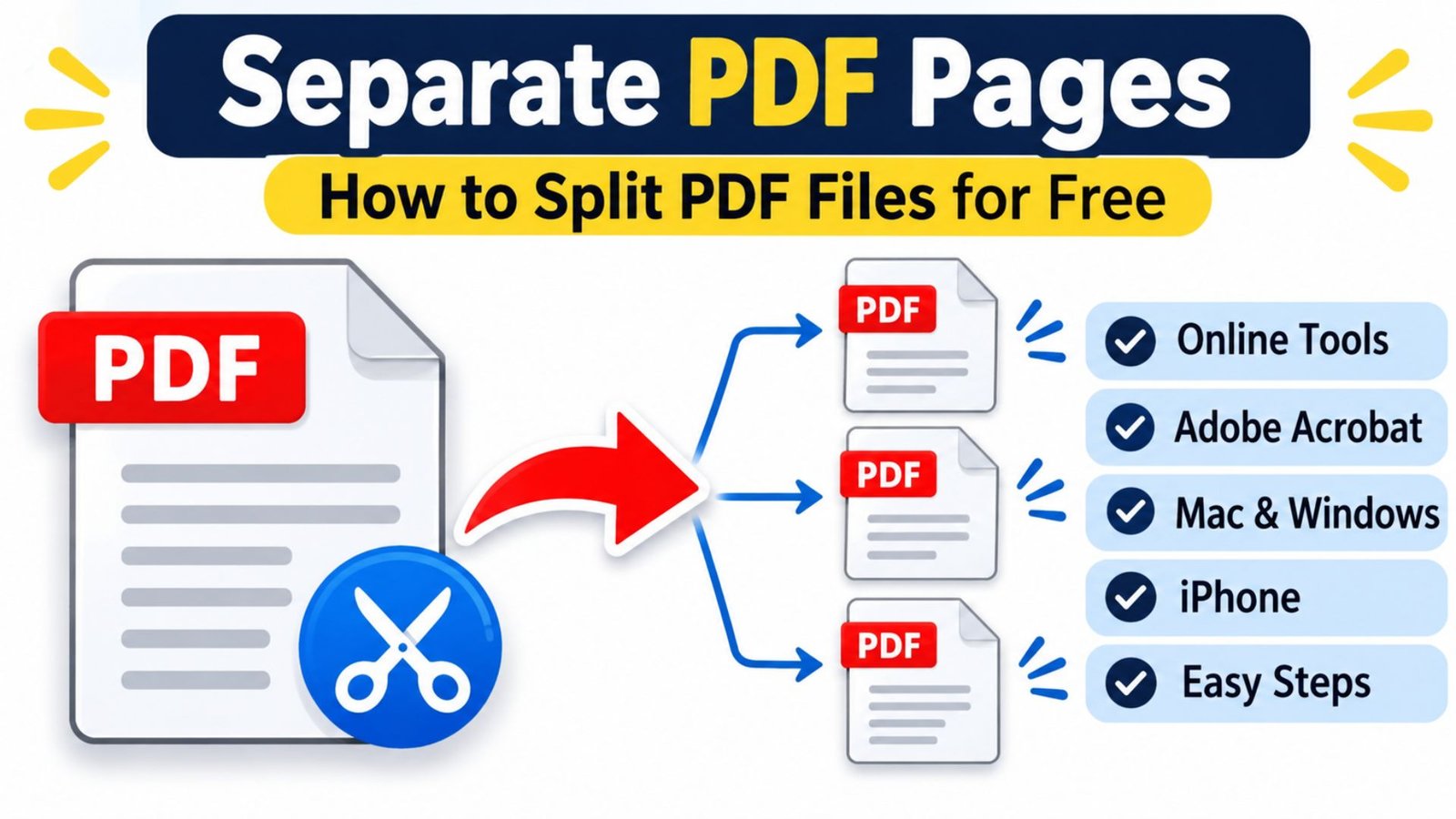
Separate PDF Pages: How to Split PDF Files for Free
Have you ever received a large PDF document but needed only a few specific pages? Managing unnecessary pages can waste time, make sharing difficult, and create confusion when you need individual documents. Learning how to separate PDF pages gives you a simple way to organize files, extract important information, and share exactly what you need. Whether you use Windows, Mac, iPhone, or an online tool, you can split PDF documents with a few simple steps.
What Does It Mean to Separate PDF Pages?
Separating PDF pages means splitting one PDF document into two or more smaller PDF files. Instead of keeping every page together, you can extract selected pages and save them as individual documents.
For example, imagine you have a 50-page business report but need only pages 5, 12, and 20. You can extract those pages and create separate PDF files without changing the original document.
This process is also known as:
- PDF splitting
- PDF page extraction
- PDF document separation
- Splitting a PDF into individual files
- Extracting selected PDF pages
Why Should You Separate PDF Pages?
Large PDF documents often contain information that you do not need to share or save together. Splitting them makes document management easier and more efficient.
Here are some important benefits:
- Easy sharing: Send only the pages someone needs.
- Better organization: Keep invoices, reports, and forms in separate files.
- Smaller file sizes: Reduce the size of individual documents.
- Quick access: Find important information without opening a lengthy PDF.
- Improved privacy: Avoid sharing unrelated pages containing personal or business information.
- Convenient storage: Organize documents into folders based on their purpose.
Separating pages is especially useful for students, office workers, business owners, teachers, and professionals who regularly handle digital documents.
How to Separate PDF Pages Online for Free
Using an online PDF splitter is one of the easiest ways to extract pages. You do not need to install desktop software, and most online tools work directly through a web browser.
Follow these steps:
- Open a trusted online PDF splitting tool.
- Select the PDF document from your computer or device.
- Upload the document to the tool.
- Choose the pages you want to extract.
- Select the option to split or extract pages.
- Start the splitting process.
- Download your new PDF files.
- Open the downloaded files to check their contents.
This method works well when you need to separate PDF pages free without installing additional software.
Important: Online tools may upload your documents to external servers. Avoid uploading confidential financial, legal, medical, or personal information unless you understand the service’s privacy and security practices.
How to Separate PDF Pages into Individual Files
If you want every selected page saved as its own PDF, choose an extraction option that creates separate files instead of combining all selected pages into one document.
For example, a five-page PDF can become five individual documents.
Follow this process:
- Open your PDF splitter or PDF editor.
- Upload your original document.
- Select the pages you want to extract.
- Choose the individual-file or separate-files option.
- Start the extraction.
- Save each generated PDF to your preferred folder.
- Rename the documents so you can identify them easily.
Example: If you extract pages 2, 4, and 7, you should receive three separate PDF documents containing the corresponding pages.
This option is helpful when you need to distribute different sections of a report to different people.
How to Separate PDF Pages in Adobe Acrobat
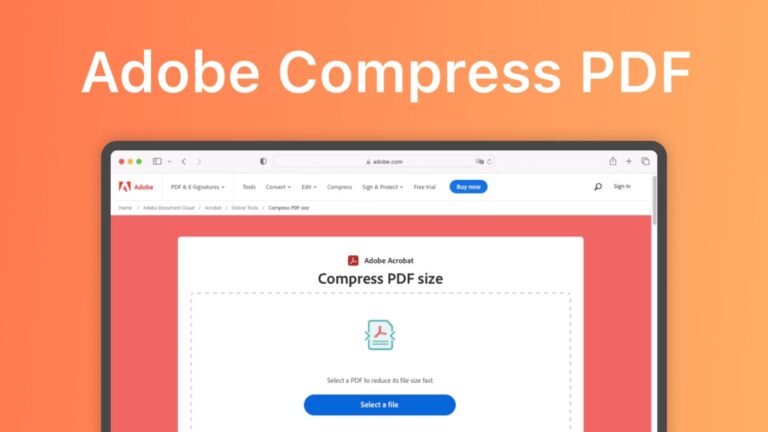
Adobe Acrobat provides dedicated tools for splitting documents and extracting selected pages. It is a useful option when you regularly work with professional documents.
Steps to Separate PDF Pages Adobe
- Open Adobe Acrobat on your computer.
- Select the PDF document you want to edit.
- Open the Organize Pages tool.
- Choose the Split option to divide the document into multiple files.
- Select a splitting method, such as page count or bookmarks.
- Open Output Options to choose the destination folder and file names.
- Select Split to create your new documents.
How to Extract Specific Pages in Adobe Acrobat
If you need only a few selected pages, use the extraction feature instead.
- Open your PDF in Acrobat.
- Select All Tools and choose Organize Pages.
- Select the page thumbnails you need.
- Choose Extract Pages.
- Select the option to extract pages as separate files if you want individual documents.
- Confirm the extraction and save your files.
Adobe Acrobat also provides options to retain the original document or remove extracted pages from it. Check the selected options carefully before confirming.
How to Separate PDF Pages on Mac Using Preview
Mac users do not always need additional PDF software. Apple’s built-in Preview application can help you extract pages from a document.
Step-by-Step Mac Instructions
- Find your PDF document in Finder.
- Right-click the file and open it with Preview.
- Select View from the top menu.
- Choose Thumbnails to display all pages.
- Select the page you want to extract.
- Drag its thumbnail from the sidebar onto your desktop.
- Open the newly created PDF to check the result.
You can also select multiple page thumbnails using the Command key and drag them together.
This is a convenient way to separate PDF pages on Mac without purchasing a dedicated PDF editor.
How to Separate PDF Pages on iPhone
You can extract PDF pages using your iPhone without needing a computer. Depending on your iOS version and installed applications, you can use Apple’s Files app, the print interface, or Adobe Acrobat’s mobile application.
Method 1: Using the Files App
- Open the Files application.
- Find the PDF document you want to split.
- Open the document and locate the Share option.
- Choose Print if available.
- Select the required page range in the print options.
- Use the print preview to create a PDF of the selected pages, if supported by your iOS version.
- Choose Share and save the resulting PDF to Files.
Method 2: Using Adobe Acrobat Mobile
- Install and open Adobe Acrobat.
- Import your PDF document.
- Open the available page organization tools.
- Select the pages you need.
- Use the supported extraction or page-management options.
- Save or share the resulting document.
The available features may depend on your Acrobat subscription and application version.
How to Separate PDF Pages on Windows
Windows users can extract selected pages through a browser’s built-in print function or a dedicated PDF editor.
Using Microsoft Edge
- Locate your PDF file.
- Right-click it and select Open with Microsoft Edge.
- Press Ctrl + P.
- Open the Pages selection option.
- Enter the page numbers or range you want to keep.
- Choose Microsoft Print to PDF or Save as PDF, depending on the available printer options.
- Select Print or Save.
- Choose a folder and name your new PDF.
For example, entering pages 3–6 creates a new document containing those four pages.
This method is particularly useful when you want to save selected pages without installing extra software.
Can You Separate PDF Pages Without Losing Quality?
Yes. Splitting a PDF normally does not require reducing the resolution of its pages. When a tool extracts existing PDF pages rather than converting them into images, the original page content can generally remain intact.
However, the final result depends on the software and extraction method.
For better results:
- Use a reliable PDF editor.
- Avoid converting pages into low-resolution images.
- Keep the original PDF as a backup.
- Check fonts, hyperlinks, and annotations after extraction.
- Avoid unnecessary compression.
- Open the new document before sharing it.
Best Methods to Separate PDF Pages: Complete Comparison Table
Different methods suit different devices and document requirements. The following table compares the most practical options.
| Method | Supported Device | Installation | Best Use |
|---|---|---|---|
| Online PDF splitter | Windows, Mac, iPhone | Usually not required | Quick page extraction |
| Adobe Acrobat desktop | Windows, Mac | Required | Professional PDF editing |
| Adobe Acrobat online | Browser-supported devices | Not required | Splitting documents online |
| Apple Preview | Mac | Built in | Extracting selected pages |
| Microsoft Edge | Windows | Usually built in | Saving selected page ranges |
| Files and Print | iPhone | Built in | Creating a PDF from selected pages |
| Acrobat mobile | iPhone, Android | Required | Managing PDFs on mobile |
Which Method Should You Choose?
- For quick extraction: Use an online PDF splitter.
- For professional editing: Choose Adobe Acrobat.
- For Mac users: Start with Apple Preview.
- For Windows users: Try Microsoft Edge’s print-to-PDF feature.
- For iPhone users: Use Files or an appropriate PDF application.
- For confidential documents: Prefer a trusted offline application.
The best method depends on your device, privacy requirements, and the number of pages you need to extract.
How to Separate PDF Pages by Page Number or Range
Sometimes you do not need an entire document. You may only want pages 2, 5, and 8 or a continuous section such as pages 10–15.
Most PDF editors provide page selection options that make this process easier.
Here are common examples:
| Your Requirement | Page Selection | Expected Result |
|---|---|---|
| Extract one page | 5 | One PDF with page 5 |
| Extract three pages | 2, 5, 8 | One document containing selected pages |
| Extract a continuous range | 3–7 | Five selected pages |
| Extract the first three pages | 1–3 | One document with pages 1–3 |
| Extract the final pages | 18–20 | One document with pages 18–20 |
| Create individual page files | 1–5 | Five individual PDF files |
Remember: Selecting several pages does not always create several individual documents. Check whether the tool offers separate-file extraction or combines the selected pages into one new document.
How to Separate PDF Pages Without Installing Software
If you do not want to download an application, browser-based tools can provide a convenient solution.
Many online PDF services allow users to upload a document, select pages, and download the extracted files.
A typical browser-based workflow includes:
- Open a PDF splitting service.
- Select your document.
- Wait for the document to load.
- Mark the pages you want.
- Select the split or extract command.
- Download your completed documents.
This approach is useful for occasional tasks and smaller documents.
Before uploading anything, review the service’s privacy policy, file-retention rules, and security information. A free service is not automatically suitable for sensitive documents.
Common Problems When Separating PDF Pages
Sometimes the extraction process does not work as expected. Understanding common problems can help you resolve them quickly.
| Problem | Possible Reason | Recommended Solution |
|---|---|---|
| PDF will not upload | Large file or unsupported format | Check file size and format |
| Pages are missing | Incorrect page selection | Review selected page numbers |
| Output file will not open | Incomplete download | Download the document again |
| PDF is password-protected | Document restrictions | Obtain the required permission |
| Pages appear in the wrong order | Incorrect selection order | Reorder pages before saving |
| File is too large | Images or embedded content | Use appropriate PDF compression |
| Text or annotations look different | Extraction or conversion issue | Use a reliable PDF editor |
What If Your PDF Is Password-Protected?
Some PDF documents have security restrictions that prevent editing, extracting, or printing pages.
If you own the document or have permission to modify it, use the authorized password or ask the document owner for an editable copy.
Do not attempt to bypass restrictions on documents you are not authorized to modify.
Tips for Organizing Your Separate PDF Files
After extracting pages, proper file organization makes future document management much easier.
Try these practical suggestions:
- Use descriptive file names.
- Include dates when documents are time-sensitive.
- Store related pages in dedicated folders.
- Keep a backup of the original document.
- Check each file before sending it.
- Remove unnecessary duplicate copies.
- Use consistent naming conventions.
For example, instead of saving documents with names such as Document1.pdf, use names like:
Invoice-March-2026.pdfBusiness-Report-Page-5.pdfStudent-Application-Form.pdfMeeting-Notes.pdf
These simple habits help you find important documents faster.
Frequently Asked Questions About Separating PDF Pages
1. How do I separate PDF pages for free?
You can use a free online PDF splitter or built-in applications such as Apple Preview. Upload or open your document, select the required pages, choose the extraction option, and save your new PDF.
2. Can you separate PDF pages into individual files?
Yes. Most dedicated PDF editors offer an option to extract selected pages as separate files. Select the pages, enable the individual-file option, and save the generated documents.
3. How can I separate PDF pages without Adobe Acrobat?
You can use an online PDF splitter, Apple Preview on Mac, or Microsoft Edge on Windows. These alternatives allow you to extract pages without purchasing Adobe Acrobat.
4. How do I separate PDF pages on Mac?
Open your document in Apple Preview and select View followed by Thumbnails. Drag the required page thumbnails onto your desktop to create new PDF documents.
5. Is it possible to separate PDF pages on an iPhone?
Yes. You can use the Files app’s available print and sharing features or a mobile PDF editor. Select the required pages and save the resulting PDF to your device.
6. Does separating PDF pages change the original document?
No, not when you use a non-destructive extraction method. Your original document normally remains unchanged, while the selected pages are saved in a new PDF file. Always check the extraction settings before confirming.
Final Thoughts: Make PDF Page Management Easier
Knowing how to separate PDF pages makes working with digital documents faster, simpler, and more organized. You can extract important pages, create individual files, share specific information, and manage large documents without keeping unnecessary content together.
Whether you prefer an online PDF splitter, Adobe Acrobat, Apple Preview, Microsoft Edge, or an iPhone application, choose the method that matches your requirements.
Always check the extracted documents before sharing them and keep a backup of important originals.
Have you tried separating PDF pages before? Which method works best for your device? Share your experience and help other readers find an easier way to manage their documents.
One Comment