Extract PDF Pages: 7 Best Free Tools and Easy Methods (2026)
Do you need specific pages from a lengthy PDF without sharing or saving the entire document? Managing large PDF files can waste time and make important information harder to organize. Fortunately, you can extract PDF pages using free online tools, desktop applications, and built-in computer features. This guide explains the best tools for 2026, compares their features, and provides simple instructions to help you create separate PDF documents.
What Does It Mean to Extract PDF Pages?
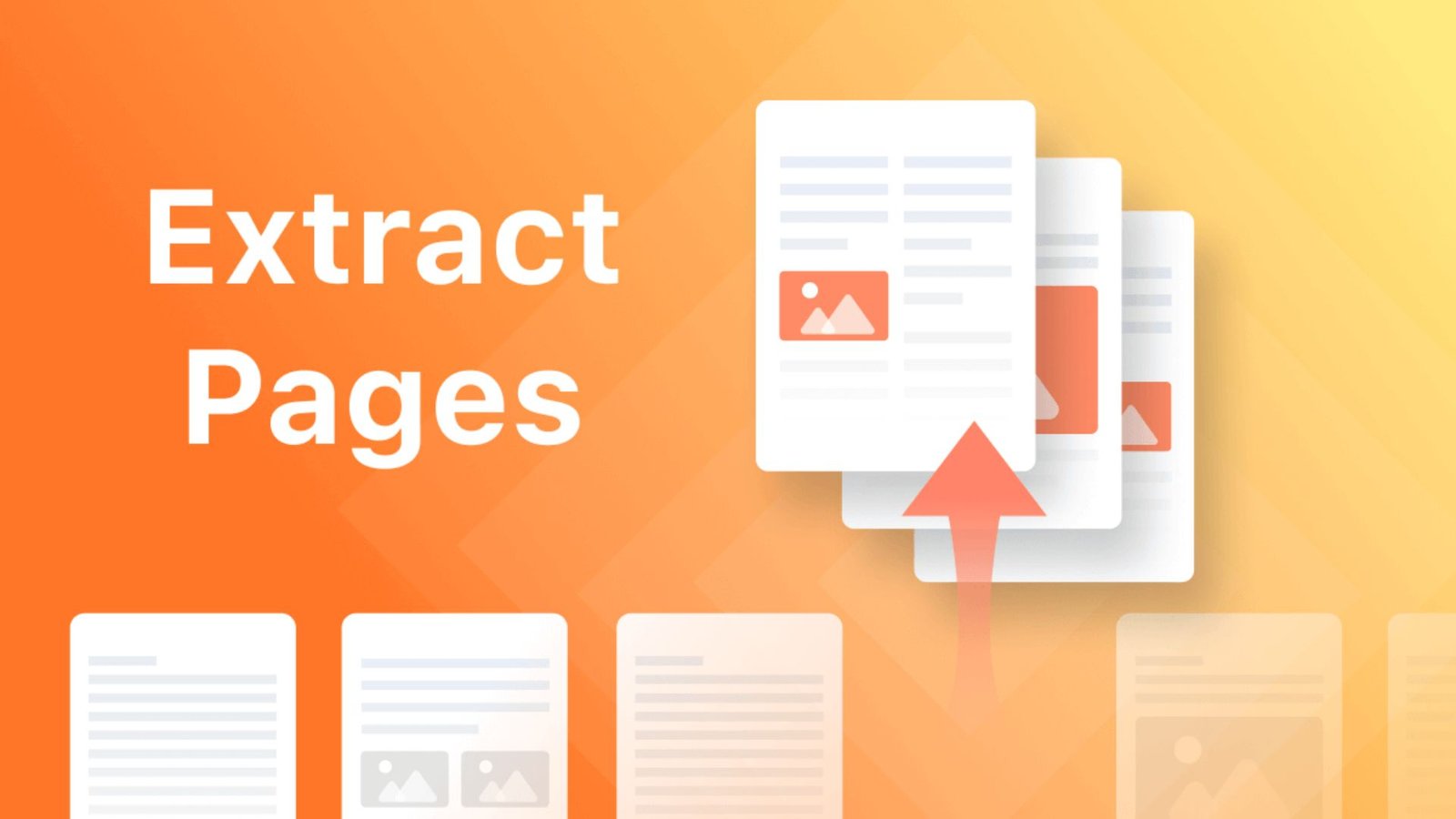
Extracting PDF pages means selecting specific pages from an existing PDF and saving them as a separate document. You can select one page, several individual pages, or an entire range.
For example, imagine you have a 100-page report but only need pages 5, 10, and 20–25. Instead of sharing the complete report, you can create a smaller PDF containing only the information you need.
This process helps you:
- Share important information quickly.
- Reduce unnecessary document pages.
- Organize business reports and study materials.
- Separate invoices, receipts, and contracts.
- Prepare customized documents for printing.
- Save relevant information in separate files.
What Is the Best Tool to Extract PDF Pages in 2026?
The best tool depends on your budget, privacy requirements, document size, and technical experience.
Some applications process documents directly on your computer, while others allow you to work through a web browser.
Here are seven popular options worth considering:
- Adobe Acrobat
- PDFsam Basic
- Sejda PDF
- iLovePDF
- qpdf
- Microsoft Edge
- macOS Preview
Each tool offers different features, so comparing them can help you make the right choice.
7 Best Tools to Extract PDF Pages
1. Adobe Acrobat – Best for Professional PDF Extraction
Adobe Acrobat is a popular PDF management application with features for editing, organizing, converting, and extracting pages.
Its Organize Pages feature allows users to select individual pages or multiple page ranges and save them as a separate PDF.
Main features:
- Select individual PDF pages.
- Extract multiple pages.
- Organize document pages.
- Create separate PDF files.
- Manage professional documents.
- Preserve the original document when using the appropriate extraction option.
How to extract PDF pages in Adobe Acrobat
- Open your PDF in Adobe Acrobat.
- Select All Tools.
- Choose Organize Pages.
- Select the pages you want to extract.
- Click Extract Pages.
- Choose whether to create individual files.
- Decide whether to keep or remove the selected pages from the original.
- Click Extract.
- Save your new PDF document.
Best for: Professionals, businesses, students, and people who regularly manage PDF documents.
2. PDFsam Basic – Best Free Offline Tool
PDFsam Basic is a free, open-source application designed for PDF splitting, merging, and page extraction.
It is particularly useful when you want to process documents locally without uploading them to an online service.
Main features:
- Free basic extraction features.
- Offline document processing.
- Multiple page selection.
- Page-range extraction.
- PDF splitting and merging.
- Support for Windows, macOS, and Linux.
How to extract PDF pages free with PDFsam Basic
- Download and install PDFsam Basic.
- Open the application.
- Select the Extract option.
- Add your PDF document.
- Enter the page numbers or ranges.
- Select your output folder.
- Click Run.
- Open the new PDF to verify the extracted pages.
For example, entering 2,5-7,12 selects page 2, pages 5–7, and page 12.
Best for: Users who want a free offline solution with useful page-management features.
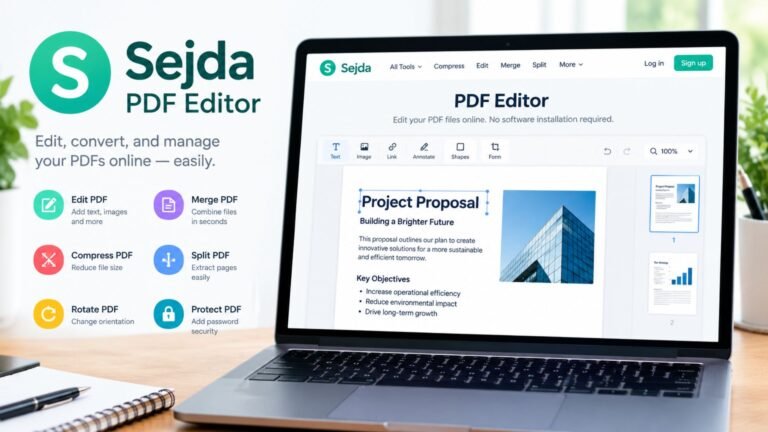
3. Sejda – Best Online PDF Extraction Tool
Sejda offers browser-based PDF processing and a visual page-selection interface.
Instead of manually entering every page number, users can select pages through document thumbnails.
Main features:
- Visual page selection.
- Individual page extraction.
- Multiple page ranges.
- Odd and even page selection.
- Online PDF processing.
- Separate document creation.
How to extract PDF pages online
- Open the Sejda PDF extraction tool.
- Select your PDF document.
- Wait for the page thumbnails to load.
- Choose the pages you need.
- Review your selection.
- Click Extract Pages.
- Download your new PDF.
The free online version has usage restrictions, so check the current file-size and task limits before processing large documents.
Best for: People who need a quick online extraction process without installing desktop software.
4. iLovePDF – Best for Beginners
iLovePDF provides a simple interface for managing PDF documents.
Its page extraction feature allows users to select specific pages and create separate documents. The visual selection process makes it suitable for beginners.
Main features:
- Select pages through thumbnails.
- Extract individual pages.
- Combine selected pages into one PDF.
- Download separate extracted files.
- Support for cloud-based file importing.
- Additional PDF editing tools.
How to extract PDF pages free online
- Open the iLovePDF extraction tool.
- Upload your PDF document.
- Review the page thumbnails.
- Select the pages you want.
- Choose your preferred extraction method.
- Start the extraction process.
- Download the completed PDF.
Best for: Beginners, students, and office workers who want a straightforward online experience.
5. qpdf – Best Command-Line Tool
qpdf is an open-source command-line utility for processing PDF documents.
It is particularly helpful for developers and technical users who want to automate document management tasks.
Main features:
- Free and open-source.
- Individual page extraction.
- Multiple page ranges.
- Local document processing.
- Automated PDF workflows.
- Advanced document manipulation.
Example command to extract PDF pages:
qpdf input.pdf --pages . 1,3,5-7 -- output.pdfThis command creates a new document containing pages 1, 3, 5, 6, and 7.
How to use qpdf
- Install qpdf on your computer.
- Open Command Prompt or Terminal.
- Navigate to the folder containing your PDF.
- Enter the extraction command.
- Replace the input filename with your actual document name.
- Specify the pages you want.
- Run the command.
- Check the output document.
Best for: Developers, IT professionals, and users who regularly process multiple PDF documents.
6. Microsoft Edge – Best for Quick Page Extraction
Microsoft Edge includes a built-in PDF viewer and printing functionality.
You can use its custom page selection feature to create a new PDF without installing another application.
Main features:
- Built-in PDF viewing.
- Custom page selection.
- Print-to-PDF functionality.
- No separate extraction application required.
- Simple document handling.
How to extract PDF pages using Microsoft Edge
- Open your PDF in Microsoft Edge.
- Press Ctrl + P on Windows.
- Select Microsoft Print to PDF or another available PDF destination.
- Find the page selection settings.
- Enter the required page numbers.
- Click Print.
- Select a filename.
- Save your new document.
Best for: Users who need a few pages from a document and already use Microsoft Edge.
Important: Printing to PDF may change interactive features, annotations, or document formatting. Review the resulting file carefully.
7. macOS Preview – Best Free Option for Mac Users
Preview is included with macOS and provides useful features for viewing and organizing PDF documents.
You can select page thumbnails and create a separate document containing the pages you need.
Main features:
- Free built-in application.
- Page thumbnail selection.
- Individual page management.
- Multiple page selection.
- PDF saving and exporting.
- Offline processing.
How to extract PDF pages using Preview
- Open your PDF in Preview.
- Select View.
- Enable Thumbnails.
- Hold the Command key to select multiple pages.
- Choose the required page thumbnails.
- Copy the selected pages.
- Create a new PDF from the selected pages.
- Save your new document.
Best for: Mac users who prefer built-in PDF management features.
Detailed Comparison of the Best PDF Extraction Tools
Choosing the right software becomes easier when you compare its features.
The following table highlights the main differences between popular options.
| Feature | Adobe Acrobat | PDFsam | Sejda | iLovePDF | qpdf |
|---|---|---|---|---|---|
| Extract one page | Yes | Yes | Yes | Yes | Yes |
| Extract multiple pages | Yes | Yes | Yes | Yes | Yes |
| Page-range selection | Yes | Yes | Yes | Yes | Yes |
| Offline processing | Yes | Yes | Desktop option | Desktop option | Yes |
| Online processing | Yes | No | Yes | Yes | No |
| Free option | Limited | Yes | Yes | Yes | Yes |
| Batch processing | Supported | Yes | Limited | Limited | Yes |
| Beginner-friendly | Yes | Yes | Yes | Yes | No |
Features, subscription requirements, and usage restrictions can change depending on the software version.
How to Extract PDF Pages Step by Step
You do not need advanced technical knowledge to separate pages from a PDF. Follow these simple instructions to create a document containing only the information you need.
Step 1: Open Your PDF Document
First, locate the PDF file on your computer, laptop, or supported cloud storage service.
Open it using a PDF reader or extraction application. Make sure the document loads correctly before continuing.
Step 2: Choose Your Extraction Tool
Select an application based on your requirements.
- Choose Adobe Acrobat for professional editing.
- Choose PDFsam Basic for free offline processing.
- Choose Sejda for visual online extraction.
- Choose iLovePDF for a beginner-friendly workflow.
- Choose qpdf for command-line processing.
Step 3: Select the Required Pages
Identify the pages you want to save.
You can select:
- One individual page.
- Multiple non-consecutive pages.
- A continuous page range.
- Odd-numbered pages.
- Even-numbered pages.
Step 4: Create Your New PDF
After selecting the required pages, confirm your selection and start the extraction process.
The application will create a new PDF containing your chosen pages.
Step 5: Save and Review the Document
Choose a recognizable filename and select your preferred storage location.
Open the new PDF to confirm that the page order, content, and formatting are correct.
Keep your original document until you verify the extracted file.
How to Extract PDF Pages Online Free Without Installing Software
Online PDF extraction tools are useful when you need to process documents quickly.
They allow you to work through a browser without downloading a separate desktop application.
Follow these steps:
- Open an online PDF extraction service.
- Upload your PDF file.
- Wait for the document to load.
- Select individual pages or page ranges.
- Review the selected pages.
- Start the extraction process.
- Download your new PDF document.
Tips for successful online extraction:
- Check free file-size restrictions.
- Avoid uploading confidential documents to unfamiliar websites.
- Use a secure internet connection.
- Review the downloaded document.
- Check the service’s file-retention policy.
How to Extract PDF Pages With Bookmarks
PDF bookmarks are navigation shortcuts that help readers find chapters, sections, and topics inside a document.
For example, a research report may contain bookmarks for:
- Introduction
- Research Methodology
- Results
- Discussion
- References
If you need a particular chapter, bookmarks can help you identify the relevant page range.
However, bookmarks and page extraction are different features. Not every application automatically selects pages based on bookmarks, and extracted documents may not preserve the original bookmark structure.
How to extract pages using bookmarks:
- Open your PDF in a compatible application.
- Display the bookmarks or document outline panel.
- Find the chapter or section you need.
- Identify its starting and ending page numbers.
- Open the extraction feature.
- Enter the required page range.
- Save the extracted document.
- Review the resulting bookmarks.
Pro tip: Check whether your selected software supports bookmark-based splitting if you regularly separate chapters from lengthy documents.
How to Extract PDF Pages in Adobe Acrobat Online
Adobe Acrobat also provides browser-based PDF management features.
This option is convenient when you want to work without installing the desktop application.
Follow these steps:
- Open Adobe Acrobat on the web.
- Select the page extraction feature.
- Choose your PDF document.
- Wait for the document to load.
- Select the required pages.
- Review your selection.
- Click Extract.
- Save or download your new document.
Feature availability may depend on your Adobe account and subscription.
What Is the Best Free Tool to Extract PDF Pages?
PDFsam Basic is an excellent choice for users who want free offline PDF extraction.
It offers page selection, multiple page ranges, and other useful document-management features.
However, the best application depends on your individual needs.
| Requirement | Recommended tool | Main advantage |
|---|---|---|
| Free offline extraction | PDFsam Basic | Open-source software |
| Professional editing | Adobe Acrobat | Advanced management |
| Quick online extraction | Sejda | Visual page selection |
| Simple browser workflow | iLovePDF | Easy interface |
| Automated processing | qpdf | Command-line support |
| No extra installation | Microsoft Edge | Built-in PDF printing |
| Mac page management | Preview | Included with macOS |
What Is the Best Free Tool to Extract PDF Pages in 2025 or 2026?
For 2026, PDFsam Basic is a strong free desktop choice. Sejda and iLovePDF are convenient alternatives for browser-based processing.
Instead of choosing a tool based only on popularity, consider its privacy features, file-size restrictions, and extraction capabilities.
How to Extract PDF Pages Without Losing Quality
Many users worry that extracting pages will reduce image quality or damage the original document.
A dedicated PDF extraction feature generally transfers selected page content into a new document without converting every page into an image.
To maintain document quality:
- Use a dedicated extraction feature.
- Avoid unnecessary image conversion.
- Keep the original PDF.
- Check embedded fonts and images.
- Review hyperlinks and form fields.
- Confirm scanned pages remain readable.
- Avoid unnecessary compression.
Printing a PDF into another PDF is different from directly extracting pages. Printing can change interactive features and document properties.
Is It Safe to Extract PDF Pages Online?
Online extraction tools can save time, but document privacy should always be considered.
A PDF may contain personal information, financial records, contracts, business documents, or confidential reports.
Before uploading a document, review the provider’s privacy policy, file-retention practices, and processing method.
Follow these safety practices:
- Prefer offline software for sensitive documents.
- Avoid unfamiliar PDF websites.
- Check whether documents are uploaded to remote servers.
- Use password protection when appropriate.
- Share extracted documents only with authorized people.
- Remove unnecessary sensitive information before sharing.
PDFsam Basic is a useful option when you want to avoid uploading documents to an online service.
How to Extract PDF Pages Using Command-Line Tools
Command-line utilities are useful when you regularly process multiple PDF documents.
They can also automate repetitive tasks and help developers integrate PDF processing into their applications.
Example: Extract Specific Pages With qpdf
qpdf input.pdf --pages . 2,4,6-9 -- output.pdfThis command creates a new PDF containing pages 2, 4, 6, 7, 8, and 9.
Why Choose Command-Line Extraction?
- Automate repetitive document tasks.
- Process several files through scripts.
- Select exact page ranges.
- Avoid online file uploads.
- Integrate PDF processing into applications.
qpdf is a useful open-source utility for users who prefer command-line document management.
Important: Always test commands on copies of important documents before processing original files.
Common Problems When Extracting PDF Pages and How to Fix Them
Sometimes PDF extraction does not work as expected. Problems may relate to document permissions, damaged files, incorrect page selection, or software limitations.
| Problem | Possible reason | Solution |
|---|---|---|
| PDF will not open | Damaged document | Try a backup copy |
| Extraction option unavailable | Software limitation | Use another PDF application |
| Password required | Document protection | Obtain authorized access |
| Wrong pages extracted | Incorrect page numbers | Review page selection |
| Blank extracted pages | Rendering problem | Try another extraction method |
| Missing bookmarks | Navigation data not preserved | Recreate bookmarks |
| Online upload fails | File-size restriction | Use offline software |
| Output file is too large | Large images or scans | Apply suitable compression |
Why Are My Extracted PDF Pages Blank?
Blank pages can result from damaged PDF content, rendering problems, or application compatibility issues.
Try opening the original document in another PDF reader. If the problem continues, use another extraction tool and compare the results.
Can I Extract Pages From a Password-Protected PDF?
You may be able to extract pages if you have the required password and document permissions.
Some PDFs restrict editing or page extraction. Always obtain authorization from the document owner before attempting to modify a protected file.
Best Practices for Managing Extracted PDF Documents
Extracting pages is only one part of good document management.
Organizing your new files properly makes future work easier and helps prevent confusion.
Consider these practices:
- Use descriptive filenames.
- Include page numbers in filenames when useful.
- Keep original documents in a separate folder.
- Review extracted pages before sharing.
- Maintain consistent naming conventions.
- Store important documents securely.
- Remove unnecessary duplicate files.
For example, instead of naming every file document1.pdf, use descriptive names such as:
Research-Chapter-1.pdfInvoice-Pages-5-8.pdfBusiness-Report-Summary.pdfContract-Selected-Pages.pdf
This approach helps you find important documents faster.
Frequently Asked Questions About Extracting PDF Pages
1. What is the best tool to extract PDF pages?
PDFsam Basic is an excellent free offline option. Adobe Acrobat is suitable for professional document management, while Sejda and iLovePDF are convenient online alternatives.
2. How can I extract PDF pages for free?
Install PDFsam Basic or use a free online extraction service. Select the pages you need, create a new document, and save the resulting PDF.
3. Can I extract PDF pages online without installing software?
Yes. Online tools such as Sejda and iLovePDF allow you to upload a PDF, select specific pages, and download a separate document.
4. How do I extract PDF pages in Adobe Acrobat?
Open your document, select Organize Pages, highlight the required pages, choose Extract Pages, and save the resulting PDF.
5. Can I extract multiple PDF pages into one document?
Yes. Most dedicated PDF extraction applications allow you to select multiple individual pages or ranges and combine them into one new PDF.
6. What is the best command-line tool for extracting PDF pages?
qpdf is a strong open-source choice. It supports page selection through command-line instructions and is useful for developers and automated workflows.
Conclusion: Choose the Right PDF Extraction Tool
Choosing the right PDF application can make document management faster, easier, and more convenient. Whether you need to separate a few pages from a school assignment or organize a large business report, several free and professional options are available.
PDFsam Basic is a strong choice for free offline processing. Adobe Acrobat offers advanced document management, while Sejda and iLovePDF provide convenient browser-based alternatives.
Before choosing a tool, consider your privacy requirements, document size, and extraction needs. Always review the final PDF to make sure the correct pages, formatting, and important information are preserved.
Which PDF extraction tool do you prefer? Share your experience and help other readers choose the right solution.